AnyMP4 Video Converter Ultimate is a professional-grade media processing software engineered to convert, edit, and compress digital files with zero quality loss. Utilizing advanced GPU hardware acceleration, the software converts 8K, 4K, and HD videos across more than 500 supported formats at up to 70x faster processing speeds.
In addition to video conversion processes, it provides a complete 1:1 lossless DVD ripping solution, allowing users to digitize physical disc collections directly into MP4, MKV, or ISO formats. The AnyMP4 Video Converter Ultimate tool also features an integrated AI-powered enhancement module that automatically upscales low-resolution videos, stabilizes shaky footage, and removes visual noise. Equipped with a built-in video compressor, precise editing tools, and a watermark remover, this all-in-one multimedia suite gives users absolute control over their audio and video files, ensuring optimal playback and easy sharing across any device or platform.
Upscaling your videos to 4K or ripping physical discs is only half the battle. To actually view these massive, uncompressed files with their original surround sound and native 4K HDR coloring, standard media players often struggle with lag or codec errors. For a flawless playback experience of ISO files, 4K folders, and physical Blu-ray discs, you need a dedicated, hardware-accelerated media engine.
🎁 Special Offer: Upgrade your viewing experience today. Claim your official 50% AnyMP4 Blu-ray Player Coupon Code to unlock region-free, 4K cinematic playback on your PC or Mac.
Encountering “format not supported” errors points directly to software limitations, not hardware failures. According to Microsoft’s official codec documentation, standard Windows Media Player lacks native, out-of-the-box support for advanced algorithms like HEVC (H.265), AV1, and multi-channel AC-3 (Dolby Digital) audio without downloading additional paid extensions. A specialized engine like AnyMP4 bypasses these severe operating system restrictions by providing its own integrated decoding architecture.
Key Features of AnyMP4 Video Converter Ultimate
- Comprehensive Media Conversion: Processes and converts video and audio files across more than 500 digital formats. It fully supports high-resolution outputs, including 8K, 5K, 4K UHD, and 1080p HD, ensuring native playback compatibility across all smartphones, tablets, and gaming consoles.
- Hardware-Accelerated Processing: Utilizes advanced GPU acceleration technology from Intel, NVIDIA, and AMD to achieve up to 70x faster conversion speeds. This multi-core optimization allows for rapid batch processing of heavy multimedia files without draining overall system resources.
- Lossless DVD Digitization: Rips physical DVD discs and folders into popular digital formats like MP4, MKV, and MPG. The AnyMP4 Video Converter Ultimate maintains a strict 1:1 original structure, preserving all source audio tracks, interactive menus, and subtitle files without degrading the original image quality.
- AI-Powered Video Enhancement: Integrates deep learning algorithms to automatically upscale standard definition (SD) content to HD or 4K resolution. The AI engine also stabilizes shaky camera footage, removes visual background noise, and automatically corrects brightness and contrast levels.
- Integrated Editing Suite: Features a native movie maker module that allows users to cut, crop, merge, and rotate video clips precisely. It includes options to apply custom visual filters, synchronize external audio tracks, insert custom subtitles (.srt, .ass), and create dynamic split-screen presentations.
- Advanced Multimedia Toolbox: Houses a dedicated set of utility tools designed for targeted media management. This includes a smart video compressor to reduce file sizes for social media uploads, an AI watermark remover, an animated GIF maker, a video speed controller, and an audio noise reduction module.
AnyMP4 Video Converter Ultimate: Advanced Multimedia Toolbox
| Utility Category | Tool Name | Technical Function & Application |
|---|---|---|
| Optimization | Video Compressor | Precisely control bitrate and reduce overall video file sizes for seamless social media uploads. |
| Optimization | Noise Remover | Filter out background static and purify embedded audio channels without degrading the source file. |
| Visual Editing | Video Watermark Remover | Seamlessly erase unwanted logos, timestamps, or embedded text from video frames. |
| Visual Editing | Color Correction | Adjust structural contrast, brightness, saturation, and hue to achieve optimal visual balance. |
| Visual Editing | 3D Maker | Convert standard 2D video files into immersive 3D formats (Anaglyph or Split-screen) for VR headsets. |
| Creative Control | Video Speed Controller | Accelerate or apply slow-motion effects to specific video segments. |
| Creative Control | Video Reverser | Process and play video files backward for customized editing and social media content creation. |
| Creative Control | GIF Maker | Extract segments from MP4, MKV, or AVI files and convert them into high-quality animated GIFs. |
| File Management | Media Metadata Editor | Modify hidden ID3 tags and structural metadata information for organized video and audio libraries. |
| File Management | Image Converter | Transcode standard image formats (JPG, PNG, WEBP, TIFF) and adjust background elements. |
| File Management | File Date Changer | Modify the exact created, modified, and accessed timestamps for batch media files. |
How to Fix Blurry Videos and Upscale Quality Using AI
Instead of discarding heavily pixelated or out-of-focus recordings, you can salvage them using the integrated artificial intelligence engine. The AnyMP4 Video Converter Ultimate software targets the specific reasons behind visual degradation—whether it is low-light grain, camera shake, or poor resolution compression.
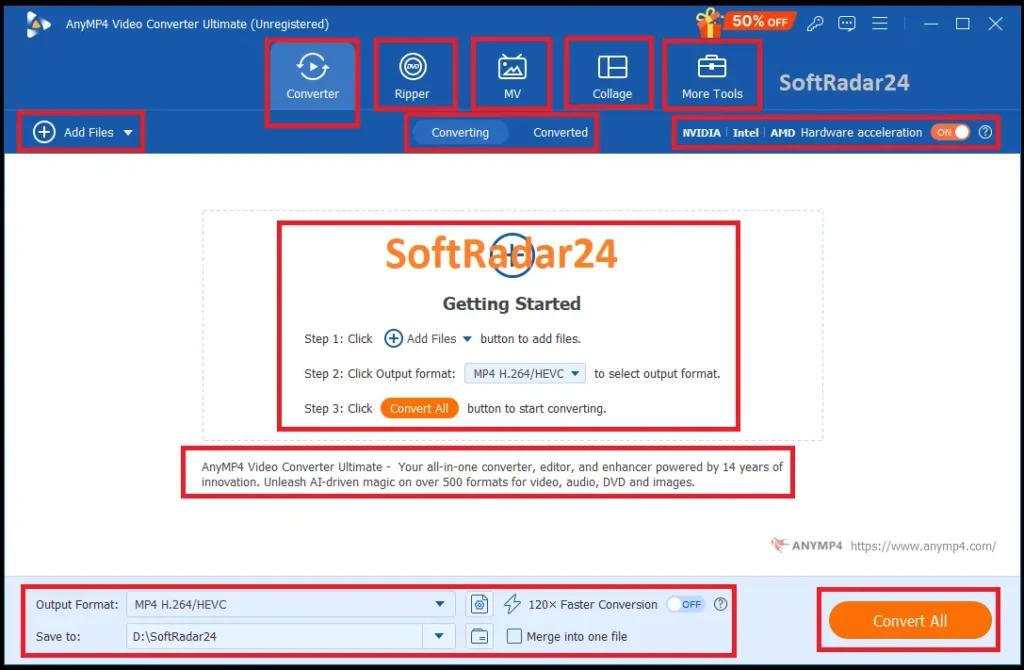
Here is the exact step-by-step process to remove blur from a video and restore its clarity:
Step 1: Open the Video Enhancer Module
Bypass the primary conversion dashboard by clicking on the AnyMP4 Video Converter Ultimate Toolbox tab located in the top navigation bar. From the utility grid, select the Video Enhancer tool to launch the dedicated AI restoration interface.
Step 2: Import Your Low-Resolution File
Click the central “+” icon to load the media file you need to repair. The engine supports massive input variations, meaning you can directly import standard MP4s, uncompressed AVI files, or raw footage pulled straight from a mobile device without pre-converting them.
Step 3: Activate the AI Restoration Algorithms
This is the critical stage where the artificial intelligence reconstructs missing pixel data. You will see four distinct optimization options. Check the boxes based on your specific visual issues:
- Upscale Resolution: Ideal for converting old 480p or 720p clips into crisp 1080p or 4K UHD. The AI analyzes adjacent pixels and intelligently fills in the missing visual data to eliminate blocky pixelation.
- Optimize Brightness and Contrast: Fixes severe exposure issues. For blur caused by poor lighting, this AnyMP4 Video Converter Ultimate tool automatically balances the shadows and highlights to reveal hidden foreground details.
- Remove Video Noise: Targets the static, “snowy” grain often found in low-light recordings or highly compressed videos downloaded from social media platforms.
- Reduce Video Shaking: Corrects motion blur. For footage recorded handheld without a gimbal, this stabilization algorithm calculates the camera trajectory and recenters the frame to produce a smooth, steady result.
Step 4: Preview and Export the Repaired Footage
Before finalizing the repair, select your target output format and resolution from the bottom dropdown menus. Always use the Preview button to generate a 10-second snippet of the restored version to compare against your original file. Once satisfied with the sharpened clarity, click the Enhance button to process and save the polished video to your local drive.
How to Digitize Physical DVDs to Lossless MKV Without Quality Degradation
Physical optical discs degrade over time, putting classic movie collections and family archives at risk of permanent data corruption. While standard extraction tools compress video data and strip away essential audio tracks, AnyMP4 Video Converter Ultimate utilizes a precise 1:1 cloning engine. This mechanism extracts the exact raw data into a secure digital format without triggering any destructive compression algorithms. Here is the technical workflow to archive your DVDs accurately.
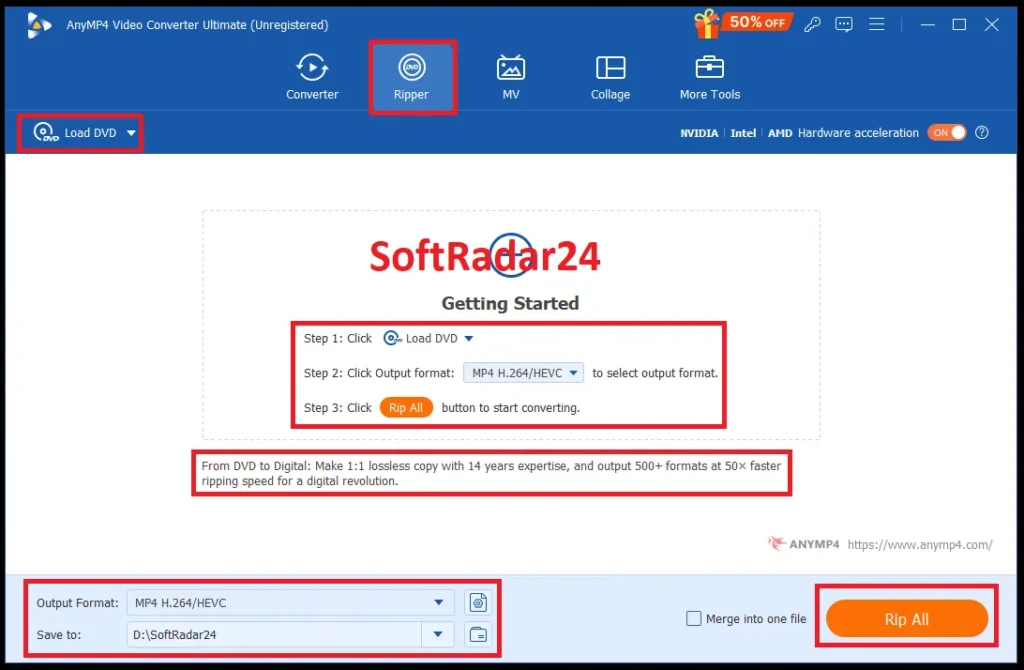
Step 1: Initialize the Ripper Module and Load Media
Insert your physical disc into the optical drive or mount a virtual ISO file. Launch the AnyMP4 Video Converter Ultimate and navigate to the dedicated DVD Ripper tab on the main dashboard. Click the Load DVD button. The DVD Ripper software will instantly analyze the disc structure, identifying the main movie title and bypassing standard reading restrictions.
Step 2: Define the Lossless Output Architecture
To prevent algorithmic compression, you must select the correct output profile. Click the Output Format dropdown menu located at the bottom left. Instead of standard MP4 or WebM, explicitly select either MPG Lossless or MKV Lossless. This specific protocol guarantees that the software copies the original video stream bit-by-bit without engaging the transcoding engine.
Step 3: Secure Audio Channels and Embedded Subtitles
Unlike basic converters that flatten audio into a single stereo track, this module allows full structural retention. Before processing, review the file details on the dashboard. Use the dropdown menus next to the audio and subtitle icons to ensure all original elements—such as 5.1 surround sound tracks, alternative language dubs, and closed captions—are checked for the final extraction.
Step 4: Execute the Hardware-Accelerated Extraction
Assign a secure output destination folder on your local hard drive with sufficient storage space. Click the Rip All button. The application will immediately leverage GPU acceleration (NVIDIA CUDA, Intel QSV, or AMD) to process the heavy data transfer up to 10x faster than traditional CPU-bound ripping, delivering an exact, uncompressed digital replica of your physical media.
How to Reduce MP4 File Size from GB to MB Without Quality Loss
Cloud-based compression tools force users to endure hours of uploading, only to return heavily watermarked files with severe privacy risks. When handling raw gameplay footage, high-resolution smartphone recordings, or long corporate presentations, relying on a web browser is not a viable strategy. Recognized as the best offline video compressor for large files, AnyMP4 Video Converter Ultimate allows you to process massive data locally on your hardware.
Whether you need to bypass strict Discord upload limits or attach a heavy media file to an email, here is the direct workflow to shrink your files securely.
Step 1: Access the Dedicated Compressor Module
Navigate away from the primary conversion dashboard and click the Toolbox tab. Select the AnyMP4 Video Converter Ultimate Video Compressor utility. This specific module bypasses standard conversion rules and grants you absolute control over the target file weight.
Step 2: Import the Oversized Media
Click the central icon to load your heavy video file. Because the AnyMP4 Video Converter Ultimate processes everything locally, it instantly analyzes the current bitrate and structural metadata of gigabyte-sized files without any uploading delays or internet bandwidth consumption.
Step 3: Manipulate the Compression Parameters
Drag the size slider to dictate your exact target weight (e.g., dialing it down to exactly 24MB to meet Discord’s attachment limits). If you are working with ultra-high-definition source material, you can use the resolution dropdown to compress 4K video to 1080p easily. Downscaling the physical frame size drastically reduces the required bitrate while maintaining a crisp, highly detailed image.
Step 4: Validate and Export the Compressed File
Avoid exporting blindly. Click the Preview button to generate a quick 10-second segment of the compressed file. Once you confirm the visual fidelity meets your standards, designate an output folder and click Compress. The AnyMP4 Video Converter Ultimate engine will utilize hardware acceleration to rewrite the file structure in seconds.
AnyMP4 Video Converter Ultimate Discount Coupon Code 2026
If you are tired of paying full retail prices for multimedia software, you have arrived at the right place. Most third-party coupon sites offer expired links or fake promo codes. However, through our exclusive partnership, you can secure an official 50% coupon on all premium licenses without entering any complex strings at checkout.
Whether you operate on Windows or macOS, this direct AnyMP4 Video Converter Ultimate discount code automatically halves the original price. Below, we have verified the latest 2026 pricing tiers. Simply click on your preferred subscription model, and the 50% savings will be instantly applied to your cart, ensuring you get the absolute best deal on both 1-Year and Lifetime licenses.
AnyMP4 Coupon Applied Automatically at Checkout


AnyMP4 Video Converter Ultimate for Windows – 50% OFF
AnyMP4 Video Converter Ultimate (1-Year License)
Convert 500+ media formats locally and access AI video enhancement tools for a full year at 50% off.
AnyMP4 Video Converter Ultimate (Lifetime License)
Secure permanent access to lossless DVD ripping, video compression, and future updates with one payment.
AnyMP4 Video Converter Ultimate for Mac – 50% OFF
AnyMP4 Mac Video Converter Ultimate (1-Year License)
Elevate your macOS digital workspace by safely converting and editing over 500 media formats instantly.
AnyMP4 Mac Video Converter Ultimate (Lifetime License)
Get lifelong media management on macOS, featuring advanced watermark removal and 4K upscaling tools.