Quick Summary
Tipard Total Media Converter is a DVD, video and audio conversion suite for Windows and Mac. Its documented strengths are DVD disc/folder/IFO conversion, AVCHD handling, common video/audio transcoding, batch processing, audio extraction and a set of practical editing tools including crop, trim, rotate, subtitles, effects, enhancement, watermarking and 2D-to-3D conversion. Tipard now promotes Video Converter Ultimate as its newer flagship converter, so this review deliberately evaluates Total Media Converter on its own documented feature set instead of assigning newer AI, 5K/8K or expanded toolbox features to the older product name.
- Primary job
- DVD, video and audio conversion with basic editing
- Platforms
- Windows & macOS
- License options
- 1-Year · Lifetime · 1 computer
- Best fit
- DVD-to-video conversion, batch format changes and audio extraction
Tipard Total Media Converter Pricing, Discount Code & License Options
The current Tipard Total Media Converter coupon discount is applied automatically to the eligible SoftRadar24 checkout links below. No manual coupon code entry is required.
License & Purchase · Tipard Total Media Converter · Windows & Mac · Current Discount & Coupon Offer
Current Tipard Total Media Converter License Prices
The purchase selector currently includes the following discounted license options:
- Tipard Total Media Converter 1-Year License · Windows · 1 PC · US$27.50
- Tipard Total Media Converter Lifetime License · Windows · 1 PC · US$28.12
- Tipard Total Media Converter for Mac 1-Year License · 1 Mac · US$27.50
- Tipard Total Media Converter for Mac Lifetime License · 1 Mac · US$28.12
Choose Windows or macOS first, then select the 1-Year or Lifetime license for one computer. The 1-Year / 1-PC Windows option is selected first because it has the lowest current upfront price at US$27.50. The Lifetime option is only US$0.62 more on either platform, so it is the stronger value when you expect to use the same licensed platform beyond one year.
Tipard Total Media Converter · 1-Year License
1 Windows PC · 1-year Tipard Total Media Converter license
Included with this license- DVD, video and audio conversion on 1 Windows PC
- Batch conversion and audio extraction workflows
- Built-in crop, trim, rotate, subtitle, effect and enhancement controls
- One-year licensed access for the selected Windows PC
US$27.50/ year
Regular US$55.00
50% discount automatically applied
Buy NowWindows · 1 Year · 1 PC
The Lifetime / 1-PC offer is US$28.12 on Windows or Mac—only US$0.62 more than the corresponding US$27.50 annual license. If the checkout still shows those prices, lifetime is the more economical choice for use beyond a single year.
Tipard now promotes Video Converter Ultimate as its newer flagship converter and its standard public store can show a different product mix or pricing. The four links above are the current SoftRadar24 Total Media Converter campaign URLs supplied for this page. Confirm the product name, operating system, license duration, renewal or one-time status, optional add-ons, tax and final total shown at checkout before payment.
Can This Software Do What I Need?
Tipard Total Media Converter combines DVD conversion, normal video/audio transcoding and basic editing. Use the scenarios below to separate jobs the product directly covers from newer AI-enhancement or creator-focused workflows that belong to a different tool.
I want to convert a DVD to MP4, AVI, MOV, WMV or another normal video format
DVD digitization
SupportedDVD conversion is one of Tipard Total Media Converter’s core documented jobs. The product page specifically covers DVD disc, DVD folder and IFO input, with digital video/audio output for computers and portable devices.
I have AVCHD, MTS, M2TS, MXF, MKV, FLV, TS or other camera/media files to convert
Format conversion
SupportedThe documented Total Media Converter workflow covers AVCHD and common HD/video containers including MTS, MKV, FLV, TS and MXF, with outputs such as MP4, AVI, MOV and WMV.
I need to convert many files in one batch
Batch processing
SupportedTipard documents bulk conversion instead of requiring every file to be processed individually. That is useful when a folder contains multiple videos that need the same target format or device profile.
I only need the audio from a DVD or video
Audio extraction
SupportedThe product can extract audio from DVD and video sources and convert audio between common formats including MP3, AAC and other documented targets.
I need to crop, trim, rotate, flip or watermark a video before conversion
Basic editing
SupportedThese are native Total Media Converter editing tasks. Tipard also documents subtitle/audio-track selection and brightness, contrast, saturation and hue adjustments.
I want to stabilize shaky footage, reduce noise or upscale resolution
Classic video enhancement
SupportedThe legacy Enhance function documents resolution upscaling, shake reduction, video-noise removal and brightness/contrast optimization. These are conventional enhancement tools and should not be confused with the newer AI models marketed in current-generation converter products.
I want to convert ordinary 2D footage into a 3D presentation format
2D-to-3D conversion
SupportedTipard documents Side by Side, Top and Bottom and Anaglyph 3D conversion modes for Total Media Converter.
I want GPU-assisted conversion on a compatible Windows PC
Hardware acceleration
ConditionalTipard advertises NVIDIA CUDA and AMD APP acceleration plus multi-core CPU use. Actual speed depends on source codec, output settings, hardware, drivers and whether a specific task can use the accelerated path; SoftRadar24 has not independently benchmarked the vendor’s up-to-30× marketing claim.
I need modern AI upscaling, frame interpolation or AI denoise models
AI restoration
Different taskDo not buy Total Media Converter because newer Tipard pages advertise AI or 5K/8K features under Video Converter Ultimate. Those newer capabilities are not automatically part of the legacy Total Media Converter feature set reviewed here.
I mainly want to compress large modern 4K/8K files with a newer codec/toolbox workflow
Modern conversion suite
Better fitA current-generation video converter is the better category when modern codec coverage, a larger toolbox or newer hardware/AI acceleration matters more than legacy DVD-plus-video conversion.
I only want to play videos or DVDs without creating a converted file
Playback only
Different taskConversion adds an unnecessary export step when playback is the only objective. A media player is the more direct software category.
How It Works
The workflow is straightforward: load DVD or media sources, choose the target profile, make any necessary edits, preview the result and start conversion. Different files can be converted together in a batch.
Convert a DVD to a Digital File
- Insert or load the DVD source, DVD folder or IFO content you are authorized to use.
- Choose the target video or audio profile based on the device or software that will play the output.
- Select the required audio track and subtitles where available.
- Preview the result, choose the output folder and start conversion.
Convert Video or Audio Files in Batch
- Add multiple source files rather than importing them one at a time for separate jobs.
- Choose one common profile or assign appropriate formats as needed.
- Adjust encoder, resolution, frame rate, bitrate, audio sample rate or other exposed profile settings when the default is not suitable.
- Run the batch and verify the outputs before deleting or replacing source media.
Edit Before Export
Crop can remove unwanted borders or reframe aspect ratio; Trim can isolate the required segment; Rotate/Mirror fixes orientation; Effects adjust brightness, contrast, saturation and hue; Watermark adds text or an image; and subtitle/audio controls let you choose or replace tracks before conversion.
Preview and Capture Frames
The built-in player can preview source and output appearance during the workflow. Tipard also documents snapshot export to JPEG, PNG and BMP, which is useful when you need a still frame rather than another video conversion.
Product Interface & Workflow
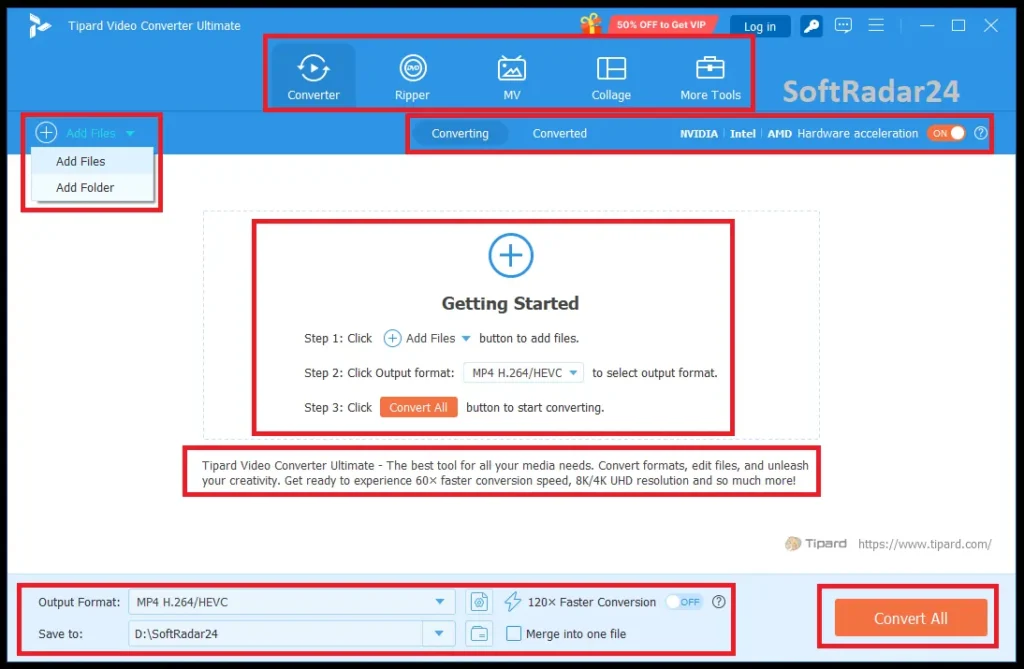
The Total Media Converter workspace reflects its older all-in-one design: source files, format/profile controls, preview and editing functions are centered around the conversion queue rather than a modern AI-tool dashboard.
Compatibility & Coverage
Tipard Total Media Converter spans three practical source groups: DVD/IFO/AVCHD material, normal video files and normal audio files. Its strongest compatibility value is breadth across established media formats rather than modern AI-specific processing.
| Area | Documented coverage | Decision note |
|---|---|---|
| DVD sources | DVD disc · DVD folder · IFO | Designed to create digital video/audio outputs rather than clone DVD structure. |
| AVCHD / camera media | AVCHD plus MTS/M2TS and other established HD formats | Useful for older camcorder and mixed-file archives. |
| Common video | MP4 · AVI · MOV · WMV · MKV · FLV · TS · MXF and additional formats | The vendor page documents broad legacy/common format conversion. |
| Common audio | MP3 · AAC and additional audio formats | Can convert audio and extract audio from video/DVD sources. |
| 3D output | Side by Side · Top and Bottom · Anaglyph | 2D-to-3D conversion is a documented legacy feature. |
| Snapshots | JPEG · PNG · BMP | Captured from the built-in preview workflow. |
| Windows | Windows 11 / 10 / 8 / 7 baseline from Tipard’s current converter technical reference | Used as the current Tipard converter-line technical baseline requested for this update. |
| Mac | Separate Mac product/license | Windows and Mac checkout products are separate; use the matching license URL. |
Features & Capabilities
The useful feature set falls into four groups: converting DVD/media, managing output quality, editing before export and improving workflow speed.
DVD & Media Conversion
- Convert DVD discs, DVD folders and IFO files to digital video/audio
- Convert AVCHD and established HD video sources
- Convert normal video between common formats
- Convert normal audio between common formats
- Extract audio from DVD or video
- Batch-process multiple media files
Editing Before Conversion
- Crop and change framing/aspect ratio
- Trim or split source footage
- Rotate left/right and flip horizontally/vertically
- Select or replace subtitle and audio tracks
- Adjust brightness, contrast, saturation and hue
- Add text or image watermarks
Enhancement & 3D
- Upscale video resolution using the legacy Enhance function
- Reduce camera shake
- Remove video noise
- Optimize brightness and contrast
- Create Side-by-Side, Top-and-Bottom or Anaglyph 3D output
Output & Performance Controls
- Video encoder selection
- Resolution, frame-rate and bitrate adjustment
- Audio encoder and sample-rate adjustment
- NVIDIA CUDA and AMD APP acceleration on compatible hardware
- Multi-core CPU processing
- Source/output preview and JPEG/PNG/BMP snapshots
Important Conditions & Limitations
Tipard Total Media Converter remains useful for classic DVD and format-conversion workflows, but its current position in Tipard’s catalog matters. The biggest purchasing mistake would be assuming every feature advertised for today’s Video Converter Ultimate also exists in Total Media Converter.
Total Media Converter Is Not the Same Product as Video Converter Ultimate
Tipard’s current catalog now promotes Video Converter Ultimate as the newer flagship product. This page intentionally keeps the historical/legacy Total Media Converter identity because the supplied SoftRadar24 checkout offers are for that product. Newer Tipard claims such as AI enhancement, modern large toolbox collections or 5K/8K upscaling should not be silently transferred to Total Media Converter.
The “30× Faster” Figure Is a Vendor Marketing Claim
Tipard attributes its advertised acceleration to NVIDIA CUDA, AMD APP and multi-core CPU use. Real conversion speed depends on the source codec, target codec, resolution, filters, available hardware and driver support. SoftRadar24 has not independently benchmarked a universal 30× speed improvement.
Enhancement Is Conventional, Not Modern Generative AI
The Total Media Converter page documents resolution upscaling, stabilization, denoise and brightness/contrast optimization. Treat those as classic enhancement functions. Users who specifically need newer AI restoration or frame-generation workflows should compare modern AI-focused alternatives.
Windows and Mac Licenses Are Separate
The supplied campaign uses different product IDs and checkout URLs for Windows and Mac. Buying the Windows offer should not be treated as a cross-platform entitlement for the Mac edition, or vice versa.
DVD Compatibility Can Depend on the Actual Disc and Drive
A physical DVD workflow depends on a working optical drive, readable media and the exact disc structure. The product page documents DVD disc/folder/IFO conversion, but that does not justify promising universal compatibility with every damaged, unusual, region-locked or protected commercial disc. Use the trial with the actual source when disc compatibility is critical.
Use Only Media You Are Authorized to Convert
Copyright law, license terms and rules affecting protected media vary by country and source. Convert or extract content only when you own it, have permission, or otherwise have the legal right to do so.
Free Trial / Free Version
Tipard still provides a Free Download path for Total Media Converter, so the practical approach is to test the exact source type, target format and platform before buying. The current Total Media Converter product page does not provide one clear modern numerical table covering every trial restriction, so this review does not invent a file-count or duration limit.
| Option | Best use | What to verify |
|---|---|---|
| Trial / Free Download | Check installation, media import, profile availability and workflow | Confirm the current use conditions shown by the installer/application. |
| 1-Year license | Lowest current upfront price | US$27.50 for 1 PC or 1 Mac in the supplied SoftRadar24 campaign. |
| Lifetime license | Longer-term use on the selected platform | US$28.12 for 1 PC or 1 Mac—only US$0.62 above the annual campaign price. |
System Requirements
Tipard’s current Video Converter technical-reference page is used here as the requested baseline for the converter family. These requirements should be treated as a practical current reference for compatibility—not as evidence that newer Video Converter features belong to Total Media Converter.
| Requirement | Current Tipard converter baseline | Practical note |
|---|---|---|
| Windows OS | Windows 11 / 10 / 8 / 7 | Current Tipard Video Converter technical reference. |
| Windows CPU | 1.2 GHz Intel or AMD CPU or above | Faster CPUs help with software-based transcoding. |
| Windows RAM | 1 GB RAM or more | Large HD batches benefit from more memory than the minimum. |
| Mac edition | Separate Mac application/license | Use the Mac checkout product rather than a Windows license. |
| Optical hardware | Compatible DVD drive for physical DVD sources | Not needed when the source is already a normal media file or DVD folder. |
| GPU acceleration | Compatible NVIDIA/AMD hardware for supported accelerated paths | Actual availability depends on hardware, drivers, codec and operation. |
Alternatives & Better-Fit Options
Choose a replacement based on what Total Media Converter does not prioritize today: newer all-in-one conversion, modern GPU workflows or AI-focused enhancement. For the wider Tipard catalog and current offers, visit the Tipard software page on SoftRadar24.
Aiseesoft Video Converter Ultimate
Aiseesoft Video Converter Ultimate is a stronger direct comparison when you want a current Windows/macOS all-in-one converter with a larger modern toolbox, broader contemporary format handling and current enhancement features. Choose it over Total Media Converter when the priority is an actively modernized conversion suite rather than a legacy DVD-plus-video workflow.
AnyMP4 Video Converter Ultimate
AnyMP4 Video Converter Ultimate is another close cross-brand alternative for general video/audio conversion, editing and a broader current-generation toolbox. It is useful when comparing ongoing platform support, current codec coverage and newer utility functions before buying.
WonderFox HD Video Converter Factory Pro
WonderFox HD Video Converter Factory Pro is a Windows-focused better-fit option when fast video conversion, compression, downloading/recording-style utilities and a different workflow matter more than having a matching Mac edition.
Winxvideo AI
Winxvideo AI is a better comparison when modern hardware-assisted conversion, compression and AI-enhancement tasks are central to the purchase. It addresses a newer workflow class than Total Media Converter’s conventional enhancement tools.
Macxvideo AI
Macxvideo AI is the more relevant option when the main job is AI-driven 4K/8K video quality enhancement rather than DVD conversion or routine format changes. It should be compared as a specialist enhancement tool, not as a like-for-like replacement for every Total Media Converter function.
FAQ
These questions cover pricing, licensing, current product status, DVD/video conversion and technical conditions without duplicating the scenario guide above.
How much does Tipard Total Media Converter currently cost on SoftRadar24?
The supplied SoftRadar24 campaign lists the 1-Year / 1-PC Windows license at US$27.50 and Lifetime / 1 PC at US$28.12. Mac pricing is the same: US$27.50 for 1 year / 1 Mac and US$28.12 for Lifetime / 1 Mac.
Is there a Tipard Total Media Converter coupon code or discount?
Yes. The current SoftRadar24 checkout URLs include an eligible campaign discount that is applied automatically. No manual coupon-code entry is required. The US$27.50 annual offer is shown against a US$55.00 reference price, which is a 50% reduction.
Is the Tipard Total Media Converter lifetime license worth it?
At the supplied prices, the lifetime license is only US$0.62 more than the one-year license on either Windows or Mac. If both prices remain unchanged at checkout and you expect to use the software for more than one year, Lifetime is the much stronger value.
Does one Tipard Total Media Converter license work on both Windows and Mac?
No. The campaign uses separate Windows and Mac product IDs and checkout URLs. Select the operating system you actually use before purchasing.
Can Tipard Total Media Converter convert DVD to MP4?
Yes. DVD-to-digital conversion is a core documented function. Tipard specifically describes DVD disc, folder and IFO sources and outputs including MP4 and other common video/audio formats.
Can it convert video to MP3 or extract audio from a DVD?
Yes. Tipard documents audio extraction from DVD and video sources as well as normal audio-format conversion.
Does Tipard Total Media Converter support batch conversion?
Yes. Multiple files can be added and processed in a batch, which is more efficient than running a separate conversion job for each file.
Does Tipard Total Media Converter use GPU acceleration?
Tipard documents NVIDIA CUDA and AMD APP acceleration plus multi-core CPU processing. The vendor markets up to 30× conversion speed, but that is not a universal measured result; actual performance depends on the codec, output settings, hardware and drivers.
Is Tipard Total Media Converter the same as Video Converter Ultimate?
No. Tipard now promotes Video Converter Ultimate as its newer flagship converter, while Total Media Converter remains a distinct older product/page and has separate legacy checkout SKUs. This review does not transfer newer Video Converter Ultimate AI, 5K/8K or expanded-toolbox claims to Total Media Converter.
Does Tipard Total Media Converter have a free trial?
Tipard provides a Free Download path for Total Media Converter. The current legacy product page does not publish one complete numerical trial-limit table, so check the current use conditions in the downloaded build and test the actual source files you plan to convert.
What is Tipard’s current money-back period?
Tipard’s current store and refund information advertise a 30-day money-back guarantee for eligible purchases. Final refund eligibility depends on the policy and transaction terms in force at the time of purchase.