Quick Summary
AOMEI Backupper Pro is the Professional edition of AOMEI’s Windows backup software for personal PCs. It combines system, disk, partition and file imaging with scheduled backup, incremental and differential methods, automatic backup cleanup, file synchronization, disk/system/partition cloning, bootable recovery media and Universal Restore for moving a Windows image to different hardware.
- Best for
- Windows system images · scheduled backup · SSD migration · NAS backup · dissimilar-hardware restore
- Platforms
- Windows 11 / 10 / 8.1 / 8 / 7
- License
- 1-Year / Lifetime / Family Lifetime
- Key limitation
- Professional is for personal Windows PCs, not Windows Server
AOMEI Backupper Pro Pricing, Discount Code & License Options
The eligible SoftRadar24 Lifetime and Family checkout links apply their current discounts automatically, so manual coupon-code entry is not required. The 1-Year / 1-PC and Lifetime / 2-PC options use their listed prices without borrowing the automatic-discount claim from the other licenses.
The lowest current price is $34.97 for Lifetime Upgrades on 1 PC. A 1-Year / 1-PC license is $39.95, Lifetime Upgrades for 2 PCs is $79.95, and Family Lifetime for up to 5 PCs is $67.46.
Current AOMEI Backupper Pro License Prices
- AOMEI Backupper Professional · Lifetime Upgrades · 1 PC · $34.97 · Regular $69.95 · Save 50%
- AOMEI Backupper Professional · 1 Year · 1 PC · $39.95
- AOMEI Backupper Professional · Lifetime Upgrades · 2 PCs · $79.95
- AOMEI Backupper Pro Family · Lifetime Upgrades · Up to 5 PCs · $67.46 · Regular $89.95 · Save 25%
AOMEI Backupper Professional · Lifetime Upgrades · 1 PC
1 Windows PC · lifetime use and lifetime upgrades · personal use
Included with this license- AOMEI Backupper Professional for one personal Windows PC
- Lifetime use with future major-version upgrades included
- Professional backup, sync, clone and restore features
- Free technical support
At the current approved prices, the 1-PC Lifetime option costs less upfront than the 1-Year option. The Family Lifetime option covers up to 5 PCs and currently costs less in total than the 2-PC Lifetime option, so compare device allowance as well as term before choosing.
AOMEI states that the yearly Professional plan renews automatically unless canceled before the next billing date, while Lifetime Upgrades includes future major-version upgrades. AOMEI also states a 90-day unconditional money-back guarantee for Backupper purchases.
Can This Software Do What I Need?
AOMEI Backupper Pro is strongest when backup and recovery are the primary job but disk migration, synchronization and automation also matter. The main buying checks are whether the target is a personal Windows PC, whether you need Professional-only recovery or cloning functions, and whether the destination storage matches the selected workflow.
I want a complete Windows system image for disaster recovery
Operating system, boot partitions and installed environment
SupportedSystem Backup automatically identifies the partitions required for Windows to run and creates an image that can later be restored. Disk Backup is the broader choice when the goal is to image an entire physical drive and all of its partitions.
I need automatic incremental or differential backups to an external drive or NAS
Scheduled backup with retention control
SupportedProfessional supports scheduled jobs, incremental and differential backup, NAS/network destinations and Backup Scheme rules that can remove older image files automatically according to the selected retention method.
I want to move Windows from a larger HDD to a smaller SSD without reinstalling
System migration to a smaller target
ConditionalSystem Clone can migrate Windows to a smaller SSD when the target has enough capacity for the used space in the required system partitions. Do not enable Sector by Sector Clone for a smaller destination, because that mode requires the target to accommodate the source sectors.
I need to restore my Windows image to a replacement PC with different hardware
Dissimilar-hardware recovery
SupportedUniversal Restore is included in Professional. The documented recovery path uses an existing system image and AOMEI bootable media, then enables Universal Restore while restoring the image to the different computer.
I want changed files copied to another folder as soon as they change
Real-time file synchronization
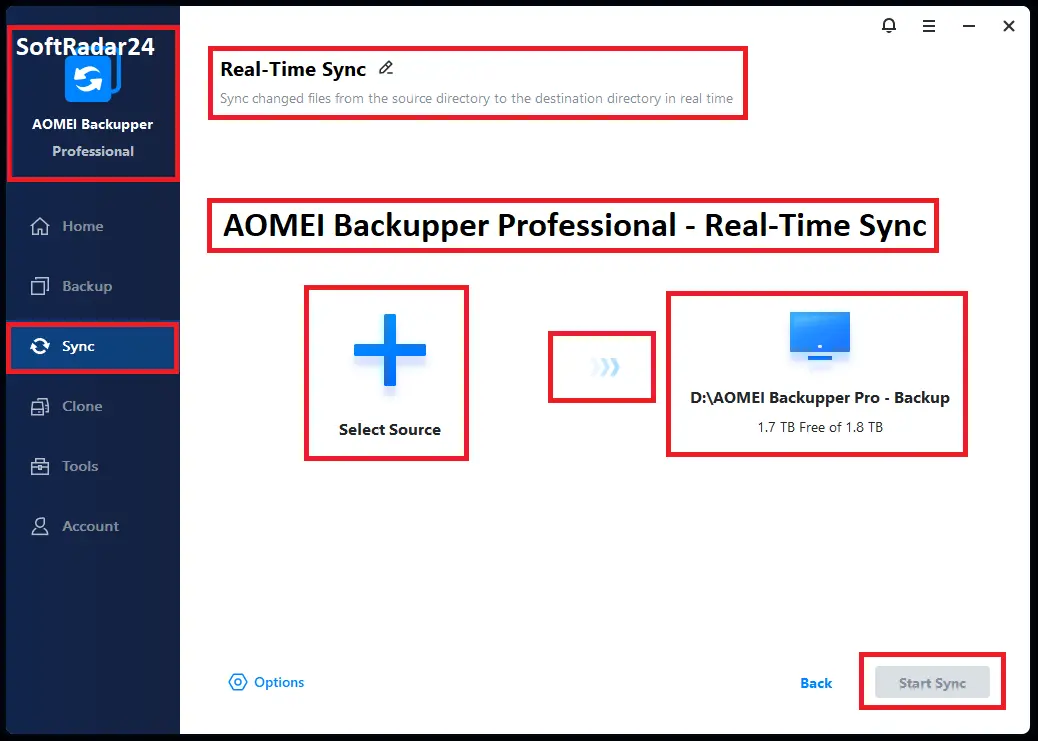
SupportedReal-Time Sync monitors selected folders and synchronizes changes to the destination. It is a file-sync workflow, not an image-backup history, so use a scheduled image backup as well when point-in-time restore is required.
I want a full Windows system image stored directly in AOMEI Cloud
Cloud destination scope
Not supportedAOMEI Cloud Backup is documented for files and folders, not full system, disk or partition images. Cloud storage is also an optional service rather than a storage entitlement bundled automatically with every Professional license.
I need backup or cloning for Windows Server
Server operating systems
Different taskAOMEI Backupper Professional is licensed for personal Windows PCs and lists Windows 11 through Windows 7. AOMEI provides separate Server-oriented editions for Windows Server workloads.
I need to deploy this backup software across company PCs
Business-use licensing
Different taskProfessional is positioned for personal use. AOMEI’s edition structure provides Workstation and Technician-class products for business use and multi-machine service scenarios.
I only need basic Windows file, system, disk and partition backups
Basic backup without Professional-only extras
Better fitAOMEI Backupper Standard is the free edition and covers the core backup and restore categories. Professional becomes more relevant when you need functions such as System Clone, Universal Restore, Real-Time Sync, advanced Backup Scheme management, differential backup or other paid features.
My only task is repeated SSD and hard-drive cloning
Dedicated migration workflow
Better fitBackupper Professional still includes Disk Clone, System Clone and Partition Clone in AOMEI’s current edition comparison. However, AOMEI also markets a separate AOMEI Cloner product and now routes many clone-focused migration guides to that dedicated tool, making it a narrower option when backup and restore are not part of the requirement.
How It Works
Start from the recovery objective: create an image when you need restore points, clone when you are replacing a drive, and configure synchronization only when file-level copies are the goal. The workflows below follow AOMEI’s current help sequence while keeping the decisions visible.
Create a Windows System Image
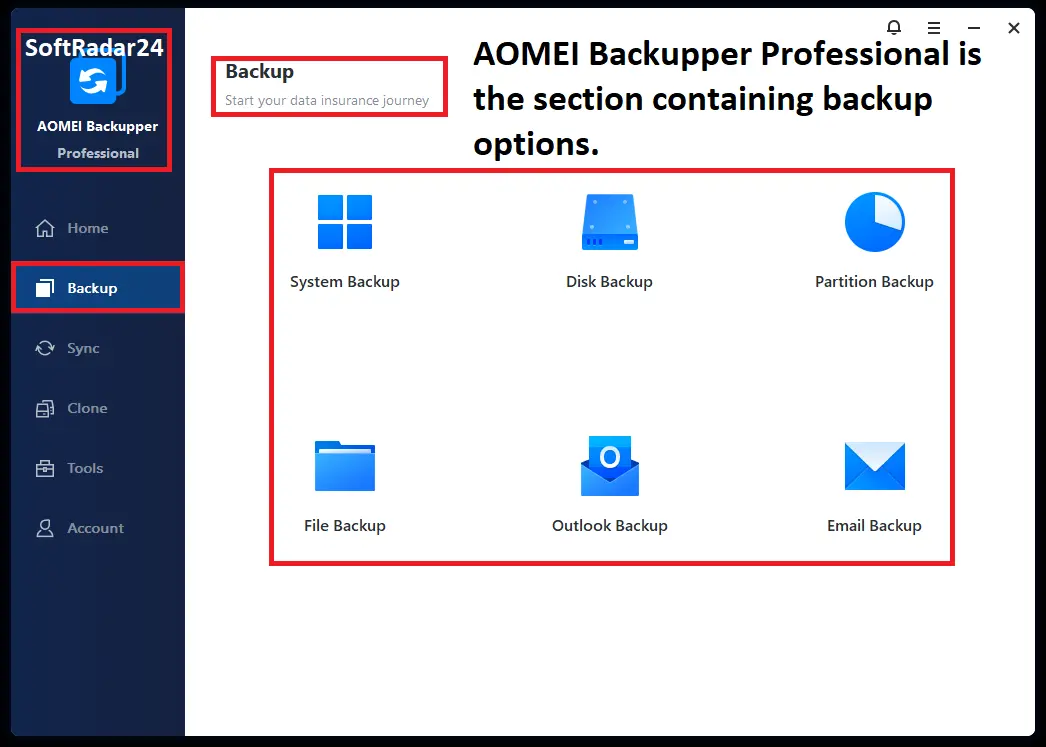
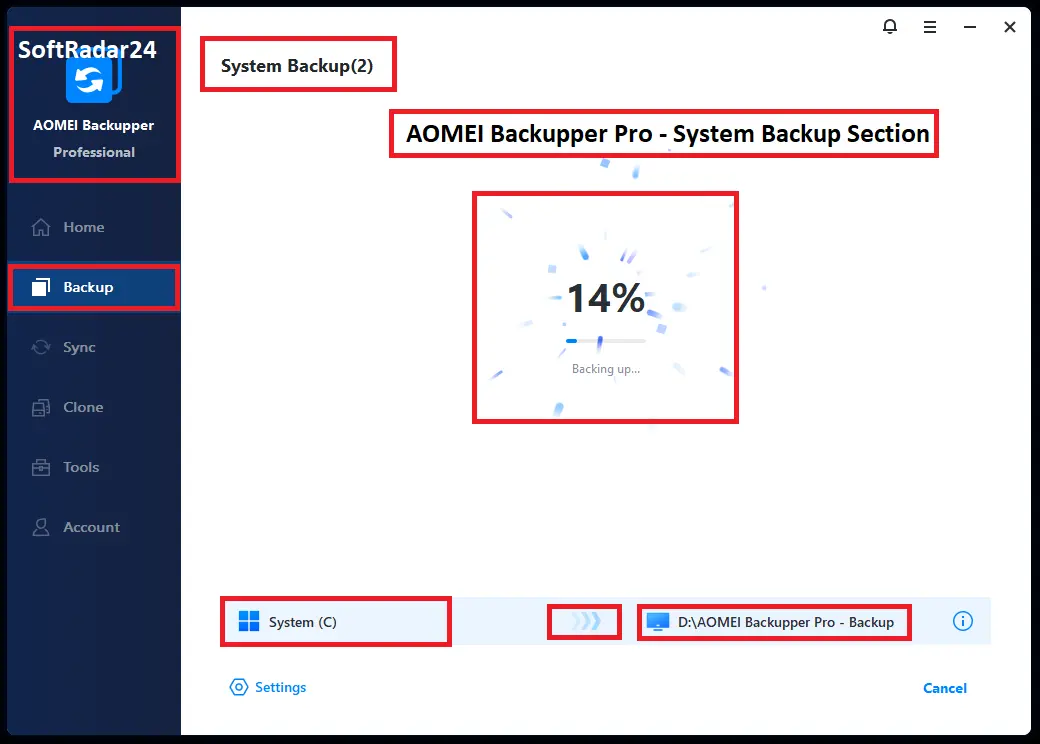
- Open AOMEI Backupper Pro, choose Backup, and select System Backup.
- AOMEI Backupper Pro automatically selects the Windows-related partitions required for system recovery; choose the destination for the image file.
- In AOMEI Backupper Pro, add a schedule or Backup Scheme when you want recurring backups, incremental/differential chains or automatic cleanup of older images.
- Review the source and destination, then start the AOMEI Backupper Pro backup task.
Clone Windows to an SSD
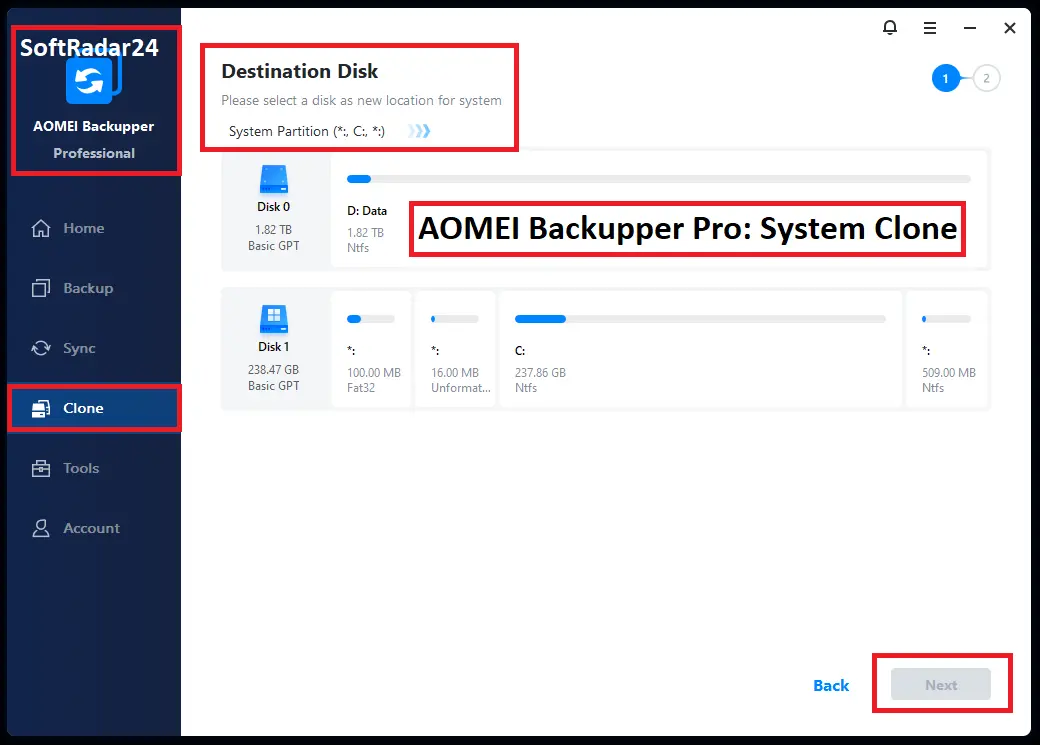
- Connect the destination SSD, open AOMEI Backupper Pro, choose Clone, and select System Clone.
- AOMEI Backupper Pro selects the Windows system partitions automatically; choose the destination SSD and confirm that it has enough capacity for the used system data.
- Enable SSD Alignment in AOMEI Backupper Pro when the destination is an SSD. Do not select Sector by Sector Clone when migrating to a smaller target.
- Confirm the destination carefully because AOMEI Backupper Pro overwrites the selected target during the clone, then start the clone operation.
Restore a System Image to Different Hardware
- Create AOMEI Backupper Pro bootable media before it is needed and keep a usable system-image backup on accessible storage.
- Boot the replacement computer into the AOMEI Backupper Pro recovery environment and choose Restore.
- Select the AOMEI Backupper Pro system image and the destination for the restored Windows installation.
- Enable Universal Restore, review the restore summary, and start the AOMEI Backupper Pro recovery operation.
Build an Automatic Backup Rotation
- Create the required backup task in AOMEI Backupper Pro and choose a local disk, external drive, USB storage, NAS or supported network destination.
- Use Schedule Backup in AOMEI Backupper Pro for daily, weekly or monthly runs; Professional also supports event-trigger and USB plug-in scheduling.
- Open Backup Scheme in AOMEI Backupper Pro and choose the full, incremental or differential strategy appropriate to the job.
- Configure the AOMEI Backupper Pro cleanup rule when old image chains should be removed automatically to control destination-space use.
Product Interface & Workflow
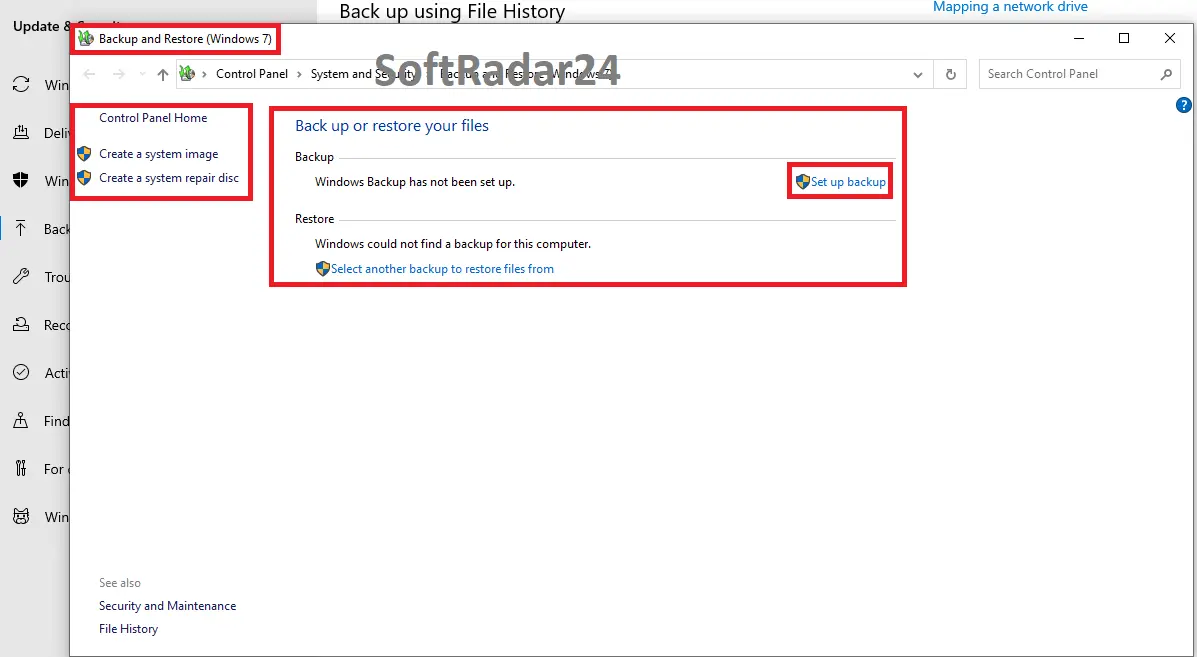
The interface separates backup, sync, restore and clone tasks so the destination and recovery goal can be chosen before an operation begins. The first image below is a Windows legacy-backup reference; the remaining views show AOMEI Backupper Professional workflows.
Compatibility & Coverage
AOMEI Backupper Professional is a personal-use Windows PC edition. Compatibility depends not only on the Windows version but also on the backup destination, file system and clone mode, especially when moving between disk sizes or sector formats.
| Area | Current coverage | Decision note |
|---|---|---|
| Windows PC | Windows 11 / 10 / 8.1 / 8 / 7 | Professional is the personal-PC edition; Windows Server requires a different AOMEI edition. |
| Local storage | IDE / SATA / SCSI HDDs, SSDs, USB storage and supported RAID environments | Disk and system workflows can use modern HDD/SSD storage including common migration targets. |
| Disk styles / firmware | MBR and GPT · UEFI environments | Professional supports clone workflows across MBR/GPT scenarios. If your task specifically requires partition-style conversion, see the SoftRadar24 GPT-to-MBR guide before changing disk layout. |
| Normal file-system handling | FAT16 / FAT32 / NTFS | These file systems are recognized for normal backup processing. |
| Sector-by-sector handling | ReFS / Ext2 / Ext3 / exFAT | AOMEI documents these file systems as sector-by-sector backup cases rather than normal intelligent-file-system processing. |
| Backup destinations | Local disk · external/USB storage · NAS · network share | System, disk, partition and file backup can use local or network storage appropriate to the task. |
| AOMEI Cloud | Files and folders only | Cloud storage is optional for Professional and does not replace a system-image or disk-image destination. |
| Smaller SSD migration | Conditional | The destination must have enough capacity for the used system data; Sector by Sector Clone is not suitable when the target is smaller. |
Features & Capabilities
Professional adds value when protection needs to continue beyond a one-off image. Its stronger use case is a repeatable recovery plan that combines image backup, scheduling, retention, bootable recovery and migration tools.
Image Backup & Restore
- System, disk, partition/volume and file backup
- System, disk, partition and file restore workflows
- Universal Restore for restoring a system image to dissimilar hardware
- Explore Image for mounting/browsing backup images and recovering individual files
Scheduling & Backup Retention
- Daily, weekly and monthly scheduling
- Event-trigger and USB plug-in schedules in Professional
- Full, incremental and differential backup methods
- Backup Scheme rules for automatic removal of older image files
File Synchronization
- Basic Sync for one-way folder synchronization
- Real-Time Sync when changed files should be synchronized continuously
- Mirror Sync for destination-state matching
- Two-Way Sync for changes that must travel in both directions
Disk & System Migration
- Disk Clone, System Clone and Partition Clone
- Intelligent cloning for suitable larger-to-smaller migrations
- SSD Alignment for SSD migration workflows
- Sector-by-sector cloning when an exact sector copy is required and the destination is large enough
Email & Storage Targets
- Outlook Backup for Outlook data, calendars, contacts and tasks when the Outlook client/account is available
- Email Backup for supported mailbox services including Gmail, Outlook and other documented providers
- NAS/network backup destinations
- Optional AOMEI Cloud file/folder backup
Recovery & Administration
- Bootable recovery-media creation
- Command-line utility for supported backup, restore and clone operations
- Pre-command and post-command execution around backup tasks
- Email notifications, backup management and image-integrity checking tools
Important Conditions & Limitations
The most important boundaries concern licensing, trial access, cloud scope and clone targets. Check these before assuming that every Professional function works on every disk or in every evaluation mode.
Professional Is a Personal Windows-PC Edition
AOMEI positions Backupper Professional for personal use on Windows PCs. Windows Server and business deployment belong to other editions, so the Professional license should not be treated as a general server or company-wide license.
The 30-Day Trial Has a Published System Clone Exception
AOMEI’s download center describes Professional Trial as a 30-day full-featured evaluation, but the current System Clone help specifically states that System Clone cannot be run in Standard or Trial. If System Clone is the purchase reason, evaluate the documented workflow and hardware requirements rather than assuming the trial can execute that paid clone operation.
AOMEI Cloud Does Not Store Full System Images
Cloud Backup is documented for files and folders. It is an optional cloud service for Professional, not a bundled destination for full system, disk or partition images.
Cloning Overwrites the Selected Destination
System and disk clone workflows write to the selected destination drive. Any required data on the target should be moved elsewhere before cloning, and the source/target selection should be checked carefully before the operation starts.
Smaller Targets Require Intelligent, Not Sector-by-Sector, Cloning
A smaller destination can work when its capacity is sufficient for the used source data that must be migrated. Sector by Sector Clone copies sectors directly and therefore requires enough target capacity for that sector layout.
System Clone Has Sector-Size and Dynamic-Target Restrictions
AOMEI’s current System Clone help states that 4096-bytes-per-sector disks are not supported for that workflow. It also says a dynamic target disk cannot be selected for System Clone unless the target is converted or recreated as a basic disk first.
Yearly and Lifetime Upgrade Rights Differ
AOMEI states that minor updates are free, while major upgrades can require a fee for licenses that do not include Lifetime Upgrades. The yearly Professional plan also renews automatically unless canceled before the next billing date.
AOMEI Now Also Maintains a Dedicated Cloning Product
Backupper Professional’s current product, edition-comparison and help pages still include Disk Clone, System Clone and Partition Clone. At the same time, many recent AOMEI migration guides direct clone-only users to AOMEI Cloner. That does not remove cloning from Backupper Professional; it means AOMEI now separates a dedicated migration product from its broader backup suite.
Free Trial / Free Version
AOMEI offers both a 30-day Professional Trial and a separate free Standard edition. They are not interchangeable: Standard is intended for ongoing basic backup use, while the Professional Trial is time-limited and still has at least one explicitly documented paid-function restriction.
| Edition / service | Current official scope | Decision note |
|---|---|---|
| Professional Trial | 30 days | AOMEI labels it a full-featured evaluation, but System Clone help explicitly says System Clone cannot be run in Trial. |
| Backupper Standard | Free edition | Covers basic file, system, disk and partition backup/restore needs; Professional-only functions remain restricted. |
| System Clone | Paid Professional function | The current help page says it cannot be run in Standard or Trial. |
| Universal Restore | Professional capability | Relevant when restoring a system image to different hardware. |
| AOMEI Cloud | Separate optional cloud service | The app trial should not be confused with included long-term cloud-storage entitlement. |
System Requirements
The current AOMEI help documentation lists modest application minimums, but backup and clone jobs also need enough destination capacity for the images, temporary data or migrated system content being created.
| Requirement | Current value | Decision note |
|---|---|---|
| Professional Windows support | Windows 11 / 10 / 8.1 / 8 / 7 | Windows Server requires another AOMEI edition. |
| CPU | 500 MHz x86-compatible CPU | Official minimum for running Backupper; large image/clone jobs can still be storage-intensive. |
| RAM | 256 MB minimum | Official application minimum. |
| Installation space | 300 MB | Backup images and clone destinations require additional storage beyond installation space. |
| Optional rescue-media hardware | USB device or writable optical media | Useful for creating bootable recovery media when Windows cannot start. |
| Supported disk/storage families | IDE / SATA / SCSI / SSD / USB external storage / RAID / NAS | Choose the destination according to backup, restore or clone requirements. |
| Disk styles | MBR and GPT | UEFI environments are supported; clone mode and target layout still matter. |
Alternatives & Better-Fit Options
Choose a different tool when the task is primarily partition management, disk-health monitoring or a different backup suite. For the wider AOMEI catalog and current SoftRadar24 purchase options, visit the AOMEI backup software page on SoftRadar24.
AOMEI Partition Assistant Pro
A better fit when the main task is resizing, moving or managing partitions, changing disk layout or performing partition-focused operations rather than building recurring backup and recovery jobs.
Hard Disk Sentinel
A better fit when the main requirement is SSD/HDD health, temperature, S.M.A.R.T. analysis and storage-condition monitoring. That is a disk-health job rather than Backupper Professional’s backup-and-recovery role.
Hasleo Backup Suite Home Pro
A useful alternative when you want to compare another Windows-focused backup, restore and disk/system migration suite instead of committing to AOMEI’s workflow and licensing model.