Quick Summary
ManyCam is a virtual webcam and live video production application that sits between your cameras, media sources and the platform receiving the final feed. Instead of sending one raw webcam to Zoom, Microsoft Teams, Google Meet, Webex or an RTMP destination, ManyCam can combine webcams, mobile cameras, screen capture, PowerPoint, PDFs, YouTube, web sources, IP cameras, NDI feeds, titles, effects and picture-in-picture layouts into one controlled live output. It can also record the live window, manage reusable scenes, blur or replace backgrounds, use Chroma Key, draw on-screen and stream to broadcast platforms.
- Best for
- Virtual webcam · multi-camera video calls · webinars · online teaching · live streaming · product demos · training · remote presentations
- Current plan scale
- ManyCam Standard: 4 sources / Full HD · ManyCam Studio: 50 sources / 4K · ManyCam Premium: 200 sources / 4K · ManyCam Enterprise: 200 sources / 2 devices per user
- Advanced live-video inputs
- Desktop capture · mobile cameras · NDI · MJPEG/H.264 IP cameras · media files · presentations · YouTube · web sources
- Important buying decision
- Choose the plan by resolution, number of sources, RTMP destinations, desktop activations and whether different people need separate user access
Purchase Options
License & Purchase · ManyCam · Up to 45% OFF Official Discount & Coupon Code
Choose the plan by video-source capacity, output resolution, device count and whether the subscription is for one person or a team. ManyCam Standard is selected first because it has the lowest current offer price.
ManyCam Standard
1 desktop device · annual ManyCam Standard subscription
Included with this plan- ManyCam Standard for one desktop device
- Up to 4 video sources and Full HD output
- One RTMP stream for direct broadcasting
- Watermark-free virtual webcam, recording and presentation tools
US$44.25/ year
Discount automatically applied
Buy NowManyCam Standard · Annual · 1 desktop device
ManyCam Standard is the lowest-priced option and is the best fit when one device, Full HD and a small live-video setup are enough.
ManyCam’s current public pricing page lists Standard at US$59/year, Studio at US$79/year and Premium at US$99/year; Enterprise pricing is handled through business sales. Annual subscriptions can renew automatically when auto-renewal is enabled. Review the plan name, user/device allowance, renewal setting, tax and final total before payment.
Can This Software Do What I Need?
ManyCam can serve as a virtual webcam, live switcher, screen-sharing layer, mobile-camera hub and RTMP production tool, but the right plan depends on the scale of the live session. These scenarios separate individual video calls from 4K production, multicasting, network-video sources, teaching and managed team deployment.
I want one polished virtual camera feed inside Zoom, Microsoft Teams, Google Meet or Webex
Video conferencing
SupportedManyCam can combine webcams, screen sharing, documents, media, titles and other sources into one virtual webcam output that a compatible conferencing app can select as its camera.
I need to switch between several cameras, slides, PDFs, videos and screen content while I am live
Live presentation
SupportedManyCam’s media switcher and video presets are designed for scene-based live production. Sources can include webcams, mobile cameras, desktop capture, PowerPoint, PDFs, YouTube, web sources, IP cameras and NDI feeds.
I need 4K output rather than Full HD
Resolution
Better fitManyCam Studio, Premium and Enterprise support 4K. Standard is limited to Full HD, so it is not the right tier when 3840×2160 output is required.
I want to stream to several RTMP destinations at the same time
Multistreaming
Better fitManyCam Studio and Premium provide unlimited RTMP streams on the current pricing page, while Standard is limited to one RTMP stream. ManyCam Enterprise also targets multi-platform broadcasting.
I want AI-style background blur or replacement without a physical green screen
Virtual backgrounds
Better fitManyCam’s dedicated Virtual Backgrounds page currently limits background blur/removal/replacement to ManyCam Studio, Premium and Enterprise. The feature can use custom images or video backgrounds.
I have a real green screen and need precise chroma-key control
Chroma Key
Better fitManyCam Studio, Premium and Enterprise are the appropriate tiers for Chroma Key. The dedicated feature pages position green-screen control separately from automatic background removal.
I want to bring NDI sources or H.264 IP cameras into my live production
Network video
ConditionalNDI input/output is part of ManyCam’s live-production toolset. The current pricing page lists H.264 IP-camera support for ManyCamStudio and higher, while Standard is limited to MJPEG IP cameras.
I want to use phones as extra camera angles
Mobile cameras
SupportedManyCam Mobile can turn iOS or Android devices into camera sources and can also stream independently. The current mobile page documents up to four mobile devices connected to the desktop workflow, while subscribed accounts receive separate mobile activations.
I teach online and need slides, a document camera, annotations and reusable lesson scenes
Online teaching
SupportedManyCam’s education workflow combines camera angles, mobile document cameras, screen sharing, PowerPoint/PDF sources, saved lessons, hotkeys and live scene switching. Teachers can also control scenes from a mobile device.
I run webinars, customer demos or internal training for a business team
Business video
SupportedManyCam can combine presenters, slide decks, screen capture, branded backgrounds, NDI/IP-camera sources and RTMP destinations. ManyCamEnterprise adds user-level activation sharing and centralized management for multi-user deployment.
I work in telehealth and need a better presentation layer for video calls
Telehealth presentation
SupportedManyCam’s telehealth pages focus on virtual backgrounds, names/titles, drawing, screen capture, multiple sources, playlists and IP cameras. Virtual webcam software is a presentation and virtual-camera layer; healthcare privacy or regulatory compliance still depends on the telehealth platform and the organization’s own controls.
I stream games and want GPU-assisted live production
Game streaming
SupportedManyCam’s gaming page documents Quick Sync, NVENC and VCE encoder paths intended to shift supported encoding work to the GPU and reduce CPU load during live game streaming.
I need a compact interface for simpler meetings and presentations
Simplified workflow
Better fitManyCam Lite is the streamlined live-video interface with virtual backgrounds, media switching, picture-in-picture, layers and multi-camera tools. Its dedicated page currently says ManyCam-Lite is included with ManyCamStudio and higher subscriptions.
I need a separate license for each employee and central user control
Team licensing
Better fitManyCam-Enterprise is the relevant tier because subscription sharing is reserved for Enterprise plans. Enterprise users can receive separate activations without gaining access to the owner’s files or personal data.
I mainly need to record my desktop with annotation and audio, not produce a live virtual camera
Screen recording
Different taskManyCam can record and screencast, but Aiseesoft Screen Recorder is the more focused internal option when capture, scheduled recording and post-recording workflow matter more than virtual-camera production.
I already recorded the stream and now need AI upscaling, stabilization or heavy compression
Post-production
Different taskManyCam is strongest before and during a live session. Winxvideo AI is a better fit when the finished recording needs AI enhancement, stabilization, frame interpolation or large-file optimization.
How It Works
ManyCam works as a production layer between input sources and the application or streaming service receiving the final video. The workflow is to build scenes first, route the ManyCam virtual camera or RTMP output second, and control the presentation while live.
Build Reusable Video Presets
- Add webcams, screen capture, media files, presentations, mobile cameras, NDI, IP cameras, YouTube or web sources.
- Arrange picture-in-picture layers, crop and resize sources, then add titles, overlays or drawing tools where needed.
- Save presets or projects so the same webinar, lesson, meeting or broadcast layout can be reused later.
Use ManyCam as the Camera in a Video-Calling App
In a compatible conferencing application, select the virtual webcam as the camera source. The meeting application receives the composed ManyCam feed, allowing scene changes, documents, mobile camera angles, virtual backgrounds and picture-in-picture layouts to appear as one camera output.
Broadcast Through RTMP When the Destination Is a Streaming Platform
ManyCam can send the live program directly to an RTMP destination using a stream key. ManyCam Standard provides one RTMP stream, while Studio and Premium currently provide unlimited RTMP streams for simultaneous multi-platform broadcasting.
Preview Changes Before the Audience Sees Them
ManyCam supports edit/preview workflows so a presenter can prepare the next scene before switching it live. This matters when a session includes slides, guests, demonstrations, multiple cameras or branded layouts that should not be rearranged in front of the audience.
Product Interface & Workflow
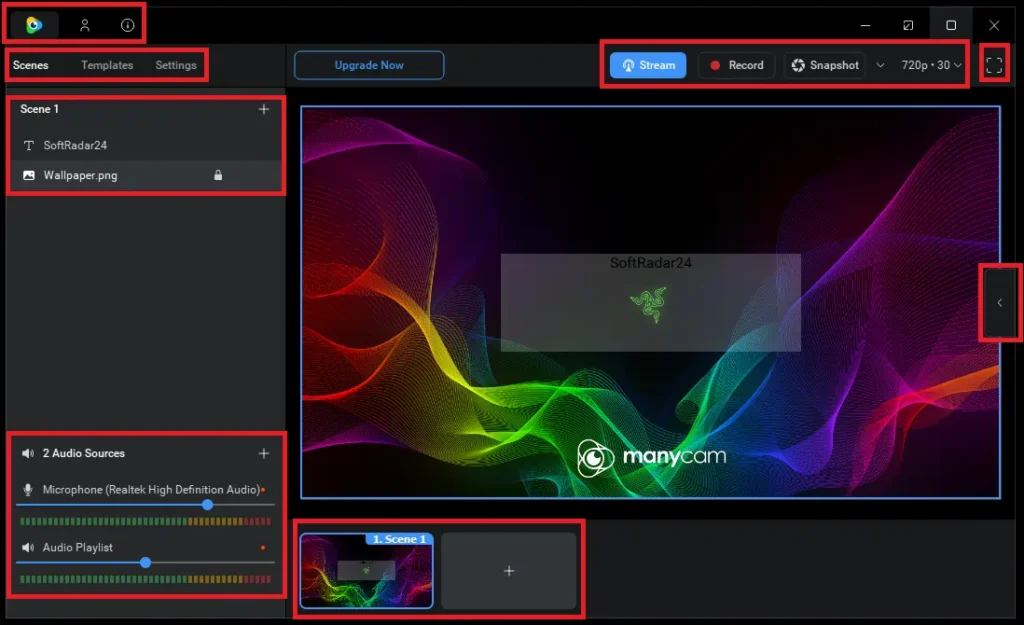
ManyCam organizes live production around scenes, sources, audio, streaming, recording and snapshots. The interface is designed so a presenter can prepare multiple visual states and switch among them without rebuilding the layout during a call or broadcast.

Compatibility & Coverage
ManyCam’s compatibility is broader than webcam hardware alone. The relevant layers are desktop operating system, conferencing/streaming destination, source type, GPU capability and the subscription’s device/source limits.
Desktop Operating Systems
| Platform | Current minimum | Important note |
|---|---|---|
| Windows | Windows 7 / 8.1 / 10 / 11 | Intel Core i3 or faster · 2 GB RAM · current GPU drivers |
| macOS | macOS 10.15+ | Intel or Apple Silicon through Rosetta 2 in the current system-requirements guidance |
| Published minimum workload | One active 720p preset/source | The official minimum should not be interpreted as sufficient hardware for 4K, 50/200 sources or heavy background processing. |
Sources ManyCam Can Bring Into a Live Scene
- Webcams and capture devices
- Desktop, application, custom-area and hidden-window capture
- Images, video files and video playlists
- PowerPoint, PDF and presentation content
- YouTube URLs and web sources
- iOS and Android devices as camera sources
- NDI input/output
- MJPEG and, on higher plans, H.264 IP cameras
Virtual Background Hardware Requirements
Automatic background blur/removal has stricter requirements than basic ManyCam operation. Current Windows guidance requires Windows 10 build 2004+, DirectX 12-compatible graphics with feature level 11_0+, WDDM 2.0+ and Shader Model 5.1+, using supported NVIDIA, AMD or Intel graphics. ARM64 Windows systems are not supported for Virtual Backgrounds. On macOS, Metal acceleration and MPS-compatible hardware are required.
Mobile Integration
ManyCam Mobile can broadcast directly through RTMP or act as a camera source for the desktop application. The current mobile page supports up to four sources in the mobile workflow and up to four mobile devices connected as desktop camera angles. Separately, current subscription documentation provides 10 paid mobile activations per subscribed account.
Features & Capabilities
ManyCam’s plan structure is part of the feature set. Resolution, source capacity, RTMP scale, IP-camera support, device activations and team management change materially between Standard, Studio, Premium and Enterprise.
ManyCam Standard
ManyCam-Standard is the entry subscription for one desktop device, up to four video sources and Full HD output. It supports the core virtual-webcam workflow, picture-in-picture composition, NDI, recording, titles, whiteboard, desktop capture, effects and one RTMP destination. Its IP-camera path is limited to MJPEG on the current pricing page. Standard is best suited to an individual presenter who needs a polished 1080p feed but does not need 4K, large source libraries or multi-destination broadcasting.
ManyCam Studio
ManyCam Studio is the first plan that materially changes production scale: two desktop devices, up to 50 video sources and 4K video quality. Current Many Cam documentation places Virtual Backgrounds, Chroma Key and 4K in Studio and higher tiers; the pricing page also lists unlimited RTMP streams and H.264 IP-camera support. ManyCam Lite’s dedicated page says the compact interface is included with Studio and higher. For online teachers, solo streamers, trainers, webinar hosts and business presenters, Studio is the practical step up when Full HD and one RTMP output are no longer enough.
ManyCam Premium
ManyCam-Premium expands an individual subscription to three desktop devices and up to 200 video sources while retaining 4K output, unlimited RTMP streaming, Virtual Backgrounds, Chroma Key, NDI, H.264 IP cameras, recording and Lite. The main reason to choose Premium over Studio is scale: a larger preset/source library and one additional desktop activation. A complex creator workstation, multi-location personal setup or production workflow with a large catalog of prepared scenes benefits more from Premium than a simple meeting setup does.
ManyCam Enterprise
ManyCam-Enterprise changes the licensing model from an individual subscription to a managed multi-user deployment. The current pricing page lists up to two desktop devices per user, 200 video sources, 4K output, RTMP, NDI, H.264 IP cameras, Virtual Backgrounds, Chroma Key, Lite, a user-management platform and business customer support. Current Many Cam support also reserves subscription sharing for Enterprise and documents bulk activation sharing plus a User Management API. This makes Enterprise the relevant tier for training teams, customer-facing departments, communications groups, schools and organizations that must assign and reclaim access by user.
| Plan | Desktop allowance | Video sources | Max quality | Best-fit scale |
|---|---|---|---|---|
| ManyCam Standard | 1 device | 4 | Full HD | Small individual virtual-camera setup |
| ManyCam Studio | 2 devices | 50 | 4K | Advanced individual streaming, teaching and presentation |
| ManyCam Premium | 3 devices | 200 | 4K | Large individual production library |
| ManyCam Enterprise | 2 devices per user | 200 | 4K | Managed multi-user deployment |
Virtual Camera, Scene Composition & Presentation Tools
- Virtual webcam output for conferencing and calling applications
- Picture-in-picture layers, split-screen layouts and source transforms
- Live scene switching and reusable presets/projects
- Titles, text, overlays, whiteboard, drawing and visual effects
- Desktop screencasting and main live-window recording
Streaming, Network Video & Remote Sources
- RTMP streaming to supported broadcast destinations
- Multi-channel broadcasting on higher subscription tiers
- NDI input and output for network video workflows
- MJPEG and H.264 IP-camera sources according to plan
- Mobile cameras and mobile RTMP streaming
Effects, Virtual Backgrounds & Branding
Many Cam maintains a large effects catalog spanning business, education, camera effects, overlays, text, sports, games, entertainment and other visual categories, and the platform allows custom effects. Virtual Backgrounds can blur, remove or replace a room without a green screen on supported hardware, while Chroma Key provides more controlled background replacement when a physical green or blue screen is available. Higher plans also support custom virtual-camera names and watermarks for branded outputs.
Important Conditions & Limitations
ManyCam can replace a substantial amount of live-production switching and routing software, but its value depends on plan limits, computer performance, third-party platform behavior and the distinction between individual and team licensing.
The Published Minimum System Requirements Describe a Small 720p Workload
ManyCam’s official minimum is based on one active preset with one 720p source. A 4K session with multiple cameras, NDI, background segmentation, screen capture and recording needs materially more CPU/GPU headroom than that baseline.
ManyCam Standard Is Not the 4K Tier
Current ManyCam documentation reserves 4K for Many Cam Studio, Premium and Enterprise. Standard is a Full HD plan with four sources and one RTMP stream.
Virtual Backgrounds Have Their Own Hardware Floor
A computer can meet ManyCam’s general minimum and still fail the current Virtual Background requirements. Windows background processing requires newer DirectX/WDDM/Shader support, and ARM64 Windows is explicitly unsupported for that feature.
ManyCam Lite’s Dedicated Page Says Studio and Higher
Lite is described on its own product page as included with Studio and higher packages. Do not choose Many Cam Standard on the assumption that the compact Lite interface is a confirmed Standard entitlement.
Desktop Device Count and Mobile Activations Are Different Limits
The 1/2/3-device limits on ManyCam Standard, Studio and Premium refer to desktop activations. Current support documentation separately provides 10 paid mobile activations per subscribed account.
Individual Subscriptions Are Not Team Licenses
Current ManyCam support says individual subscriptions cannot be shared between users or ManyCam accounts on macOS, while subscription sharing is available in Enterprise and Education plans. Use Enterprise when access belongs to multiple people.
ManyCam Does Not Control the Resolution Limits of the Receiving App
A 4K Many Cam output does not force Zoom, Teams, Meet or another service to transmit 4K. The conferencing or streaming destination can apply its own resolution, frame-rate, account, bandwidth and codec limits.
Network Features Need Reliable Internet
Subscription activation and network sources such as RTMP, mobile video, YouTube and web URLs require Internet access. NDI and IP-camera performance also depends on the local network path and source configuration.
Telehealth Use Does Not Automatically Establish Healthcare Compliance
Many Cam provides presentation, camera and streaming tools for remote care workflows, but the current telehealth page does not establish that using Many Cam by itself makes a service HIPAA-compliant or satisfies another healthcare regulation. Compliance depends on the complete platform, data flow and organizational controls.
Annual Subscriptions Can Renew Automatically
ManyCam’s sales policy allows annual subscriptions to renew at the then-applicable renewal fee when auto-renewal is enabled. Current support provides cancellation through the ManyCam account, the payment processor or support.
Refunds Are Case by Case
ManyCam’s current sales policy does not promise a universal 30-day money-back guarantee. Refund requests are handled case by case, and a processed refund disables the license.
ManyCam Is Live-Production Software, Not a Full Post-Production Editor
Recording is built in, but detailed timeline editing, AI upscaling, stabilization, transcoding and heavy compression are separate post-production jobs. Use a dedicated editor or converter when the live session has already ended.
Free Trial / Free Version
ManyCam can be downloaded for free, which makes it practical to test camera routing, the interface and basic live-video behavior before subscribing. Paid subscriptions remove the Many Cam watermark and unlock the plan-specific production limits and premium features.
| Access | Useful for | Main paid difference |
|---|---|---|
| Free download | Testing the virtual webcam, source routing, interface, camera compatibility and basic production workflow | Paid activation removes the Many Cam watermark and enables the capabilities assigned to the selected subscription tier. |
| Paid subscription | Watermark-free production with plan-specific device, source, resolution, RTMP and team-management allowances | Choose ManyCam Standard, Studio, Premium or Enterprise based on the scale of the real workflow. |
System Requirements
ManyCam publishes a modest minimum for a single 720p source, plus stricter requirements for Virtual Backgrounds. Treat these as compatibility floors, not as recommended specifications for 4K or large multi-source production.
| Requirement | Current published value | Important context |
|---|---|---|
| Windows | Windows 7 / 8.1 / 10 / 11 | Current desktop minimum guidance |
| Windows CPU | Intel Core i3 or faster; i5 or greater preferred | Published baseline is one 720p source |
| Windows RAM | 2 GB | More memory is advisable for multi-source/4K work |
| macOS | macOS 10.15+ | Intel or Apple Silicon via Rosetta 2 in the current system-requirements page |
| Internet | Broadband connection | Required for activation and network-dependent sources/features such as RTMP, mobile, YouTube and web URLs |
| Virtual Backgrounds — Windows | Windows 10 build 2004+ · DirectX 12 feature level 11_0+ · WDDM 2.0+ · Shader Model 5.1+ | Supported NVIDIA/AMD/Intel graphics required; ARM64 Windows unsupported for this feature |
| Virtual Backgrounds — macOS | Metal acceleration · MPS-compatible GPU | ManyCam’s dedicated page states support on Mac including M1 chips |
| 4K plan requirement | ManyCam Studio / Premium / Enterprise | 4K is not available under Standard |
Alternatives & Better-Fit Options
ManyCam is strongest before and during a live session. The alternatives below become relevant when the primary job changes from live virtual-camera production to dedicated recording, conversion or AI post-production. For current Many Cam plans and offers, visit the ManyCam page on SoftRadar24.
Aiseesoft Screen Recorder
A better fit when the main task is high-quality desktop, game, webcam or scheduled recording rather than building a live virtual camera with multiple scenes and RTMP destinations.
AnyMP4 Video Converter Ultimate
A better fit after the live session when recorded files need format conversion, compression, editing or broader media-processing tools before delivery to another device or platform.
WonderFox HD Video Converter Factory Pro
A Windows-focused alternative when the real workflow is video conversion, compression, downloading and media preparation rather than virtual webcam routing or multi-camera live production.
Winxvideo AI
A better post-production option when a finished Many-Cam recording needs AI video enhancement, stabilization, frame interpolation, noise cleanup or aggressive file-size reduction.
FAQ
These answers focus on current licensing, device activation, hardware, plan limits and subscription behavior without repeating the scenario questions above.
How many desktop devices can each current ManyCam individual plan activate?
The current pricing page lists 1 desktop device for Standard, 2 for Studio and 3 for Premium. ManyCam Enterprise is structured by user and currently lists up to 2 desktop devices per user.
How many video sources do ManyCam Standard, ManyCam Studio and ManyCam Premium support?
The current pricing page lists 4 video sources for Standard, 50 for Studio and 200 for Premium. Enterprise also lists 200 video sources.
Which ManyCam plans currently support 4K video?
ManyCam’s current pricing and help documentation place 4K video in Studio, Premium and Enterprise. Standard is limited to Full HD.
Is Many Cam Lite included with every subscription?
ManyCam Lite’s dedicated product page currently says it is included with Studio and higher packages. It should not be treated as a confirmed Standard entitlement based only on the generic pricing grid.
Does ManyCam require an Internet connection all the time?
The desktop application can perform many local production tasks without continuous Internet access, but ManyCam’s current system-requirements page says broadband Internet is required for subscription activation and network features such as RTMP streaming, mobile video sources, YouTube URLs and web sources.
What are the current Windows minimum requirements for ManyCam?
ManyCam’s current support page lists Windows 7, Windows 8.1, Windows 10 and Windows 11, an Intel Core i3 or faster processor, 2 GB RAM and up-to-date graphics drivers. That published minimum is based on one active 720p source and should not be treated as a 4K or 200-source performance recommendation.
What are the current macOS minimum requirements for ManyCam?
ManyCam’s current support page lists macOS 10.15 or later and an Intel or Apple Silicon Mac running through Rosetta 2. The same page requires broadband Internet for activation and network-dependent features.
What hardware does ManyCam Virtual Backgrounds require on Windows?
The current support guidance lists Windows 10 build 2004 or later, a DirectX 12-compatible GPU with feature level 11_0 or higher, WDDM 2.0 or later and Shader Model 5.1 or later, with supported NVIDIA, AMD or 6th-generation Intel Core graphics paths. ARM64 Windows systems are not supported for this feature.
Does ManyCam support Apple Silicon for Virtual Backgrounds?
ManyCam’s Virtual Backgrounds page says the feature is available on Windows and Mac, including M1 chips. The support documentation also requires Metal hardware acceleration and MPS-compatible graphics for background processing on macOS.
How do ManyCam mobile activations differ from desktop device activations?
ManyCam’s current subscription help says each subscribed account receives 10 mobile activations for Android and iOS in addition to the desktop activation limit. A mobile activation unlocks paid mobile features while the subscription remains active.
Can ManyCam Enterprise subscriptions be shared with other people?
Yes. ManyCam’s current support documentation says subscription sharing is available for ManyCam Enterprise. User activations can be assigned by email, including bulk sharing, without giving recipients access to the owner’s files or personal account data.
Does ManyCam Enterprise have an API for user activation management?
Yes. ManyCam documents a User Management API for Enterprise and Education subscriptions. It can authorize management access, inspect subscription information, share user activations and take them back.
How are ManyCam subscriptions activated now?
Current Many Cam support says activation codes are no longer used for current subscriptions. The subscription is enabled by signing into the ManyCam application and turning it on under Account & Subscriptions.
Do Many Cam annual subscriptions renew automatically?
ManyCam’s sales policy allows automatic renewal when it is enabled. Current support says auto-renewal can be stopped from the Many Cam account, the payment processor or ManyCam support, and cancellation should be completed before the renewal date.
What is ManyCam’s current refund policy?
ManyCam’s current sales policy and support documentation say refunds are handled case by case. A processed refund disables the license. The policy does not promise an unconditional 30-day refund for every purchase.
What are ManyCam’s current public annual prices for individual plans?
The current Many Cam pricing page lists Standard at US$59/year, Studio at US$79/year with US$99 shown as the reference price, and Premium at US$99/year with US$119 shown as the reference price. Enterprise pricing is handled separately through business sales.
What happens if I need to move to a higher ManyCam plan later?
ManyCam’s support documentation says an active subscription can be upgraded to a higher plan by paying the difference, subject to the available upgrade path. Direct downgrading is not supported; the documented approach is to cancel and resubscribe to the lower plan.