When an Apple device experiences corrupted firmware, it typically manifests as an infinite boot loop, a frozen white screen, or gets permanently stuck in DFU and headphone modes. Standard factory resets often fail to resolve these deep system glitches.
Aiseesoft FoneLab iOS System Recovery operates as a dedicated diagnostic and patching utility designed to reconstruct damaged iOS and iPadOS cores without erasing your internal storage. Fully compatible with the latest iPhone 17 hardware and the iOS 26 architecture, this software enables users to safely bypass iTunes connection errors, install official IPSW files, and natively downgrade unstable operating systems back to a functional state.
Diagnosing Fatal iOS Errors: What Causes DFU, Boot Loop, and Headphone Mode?
Before concluding that a handset requires expensive logic board repairs, it is crucial to accurately identify the underlying trigger. Users frequently mistake an immovable audio output, an endless restart cycle, or a completely black display as permanent physical damage. However, these severe symptoms are primarily the result of kernel panics, disrupted over-the-air update sequences, or a corrupted system architecture.
When the operating system fails to execute its boot instructions or misreads hardware signals, the device automatically locks itself into a self-preservation state. Understanding the exact nature of these software-driven anomalies is the mandatory first step before initiating any recovery protocol.
- DFU and Recovery Mode Entrapment: While both states prevent the operating system from loading, they operate at different levels. Recovery Mode relies on the iBoot bootloader, whereas the Device Firmware Update (DFU) state bypasses the OS entirely to interface directly with the logic board. Devices typically get trapped in these environments due to interrupted iTunes synchronizations, attempts to flash corrupted IPSW files, or failed downgrades from newer architectures like iOS 26 back to older versions.
- The Infinite Boot Loop (Apple Logo Stuck): An endless reboot sequence occurs when the operating system fails to complete its startup protocol. The most frequent trigger for this anomaly is attempting an over-the-air (OTA) update with critically low storage space (often resulting in Error 1110). Incomplete update packages, conflicting jailbreak remnants, or sudden battery drops during core file installations prevent the device from successfully rendering the lock screen, forcing it to restart the cycle continuously.
- Headphone Mode Glitch (False Audio Routing): A device failing to route audio through its external speakers is heavily misdiagnosed as permanent liquid or debris damage. While initial moisture inside the lightning or USB-C port triggers the switch, the actual long-term problem is often a software kernel loop. Even after the physical hardware completely dries out, the internal audio logic flag fails to reset, permanently locking the sound output channel into a false “headphones connected” state.
- White and Black Screen of Death: In these scenarios, the handset appears completely dead or displays a solid, unresponsive illuminated screen. This is rarely a broken display panel. It is typically a catastrophic crash of the internal display drivers or a miscommunication with the power management protocols during the boot sequence. The background processes may still be running—and the device might still vibrate or ring—but the graphical user interface fails to initialize.
iOS System Repair Protocols: Data Retention vs. Complete Factory Erase
Selecting the correct flashing protocol depends entirely on the severity of the system corruption and the user’s need for data preservation. While surface-level boot loops can often be patched without altering the internal storage architecture, catastrophic core failures demand a complete device format and firmware rebuild. Review the strict hardware prerequisites, storage thresholds, and permanent operational impacts below before initiating any iOS recovery sequence.
| Technical Criteria | Standard Protocol | Advanced Protocol |
|---|---|---|
| Data Integrity | Preserves all personal files and settings. | Erases all internal data permanently. |
| Storage Threshold | Minimum 5 GB free space required on both PC and iOS device, plus 500 MB for the IPSW firmware package. | N/A (Formats the entire drive during the rebuild process). |
| Power Requirement | Device battery must be strictly at 30% or higher to prevent logic board failure during patching. | Direct USB/USB-C power connection recommended during the complete wipe. |
| System Architecture | Maintains the current network lock and modification state. | Reverts the device to a strictly non-jailbroken state and relocks any unofficial network unlocks. |
How to Fix iOS System Errors with FoneLab iOS System Recovery
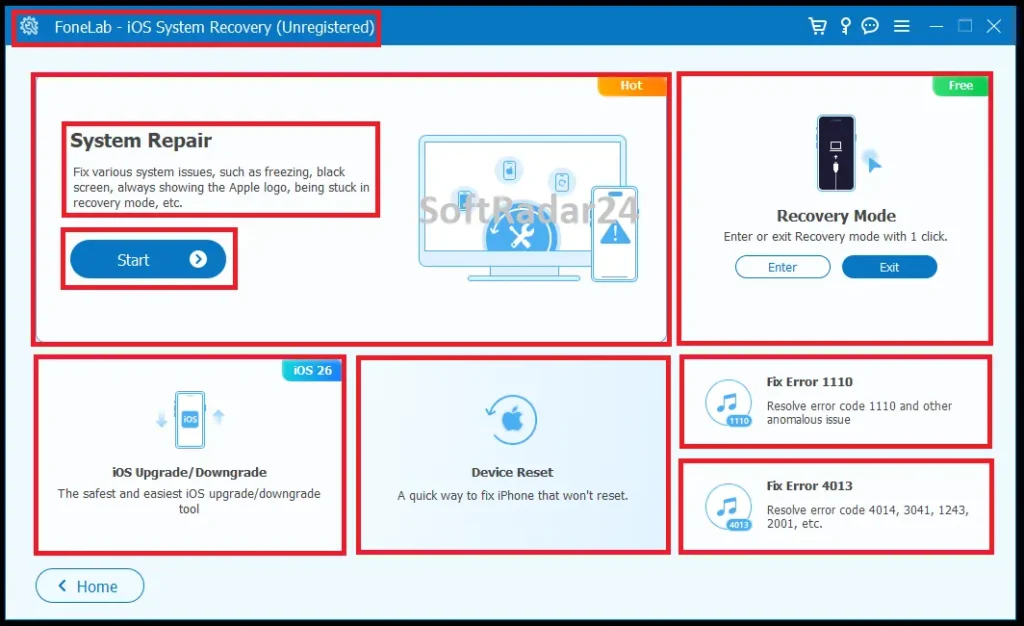
Step 1: Connect the Device and Initialize: Launch Aiseesoft FoneLab iOS System Recovery on your computer. Connect your malfunctioning iPhone, iPad, or iPod using a reliable USB cable and click “Start” to allow the software to detect the current system state.
Step 2: Select the Repair Protocol: The interface will diagnose the issue and prompt you to choose a recovery path. Select either Standard Mode (to retain data) or Advanced Mode (for a complete erase) based on your requirements, and click “Confirm”.
Step 3: Enter DFU Mode and Verify Hardware: Follow the precise on-screen button combinations to transition your device into DFU or Recovery Mode. Once the hardware interfaces with the program, strictly verify your device category, model type, and target iOS version on the screen.
Step 4: Download Firmware and Execute Repair: Click to initiate the download of the corresponding official IPSW firmware package. Once the download completes, click “Next” or “Start Repair”. FoneLab for iOS will automatically flash the system architecture. Keep the connection stable until the handset completes the reboot cycle and returns to a normal state.
💡 Post-Repair Data Extraction: If an Advanced Mode factory wipe was necessary or if files were corrupted during the initial system crash, immediate file retrieval is the next logical step. You can securely extract lost photos, messages, and contacts directly from the device memory using FoneLab iPhone Data Recovery. An official 50% discount coupon is also automatically applied to all subscription tiers for this specific extraction tool.
Aiseesoft FoneLab iOS System Recovery Discount Code
Buyers actively looking for an Aiseesoft FoneLab iOS System Recovery coupon code do not need to manually copy or paste any text at checkout. The official developer page automatically triggers a built-in promotion that immediately cuts the standard software price by 50%. This direct reduction is seamlessly applied to the entire pricing structure, ensuring that the 1-month, lifetime, and business licenses are all finalized at exactly half the cost.


50% OFF – Aiseesoft – FoneLab iOS System Recovery for Windows

FoneLab iOS System Recovery – 6 Devices / 1 PC
Professional Windows tool to repair iOS system glitches and boot loops on up to 6 devices with a single PC license.
FoneLab iOS System Recovery – 1 Month / 1 PC
Affordable 30-day Windows access to fix iPhone black screen, DFU mode entrapment, and various system failures.
FoneLab iOS System Recovery – 1 Year / 1 PC
Complete annual support for repairing iOS 26 system errors and firmware corruption on Windows computers.
FoneLab iOS System Recovery Lifetime – 6 Devices / 1 PC
Permanent Windows license for fixing unlimited iOS system issues across 6 devices with lifetime updates included.
FoneLab iOS System Recovery Lifetime – 6 Devices / 3 PCs
Professional multi-PC lifetime bundle designed to restore malfunctioning iOS devices without data loss.
50% OFF – Aiseesoft – FoneLab iOS System Recovery for Mac
Mac FoneLab iOS System Recovery – 6 Devices / 1 Mac
Dedicated macOS solution to bypass Apple logo stuck and recovery mode issues for multiple iPhone models.
Mac FoneLab iOS System Recovery – 1 Month / 1 Mac
Short-term macOS utility to repair corrupted iOS firmware and restore system functionality quickly.
Mac FoneLab iOS System Recovery – 1 Year / 1 Mac
Reliable annual macOS plan for troubleshooting headphone mode glitches and frozen screens on Apple devices.
Mac FoneLab iOS System Recovery Lifetime – 1 Mac
Permanent macOS recovery tool to ensure long-term system stability and data protection for all iOS versions.
Mac FoneLab iOS System Recovery Lifetime – 3 Macs
Advanced macOS bundle providing lifetime system repair capabilities for professional and household use.
FoneLab for iOS Frequently Asked Questions
How does FoneLab for iOS resolve a device locked in headphone mode?
The software targets and breaks the false audio routing loop within the iOS kernel. Assuming the logic board is physically dry and free of short circuits, the standard repair protocol rewrites the internal audio drivers. This forces the sound output back to the built-in speakers without requiring a factory reset or causing data loss.
What is required to fix an infinite Apple logo boot loop?
Breaking an endless restart sequence requires the FoneLab iOS System Recovery tool to download and flash a fresh official IPSW firmware package over the corrupted system. To execute this securely, both the computer and the malfunctioning Apple device must have at least 5 GB of available storage space, and the handset must maintain a minimum 30% battery charge before initialization.
Will extracting an iPhone from DFU or Recovery Mode erase my files?
Selecting the Standard Mode safely bypasses the bootloader entrapment and repairs the operating system while preserving all photos, contacts, and personal configurations. Conversely, if the core corruption is too severe, users must select the Advanced Mode, which permanently wipes the entire internal drive to rebuild the architecture.
What happens to modified devices when repairing or downgrading iOS 26?
Applying a system patch or downgrading an unstable OS architecture automatically overrides any previous unauthorized modifications. The FoneLab iOS System Recovery process reverts the device strictly to a non-jailbroken state and will instantly reactivate any unofficial network carrier locks present on the hardware.