Quick Summary
Aiseesoft FoneTrans is a Windows and macOS iOS transfer and file-management utility for moving selected data between an iPhone, iPad or iPod, a computer, another iOS device and supported iTunes-library workflows. Its useful difference from a simple photo importer is breadth: Aiseesoft FoneTrans can work with photos, music, videos, contacts, messages and other supported categories, while also providing photo organization, contact management, HEIC conversion and one-click transfer tools.
- Best for
- Selective iPhone/iPad transfer · message/contact export · media and library management
- Platforms
- Windows and macOS
- Current campaign
- 1-Month · 1-Year · Lifetime · multi-computer license options
- Key limitation
- Current tech specs still list iTunes 10.7+ as a requirement
Aiseesoft FoneTrans Pricing, Discount Code & License Options
The current 50% Aiseesoft FoneTrans coupon discount is applied automatically to eligible SoftRadar24 license options below. No manual coupon-code entry is required.
Choose Windows or macOS first, then select the license term. The Windows 1-Year / 1 PC option is selected first because its current US$17.50 price is only US$1.90 above the 1-Month / 1 PC option.
Current Aiseesoft FoneTrans License Prices
The purchase selector currently includes the following SoftRadar24 license options:
- Aiseesoft FoneTrans 1-Month License · Windows / 1 PC · US$15.60
- Aiseesoft FoneTrans 1-Year License · Windows / 1 PC · US$17.50
- Aiseesoft FoneTrans Lifetime License · Windows / 1 PC · US$31.22
- Aiseesoft FoneTrans Up to 3 PCs License · Windows / up to 3 PCs · US$79.00
- Aiseesoft FoneTrans for Mac 1-Month License · macOS / 1 Mac · US$15.60
- Aiseesoft FoneTrans for Mac 1-Year License · macOS / 1 Mac · US$17.50
- Aiseesoft FoneTrans for Mac Lifetime License · macOS / 1 Mac · US$31.22
- Aiseesoft FoneTrans for Mac Up to 3 Macs License · macOS / up to 3 Macs · US$79.00
Aiseesoft FoneTrans · 1-Year License
Windows · 1 PC · 1-year license
Included with this license- One year of Aiseesoft FoneTrans use on 1 Windows PC
- Transfer supported data between iOS devices and a computer
- Export supported messages, contacts, photos, music and videos
- Use Aiseesoft FoneTrans photo, contact and toolbox management features
US$17.50/ year
50% discount automatically applied
Buy NowWindows · 1-Year License · 1 PC
Selected first because the current 1-year price is only US$1.90 above the 1-month price, while keeping the lower-cost single-PC tier.
Eligible discounts are applied automatically through the current SoftRadar24 purchase links. Confirm the operating system, license term, device allowance, renewal terms when applicable, tax and final total before payment.
Can This Software Do What I Need?
Common iPhone-transfer jobs include getting selected photos or large videos off an iPhone, adding music or files from a computer without a whole-library sync, exporting messages or contacts, moving chosen data to a new iPhone, and fixing device-recognition barriers. Aiseesoft FoneTrans covers many of those selective-transfer jobs, but not every kind of device migration.
I want selected iPhone photos or videos on my PC without using iCloud
Local photo and video export
SupportedAiseesoft FoneTrans can load supported photo and video categories from a connected iPhone and export selected items to a chosen computer folder. This is useful when you want category-level control rather than a full cloud sync. The iPhone still has to be recognized and authorized by the computer.
I want to add music, videos or supported files from my PC without syncing my whole library
Selective computer-to-iPhone transfer
SupportedAiseesoft FoneTrans uses an Add workflow for supported categories, so you can choose individual media or files from the computer instead of treating every transfer as a full-library sync. Importable content varies by type, so check the compatibility table before buying for a specific file category.
I need to export iPhone text messages or app-message data to my computer
Message archiving
SupportedThe current Aiseesoft FoneTrans technical specifications list Messages plus supported WhatsApp, Kik, Line, Viber, Messenger, WeChat and QQ message data among exportable text categories. Availability depends on what the connected device and current iOS version expose to Aiseesoft FoneTrans.
I want to move contacts to a new iPhone and clean duplicates first
Contact transfer and cleanup
SupportedAiseesoft FoneTrans can export contacts to a computer or another iOS device, edit contact details, create groups and merge duplicates. Aiseesoft FoneTrans also includes a separate contacts backup and restore workflow in its toolbox.
I want to move selected photos, music, videos or contacts directly between two iPhones
Selective iOS-to-iOS transfer
SupportedConnect both iOS devices to the computer, choose the source device and supported category, then use Aiseesoft FoneTrans to export selected items to the target device. This is a selective transfer workflow rather than a complete clone of the old iPhone.
I need my new iPhone to reproduce the old phone’s apps, settings and full device state
Complete device migration
Different taskAiseesoft FoneTrans transfers supported content categories; it is not a full iOS system-image migration tool. For a complete replacement-iPhone setup, Apple’s Quick Start or a full backup-and-restore route is the more appropriate starting point, with Aiseesoft FoneTrans used later for selective management if needed.
My iPhone is connected by USB but the computer does not recognize it
Device detection and Trust access
Verify firstAiseesoft FoneTrans cannot manage data until the device connection is accepted. Current Aiseesoft FoneTrans guidance says iOS 13+ may require the device passcode during access, while Apple also requires the iPhone to be unlocked and trusted. Fix the cable, USB, Trust or recognition problem before judging transfer features.
I need to turn iPhone HEIC photos into JPG or PNG while organizing them
HEIC compatibility
SupportedAiseesoft FoneTrans includes a HEIC converter that can create JPG or PNG output and lets you choose image quality. Aiseesoft FoneTrans can also display HEIC images inside its photo-management workflow, which is useful when Windows viewing compatibility is part of the transfer problem.
I need Android-to-iPhone or iPhone-to-Android transfer
Cross-platform phone migration
Not supportedAiseesoft FoneTrans is documented for iPhone, iPad and iPod workflows. The current Aiseesoft FoneTrans device list does not present Android as a supported mobile platform, so choose a cross-platform phone manager when Android is part of the transfer path.
How It Works
Aiseesoft FoneTrans separates transfer by direction and data category. The practical workflow is to connect and authorize the device, choose the source category, select only the items you want, then choose the destination instead of running one universal sync job.
Transfer Selected iPhone or iPad Files to a Computer
- Open Aiseesoft FoneTrans and connect the iPhone, iPad or iPod to the computer by USB. On iOS 13 or later, follow the passcode prompts that Aiseesoft FoneTrans uses to authorize data access.
- In Aiseesoft FoneTrans, choose the relevant category such as Photos, Music, Videos, Contacts or another supported export category.
- Select the individual items you want to move. Aiseesoft FoneTrans lets you work with chosen items instead of requiring every file in the category.
- Use Aiseesoft FoneTrans’s Export to PC command, choose the destination folder and complete the transfer.
Add Supported Files from a Computer to iPhone or iPad
- Launch Aiseesoft FoneTrans, connect and authorize the iOS device, then open the destination category in Aiseesoft FoneTrans.
- Choose Add in Aiseesoft FoneTrans and select the supported files on the computer that you want to import.
- Let Aiseesoft FoneTrans add the selected items to the connected device. Import support is category-dependent, so a file type that can be exported to a PC is not automatically guaranteed to be importable back to iOS.
Move Selected Data Between Two iOS Devices
- Connect both iOS devices to the computer and let Aiseesoft FoneTrans recognize them.
- Choose the source device and the supported file category in Aiseesoft FoneTrans, then select the specific items to move.
- Use Export to Device in Aiseesoft FoneTrans and choose the target iPhone, iPad or iPod.
Use One-Click Device-to-PC or Phone-to-Phone Transfer
- Open Toolbox in Aiseesoft FoneTrans and choose Device to PC or Phone to Phone.
- In Aiseesoft FoneTrans, review the preselected categories such as Photos, Music, Videos, Contacts, SMS and Books and keep only the categories you actually want.
- Choose the destination in Aiseesoft FoneTrans and start the transfer.
Product Interface & Workflow
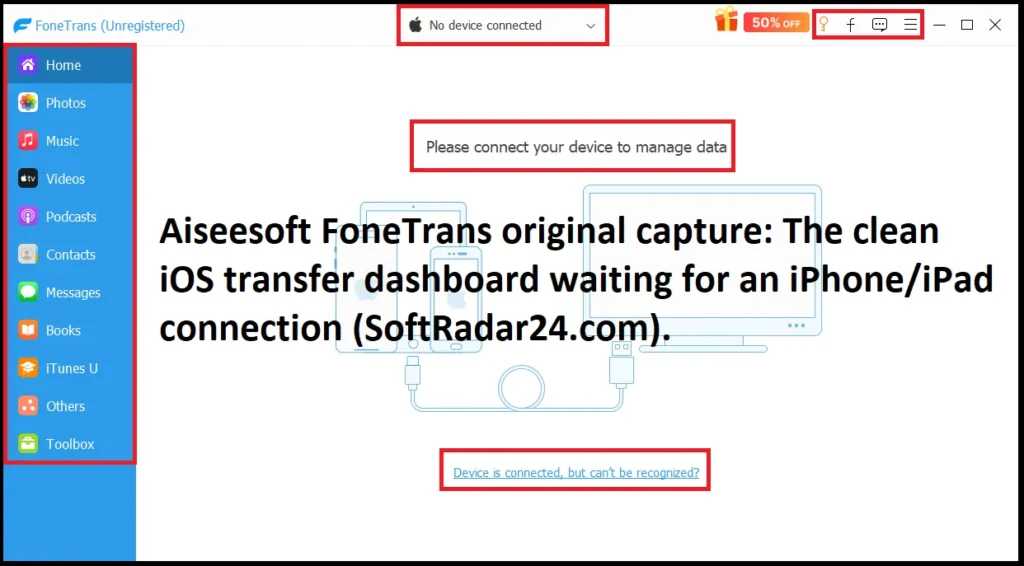
Aiseesoft FoneTrans uses a category-based desktop interface rather than a single backup button. After a device is connected, the workflow centers on browsing supported categories, selecting items, choosing Import/Export actions and using Toolbox utilities for one-click transfer, contacts, HEIC conversion and ringtone creation.

Compatibility & Coverage
Aiseesoft FoneTrans compatibility has two layers: the computer that runs Aiseesoft FoneTrans and the iOS device/data category being transferred. The current technical specifications list Windows 11 through Windows 7, iOS 6.0+, iPadOS 13+, and iPhone models through the iPhone 17 family; current Mac compatibility starts at Mac OS X 10.7.
| Area | Current documented coverage | Decision note |
|---|---|---|
| Windows | Windows 11 / 10 / 8.1 / 8 / 7 | Aiseesoft FoneTrans publishes Windows CPU, RAM and iTunes requirements. |
| macOS | Mac OS X 10.7 or higher | The current Mac requirements do not include the same detailed CPU/RAM breakdown, so test the current Mac build on older hardware. |
| iPhone | Current list runs through iPhone 17 Pro Max / 17 Pro / Air / 17 and older generations | Use the current Aiseesoft FoneTrans build when connecting a newly released iPhone or beta iOS version. |
| iPad / iPod | iPad Pro, iPad, iPad Air, iPad mini; iPod touch 7/6/5/4 | Support is for iOS/iPadOS data-management workflows, not Android. |
| iOS | iOS 6.0 and later, including iOS 27 beta / 26 in current documentation | Some current iOS versions require additional passcode confirmation during data access. |
| iPadOS | iPadOS 13 through 26 in the current reference | Exact transferable categories still depend on direction and device data. |
Import, Export and Transfer Direction Matter
| Direction | Current documented examples | What to check |
|---|---|---|
| Computer to iOS | ePub, PDF, contacts; music, movies, TV shows, music videos, podcasts, iTunes U, ringtones, audiobooks, voice memos, photos, playlists and albums | Use the import list for PC/Mac-to-device decisions; do not assume every exportable text category can be imported. |
| iOS to computer | Contacts, messages and supported app-message data, ePub, PDF, notes, calendars, Safari, call data; plus media categories and app attachments | This is the broadest current documented direction and is the key route for archiving selected iPhone/iPad data on a computer. |
| iOS to iOS | Supported iOS-to-iOS workflows include photos, music, videos, contacts and other compatible categories | Designed for selective item transfer, not a complete reproduction of every app, setting and system state. |
| iOS to iTunes / iTunes to computer | Supported media and selected document/library categories | Aiseesoft FoneTrans can work around the iTunes library without requiring iTunes as the primary transfer interface, but current tech specs still list iTunes 10.7+ as a requirement. |
Features & Capabilities
Aiseesoft FoneTrans is more useful as an iOS content manager than as a single-purpose photo copier. Its strongest capabilities combine selective transfer with organization tools that solve common follow-up work after files reach the computer or before they are sent to another iOS device.
Photos & HEIC Management
- Transfer selected iPhone/iPad photos to a computer or another iOS device
- Create and reorganize photo albums in Aiseesoft FoneTrans
- Delete unwanted photos in batches
- View photo metadata such as date, size and format
- Open HEIC images and convert HEIC to JPG or PNG with adjustable output quality
Contacts, Messages & Personal Data
- Export contacts to a computer or move supported contacts to another iOS device
- Create, edit, group and delete contact entries
- Find and merge duplicate contacts
- Back up and restore contacts through the Aiseesoft FoneTrans toolbox
- Export supported messages, notes, calendars, Safari and call data to a computer
Music, Video & Library Tools
- Move supported music and video categories between iOS and a computer
- Add supported media from a computer to iPhone/iPad without a whole-library workflow
- Edit music metadata such as album artwork, artist and genre
- Create and manage playlists
- Preview supported iTunes-library media and transfer supported items to iOS or a computer
One-Click Transfer & Utilities
- Device-to-PC one-click export for selected data categories
- Phone-to-phone transfer for supported iOS data
- Ringtone Maker with start/end trimming and volume adjustment
- Contact backup and restore utilities
- Category-by-category transfer when one-click movement is too broad
Important Conditions & Limitations
The important limitations are not about whether Aiseesoft FoneTrans has a long feature list. They are about device access, transfer direction, the difference between selective content management and full-device migration, and a current iTunes requirement that is easy to miss.
Aiseesoft FoneTrans Still Lists iTunes 10.7+ as a Software Requirement
Aiseesoft FoneTrans is designed so you do not have to use the iTunes interface for many transfer jobs, but the current Aiseesoft FoneTrans technical specifications still list iTunes 10.7 or later as a software requirement. Buyers specifically searching for a completely iTunes-free installation should verify the current build and dependency behavior before purchase.
The iPhone Must Be Recognized and Authorized
Aiseesoft FoneTrans cannot bypass a basic USB or Trust failure. Current Aiseesoft FoneTrans guidance says iOS 13+ can require the device passcode during access, and encrypted iTunes backups can require the backup password. If the iPhone is not recognized, fix the cable, USB connection, unlock state and Trust permission first.
Aiseesoft FoneTrans Is Selective Transfer, Not a Full iPhone Clone
Aiseesoft FoneTrans moves supported content categories. It does not promise to reproduce every app, app state, device setting, authentication token or complete operating-system state on a replacement iPhone. Use a full Apple migration route when complete device continuity is the actual goal.
Import and Export Coverage Are Not Identical
The current Aiseesoft FoneTrans specifications expose more categories for iOS-to-computer export than for computer-to-iOS import. Messages, notes, calendars, Safari and call data belong to the broader export side; do not assume that every category can be written back to an iPhone in the same way.
Aiseesoft FoneTrans Is iOS-Focused
Aiseesoft FoneTrans compatibility is built around iPhone, iPad and iPod touch. Android is not listed as a supported mobile platform for Aiseesoft FoneTrans, so cross-platform Android/iPhone migration requires a different tool.
Protected or Account-Controlled Media Can Have Separate Restrictions
Aiseesoft FoneTrans can manage many media categories, but transfer capability should not be interpreted as a promise to bypass Apple account rules, subscriptions or DRM. Protected or account-controlled content can remain subject to the original service and playback authorization.
Current Mac Requirements Are Less Detailed Than Windows Requirements
Aiseesoft FoneTrans lists Mac OS X 10.7 or higher, while its detailed CPU, RAM and iTunes requirements are published for Windows. On an older Mac, test the current Aiseesoft FoneTrans installer and your exact device workflow before buying specifically for that system.
The 30-Day Refund Policy Is Conditional
Aiseesoft publishes a 30-day money-back guarantee, but the current refund policy states that it is not unconditional. Refund eligibility depends on specified purchase, registration or unresolved technical-problem circumstances. Use the free download first and read the current refund terms before purchase.
Free Trial / Free Version
Aiseesoft FoneTrans provides free downloads for Windows and macOS. Aiseesoft FoneTrans does not currently publish one clear limit table covering every transfer category, so the safest use of the trial is to verify device detection and the exact workflow that matters to you.
| What to test in Aiseesoft FoneTrans | Why it matters | Useful check before purchase |
|---|---|---|
| Device recognition | No transfer feature matters until Aiseesoft FoneTrans can see and authorize the iPhone/iPad. | Connect the real device, unlock it and complete Trust/passcode prompts. |
| Your main transfer direction | Import and export categories are not identical. | Test iOS-to-computer, computer-to-iOS or iOS-to-iOS according to your real job. |
| Messages or contacts | These are common reasons to buy a manager instead of using a basic photo importer. | Confirm that Aiseesoft FoneTrans exposes the exact data you need on your current iOS build. |
| Large photo/video library | Large local photo and video transfers are a common point of failure. | Run a representative batch instead of testing only one small file. |
| HEIC workflow | Windows users often need usable JPG/PNG output after transfer. | Open a real HEIC photo in Aiseesoft FoneTrans and test the conversion route you expect to use. |
System Requirements
Aiseesoft FoneTrans publishes detailed Windows requirements and lists Mac OS X 10.7 or higher for macOS. Because the current Mac requirements do not include a matching CPU/RAM table, the Windows hardware minimums should not be copied across to Mac.
| Requirement | Current documented value | Decision note |
|---|---|---|
| Windows | Windows 11 / 10 / 8.1 / 8 / 7 | Current Aiseesoft FoneTrans Windows support. |
| Windows CPU | 1 GHz Intel/AMD CPU or above | Current documented Windows minimum. |
| Windows RAM | 1 GB RAM or more | Large media libraries can still benefit from more memory than the published minimum. |
| macOS | Mac OS X 10.7 or higher | Current Aiseesoft FoneTrans Mac support; a matching detailed Mac CPU/RAM table is not published. |
| iTunes | iTunes 10.7 or above | Still listed as a software requirement in the current Aiseesoft FoneTrans technical specifications. |
| iOS | iOS 6.0 or later, including iOS 27 beta / 26 | Use the current Aiseesoft FoneTrans build for recent devices and beta operating systems. |
| iPadOS | iPadOS 13 / 14 / 15 / 16 / 17 / 18 / 26 | Current documented range. |
Alternatives & Better-Fit Options
Choose an alternative according to the transfer problem, not just because another product is in the same mobile-tools category. For the wider brand portfolio and current offers, visit the Aiseesoft software page on SoftRadar24.
Aiseesoft MobieSync
A better fit when Android is part of the workflow. Aiseesoft FoneTrans is built around iPhone, iPad and iPod transfer, while Aiseesoft MobieSync is the more relevant SoftRadar24 route for users who need iPhone-and-Android phone management on Windows.
AnyMP4 iPhone Transfer Pro
Compare this when you want another Windows/macOS iPhone and iPad file manager before committing to Aiseesoft FoneTrans. The useful comparison is whether its transfer categories, platform license and management workflow better match the devices you actually use.
iMobie AnyTrans
Worth comparing when your buying decision is broader Apple-device management rather than only selected desktop transfer tasks. Use the dedicated SoftRadar24 guide to compare that workflow with Aiseesoft FoneTrans instead of assuming two iOS managers organize the same jobs identically.
WinX MediaTrans
A relevant comparison when media movement and iPhone library management are the center of the job. Compare the exact photo, video and music workflow you need against Aiseesoft FoneTrans rather than choosing from a feature count alone.
FAQ
These answers focus on Aiseesoft FoneTrans pricing, licensing, coupon behavior, trial and refund terms, plus compatibility details that commonly affect a purchase decision.
How much does Aiseesoft FoneTrans cost with the current SoftRadar24 options?
The current SoftRadar24 prices are US$15.60 for 1 Month / 1 PC or Mac, US$17.50 for 1 Year / 1 PC or Mac, US$31.22 for Lifetime / 1 PC or Mac, and US$79.00 for the up-to-3-PC or up-to-3-Mac option. Select the operating system first so the checkout receives the correct edition.
Is there an Aiseesoft FoneTrans coupon code or current discount?
Yes. The current SoftRadar24 campaign includes a 50% Aiseesoft FoneTrans coupon discount on eligible license options. The SoftRadar24 purchase links pass the eligible discount automatically to checkout, so no manual coupon-code entry is required. Multi-computer options use their current displayed campaign price.
Does Aiseesoft FoneTrans offer a lifetime license?
Yes. The current SoftRadar24 Lifetime price is US$31.22 for 1 Windows PC or 1 Mac. Aiseesoft FoneTrans currently describes its lifetime tier as lifetime use, with separate Windows and Mac purchase options in the SoftRadar24 campaign.
Which Aiseesoft FoneTrans license is the best value?
The 1-Year option is US$17.50, only US$1.90 above the US$15.60 1-Month price, so it is the strongest lower-cost term when you expect to use Aiseesoft FoneTrans for more than one short job. Lifetime is US$31.22 and is the more logical comparison for repeated long-term use. Choose the multi-computer option only when one PC or Mac is not enough.
Is there a free trial of Aiseesoft FoneTrans?
Aiseesoft provides free downloads for Windows and Mac. Aiseesoft FoneTrans does not currently publish one clear modern limit table covering every transfer category, so use the free build to test device recognition and your exact transfer route before paying.
What is the Aiseesoft FoneTrans refund policy?
Aiseesoft publishes a 30-day money-back guarantee, but its current refund policy explicitly says the guarantee is conditional rather than unconditional. Refund eligibility is tied to stated purchase, registration or unresolved technical-problem circumstances, so read the current policy before purchase.
Can Aiseesoft FoneTrans be used without opening iTunes?
Many Aiseesoft FoneTrans workflows are designed so you can transfer and manage files without using the iTunes interface. However, the current Aiseesoft FoneTrans technical specifications still list iTunes 10.7 or later as a software requirement. That distinction matters if your goal is a completely iTunes-free installation.
Does Aiseesoft FoneTrans support iPhone 17 and iOS 27 beta?
Aiseesoft FoneTrans currently lists the iPhone 17 Pro Max, iPhone 17 Pro, iPhone Air and iPhone 17, together with iOS 27 beta / iOS 26 in its supported iOS range. Use the current Aiseesoft FoneTrans build when working with a recent device or beta operating system.
What can Aiseesoft FoneTrans export to a computer that it cannot necessarily import back to iPhone?
Aiseesoft FoneTrans gives the iOS-to-computer direction broader text-data coverage, including messages, supported app-message data, notes, calendars, Safari and call information. Computer-to-iOS import has a narrower documented list, so export support should not be interpreted as identical two-way support for every category.
Does Aiseesoft FoneTrans support Android phones?
Android is not listed as a supported mobile platform for Aiseesoft FoneTrans. Aiseesoft FoneTrans is an iPhone, iPad and iPod transfer manager, so use a cross-platform phone manager when Android is part of the source or destination.