Quick Summary
Aiseesoft MobieSync is a Windows phone-transfer and mobile file-management tool for people who use iPhone, iPad or Android devices and want a local computer to sit between them. Its strongest use cases are moving contacts and media between iOS and Android, importing photos/music/videos/contacts from a PC to a phone, exporting supported phone data to a PC, and managing large photo, music, video and contact libraries without relying on a cloud migration service. The current technical reference includes iOS 26, iPadOS 26 and Android 16.
- Desktop platform
- Windows
- Mobile platforms
- iOS / iPadOS / Android
- Best for
- iPhone↔Android transfer, phone↔PC files & mobile-data management
- Connection
- USB-based desktop workflow
Aiseesoft MobieSync Pricing, Discount Code & License Options
The current 50% Aiseesoft MobieSync coupon discount is applied automatically to eligible license options below. No manual coupon code entry is required. Choose the license by how many Windows PCs need MobieSync and whether the job is a one-time migration or ongoing phone management.
License & Purchase · Aiseesoft MobieSync · Windows · Current Discount Pricing
Current Aiseesoft MobieSync License Prices
The purchase selector currently includes the following license options:
- Aiseesoft MobieSync 1-Month License · 1 Windows PC · US$15.60
- Aiseesoft MobieSync Lifetime License · 1 Windows PC · US$31.22
- Aiseesoft MobieSync Lifetime License · Up to 3 Windows PCs · US$39.98
- Aiseesoft MobieSync Lifetime License · Up to 5 Windows PCs · US$99.00
Choose 1 Month / 1 PC for a one-time migration or short phone-management project. Choose Lifetime / 1 PC if one Windows computer will remain your regular transfer station. Lifetime / 3 PCs is the better multi-PC step when two or three Windows computers need MobieSync. Choose Lifetime / 5 PCs only when four or five Windows computers require the software.
Aiseesoft MobieSync · 1-Month License
1 Windows PC · 1-month MobieSync license
Included with this license- Aiseesoft MobieSync for 1 Windows PC
- iPhone, iPad, iPod touch and Android file-transfer workflows
- Phone-to-phone and phone-to-PC transfer for supported data categories
- Short-term fit for a one-time phone migration or transfer project
Choose 1 Month / 1 PC for the lowest upfront cost when you only need MobieSync for a temporary migration, device replacement or short transfer project.
Select the exact license term and Windows-PC allowance you need before purchasing. The first three current offers carry the automatic discount shown in the selector; the 5-PC lifetime option is listed at US$99.00. Review any optional extras, renewal settings, tax and final total shown at checkout.
Can This Software Do What I Need?
MobieSync is strongest when the files already exist and you need to move, organize or export them. The scenarios below separate normal phone transfer from full-device migration, deleted-data recovery and messaging-app transfer.
I want to move contacts, photos, music or videos from iPhone to Android
iPhone to Android transfer
SupportedConnect both phones to the Windows PC, select the iPhone as the source device, choose the supported items and export them to the Android target. Contacts, music, photos and videos are explicitly listed as importable to supported devices.
I want to move photos, music, videos or contacts from Android to iPhone
Android to iPhone transfer
SupportedThe same source/target workflow works in the opposite direction for the data categories in the current import table. This makes MobieSync useful when changing ecosystems without treating the transfer as a full phone clone.
I want to copy phone photos and videos to a Windows PC
Phone to PC transfer
SupportedPhotos and videos can be previewed and exported to the computer. The same export table also includes music, contacts and messages, so the PC can act as a local management/archive destination.
I want to add photos, music, videos or contacts from my PC to a phone
PC to phone transfer
SupportedThe current technical reference lists Contacts, Music, Photos and Videos as importable to iOS/Android devices. Use Add File(s) from the relevant category after selecting the target phone.
I want to export SMS or iMessages to my computer
Message archive
SupportedMobieSync can export messages to the PC and the product page documents HTML, CSV and TXT output. Sender name, number, emoji and message text are retained in the documented export workflow.
I want to import old SMS messages from my PC onto a new phone
Message import
Not supportedMessages appear in the current export-to-PC table but not in the current import-to-device table. Do not buy MobieSync on the assumption that a PC message archive can be written back to a new phone.
I want to back up and restore my contacts before changing phones
Contacts backup and restore
SupportedContacts Backup and Contacts Restore are directly documented in the Toolbox. During restore, MobieSync can also clear existing contacts first when that is intentionally selected.
I have duplicate contacts and want to clean them before migration
Contact management
SupportedMobieSync can merge duplicate contacts and add, rename, delete or group contacts. That is useful before moving a large address book to a replacement iPhone or Android device.
I need to convert iPhone HEIC photos to JPEG or PNG
HEIC conversion
SupportedHEIC Converter accepts photos from the connected device or PC, outputs JPEG or PNG, exposes an output-quality control and can preserve EXIF metadata when Keep EXIF is enabled.
I want to make a custom iPhone ringtone from a song
Ringtone creation
SupportedRingtone Maker can load audio from a phone or PC, trim the section you want, generate the ringtone and optionally add it to the connected iPhone.
I want to migrate WhatsApp chats and attachments between iPhone and Android
Messaging-app migration
Different taskThe current MobieSync technical reference does not list WhatsApp as a supported transfer category. Aiseesoft maintains separate messaging-transfer products, so do not treat normal MobieSync message export as WhatsApp migration.
I want to move installed Android apps and their app data to iPhone
App migration
Verify firstAn older Aiseesoft how-to discusses app transfer, but the current MobieSync technical reference no longer lists apps among data importable to a device. Verify the exact current build before relying on app migration; platform-native migration tools may be more appropriate.
I want a full phone clone including settings, app data and every account
Full-device migration
Different taskMobieSync is a selective file/data manager, not a documented full-device image or account clone. Choose it when you want control over supported contacts and media rather than an all-or-nothing phone migration.
I want wireless phone-to-phone transfer without connecting USB cables
Wireless transfer
Not supportedThe documented MobieSync transfer workflow connects mobile devices to the Windows computer by USB. Choose a wireless/browser/cloud transfer tool if cable-free movement is a non-negotiable requirement.
I use a Mac and want the MobieSync desktop application
macOS desktop
Not supportedCurrent MobieSync system requirements list Windows only. iPhone and Android phones are supported mobile endpoints, but the host computer running MobieSync must be Windows.
I deleted files and need to recover data that is no longer on the phone
Deleted-data recovery
Different taskMobieSync transfers and manages data that can still be accessed. Deleted-data recovery requires a recovery product that scans for recoverable data rather than a normal phone manager.
How It Works
MobieSync uses the Windows PC as the control point. Connect one or more phones by USB, choose the source device, preview the supported data and then send selected items either to another connected phone or to the computer.
Transfer Files from iPhone to Android
- Install and open MobieSync on Windows, then connect the iPhone and Android phone by USB.
- Select the iPhone from the device selector as the source.
- Open a supported category such as Contacts, Photos, Music or Videos and preview/select the items to move.
- Choose Export to Device and select the connected Android phone as the destination.
- Verify representative files and contact records on the target phone before deleting anything from the source.
Transfer Files from Android to iPhone
Use the same workflow with the Android phone selected as the source and the iPhone as the target. The current technical reference is the key boundary: contacts, music, photos and videos are listed for import to supported devices, so these are the safest categories to plan around.
Transfer Phone Data to a PC
Select the connected phone, open the relevant data category, choose the required items and export them to the computer. The current export table includes Contacts, Messages, Music, Photos and Videos. Message export can create HTML, CSV or TXT files for local viewing or record keeping.
Add Files from a PC to a Phone
Select the destination phone and open Contacts, Music, Photos or Videos. Use Add File(s) to import supported local content. Because Messages are not listed in the current import-to-device table, do not treat a PC message export as a reversible phone-message backup.
Back Up and Restore Contacts
- Open Toolbox and choose Contacts Backup.
- Create the contacts backup before changing devices or making major address-book edits.
- For recovery, open Contacts Restore and select the saved contacts backup.
- Choose whether existing contacts should be cleared only when that is intentionally required.
Convert HEIC or Create an iPhone Ringtone
HEIC Converter can load images from the phone or PC, choose JPEG or PNG, adjust output quality and preserve EXIF data. Ringtone Maker can load audio, trim the desired segment, generate an iPhone ringtone and optionally add it directly to the connected device.
Product Interface & Workflow
The interface is organized around the connected device rather than around a backup archive. A device selector identifies the active source, data categories sit on the left, the main pane previews individual items, and the top actions determine whether selected data goes to another phone or to the computer.
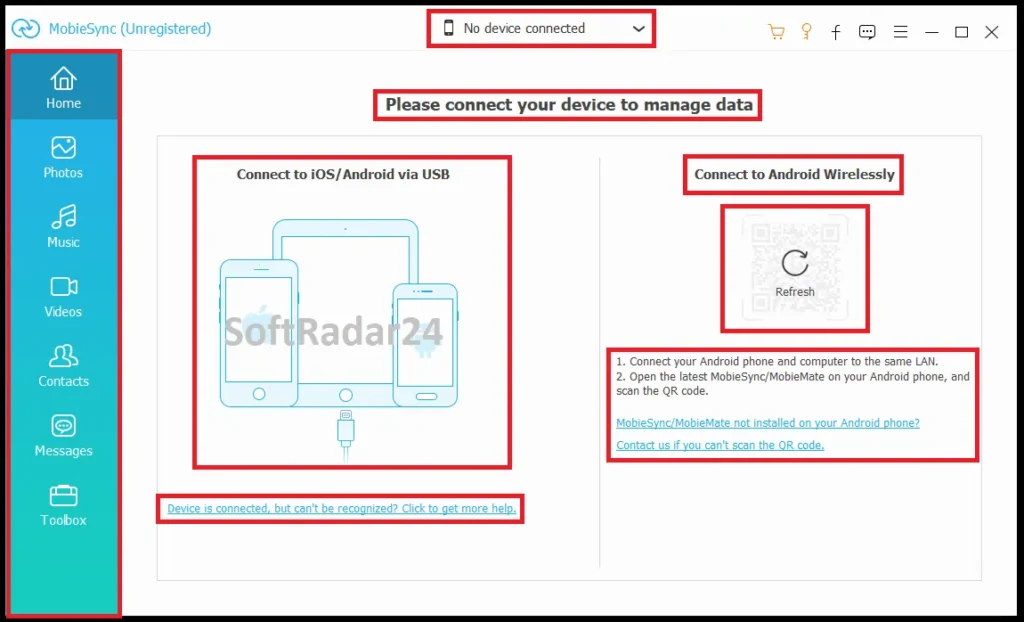
Source Device & Data Categories
When two phones are connected, source selection matters. Choose the device you are copying from before opening Contacts, Photos, Music, Videos or Messages. This reduces the chance of selecting the right files from the wrong phone during a cross-platform migration.
Preview Before Transfer
Photos, music and video can be previewed or inspected before export. For contacts and messages, item-level selection provides a more controlled workflow than blindly cloning a full device, particularly when the new phone should receive only part of the old library.
Toolbox
Toolbox houses the supporting jobs that are not normal file browsing: Contacts Backup, Contacts Restore, Ringtone Maker and HEIC Converter. Keeping these functions separate makes it clearer when you are transferring live device data versus creating a contacts recovery point or converting media.
Compatibility & Coverage
MobieSync supports a broad range of current and older Apple/Android devices, but the Windows host and the allowed transfer direction for each data category are the two compatibility details that matter most.
| Area | Current documented coverage | Practical meaning |
|---|---|---|
| Windows host | Windows 11 / 10 / 8.1 / 8 / 7 / Vista / XP SP2+ | No current native macOS MobieSync host application is listed. |
| iPhone / iOS | iOS 6.0+ including iOS 26 | Current reference includes iPhone 17, 16, 15, 14, 13, 12, 11 and older families. |
| iPad / iPadOS | iPadOS 13 through 26 plus supported older iPad models | iPad can participate in the same managed transfer workflow. |
| Android | Android 4.0+ including Android 16 | Vendor lists Samsung, Pixel, Huawei, Motorola, Nokia, OnePlus, Xiaomi and other brands. |
| Import to phone | Contacts · Music · Photos · Videos | These are the current explicitly documented device-import categories. |
| Export to PC | Contacts · Messages · Music · Photos · Videos | Messages are documented for PC export, not for device import. |
| Connection | USB | Documented tutorial connects one or more devices to the Windows PC by USB cable. |
| iTunes component | iTunes 10.7+ | Current technical requirements list this dependency for the iOS workflow. |
Features & Capabilities
MobieSync combines selective transfer with library management. Its value is highest when you want to inspect and organize existing phone data instead of performing a black-box full-device migration.
Cross-Platform Phone Transfer
- iOS to iOS transfer
- Android to Android transfer
- iOS to Android and Android to iOS workflows
- Phone to Windows PC export
- Windows PC to phone import for supported categories
- Real-time item preview before transfer
Contacts
- Transfer contacts to a replacement iPhone or Android device
- One-click Contacts Backup and Contacts Restore
- Merge duplicate contacts
- Add, rename and delete contacts or groups
- Edit contact information before migration
Photos
- Transfer photos among supported phones/tablets and Windows
- Preview photos before transfer
- Add or delete photos
- Create and organize albums
- Export selected photos to the computer
Music & Audio
- Transfer music among iOS, Android and Windows
- Built-in playback before transfer
- Edit ID3 information
- Create albums and playlists
- Delete unwanted audio
- Create iPhone ringtones from device or PC audio
Videos
- Transfer Movies, TV shows, Home Videos, MV, Podcasts and iTunes U categories
- Preview video in the built-in player
- Delete large videos
- Create video playlists
- Export selected video to the computer
Messages & Utility Tools
- Bulk-delete supported messages/iMessages
- Export messages to HTML, CSV or TXT on the PC
- Preserve sender name, number, emoji and text in documented message exports
- Convert HEIC images to JPEG or PNG
- Optionally keep EXIF data during HEIC conversion
- View device type, capacity, used space and serial information
Important Conditions & Limitations
The most important MobieSync limitations come from transfer direction, platform scope and the difference between file management and full application/account migration.
Windows Host Required
MobieSync currently runs on Windows. iPhone, iPad and Android are supported as connected mobile devices, but there is no current macOS MobieSync desktop requirement/profile in the official technical reference.
The Documented Workflow Uses USB
The current tutorial connects one or more phones to the computer by USB cable. MobieSync therefore competes with wireless transfer tools on management depth rather than cable-free convenience.
Messages Are Not a Symmetric Import/Export Category
The current reference explicitly lists Messages for export to PC but not among data importable to iOS/Android. This distinction matters if your goal is to create an archive versus restore old SMS/iMessages onto a replacement phone.
Do Not Treat MobieSync as WhatsApp Migration
Normal text-message/iMessage management is not the same as transferring WhatsApp databases and attachments across iOS and Android. The current MobieSync data-type reference does not establish WhatsApp migration support.
Legacy App-Transfer Guidance Is Broader Than the Current Tech Spec
Aiseesoft still hosts an older app-transfer tutorial, but the current product-specific technical reference does not list Apps among the categories importable to a phone. Plan the purchase around the current reference unless the installed build explicitly confirms the exact app workflow you need.
Contacts Backup Is Better Documented Than Full-Phone Backup
The product page uses broad one-click backup language, while the current tutorial gives a precise, reproducible Contacts Backup/Restore workflow. This guide therefore treats contacts backup as the clearly established built-in recovery feature and does not promise a full image-style backup of every phone setting and app.
iTunes 10.7+ Is Still Listed
The current technical reference lists iTunes 10.7 or later as a requirement. Users choosing MobieSync specifically to avoid the iTunes sync workflow should distinguish “not using iTunes for manual file synchronization” from the underlying Apple component requirement on Windows.
Free Trial / Free Version
Aiseesoft provides a Free Download / trial build of MobieSync. The current official product, purchase, reference and tutorial pages do not publish one consolidated numerical table for every trial transfer limit, so the trial is best used as a compatibility test rather than assumed to be an unrestricted free edition.
| What to test | Why it matters before buying |
|---|---|
| Device detection | Confirm the exact iPhone/iPad/Android device is recognized over USB. |
| Source/target transfer | Verify the particular iOS↔Android direction and data category you need. |
| Message export | Confirm the messages you need appear and the required HTML/CSV/TXT export works. |
| Contacts | Check contact preview/management before relying on a migration. |
| HEIC / Ringtone tools | Verify the utility workflow if these extras influence the purchase decision. |
System Requirements
The current MobieSync reference covers both the Windows computer and the mobile operating systems. The mobile OS range is broad; the desktop host remains Windows-only.
| Requirement | Current documented value | Practical note |
|---|---|---|
| Windows | Windows 11 / 10 / 8.1 / 8 / 7 / Vista / XP SP2+ | Use a supported modern Windows release for current phone-driver compatibility where possible. |
| iOS | iOS 6.0+ including iOS 26 | Current device table includes iPhone 17 through many older generations. |
| iPadOS | iPadOS 13 / 14 / 15 / 16 / 17 / 18 / 26 | Current official reference. |
| Android | Android 4.0+ including Android 16 | Compatibility also depends on the individual device/USB connection. |
| CPU | 1 GHz Intel / AMD or above | Current official minimum. |
| RAM | 1 GB or more | Current official minimum. |
| iTunes | 10.7 or above | Listed in the current official MobieSync requirements. |
| Connection | USB cable | Required by the documented phone-transfer tutorial. |
Alternatives & Better-Fit Options
Choose an alternative when your real requirement is narrower iPhone-only management or broader full-device/app backup. For additional products and current offers in the same ecosystem, see the Aiseesoft software and licensing page.
AnyMP4 iPhone Transfer Pro
AnyMP4 iPhone Transfer Pro is the more direct cross-brand comparison when the workflow is centered on iPhone/iPad transfer and management rather than keeping Android and iOS in the same tool. It is worth comparing when iOS-specific organization and computer transfer matter more than cross-platform phone migration.
WinX MediaTrans
WinX MediaTrans is a lighter Windows iPhone-media manager focused on photos, music, video and iOS media transfer. It is a better fit when Android support is unnecessary and the goal is a streamlined iPhone-to-PC/iTunes-alternative media workflow.
iMobie AnyTrans
iMobie AnyTrans is the broader better-fit option when the requirement extends beyond MobieSync’s focused contacts/media transfer into wider iOS backup, device-management, app and messaging-data workflows. Compare the exact data categories you need rather than assuming every phone manager has the same migration scope.
FAQ
These answers cover current compatibility, licensing and transfer mechanics without repeating the scenario matrix above.
Does Aiseesoft MobieSync support iOS 26 and Android 16?
Yes. The current technical reference lists iOS 6.0 and later including iOS 26, iPadOS through version 26, and Android 4.0 and later including Android 16.
Does MobieSync work with iPhone 17?
Yes. The current device list includes iPhone 17 Pro Max, iPhone 17 Pro, iPhone Air and iPhone 17 along with iPhone 16, 15, 14 and earlier families.
Does Aiseesoft MobieSync work on Mac?
No current native macOS MobieSync host application is listed. The official MobieSync system requirements are Windows-based, while iPhone/iPad and Android act as connected mobile devices.
Which data can MobieSync import to an iPhone or Android phone?
The current technical reference lists Contacts, Music, Photos and Videos as importable to supported iOS and Android devices.
Which data can MobieSync export to a PC?
The current export table lists Contacts, Messages, Music, Photos and Videos. Messages can be exported in documented HTML, CSV or TXT workflows.
Can MobieSync transfer WhatsApp chats?
WhatsApp is not listed as a supported MobieSync transfer category in the current product-specific technical reference. Treat WhatsApp migration as a separate messaging-transfer task.
Does MobieSync require iTunes?
The current MobieSync system requirements list iTunes 10.7 or later. MobieSync can replace the normal iTunes-style manual synchronization workflow while still relying on the listed Apple software component on Windows.
Can MobieSync back up contacts?
Yes. Contacts Backup and Contacts Restore are directly documented in the current tutorial, including the option to clear existing contacts during restore when intentionally selected.
Can MobieSync convert HEIC photos?
Yes. HEIC Converter can output JPEG or PNG, adjust output quality and optionally retain EXIF metadata.
Can MobieSync create iPhone ringtones?
Yes. Ringtone Maker can load audio from a connected device or PC, trim the desired segment, generate a ringtone and optionally add it to the iPhone.
What are the current MobieSync license prices?
The current license grid starts at US$15.60 for 1 Month / 1 PC, followed by US$31.22 for Lifetime / 1 PC, US$39.98 for Lifetime / 3 PCs and US$99.00 for Lifetime / 5 PCs.
What is Aiseesoft’s current MobieSync refund period?
The current purchase page displays a 30-day money-back policy and specifically states 30-day refunds for lifetime licenses when there is a quality problem. Refund eligibility is therefore subject to the vendor’s current terms rather than an unconditional free-return promise.