Every time you remove software using the standard Windows “Add/Remove Programs” tool, invisible registry keys and gigabytes of junk folders are left behind. Over time, this digital clutter degrades your system’s performance, leading to unexplained crashes and sluggish boot times. Revo Uninstaller Pro 5.4.7 eliminates this problem entirely. It completely bypasses the flawed Windows uninstaller, utilizing a proprietary deep-scan algorithm and real-time installation monitoring to eradicate stubborn bloatware, hidden extensions, and corrupted files without leaving a single byte behind.
Whether you need to clean a single workstation or optimize multiple PCs on the go using the Portable edition, this is the ultimate maintenance utility. Best of all, through our official 2026 partnership, you can apply our verified 75% exclusive discount securing a 1-year Revo Uninstaller Pro license for just $5.20. Read our comprehensive review below to discover why IT professionals trust Revo Uninstaller for a flawless Windows experience.
Revo Uninstaller Pro Coupon Code Applied Automatically at Checkout – Last Update: May 11, 2026
While Revo Uninstaller expertly handles software-level clutter and registry optimization, protecting the physical health of your storage drives is equally critical. Frequent software installations and removals impact your SSD and HDD lifespan through continuous read/write cycles. To prevent catastrophic data loss, predict hardware failures, and monitor real-time drive performance, we highly recommend pairing your deep-cleaning uninstaller with an industry-leading hardware diagnostic tool.
🎁 Special Offer: Shield your valuable data from unexpected drive failures and claim your exclusive Hard Disk Sentinel Pro Discount Code right now.
What is Revo Uninstaller and How Does It Work?
Revo Uninstaller is a highly advanced software removal and system optimization utility. When you uninstall a program normally, Windows only runs the application’s built-in uninstaller, which is often lazily programmed and leaves behind leftover folders in your AppData directory and orphaned keys in your Windows Registry. Revo acts as a safety net. After the standard uninstallation finishes, Revo’s proprietary algorithm performs a deep registry and hard drive scan, revealing all the hidden leftovers. It essentially prevents your computer from turning into a digital graveyard of deleted software.
User Interface: Intuitive and Accessible
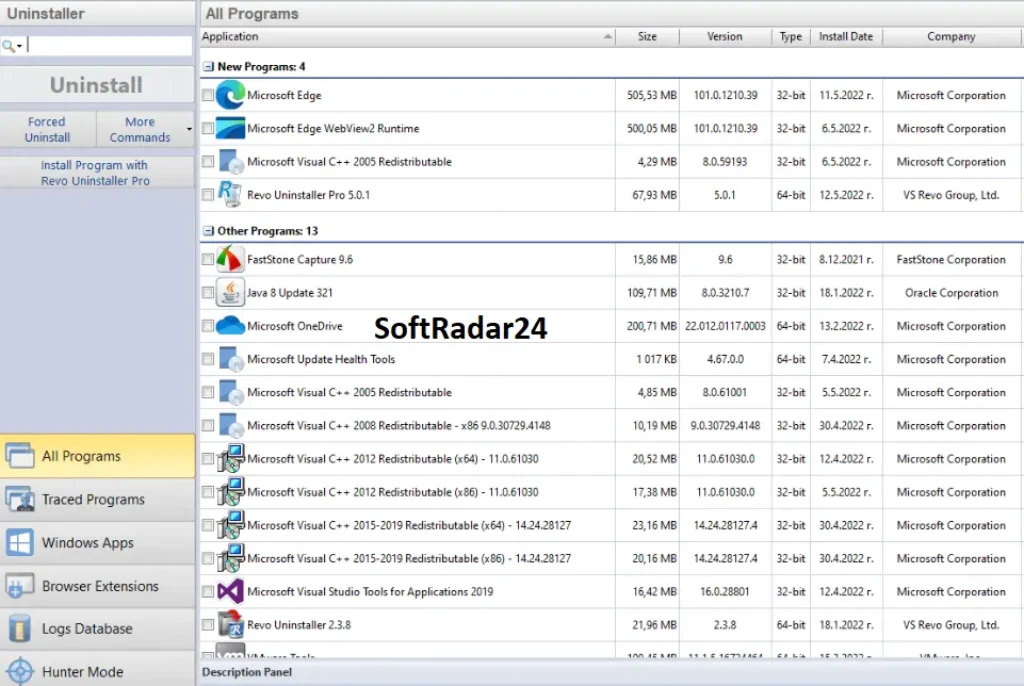
Despite its powerful forensic capabilities, VS Revo Group has designed an incredibly user-friendly interface. You don’t need to be an IT expert to navigate it. The main dashboard cleanly lists all installed software, categorized neatly to separate standard third-party programs from stubborn Windows Apps (Bloatware). With a single click on an application, you are presented with options to uninstall, search the software online, or open its installation folder. The layout is lightweight, highly responsive, and completely devoid of confusing technical jargon.
Bonus: The 8 Built-in PC Cleaning Utilities
What makes Revo Uninstaller a must-have—even in its Free version—is that it doubles as a comprehensive PC tune-up suite. By clicking the “Tools” section, you gain access to 8 additional cleaning utilities at no extra cost. These include:
- Autorun Manager: Easily disable programs that launch automatically on startup to significantly speed up your Windows boot time.
- Junk Files Cleaner: Scan and safely delete temporary files, cache, and system junk that are wasting valuable SSD storage space.
- Browsers Cleaner: Clear your internet history, cookies, and temporary internet files across all major browsers (Chrome, Firefox, Edge) to protect your privacy.
- Evidence Remover & Unrecoverable Delete: Permanently shred sensitive files and folders so they can never be recovered, even by professional data recovery software.
Key Features: Beyond Standard Uninstallation
While the free version of Revo Uninstaller provides excellent baseline cleaning, the Professional edition is engineered for total system dominance. It transforms program removal from a passive click into an active, forensic-level eradication process. Here is what makes Revo Uninstaller Pro the industry standard:
👁️ Real-Time Installation Monitor
This is Revo’s most innovative feature. When you install new software, Revo Uninstaller Pro works silently in the background, recording every single file dropped and every Registry key modified into a “trace log”. Months later, when you decide to remove that program, Revo Uninstaller essentially rewinds the installation video, ensuring a 100% spotless removal without guessing which files belong to the application.
🔨 Forced Uninstall for Stubborn Software
Have you ever encountered an error saying “Uninstaller is missing or corrupted”? The Forced Uninstall module solves this immediately. Even if a program is partially deleted, broken, or not listed in the Windows Apps list, you simply point Revo to its folder or executable file. Revo Uninstaller will scan its massive database and ruthlessly hunt down and destroy all associated remnants across your hard drive.
🎯 Hunter Mode (Drag-and-Drop Removal)
Hunter Mode is a fan-favorite tool for dealing with unknown pop-ups or hidden adware. Revo Uninstaller minimizes to a small crosshair icon on your screen. You simply drag and drop this targeting crosshair over any annoying desktop window, system tray icon, or shortcut. Instantly, Revo identifies the underlying software and gives you immediate options to uninstall it, stop its process, or disable it from starting with Windows.
🛡️ Multi-Level Backup & Safety System
Deep cleaning shouldn’t be dangerous. Revo Uninstaller Pro includes a foolproof safety net. Before any uninstall begins, it automatically creates a Windows System Restore Point. Furthermore, every single deleted Registry key is backed up in Revo’s internal Backup Manager, and leftover folders are sent to the Recycle Bin. If a removal ever causes system instability, you can revert the changes with a single click.
⚡ Quick / Multiple Uninstall
If you are setting up a new PC or cleaning out years of bloatware, doing it one by one is agonizing. Revo Uninstaller’s Quick Uninstall allows you to select 10, 20, or even 50 programs at once. It automatically mutes the individual uninstaller pop-ups, creating a streamlined queue that silently deletes the programs and scans for leftovers back-to-back, saving you hours of manual clicking.
Revo Uninstaller Free vs. Pro: Feature Comparison
Not sure which edition fits your needs? While the Free version is an excellent starting point for basic uninstallation tasks, the Pro and Portable versions unlock enterprise-grade tools designed for deep system maintenance and forensic-level cleaning. Here is a clear breakdown of their capabilities:
The Portability Advantage: Revo Uninstaller Pro Portable
While the standard Pro version is tied to a single PC, system administrators, IT technicians, and computer repair shops require a more flexible solution. Revo Uninstaller Pro Portable is designed specifically for professionals on the move.
The Portable edition does not require installation. You can load it directly onto a USB flash drive and run it on an unlimited number of computers. It leaves absolutely no footprint, temporary files, or registry keys on the host computer.
- Plug and Play: Works instantly on any Windows machine (from Vista to Windows 11) directly from your USB drive.
- Full Pro Features: Retains 100% of the standard Pro capabilities, including Forced Uninstall, Real-Time Monitoring, and the Logs Database.
- Cost-Effective: Instead of buying dozens of individual licenses for every PC in your office, one Portable license covers your entire network for just $6.24 (with our 75% discount).
Before diving into the advanced forensic cleaning capabilities of Revo Uninstaller Pro, it is important to understand how the native Windows removal process works. Sometimes, for very simple applications, the built-in Windows Settings might be all you need. If you are unfamiliar with the standard procedure, Microsoft provides a comprehensive baseline guide.
📚 Read the official guide: How to uninstall or remove apps and programs in Windows
How to Completely Uninstall a Program Using Revo Uninstaller Pro
Removing software via the Windows Control Panel often leaves behind hidden files and registry entries. Revo Uninstaller Pro uses a meticulous, multi-step process to ensure a 100% clean removal. Here is the exact workflow to completely eradicate any program from your system:
Initiate and Backup
Launch Revo Uninstaller Pro, locate the unwanted software in the list, and click the Uninstall button. Before proceeding, Revo prompts you to create a System Restore Point and a full Registry backup. Keeping these options checked provides a crucial safety net before any system changes occur.
Run the Built-in Uninstaller
Revo will first trigger the software’s native uninstaller. Follow the standard on-screen prompts to remove the application. If this native uninstaller is missing or broken, Revo will display a warning but still allow you to bypass it and continue the uninstallation process.
Select Leftover Scanning Mode
Once the standard removal is finished, click Scan. You can choose from three forensic scanning modes: Safe, Moderate, or Advanced. The Advanced mode requires slightly more time but performs the most exhaustive search for deeply buried leftover files and registry keys.
Review and Delete Registry Leftovers
Revo presents a list of leftover Windows Registry entries. The entries marked in bold text are the exact remnants targeted for deletion. Review the list, click “Select All”, and crucially, you must explicitly click the Delete button. Simply hitting “Next” will bypass the removal and leave the junk behind.
Erase Orphaned Files and Folders
Finally, Revo displays all remaining orphaned files and folders on your hard drive. Select them and click Delete. For your peace of mind, all deleted files are sent directly to the Recycle Bin, ensuring you can quickly recover them if a mistake was made.
How to Use Forced Uninstall for Stubborn or Hidden Programs
Sometimes a program becomes corrupted, its uninstaller goes missing, or it simply refuses to show up in your installed apps list. The Forced Uninstall module is designed for these exact worst-case scenarios. It hunts down partial installations and ghost files with forensic precision. Here is how to execute a forced removal:
Target the Broken Program
Click on the Forced Uninstall tab on the left sidebar. You have two ways to identify the target: manually type the exact name of the program, or click the “Browse for” button to directly select the software’s main folder or its `.exe` executable file on your hard drive.
Leverage the Logs Database
As soon as you enter the target, Revo Uninstaller Pro instantly searches its official online Logs Database. If it finds a professional trace log for that specific software, it will use it as a map to find every single hidden file, effectively repairing the broken uninstallation process.
Bypass the Native Uninstaller
If you are using this module because the program’s original uninstaller is corrupted, look at the lower-left corner of the window. Make sure to uncheck the option that says “Run selected built-in uninstaller.” This forces Revo Uninstaller to take complete control of the deletion process.
Execute a Multi-Account Scan
Select the Advanced scanning mode for a deep hard drive sweep. Additionally, if multiple people use your PC, check the option to scan across all Windows user accounts. This ensures the broken software hasn’t hidden leftover data in another user’s AppData directory. Click Next.
Review and Explicitly Delete
Once the scan completes, you will see the leftover registry items (bolded) and remaining files. Click “Select All” for both lists. Remember the golden rule: you must click the Delete button to actually wipe the files. Clicking “Finish” will exit the process without deleting the remnants.
How to Trace a Program Installation for 100% Clean Removal
The Real-Time Installation Monitor is the crown jewel of Revo Uninstaller Pro. By actively tracking a setup process, Revo Uninstaller creates a precise “trace log” blueprint of every file and registry key added to your system. This guarantees a flawless, zero-leftover removal in the future. Here is how to correctly trace a new installation:
Launch the Installation Monitor
Locate the setup file (e.g., .exe or .msi) of the software you want to install. Right-click it and select “Install with Revo Uninstaller Pro” (Windows 11 users may need to click “Show more options” first). Alternatively, open the Revo dashboard and click the “Install Program” button to browse for your setup file.
Install with the Revo AppBar
The program’s installation wizard will start normally, but you will notice the Revo AppBar floating at the top of your screen. This bar acts as a silent camera, recording all system modifications in the background. Proceed through the setup wizard just as you normally would.
The Crucial “First Launch” Rule
When the setup finishes, do not immediately stop the trace. Launch the newly installed program at least once. This forces the software to generate its user profile folders, cache, and initial configuration data, allowing Revo Uninstaller to capture these hidden post-installation elements.
Stop and Save the Trace Log
Close the target program. Navigate back to the floating Revo Uninstaller AppBar, click the Stop button (the square icon), and then click the Save button (the floppy disk icon). Assign a recognizable name to your log file. It is now safely stored in Revo’s “Traced Programs” module for future use.
Strict Tracing Protocols
For an accurate trace log, follow these rules: close all unnecessary background applications before starting so their data isn’t accidentally recorded, do not trace multiple installations simultaneously, and always decline any prompt to reboot your PC until after you have successfully saved the trace log.
How to Remove Pre-Installed Windows Apps (Bloatware)
Recent versions of Windows come bundled with built-in applications that Microsoft actively prevents you from uninstalling via standard settings. Revo Uninstaller Pro bypasses these restrictions, categorizing them in a dedicated module to help you debloat your operating system safely. Here is how to remove them:
Access the Windows Apps Module
Launch Revo Uninstaller Pro and click on the Windows Apps tab located on the left-hand navigation pane. This will filter out your regular desktop software and display a list containing only native Microsoft Store apps and pre-installed Windows bloatware.
Select and Secure
Highlight the unwanted application and click the Uninstall button in the upper-left corner. As always, Revo Uninstaller will prompt you to create a System Restore Point and a Registry backup. We highly recommend keeping these enabled, as altering built-in Windows components requires a safety net.
The Automated PowerShell Execution
Unlike standard third-party programs that launch a visual setup wizard, Revo Uninstaller removes Windows Apps by quietly executing an automated PowerShell script. You will see a command window briefly flash on your screen and disappear. This is completely normal—no user interaction is required during this phase.
Scan for Leftover App Data
Once the PowerShell script completes its task, the Scan button will become active. Click it to instruct Revo Uninstaller to comb through your system for any residual configuration files or orphaned Registry entries that the app may have left behind in your user directories.
Review and Explicitly Delete
Review the generated list of leftover Registry entries. Ensure the items you want to erase are selected, and explicitly click the Delete button. Remember, simply clicking “Finish” will exit the window without wiping the remnants, leaving the uninstallation incomplete.
How to Remove Stubborn Browser Extensions and Adware
Malicious browser extensions, adware, and search hijackers often hide deep within your browser settings, making them difficult to remove manually. Revo Uninstaller Pro consolidates extensions from all major browsers (Google Chrome, Mozilla Firefox, Microsoft Edge, Opera, and Internet Explorer) into one unified dashboard for easy eradication. Here is how to clean your browsers:
The “Closed Browser” Rule
Before initiating any removal, it is absolutely critical that you completely close the web browser associated with the unwanted extension. If the browser is running in the background, its files remain locked by the operating system, and the removal process will fail.
Access the Unified Extensions Dashboard
Open Revo Uninstaller Pro and look at the lower-left section of the main window. Click on the Browser Extensions module. This will generate a neatly categorized list of every single add-on currently installed across all the browsers on your computer.
Identify and Select the Threat
Scroll through the list and locate the suspicious or unwanted extension. Because Revo groups them by browser (e.g., all Chrome extensions together), it is very easy to spot rogue add-ons that you do not remember installing. Click on the extension to highlight it.
Execute the Removal
With the target selected, click the Remove button located in the upper-left corner of the interface. Technical Note: If you are removing an extension from Microsoft Edge, this button will dynamically change its title to Uninstall, because Windows 11 treats Edge extensions natively as applications.
How to Use Hunter Mode to Eradicate Unknown Pop-ups
Sometimes you get annoying pop-up windows or system tray icons, but you have no idea what the software is actually called to uninstall it. Hunter Mode turns your mouse cursor into a digital sniper scope, allowing you to visually target and destroy any open window or shortcut without needing to know its name. Here is how to use it:
Activate the Hunter
Open Revo Uninstaller Pro and click the Hunter Mode button located in the lower-left corner of the main dashboard. The Revo interface will immediately minimize, and a semi-transparent targeting crosshair icon will appear in the upper-right corner of your desktop.
Acquire Your Target
Press and hold the left mouse button over the crosshair icon, then drag it across your screen. Drop it directly over the annoying pop-up window, the unknown desktop shortcut, or the hidden icon running in your system tray. As you hover over an element, Revo Uninstaller will display a text box revealing the hidden application’s true name and file path.
Execute the Action
Once the target is locked, simply release the left mouse button. A powerful context menu will instantly appear. From here, you can choose to permanently Uninstall the program, Kill the Process to stop it from running immediately, or Stop Auto Start to prevent it from launching when Windows boots up.
Pro Tip: Repositioning the Crosshair
If the Hunter Mode icon is blocking a crucial part of your screen and you just want to move it out of the way without triggering an uninstall scan, simply click and drag it using your middle mouse button (the scroll wheel click). This allows you to reposition the icon safely.
Revo Uninstaller Pro Discount Coupon Codes 2026
Why pay full retail price when you can unlock enterprise-grade PC optimization for less than the cost of a coffee? Through our exclusive 2026 official partnership with VS Revo Group, we are thrilled to offer a verified 75% discount on all professional licenses.
Forget hunting for expired promo codes on spammy websites. By using our direct partner links, the maximum possible discount is automatically applied at checkout. You can secure a 1-year Revo Uninstaller Pro license for a mere $5.20, or upgrade to the ultimate IT toolkit—the Pro Portable edition—for just $6.24.
Even after your 1-year update subscription expires, you retain a lifetime license to use your currently installed version without time limitations. Eradicate stubborn bloatware, protect your digital privacy, and restore your computer’s peak performance by selecting your preferred discounted package below.


Revo Uninstaller Pro 5 – 1 Year Subscription
Secure your PC with a 1-year update subscription that includes real-time monitoring and a lifetime license to use the installed version.
Revo Uninstaller Pro 5 – 2 Years Subscription
Maximize your value with extended 2-year premium support and updates for deep system cleaning and bloatware removal.
Revo Uninstaller Pro 5 Portable – 1 Year Subscription
Optimize an unlimited number of computers directly from your USB drive with zero installation required on the host machines.
Revo Uninstaller Pro 5 Portable – 2 Years Subscription
The ultimate IT toolkit offering 2 years of professional updates for portable, on-the-go system maintenance across all your devices.