Quick Summary
Driver Genius 25 is a Windows driver updater and driver-management suite built around four jobs that matter after a hardware or Windows change: finding newer or missing drivers, creating recoverable driver backups, rolling back a bad update, and restoring critical drivers when a PC cannot get online. The current release is 25.0.0.143, released June 5, 2026. Driver-Soft’s current changelog says the Driver Genius 25 line supports a driver database for up to 5.2 million devices and has continued improving Windows 11 25H2 detection, new-hardware recognition and driver-update matching.
- Current release
- 25.0.0.143 · June 5, 2026
- Primary job
- Driver update, backup, restore, rollback & offline recovery
- Platforms
- Windows · 32-bit & 64-bit desktop systems
- Paid editions
- Pro · Platinum · 3-PC offers
Driver Genius 25 Pricing, Discount Code & License Options
Compare the current Driver Genius 25 Pro and Platinum license options below, then choose the edition and license term that match how you plan to use the software.
License & Purchase · Driver Genius 25 · Windows · Pro & Platinum
Current Driver Genius 25 License Prices
The purchase selector currently includes the following Driver Genius 25 license options:
- Driver Genius 25 Pro · 1 Year · 3 PCs · US$25.95
- Driver Genius 25 Pro · 2 Year · 3 PCs · US$37.95
- Driver Genius 25 Platinum · 1 Year + 60 Days · 3 PCs · US$35.95
- Driver Genius 25 Platinum · 2 Year + 60 Days · 3 PCs · US$50.95
Choose Pro if you mainly need driver updates, backup and restore, rollback, offline driver recovery and hardware monitoring. Choose the 1-year Pro plan for the lowest entry price, or the 2-year Pro plan for longer coverage on the same 3 PCs. Choose Platinum only if you also want SSD Speeder, System Booster and System Cleanup; select the longer Platinum term when you want those extra tools for more than one year.
Driver Genius 25 Pro Edition · 1-Year License
3 Windows PCs · 1-year Driver Genius 25 Pro license
Included with this edition- Driver Genius 25 Pro for 3 Windows PCs
- Automatic driver scan, download and installation
- Driver backup, restore, rollback and Auto-Installer recovery
- Offline Driver Update, System Transfer Assistant and hardware monitoring
The Pro 1-Year / 3-PC option is the lowest-priced current Driver Genius 25 offer at US$25.95.
Use Pro for the core driver-management workflow. Choose Platinum only when SSD Speeder, System Booster and System Cleanup are also useful to you. The longer license options extend the coverage period; they do not change the core feature set within the same edition.
Can This Software Do What I Need?
Driver Genius 25 is more than a one-click update button. The most useful buying questions are whether you need automatic updates, recoverable backups, an offline network-driver path, controlled rollback or the extra Platinum maintenance modules.
I want to scan the PC and update all detected outdated drivers
Automatic driver update
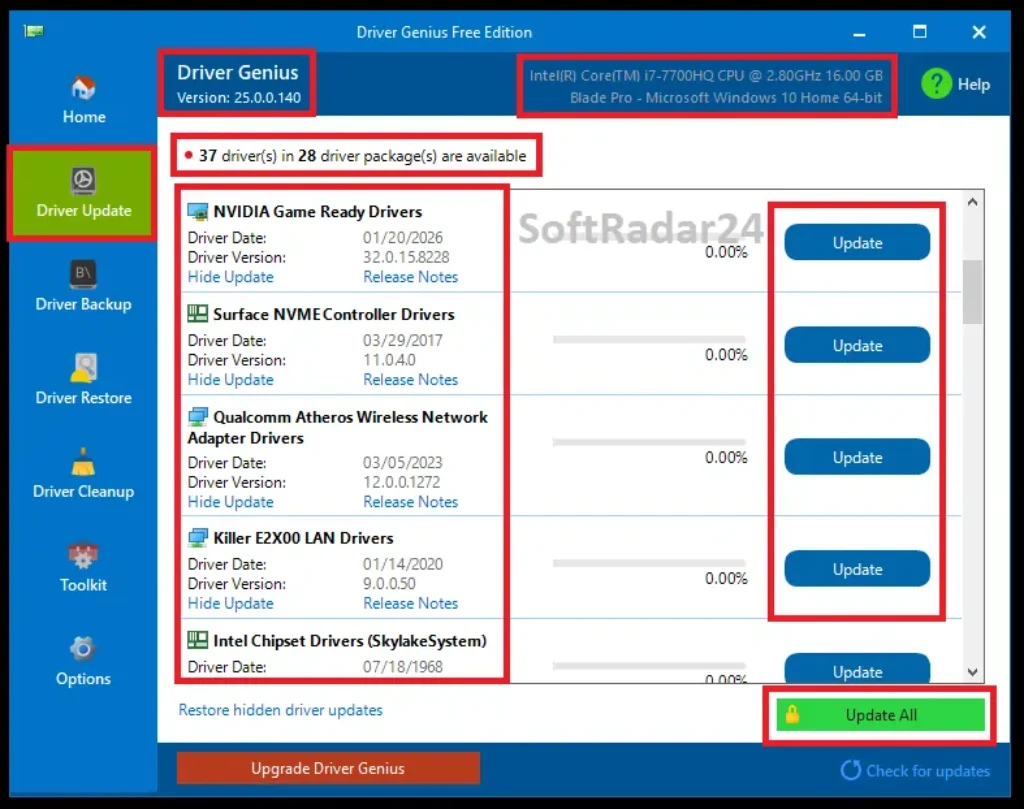
SupportedAfter Start Scan, paid editions can use Update All or update devices individually. The results expose provider, version/date information and release notes so a driver can be reviewed before installation instead of treating every result as mandatory.
I want Driver Genius to check and install updates automatically in the background
Scheduled driver maintenance
SupportedThe Auto Update scheduler can run at configured intervals after Windows loads. Driver-Soft documents silent background scan/download/install behavior in the paid editions, which is useful for several regularly maintained PCs.
I want a recovery point before installing a new driver
Update safety
SupportedDriver Genius can create a Windows System Restore point automatically before driver installation when that option is enabled. This is a recovery layer, not proof that every newer driver will be compatible with every PC.
A new graphics, audio or network driver caused a problem and I need the old version back
Driver rollback
SupportedView update history exposes Roll Back Driver for returning a device to its previous version. The same history can also reinstall a previously downloaded update or remove its cached update file.
I want to back up drivers before reinstalling Windows
Driver backup
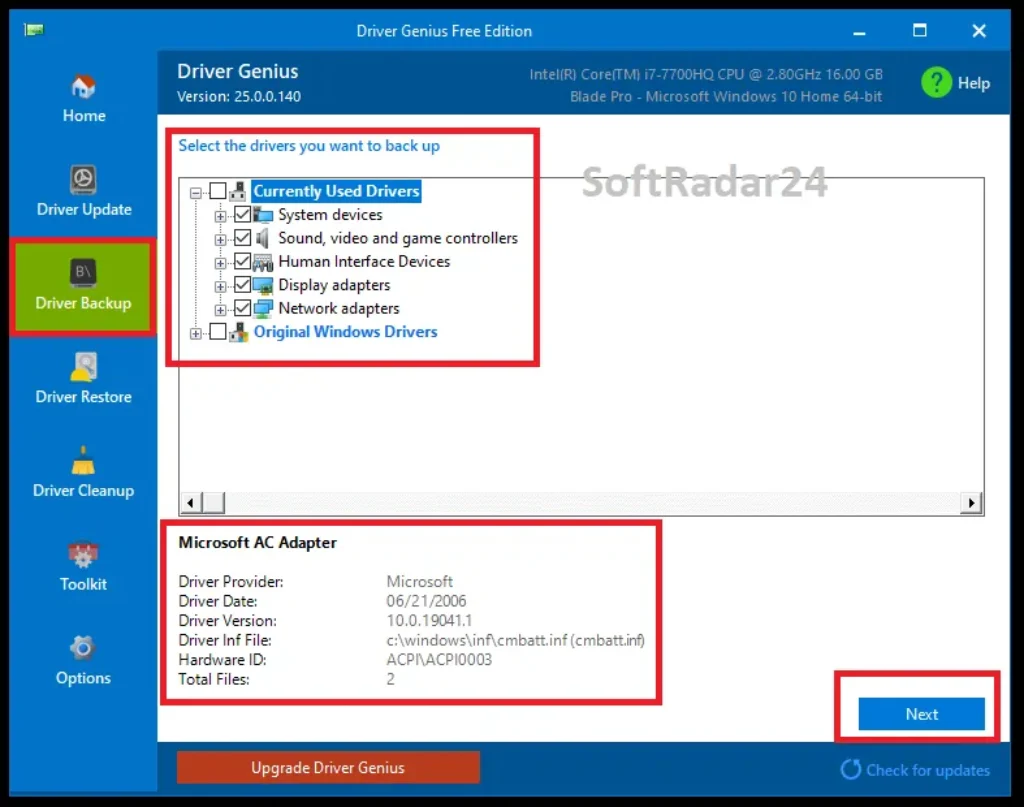
SupportedBackup can save selected drivers to a normal folder, ZIP archive, self-extracting EXE or standalone Auto-Installer EXE. Driver-Soft specifically recommends storing the backup away from the Windows system partition if that partition will be formatted.
I need an unattended driver backup or restore workflow
Command-line recovery
SupportedDriver Genius documents command-line backup switches for third-party/all drivers and folder/ZIP/self-extracting/Auto-Installer destinations. A generated Auto-Installer can also run with silent and reboot parameters, making it useful for repeatable recovery rather than one-by-one manual installs.
The freshly installed PC has no network driver and cannot get online
Offline network recovery
ConditionalPrepare before reinstalling Windows: System Transfer Assistant can package network-card drivers and, optionally, wireless settings to removable storage. After installation, the saved auto-installer can restore the network driver/settings locally. Offline recovery therefore depends on having created the package in advance or otherwise having the needed driver package available.
I want to stop Driver Genius from offering one particular driver
Update control
SupportedA detected driver update can be hidden and later restored from the hidden-update list. Driver-Soft says that hidden version remains suppressed until a newer version is released, which is useful when a specific update is known to be unsuitable for a machine.
A driver download was interrupted by a network problem
Download recovery
SupportedThe current user guide documents resuming interrupted driver-update downloads. Download settings also expose proxy configuration, timeout, retry delay and retry-count controls for less reliable connections.
I want to remove old driver packages or stale device entries
Driver cleanup
ConditionalDriver Cleanup removes obsolete driver packages, while Clean Invalid Device Data targets stale device records. Use the invalid-device tool carefully: disconnected USB drives, printers or scanners can appear invalid even when you plan to reconnect them later.
I need CPU, GPU and drive temperature monitoring as part of the same utility
Hardware monitoring
SupportedDriver Genius can display CPU, graphics-card and hard-disk temperatures and issue an audio alert. It can also limit CPU performance above a configured threshold while the program is running. Treat this as monitoring/protective throttling, not a guarantee against hardware damage.
I also want SSD, cleanup and broader Windows optimization tools
Broader maintenance suite
Better fitChoose Platinum rather than Pro if SSD Speeder, System Booster and System Cleanup are part of the requirement. These are additional maintenance modules; they do not change Driver Genius’s core identity as a driver-management product.
I manage Windows Server and want to use the current consumer license there
Server licensing
Verify firstThe user guide still contains legacy Windows Server references, but the current product/order surfaces emphasize desktop Windows editions and do not clearly establish current Server licensing. Verify the present license terms with Driver-Soft before using a Pro/Platinum desktop license on Windows Server.
How It Works
Driver Genius is safest when driver updating and driver recovery are treated as one workflow: inspect what changed, preserve a recovery path, install only the updates you actually want, and keep the previous version available if the result is worse.
Update All Drivers or Install One Update
- Run Start Scan to compare installed hardware/drivers with the current Driver Genius database.
- Review the detected device, provider, date, version and release notes instead of assuming every offered update is necessary.
- Use Update beside one device for a controlled change or Update All when you intentionally want the complete detected set.
- Keep “Create a system restore point before installing drivers” enabled when you want a Windows-level recovery path.
- If an update causes trouble, open update history and roll that driver back rather than changing several unrelated drivers at once.
Back Up Drivers Before Reinstalling Windows
- Open Backup Drivers and prioritize third-party/currently used drivers that will be difficult to retrieve after formatting.
- Choose a folder or ZIP for a transparent archive, a self-extracting EXE for easier unpacking, or Auto-Installer EXE for standalone restoration.
- Save the backup to another partition, USB drive or other storage that will survive the Windows reinstall.
- After Windows is installed, restore from Driver Genius or run the generated Auto-Installer and reboot when required.
Create a Command-Line Driver Backup
The documented backup syntax is DriverGenius.exe [/B|?] [/T|A] [/D|Z|E|I] Backup location. /T selects third-party drivers, /A all drivers, and /D, /Z, /E or /I choose folder, ZIP, self-extracting EXE or Auto-Installer output. Driver-Soft’s example creates an Auto-Installer of third-party drivers for later recovery.
Restore Drivers Silently After a Reinstall
A generated Auto-Installer can run independently of Driver Genius. The vendor documents DriverBackup.exe /S /R, where /S performs silent restoration and /R restarts Windows after the restore. Close active applications before restoration and verify that the backup belongs to compatible hardware/Windows conditions.
Prepare Network Recovery Before Changing Windows
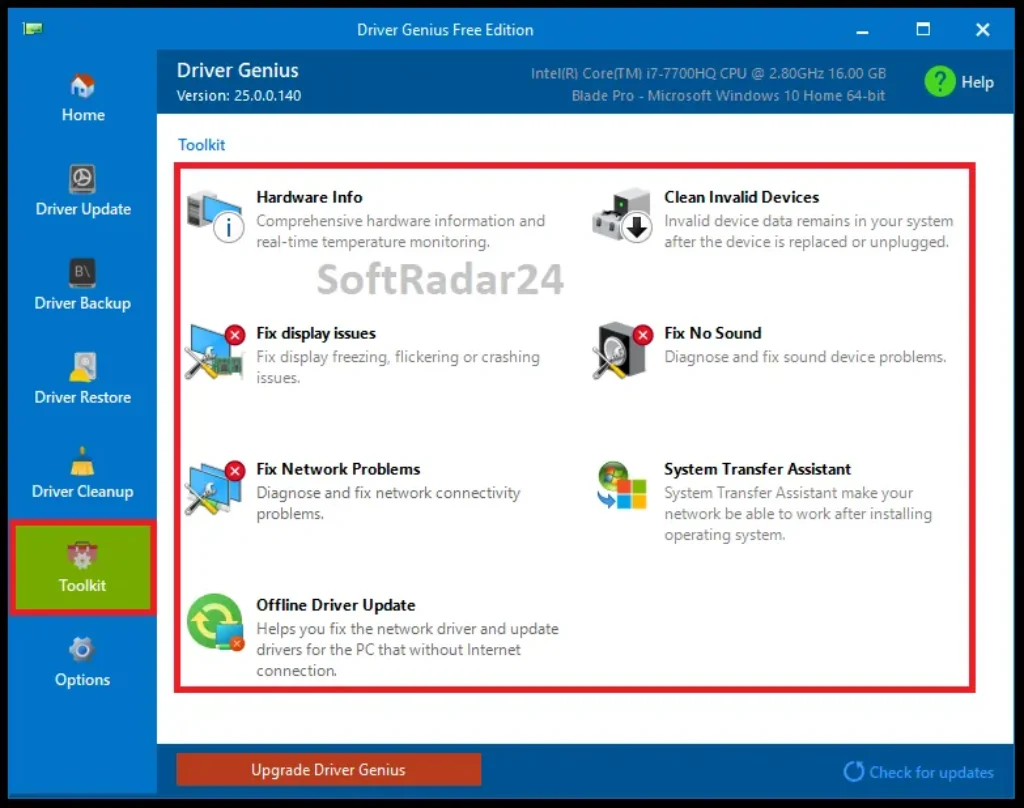
System Transfer Assistant asks which Windows version will be installed, identifies network adapters/settings and can include wireless configuration. Save the generated recovery package to removable storage before reinstalling Windows; it exists specifically to restore network access when the new system cannot yet reach the Internet for its own driver download.
Product Interface & Workflow
Driver Genius separates everyday driver work from supporting maintenance. Home/Driver Update handles scanning and installation; Backup, Restore and Rollback provide recovery; Toolkit contains Offline Driver Update, cleanup and System Transfer functions; Hardware Info and Monitoring expose device details and sensor readings; Platinum adds the SSD/system-maintenance modules.
Driver Update Workspace
A scan result is not just an “Update All” list. The workflow can expose driver provider, date, version and release notes, and it supports individual updates, update history, reinstall and hide/restore controls. Those details matter when a specific OEM driver should remain in place while other devices are updated.
Backup & Recovery Workspace
Backup type is a meaningful choice rather than a cosmetic export setting. Folder and ZIP keep the archive easy to inspect; self-extracting EXE simplifies extraction; Auto-Installer is designed to restore drivers without requiring Driver Genius to be installed first.
Settings That Matter
Update settings can control the driver-download folder, restore-point creation, silent installation, removal of old update files and automatic update scheduling. Network settings can use Windows Internet Options or a proxy and expose timeout/retry controls. Backup settings include archive splitting and None/Low/Normal/Maximum compression levels.
Compatibility & Coverage
Current Driver Genius 25 development is centered on Windows desktop driver management. The current release line explicitly includes Windows 11 25H2 detection improvements and ongoing new-hardware recognition.
| Area | Current documented coverage | Decision note |
|---|---|---|
| Windows | Windows 11 / 10 / 8.1 / 8 / 7 / Vista | Current product surface identifies 32-bit and 64-bit Windows support. |
| Windows 11 25H2 | Driver Genius 25 changelog includes improved driver detection for Windows 11 25H2 | This is detection/support work, not a guarantee that every hardware vendor has a newer driver. |
| Driver database | Vendor changelog states support for up to 5,200,000 devices | Current figure supersedes much older 160,000-device wording still present in legacy documentation. |
| Driver source policy | User guide describes offered drivers as official or WHQL-certified | Certification/source policy reduces uncertainty but does not guarantee zero compatibility risk on every PC. |
| Offline recovery | Offline Driver Update + System Transfer Assistant | Most useful when recovery data/packages are prepared before the network connection is lost. |
| Hardware information | CPU · motherboard · graphics · storage and other device details | Hardware report can be exported to text. |
| Temperature monitoring | CPU · graphics card · hard disk sensors where available | Sensor availability depends on hardware. |
| Windows Server | Legacy user-guide references exist | Current consumer licensing/support scope should be verified before Server use. |
Features & Capabilities
The useful feature set is best understood as a lifecycle: detect the driver, control the update, preserve a recovery route, restore connectivity after a Windows change, then clean or monitor hardware only where those supporting tools are actually useful.
Driver Detection & Update Control
- Scan for outdated or missing drivers
- Update All or install one detected driver
- Provider, date, version and release-note review
- Update history and driver reinstall
- Resume interrupted driver downloads
- Hide an unwanted driver version and restore hidden updates later
- Scheduled silent background scanning/downloading/installing
Driver Backup
- Backup currently used/selected drivers
- Folder backup
- ZIP archive
- Self-extracting EXE archive
- Standalone Auto-Installer EXE
- Archive split-volume support
- None / Low / Normal / Maximum compression settings
- Command-line backup for repeatable workflows
Restore & Rollback
- One-click restoration from Driver Genius backup records/files
- Independent Auto-Installer restoration
- Silent restore and optional automatic reboot parameters
- Windows System Restore point before driver installation
- Per-driver rollback from update history
- Compatibility warnings during restoration
Offline Driver & Network Recovery
- Offline Driver Update in paid editions
- System Transfer Assistant
- Network-adapter driver backup before changing Windows
- Optional wireless-settings backup
- Portable recovery package for USB/removable storage
- Local network-driver restoration after OS reinstall
Cleanup & Hardware Information
- Outdated driver-package cleanup
- Invalid device-data cleanup with disconnected-device caution
- CPU, motherboard, graphics and storage information
- Hardware-information text report
- CPU/GPU/HDD temperature monitoring where sensors are available
- Temperature alert and optional CPU-performance limiting
Platinum-Only Maintenance
- SSD Speeder and TRIM-related SSD settings
- System Booster Windows/service optimization options
- System Cleanup for temporary/cache/junk data
- Scheduled automatic cleanup
- Removal of selected preinstalled Windows applications
Important Conditions & Limitations
Driver software touches a low-level part of Windows. Driver Genius provides useful safeguards, but those safeguards matter precisely because a driver update can still be unnecessary, incompatible or worse than the OEM-specific version already installed.
Do Not Treat “Newer” as Automatically “Better”
A later version can contain a fix you need, but an OEM-specific older driver can also be the correct match for a particular laptop or device. Review the hardware, provider and change reason before bulk-installing updates on a stable production PC.
WHQL or Official Source Does Not Eliminate Compatibility Risk
Driver-Soft describes its offered drivers as official or WHQL-certified. That is useful provenance information, but certification does not prove a specific package is the best OEM-customized version for every system. Keep restore-point and rollback options available.
Offline Recovery Requires Preparation
System Transfer Assistant is valuable because it can package the network driver and settings before Windows is replaced. If the old installation is already gone and no suitable package was saved, the disconnected PC may still need another Internet-connected device to obtain the correct network driver.
Invalid Device Cleanup Can Include Hardware You Still Own
The user guide explicitly warns that a disconnected external hard drive, printer or scanner can appear as invalid device data. Do not remove those records automatically when the hardware will be reconnected later.
Temperature Throttling Is Not Hardware-Failure Insurance
Hardware Monitoring can warn about temperature and limit CPU performance above a configured threshold while Driver Genius is active. It cannot repair failing cooling hardware or guarantee that a component will never overheat or fail.
Pro and Platinum Solve Different Scope Problems
Platinum does not provide a fundamentally different driver-update engine. Its main additional value is SSD Speeder, System Booster and System Cleanup. Buy Platinum for those maintenance modules, not because the core driver backup/restore workflow is absent from Pro.
The Product Is Windows-Only
Current Driver Genius is a Windows driver-management application. macOS and Linux use different driver and hardware-update mechanisms and are outside the product’s current scope.
Free Trial / Free Version
Driver Genius currently has a Free edition alongside Pro and Platinum. The current order comparison limits the Free edition’s outdated-driver update capability to five days and reserves the main automation/recovery functions for the paid editions.
| Capability | Free | Pro | Platinum |
|---|---|---|---|
| Update outdated drivers | Available for 5 days | Yes | Yes |
| Automatic driver update | No | Yes | Yes |
| Faster driver download | No | Yes | Yes |
| Basic driver backup/archive | Available | Yes | Yes |
| Auto-Installer EXE backup | No | Yes | Yes |
| One-click driver restore | No | Yes | Yes |
| Offline Driver Update | No | Yes | Yes |
| Driver / invalid-device cleanup | Yes | Yes | Yes |
| Hardware info / temperature monitoring | Yes | Yes | Yes |
| System Transfer Assistant | No | Yes | Yes |
| SSD Speeder | No | No | Yes |
| System Booster | No | No | Yes |
| System Cleanup | No | No | Yes |
System Requirements
Driver Genius is lightweight by current desktop standards. The vendor’s current user guide still publishes low baseline requirements; the current release/download pages establish the newer version, file size and Windows 11 development status.
| Requirement | Current vendor documentation | Practical note |
|---|---|---|
| Operating system | Windows 11 / 10 / 8.1 / 8 / 7 / Vista | Current product surface identifies 32/64-bit support. |
| CPU | Pentium-class processor | User-guide minimum; current PCs exceed it substantially. |
| RAM | 256 MB | User-guide minimum, not a recommended modern Windows configuration. |
| Disk space | 100 MB | Driver downloads, backups and restore packages need additional space. |
| Current installer | 21 MB | Driver Genius 25.0.0.143 download size. |
| Internet | Required for normal online database/driver updates | Offline recovery uses previously prepared/local driver packages. |
| Permissions | Administrator rights required for installation/driver changes | Driver installation modifies system-level hardware configuration. |
Alternatives & Better-Fit Options
Compare driver updaters by update control, rollback, backup format, offline recovery and device licensing—not by the number of updates a scan happens to report. For current same-brand licensing and offer options, see the Driver Genius deals and licensing page.
IObit Driver Booster PRO
IObit Driver Booster PRO is a direct alternative when a very large current driver/game-component database, automated updating, offline network-driver workflow and gaming-oriented utilities are priorities. Compare its 3-PC licensing and recovery controls against Driver Genius rather than assuming the larger database alone determines match quality.
Driver Easy Pro
Driver Easy Pro is a specialist alternative for users who want automatic updating, hardware-specific matching logic, backup/restore, rollback, restore points and an offline network-driver scan workflow. It is especially relevant when you want another focused driver manager without Driver Genius Platinum’s broader cleanup/SSD modules.
DriverMax PRO
DriverMax PRO is another dedicated Windows driver updater with backup, restore, rollback, offline-update support and different home/business licensing choices. Compare its signed-driver controls and license model when multi-PC coverage is the main purchase factor.
Kerish PC Doctor
Kerish PC Doctor does include driver updates, but it is primarily a broad PC-maintenance suite rather than a specialist driver updater. It is the better-fit comparison when driver updating is only one requirement alongside cleanup, Windows maintenance, security and other system-care functions.
FAQ
These answers focus on the current Driver Genius 25 release, licensing, driver safety, backup/restore and offline recovery details that most directly affect the buying decision.
What is the current version of Driver Genius?
The current official download page lists Driver Genius 25.0.0.143, released June 5, 2026, with a 21 MB installer. The release improves Windows Runtime detection, new-hardware recognition and the compression component.
How large is the Driver Genius driver database?
Driver Genius 25 supports a driver database for up to 5,200,000 devices. The current 25.x release line also continues expanding hardware recognition and driver matching for newer Windows systems and devices.
How much does Driver Genius 25 Pro cost?
Driver Genius 25 Pro is US$25.95 for 1 Year / 3 PCs or US$37.95 for 2 Years / 3 PCs.
How much does Driver Genius 25 Platinum cost?
Driver Genius 25 Platinum is US$35.95 for 1 Year + 60 Days / 3 PCs or US$50.95 for 2 Years + 60 Days / 3 PCs.
What is the difference between Driver Genius Pro and Platinum?
Both paid editions provide the main driver-management functions such as automatic update, driver backup/restore, offline driver update and System Transfer Assistant. Platinum adds SSD Speeder, System Booster and System Cleanup.
Can Driver Genius back up drivers before I reinstall Windows?
Yes. It can create a normal folder backup, ZIP archive, self-extracting EXE or standalone Auto-Installer EXE. Driver-Soft recommends keeping the backup away from the Windows partition if that partition will be formatted.
Can Driver Genius restore drivers without being installed?
Yes, when the backup was created as an Auto-Installer. The generated executable can restore the saved drivers independently and supports documented silent/reboot command-line switches.
Can Driver Genius recover a network driver after reinstalling Windows?
Yes, if the recovery package was prepared beforehand. System Transfer Assistant can save network drivers and optional wireless settings to removable storage, then restore them locally after the new Windows installation.
Can I roll back a bad Driver Genius update?
Yes. View update history includes Roll Back Driver for returning that device to its previous version. Driver Genius can also create a Windows System Restore point automatically before installation when the setting is enabled.
Does Driver Genius install only WHQL drivers?
Driver-Soft’s user guide says the drivers it offers are official or WHQL-certified. This should be treated as the vendor’s sourcing policy, not as a guarantee that every newer driver is the best OEM-specific choice for every system.
Is Driver Genius Free actually free?
A Free edition is available. The current order comparison limits outdated-driver updating in Free to five days and reserves automatic updating, one-click restore, Auto-Installer backup, Offline Driver Update and System Transfer Assistant for paid editions.
What is the Driver Genius money-back period?
Driver-Soft’s current order page displays a 60-day money-back guarantee. Final eligibility is governed by the vendor’s current purchase/refund terms.