Quick Summary
AnyMP4 Blu-ray Ripper is a Windows and macOS optical-media conversion tool for turning Blu-ray discs, folders and ISO images into portable video/audio files or lossless local backups. The current product line supports 4K UHD and 1080p sources, 500+ output profiles, MKV/MP4 lossless modes, full-disc ISO backup, Region A/B/C handling, 3D conversion, GPU acceleration, audio extraction, subtitle/audio-track control and a Toolbox with compression, metadata, GIF, 3D and video-enhancement utilities. The practical choice is not simply ‘Blu-ray to MP4’: archival ISO, lossless MKV, compact HEVC/MP4 and playback-only needs are different workflows.
- Primary sources
- Blu-ray disc · Blu-ray folder · Blu-ray ISO image · AVCHD on current Mac reference
- Core outputs
- MKV/MP4 Lossless · MP4 · MKV · MOV · WebM · audio extraction · 500+ profiles
- Platforms
- Windows 11/10/8.1/8/7 · macOS 10.12–15 on the current product-specific Mac reference
- Encrypted-disc condition
- The current user guide says Internet access is required during encrypted Blu-ray processing
Purchase Options
License & Purchase · AnyMP4 Blu-ray Ripper · 50% OFF Official Discount & Coupon Code
Choose Windows or macOS, then choose the retained 1-year or lifetime SoftRadar24 campaign. The lowest-priced US$28.72 option is selected first.
1-Year License
1 Windows PC · 1-year AnyMP4 Blu-ray Ripper campaign license
Included with this option- AnyMP4 Blu-ray Ripper for 1 Windows PC
- Full paid ripping workflow beyond the trial limit
- Existing SoftRadar24 1-year campaign retained exactly
- Current old-page campaign price is 50% below its US$57.45 reference price
US$28.72/ year
Discount automatically applied
Buy NowWindows · 1-Year License · 1 PC
This is the lowest-priced existing SoftRadar24 AnyMP4 Blu-ray Ripper campaign and is shown first.
AnyMP4’s current public purchase page now highlights a different offer grid: 1 Month / 1 PC at US$30.00 and Lifetime / 1 PC at US$55.96, both displayed at 20% off. It also advertises 7-day access to AnyMP4 Blu-ray Player that renews at US$31.20 per month unless canceled. The retained SoftRadar24 links are separate 1-year/lifetime campaigns, so review the selected platform, license term, optional add-ons, renewal behavior, tax and final total at checkout.
Can This Software Do What I Need?
AnyMP4 Blu-ray Ripper should be chosen by the final media outcome, not by the word “ripper” alone. A Plex/NAS remux, a full-disc ISO archive, a compact HEVC file, a region-coded disc, playback without conversion and ordinary DVD conversion are different jobs.
I want a high-quality Blu-ray copy for Plex, Jellyfin or a NAS without a full transcode
Lossless local library
Yes — use a lossless profileAnyMP4 Blu-ray Ripper defaults to MKV Lossless in the current user guide. That is the most natural route when the goal is to keep original image/audio quality and associated tracks while moving the movie into a server-friendly file rather than shrinking it aggressively.
I want a complete full-disc backup with menu information and original structure
Whole-disc archival
Yes — use ISO backupThe current product page separately documents 1:1 Blu-ray-to-ISO backup and says menu information, audio tracks, subtitles and other disc parameters are maintained. ISO is the clearer fit when preserving the disc structure matters more than direct playback compatibility.
I need a smaller Blu-ray copy for a smart TV, tablet or phone
Compact portable file
Yes — transcode to MP4/MKV/HEVCAnyMP4 Blu-ray Ripper supports 500+ profiles and current 4K MP4, MKV, MOV and WebM outputs. H.265/HEVC is the practical route when reducing storage is more important than retaining a near-original-size lossless file.
I have a 4K UHD Blu-ray and want a 4K digital copy
4K UHD ripping
Yes — if the drive can read the discThe current product pages support 4K UHD sources and 4K outputs. A standard DVD drive cannot read Blu-ray at all, and UHD discs may require a compatible UHD-capable Blu-ray drive. Test disc recognition before buying the software only for 4K UHD work.
I want to process a Region A, B or C Blu-ray from another market
Region-coded Blu-ray
YesThe current product page explicitly describes all-region ripping for Blu-ray Regions A, B and C. Region handling is separate from whether a specific encrypted disc can be read successfully by the drive and current decryption workflow.
I need to use the software completely offline with an encrypted Blu-ray
Encrypted-disc offline workflow
No — plan for Internet accessThe current AnyMP4 Blu-ray Ripper user guide says an Internet connection is required during the whole process when handling encrypted Blu-ray files. That operational note is more specific than the broader marketing FAQ that describes ripping as offline.
I only want to watch a Blu-ray disc or ISO and do not need a new file
Playback only
Better fit: Blu-ray PlayerRipping adds time, storage and a new output file. If the actual goal is immediate disc/folder/ISO playback, AnyMP4 Blu-ray Player is the cleaner same-brand tool and Aiseesoft Blu-ray Player is a reasonable cross-brand player comparison.
I want to extract only the soundtrack or a music track from a Blu-ray
Blu-ray to audio
YesThe current product page documents audio extraction to MP3, FLAC, ALAC, M4A, AAC, AIFF, WMA, WAV and other formats, so you do not need to keep the video stream when the audio is the actual target.
I want to preserve or replace subtitles and audio tracks before export
Track and subtitle control
YesAnyMP4 Blu-ray Ripper can add or replace audio tracks and subtitles, adjust audio delay, and customize subtitle font, position, opacity and delay. Use this when the desired digital copy needs different language or synchronization settings.
I want to turn a 2D Blu-ray into a 3D file or convert 3D Blu-ray to 2D
3D conversion
YesThe current product page and Toolbox document 2D-to-3D output plus 3D-to-2D workflows, including anaglyph and split-screen modes for compatible playback setups.
I want to improve a 1080p Blu-ray rip for a 4K display
Video enhancement
Yes — but it is enhancement, not native 4K recoveryThe built-in Video Enhancer can upscale resolution, reduce noise/shaking and optimize brightness/contrast. The result is processed video; it should not be described as recovering camera detail that was never present in the 1080p source.
I need to trim, crop, rotate or watermark the movie before creating the final file
Pre-export editing
Yes — with output-mode caveatsThe current tutorial includes cut, crop/rotate, filters, effects, watermarks, audio and subtitle editing. Some lossless output modes restrict editing, so choose a transcoded profile when substantial changes are required.
I have dozens of large Blu-rays and care about GPU-assisted encoding speed
Hardware acceleration
Yes — hardware dependentAnyMP4’s current core product/tutorial pages advertise up to 30× acceleration using supported GPU technologies. Treat the multiplier as vendor marketing rather than a guaranteed disc-to-file time because remuxing, transcoding, drive speed, codec and GPU all change the result.
My source is a normal DVD, not a Blu-ray
DVD ripping
Different productA Blu-ray-specific license is unnecessary for an ordinary DVD-only workflow. WinX DVD Ripper Platinum or Tipard DVD Ripper are more natural internal routes when the physical source is DVD rather than Blu-ray.
I use a Mac with Apple Silicon
macOS / Apple Silicon
Supported by the current Mac referenceThe product-specific Mac reference lists Intel and Apple Silicon processors with 2 GB RAM or more. It currently lists macOS 10.12 through 15; macOS 26 is not listed on that product-specific reference, so Tahoe compatibility should be verified before purchase.
I use Linux
Operating system
No native edition documentedAnyMP4 publishes Windows and macOS editions of AnyMP4 Blu-ray Ripper. No native Linux edition is documented on the current product pages.
How It Works
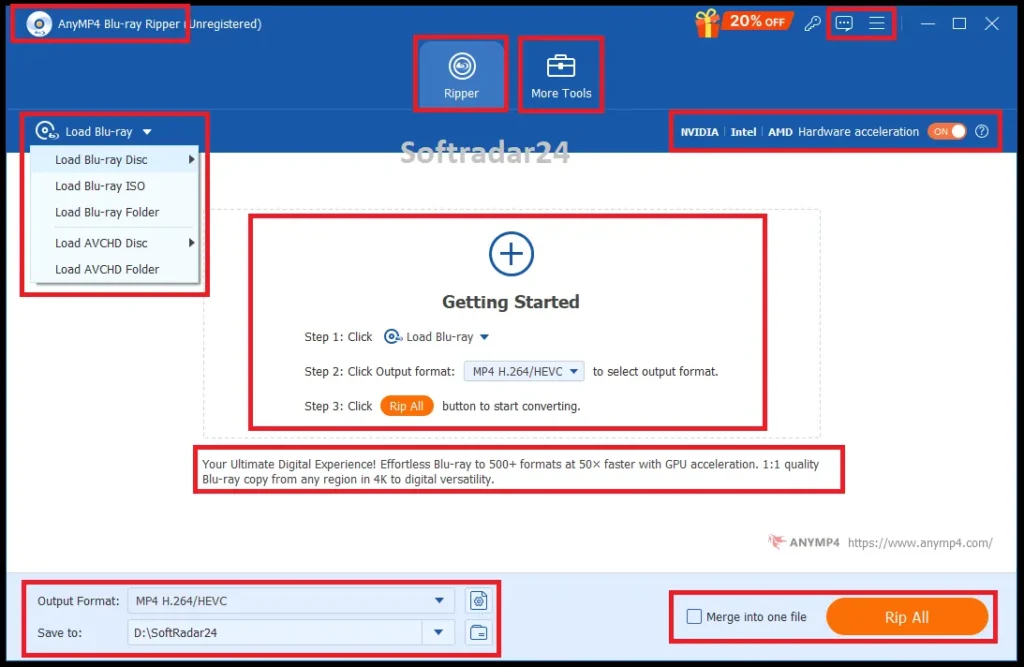
The normal AnyMP4 Blu-ray Ripper workflow is source → title selection → output strategy → optional editing → rip. The key decision happens before encoding: choose lossless MKV for a server-friendly preservation copy, ISO for full-disc structure, or a compressed profile for smaller portable files.
Load a Disc, Folder or ISO and Let AnyMP4 Blu-ray Ripper Analyze the Titles
The current user guide supports loading a physical Blu-ray disc, a Blu-ray ISO image or a Blu-ray folder. For encrypted Blu-ray files, AnyMP4’s current tutorial says Internet access is required during the process.
- Connect a Blu-ray-capable drive when the source is a physical disc; a standard DVD drive is not sufficient.
- Use Load Blu-ray Disc, Load Blu-ray ISO or Load Blu-ray Folder.
- Review the detected title list before choosing the final output.
Choose Lossless MKV, Full-Disc ISO or a Smaller Transcoded File
| Goal | Best starting output | Tradeoff |
|---|---|---|
| Plex / NAS library with original quality | MKV Lossless | Large file; easier media-server use than a disc image. |
| Full-disc archival with menu information | Blu-ray ISO | Preserves disc structure but requires compatible playback software and more storage. |
| Smaller TV / mobile copy | MP4 or MKV with H.265/HEVC | Requires transcoding; quality and size depend on bitrate/resolution settings. |
| Audio-only archive | FLAC / MP3 / ALAC / other supported audio | No video stream retained. |
Use Editing Only When the Output Workflow Needs It
AnyMP4 Blu-ray Ripper can cut clips, rotate/crop video, apply filters, add watermarks, replace audio and add subtitles. The current tutorial warns that editing is not available with every lossless output mode, so preservation and customization should be treated as different priorities.
Finish the Rip and Use Task Schedule for Post-Job Behavior
After choosing the destination, Rip All starts the job. The current preferences also include a task-completion action such as opening the output folder, shutting down, sleeping, exiting the program or doing nothing—useful for long overnight transcodes.
Product Interface & Workflow
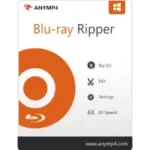
The visuals below are reused from the existing SoftRadar24 AnyMP4 Blu-ray Ripper article. They show the product artwork and our existing dashboard/hardware-acceleration capture; no vendor-hosted image is introduced.
Compatibility & Coverage
AnyMP4 Blu-ray Ripper has separate Windows and Mac references. Windows requirements are current and explicit; the product-specific Mac reference currently stops at macOS 15, so newer macOS 26/Tahoe compatibility should not be silently assumed from unrelated AnyMP4 products.
Windows & macOS Requirements
| Platform | Current product-specific requirement | Important detail |
|---|---|---|
| Windows | Windows 11 / 10 / 8.1 / 8 / 7 · 32-bit or 64-bit | 1 GHz Intel/AMD CPU or above · 2 GB RAM or above. |
| macOS | macOS 10.12 through 15 | 1 GHz Intel or Apple Silicon processor · 2 GB RAM or above. |
| Physical-disc drive | Internal or external Blu-ray drive | A standard DVD drive will not work for Blu-ray media. |
| Encrypted Blu-ray handling | Internet access required by current user guide | Plan for a network connection during encrypted-disc processing. |
Disc, Folder, ISO, Formats & Devices
| Area | Coverage | Practical meaning |
|---|---|---|
| Blu-ray sources | Disc · folder · ISO; current Mac reference also lists AVCHD disc/folder | Use a physical drive only when the source is a real disc. |
| Lossless outputs | MKV/MP4 Lossless; full-disc ISO backup | Choose file-based lossless output for media servers or ISO for fuller disc structure. |
| General video | MP4, MKV, MOV, AVI, WMV, WebM, TS and many more | 500+ profiles are marketed across formats/devices. |
| Audio | FLAC, WAV, WMA, AAC, ALAC, AC3, AIFF, MP3, M4A, OGG and more | Useful when the soundtrack is the target instead of the video. |
| Regions | Region A / B / C handling documented | Specific encrypted-disc success can still depend on drive, disc and current online processing. |
| 3D | 3D-to-2D and 2D-to-3D workflows | Current page lists anaglyph and split-screen style output modes. |
Features & Capabilities
AnyMP4 Blu-ray Ripper combines four different kinds of capability: disc extraction, output strategy, pre-export editing and post-processing tools. Keeping those groups separate makes it easier to see whether the product solves your actual Blu-ray workflow.
Blu-ray Extraction & Backup
- Load physical Blu-ray discs, Blu-ray folders and ISO image files
- MKV/MP4 Lossless modes for original-quality file output
- 1:1 Blu-ray-to-ISO backup when disc structure and menu information matter
- Region A/B/C handling documented on the current product page
4K, Format & Device Conversion
- 4K UHD and 1080p Blu-ray processing with HEVC/VP9 output options
- 500+ marketed output profiles across MP4, MKV, MOV, WebM and device presets
- Audio extraction to FLAC, MP3, ALAC, AAC, WAV and other formats
- Profiles for TVs, Roku, Chromecast, Apple, Android, Xbox, PlayStation and other playback targets
Editing Before Ripping
- Cut and fast-split long titles
- Crop, rotate and flip video
- Adjust contrast, saturation, brightness and hue; apply filters
- Add text/image watermarks, external audio and subtitle files with timing controls
Toolbox & Workflow Utilities
- Video Compressor with size, resolution, bitrate and preview controls
- Media Metadata Editor for title, artist, album, genre, year, cover and more
- GIF Maker and 3D Maker
- Video Enhancer for resolution, brightness/contrast, noise and shake reduction
- Task Schedule for open-folder, sleep, shutdown, exit or no-action behavior after a job
Important Conditions & Limitations
The biggest risks in a Blu-ray ripping purchase are not the format dropdowns. They are drive compatibility, protected-disc handling, Internet requirements, the difference between lossless backup and transcoding, and documentation that is not perfectly consistent across AnyMP4’s current pages.
Encrypted Blu-ray Processing Should Be Treated as Online
AnyMP4’s current user guide explicitly says an Internet connection is required during the whole process for encrypted Blu-ray files. The main product FAQ also contains broader wording that says ripping is done offline. Those statements do not fully agree, so the safer operational assumption is that encrypted-disc handling needs Internet access.
The Official Input Documentation Uses Different Language Across Pages
The current reference table labels supported Blu-ray input as ‘Homemade Blu-ray’, while the current product page documents Region A/B/C handling and the tutorial explicitly discusses encrypted Blu-ray processing. Because the vendor pages describe scope differently, test a representative protected disc before buying for a large collection.
A Standard DVD Drive Cannot Read Blu-ray
The product-specific reference requires an internal or external Blu-ray drive. For 4K UHD, the drive must also be capable of reading the UHD disc; software cannot compensate for a drive that cannot access the physical media.
30× / 50× Speed Claims Are Marketing, Not a Stopwatch Guarantee
The current core product page and user guide advertise up to 30× acceleration, while other current AnyMP4 Blu-ray marketing pages use 50× language. Actual ripping time depends on whether you remux or transcode, the optical drive, source size, codec, GPU and output settings.
Lossless MKV and Full-Disc ISO Solve Different Problems
MKV Lossless is the current default and is easier for many media-server workflows. ISO is better aligned with preserving full disc structure and menu information. Calling either one universally ‘best’ hides the storage and playback tradeoff.
AI Upscaling Does Not Turn 1080p Source Detail into Native 4K Capture
The built-in Video Enhancer can upscale resolution and reduce noise or shake, but the enhanced result is reconstructed output. Keep the original rip when archival fidelity matters.
Editing Can Conflict with Lossless Output Modes
The current tutorial warns that editing is unavailable with at least some lossless output modes. If you need crop, filters, subtitles, watermarks or other changes, plan on a transcoded workflow rather than assuming every lossless profile can be edited.
The Product-Specific Mac Reference Currently Stops at macOS 15
AnyMP4’s Mac reference lists macOS 10.12 through 15 and supports Intel plus Apple Silicon. It does not currently list macOS 26/Tahoe on this product-specific page, so do not infer Tahoe support from other AnyMP4 products without testing.
The Free Trial Is Limited
Current AnyMP4 support and 2026 Blu-ray guidance describe a five-minute conversion/ripping limit for the unregistered version. Use that window to verify disc recognition, title analysis and output compatibility rather than judging only the interface.
Current Public Pricing Is Not the Same as the Retained SoftRadar24 Campaign
AnyMP4’s current public purchase page highlights a 1-month plan at US$30.00 and lifetime at US$55.96 with 20% public discounts. The retained SoftRadar24 1-year and lifetime links are separate older promotional SKUs at lower campaign prices.
The Current Purchase Page Includes a Separate Blu-ray Player Trial Offer
The official AnyMP4 purchase page currently advertises 7-day access to AnyMP4 Blu-ray Player and states that it renews at US$31.20 per month unless canceled. Review optional extras and renewal terms before payment.
A Blu-ray Ripper Is Not Needed for Playback-Only Use
If the goal is simply to watch a disc, folder or ISO, ripping creates an unnecessary output file and uses extra storage. A Blu-ray player is the cleaner category.
DVD-Only Collections Do Not Need Blu-ray-Specific Ripping Capability
If your optical library is DVD rather than Blu-ray, a DVD-focused ripper is the more efficient category and often has different handling for DVD protections, structures and output workflows.
Copyright and Copy-Protection Rules Vary
AnyMP4 Blu-ray Ripper can be used for digital conversion and backup, but the legality of bypassing copy protection differs by jurisdiction. Use it only for discs and content you are authorized to process.
Free Trial / Free Version
AnyMP4 Blu-ray Ripper has a free trial rather than a permanent full-featured free edition. Current AnyMP4 support and 2026 Blu-ray guidance describe the unregistered conversion/ripping limit as five minutes, which is enough to test the hardest compatibility points before purchase.
| Free access | What you can do | What requires payment |
|---|---|---|
| AnyMP4 Blu-ray Ripper free trial | Load a supported Blu-ray source, confirm the drive and title structure are recognized, test the desired output profile and convert/rip a short segment within the current five-minute trial limit. | A paid license removes the trial-length restriction and is required for full-length movie conversion, long-form lossless output and normal collection-scale use. |
| Paid 1-year or lifetime edition | Full-length Blu-ray ripping, lossless and transcoded outputs, Toolbox functions and registered use on the licensed Windows PC or Mac. | The current AnyMP4 public store and the retained SoftRadar24 campaigns use different plan grids, so the exact license term and renewal behavior should be verified at checkout. |
System Requirements
AnyMP4 publishes separate product-specific Windows and Mac references. The Windows page is current through Windows 11; the Mac page currently lists macOS 10.12 through 15 and does not yet list macOS 26/Tahoe.
| Requirement | Supported / Required | Notes |
|---|---|---|
| Windows OS | Windows 11 / 10 / 8.1 / 8 / 7 · 32-bit or 64-bit | Current AnyMP4 Blu-ray Ripper reference. |
| Windows CPU | 1 GHz Intel/AMD CPU or above | Current Windows reference. |
| Windows RAM | 2 GB RAM or above | Current Windows reference. |
| Mac OS | macOS 10.12 through 15 | Current product-specific Mac reference; macOS 26/Tahoe is not listed there. |
| Mac CPU | 1 GHz or above Intel or Apple Silicon processor | Current Mac reference. |
| Mac RAM | 2 GB RAM or above | Current Mac reference. |
| Optical drive | Internal or external Blu-ray drive | A standard DVD drive will not work. |
| Encrypted-disc processing | Internet connection required by current user guide | Plan for network access during encrypted Blu-ray handling. |
| 4K UHD media | UHD-capable Blu-ray drive required in practice | The drive must be physically capable of reading the UHD disc before software processing can begin. |
Alternatives & Better-Fit Options
The internal links are deliberately limited by task so this section does not become a generic software carousel. For current AnyMP4 products and offers across the same ecosystem, visit the AnyMP4 page on SoftRadar24.
AnyMP4 Blu-ray Player
The best same-brand route when conversion is unnecessary and you simply want to play a Blu-ray disc, folder, ISO, DVD, 4K video or audio file. It avoids the storage and processing time of creating a new rip.
Aiseesoft Blu-ray Player
A cross-brand playback comparison for visitors who have decided they do not need a ripper at all. Use it to compare Blu-ray playback behavior rather than presenting it as a direct ripping competitor.
WinX DVD Ripper Platinum
A better-fit optical-media route when the physical source is DVD rather than Blu-ray. WinX DVD Ripper Platinum is built around protected DVD extraction and DVD-to-digital workflows, so Blu-ray-specific capability is unnecessary for a DVD-only collection.
Tipard DVD Ripper
A second DVD-focused option when the visitor wants a cross-brand DVD conversion workflow. It is included only for the DVD source case; it should not be presented as a direct AnyMP4 Blu-ray Ripper substitute for Blu-ray discs.
FAQ
The FAQ answers product-reference, licensing and workflow details that are not used as the scenario questions in the decision section.
What source types does AnyMP4 Blu-ray Ripper load from the main Ripper interface?
The current user guide lists Blu-ray Disc, Blu-ray ISO and Blu-ray Folder in the Load Blu-ray menu. The product-specific Mac reference also lists AVCHD Disc and AVCHD Folder among supported source types.
What output does AnyMP4 Blu-ray Ripper choose by default?
The current user guide says MKV Lossless is the default output format. AnyMP4 describes it as keeping the same image and audio quality as the original Blu-ray source.
How many output profiles does AnyMP4 Blu-ray Ripper advertise?
The current product page advertises more than 500 output formats and device profiles, including common video, audio, 4K/HD and portable-device targets.
What Windows systems are listed on the current AnyMP4 Blu-ray Ripper reference page?
The current Windows reference lists Windows 11, Windows 10, Windows 8.1, Windows 8 and Windows 7 in both 32-bit and 64-bit editions.
What does the current product-specific Mac reference list for AnyMP4 Blu-ray Ripper?
It currently lists macOS 10.12 through macOS 15, a 1 GHz or faster Intel or Apple Silicon processor, and at least 2 GB RAM. macOS 26/Tahoe is not listed on that specific reference page.
How is AnyMP4 Blu-ray Ripper activated after purchase?
The current user guide says to open Register from the menu, enter the purchase email address and registration code, then activate with a stable Internet connection.
What tools are included in the AnyMP4 Blu-ray Ripper Toolbox?
The current guide documents Media Metadata Editor, Video Compressor, GIF Maker, 3D Maker and Video Enhancer. The product page also describes preview and editing utilities around the ripping workflow.
What metadata can AnyMP4 Blu-ray Ripper edit?
The current guide lists fields such as title, artist, album, composer, genre, year, track and comments, and it allows a cover image to be added.
What can AnyMP4 Blu-ray Ripper do when a ripping task finishes?
Task Schedule can open the output folder, shut down the computer, put it to sleep, exit the program or do nothing after the job is complete.
How limited is the AnyMP4 Blu-ray Ripper free trial?
Current AnyMP4 support and 2026 Blu-ray guidance describe an unregistered conversion/ripping limit of about five minutes. Use the trial primarily to verify compatibility with your drive, disc and chosen output.
Are AnyMP4 Blu-ray Ripper Windows and Mac licenses the same product key?
The existing SoftRadar24 campaigns use separate Windows and Mac product SKUs and separate checkout selections. Choose the operating system that matches the computer you will use.
What does the current public AnyMP4 store charge for Blu-ray Ripper?
The current official purchase page highlights a 1 Month / 1 PC plan at US$30.00 and a Lifetime / 1 PC plan at US$55.96, both shown as 20% off. These are different from the retained SoftRadar24 1-year/lifetime campaigns.
Does the current AnyMP4 Blu-ray Ripper purchase page include another subscription offer?
Yes. The current purchase page advertises 7-day access to AnyMP4 Blu-ray Player and says that separate player subscription renews at US$31.20 per month unless canceled.
What does AnyMP4 say about refunds for Blu-ray Ripper purchases?
The current purchase page displays a 30-day money-back guarantee and directs buyers to the refund policy to determine eligibility. The applicable refund conditions should be checked for the actual order.
How are subscription cancellations handled on the current AnyMP4 store?
AnyMP4’s current sale FAQ says 2Checkout subscriptions can be canceled through the 2Checkout account flow; purchases made through other methods can be handled through AnyMP4 support.