Quick Summary
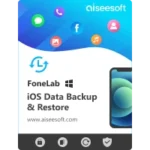
FoneLab iOS Data Backup & Restore is a Windows and macOS utility for making local, selective backups of iPhone, iPad and iPod data and restoring selected items later. FoneLab iOS Data Backup & Restore supports 26+ vendor-listed data types, offers Standard and password-protected Encrypted Backup modes, keeps multiple backup versions without overwriting older archives, and lets you preview backup contents before restoring supported data to an iOS device or exporting it to a computer.
- Best for
- Local iPhone/iPad backup · selective archives · encrypted backups · readable restore/export
- Platforms
- Windows and macOS
- Current campaign
- 6-device promo · 1-Month · Lifetime · multi-computer options
- Key limitation
- Restore to iOS is limited to Contacts and Notes
FoneLab iOS Data Backup & Restore Pricing, Discount Code & License Options
The current 50% FoneLab iOS Data Backup & Restore coupon discount is applied automatically to eligible SoftRadar24 license options below. No manual coupon-code entry is required.
Choose Windows or macOS first, then select the license that matches your computer and device needs. The Windows 6-Device / 1-PC offer is selected first because it is the lowest-priced current SoftRadar24 option at US$12.00.
Current FoneLab iOS Data Backup & Restore License Prices
The purchase selector currently includes the following approved SoftRadar24 license options:
- FoneLab iOS Data Backup & Restore 6-Device License · Windows / 1 PC · US$12.00
- FoneLab iOS Data Backup & Restore 1-Month License · Windows / 1 PC · US$12.45
- FoneLab iOS Data Backup & Restore Lifetime License · Windows / 1 PC · US$18.72
- FoneLab iOS Data Backup & Restore Lifetime License · Windows / 3 PCs · US$35.40
- FoneLab iOS Data Backup & Restore for Mac 6-Device License · macOS / 1 Mac · US$12.00
- FoneLab iOS Data Backup & Restore for Mac 1-Month License · macOS / 1 Mac · US$12.45
- FoneLab iOS Data Backup & Restore for Mac Lifetime License · macOS / 1 Mac · US$18.72
- FoneLab iOS Data Backup & Restore for Mac Lifetime License · macOS / 3 Macs · US$35.40
FoneLab iOS Data Backup & Restore · 6-Device License
Windows · 1 PC · up to 6 iOS devices
Included with this license- FoneLab iOS Data Backup & Restore use on 1 Windows PC with the current 6-device allowance
- Standard and password-protected encrypted backup modes
- Selective backup across supported iPhone/iPad/iPod data categories
- Backup preview plus supported restore/export workflows
US$12.00current offer
50% discount automatically applied
Buy NowWindows · 6 Devices · 1 PC
Selected first because it is the lowest-priced current SoftRadar24 FoneLab iOS Data Backup & Restore option and covers up to 6 iOS devices on 1 Windows PC.
SoftRadar24 partner prices can differ from Aiseesoft’s public store grid. Confirm the operating system, device/computer allowance, license term where stated, optional add-ons, applicable tax and final checkout total before payment.
Can This Software Do What I Need?
Global iPhone-backup questions repeatedly focus on control rather than the word “backup” itself: backing up without paying for more iCloud storage, avoiding a full-device restore, viewing messages or photos inside a backup, keeping several dated archives, protecting a local copy with a password, preparing for a reset or beta update, and moving selected data to a new iPhone. FoneLab iOS Data Backup & Restore solves several of those jobs, but it is not the right tool for every full-device migration.
I want to back up selected iPhone data to my PC or Mac without using iCloud
Local selective backup
SupportedFoneLab iOS Data Backup & Restore saves selected supported categories to a local computer path instead of uploading the archive through its own cloud service. This is useful when iCloud space is limited or when you want a second local copy. FoneLab iOS Data Backup & Restore still requires the iPhone/iPad to connect and authorize access.
I want several dated iPhone backups instead of replacing the previous archive
Backup version history
SupportedThe current FoneLab iOS Data Backup & Restore page explicitly documents multiple backup versions without overwriting older versions. That is valuable when you want to compare backup dates or preserve an earlier state rather than keeping only the latest FoneLab archive.
I need to inspect messages, photos or contacts inside a backup before restoring anything
Readable backup preview
SupportedFoneLab iOS Data Backup & Restore lists saved backup versions, opens a selected archive with View Now and lets you preview supported categories before choosing items for restore/export. This is a different workflow from restoring an entire Apple backup simply to discover what it contains.
I want to restore selected data to an already-set-up iPhone without erasing it first
Selective inbound restore
ConditionalThe current FoneLab iOS Data Backup & Restore data table lists Contacts and Notes & Attachments under Restore Backup to iOS. Those supported categories can be restored selectively instead of running Apple’s full restore-to-a-newly-erased-device process. Do not assume every backed-up category can be written back to the iPhone.
I need a full new-iPhone migration with apps, settings, passwords and complete device state
Complete device migration
Different taskFoneLab iOS Data Backup & Restore is category-selective. Apple’s Quick Start and full iCloud/Finder/Apple Devices backup workflows are designed for complete device setup. Apple’s encrypted computer backups can also include saved passwords, Wi-Fi settings, website history, Health data and call history that should not be assumed to exist in the same form inside a FoneLab selective archive.
My iCloud storage is full and the latest iPhone backup is old
Local backup fallback
SupportedFoneLab iOS Data Backup & Restore can create a fresh local archive on a computer without consuming iCloud storage. This does not retroactively recover data from a phone that is already inaccessible; create and verify the local backup while the device can still connect, unlock and complete required Trust/passcode prompts.
I am about to erase, trade in, update or install beta software on my main iPhone
Pre-change safety copy
SupportedCreating a fresh FoneLab iOS Data Backup & Restore archive before a risky change gives you another local copy of supported data. For a full rollback or complete-device restore, also keep an appropriate Apple backup. Verify the FoneLab archive and save its encryption password before erasing the phone.
My iPhone screen is broken and I cannot unlock or trust the computer
Damaged-device access
ConditionalFoneLab iOS Data Backup & Restore is not a bypass for a device that cannot authorize computer access. Current backup workflows begin with a USB-connected iOS device and device detection. If the screen or passcode state prevents Trust/unlock, creating a new local backup may fail. A verified backup made before the damage is the safer recovery position.
I need WhatsApp and other supported social-app data in my computer backup
Social-app archive
SupportedThe current FoneLab iOS Data Backup & Restore page lists WhatsApp & attachments, WeChat, Kik, Line, Viber, QQ and Messenger data among supported backup/computer-restore categories. Availability still depends on what the current iOS/app version exposes; those categories are not listed as direct restore-to-iOS targets.
I deleted photos or messages before making any FoneLab backup
Deleted-data recovery
Different taskFoneLab iOS Data Backup & Restore can restore deleted or lost items only when the required data exists in one of its saved backups. If no usable backup contains the missing data, use an iPhone data-recovery workflow rather than expecting backup software to reconstruct files that were never captured.
How It Works
FoneLab iOS Data Backup & Restore uses two main modules: iOS Data Backup creates Standard or Encrypted local archives, and iOS Data Restore opens those archives for preview and selective output. The safest workflow adds one extra step: verify the archive before relying on it.
Create a Selective iPhone or iPad Backup
- Open FoneLab iOS Data Backup & Restore on the Windows PC or Mac and connect the iPhone, iPad or iPod with a USB cable.
- Complete the device unlock, passcode or Trust prompts required for FoneLab iOS Data Backup & Restore to recognize the connected iOS device.
- Choose iOS Data Backup in FoneLab iOS Data Backup & Restore, then choose Standard Backup or Encrypted Backup.
- Select the specific FoneLab iOS Data Backup & Restore categories you want to archive, such as Messages & Attachments, Contacts, Photos, Notes, WhatsApp data or other supported types.
- Choose the destination path in FoneLab iOS Data Backup & Restore and start the backup. Keep the encryption password separately when Encrypted Backup is used.
Verify the Backup Before Erasing or Updating the iPhone
- After FoneLab iOS Data Backup & Restore finishes, open iOS Data Restore instead of assuming the archive is usable.
- Choose the new FoneLab iOS Data Backup & Restore archive by its date and size, then use View Now to inspect the backed-up categories.
- Preview several critical items in FoneLab iOS Data Backup & Restore and confirm that the data you cannot afford to lose is actually present.
- Only after this verification should you proceed with a factory erase, trade-in, risky update or another destructive device change.
Restore Selected Backup Data to a Computer
- Open iOS Data Restore in FoneLab iOS Data Backup & Restore and select the required backup version.
- Use FoneLab iOS Data Backup & Restore to preview the archive and select only the supported messages, media, contacts or other items you need.
- Choose Restore to PC in FoneLab iOS Data Backup & Restore and set the destination folder for the selected output.
Restore Supported Data to an iPhone or iPad
- Connect the destination iOS device and open the correct backup in FoneLab iOS Data Backup & Restore.
- Select a supported direct-restore category in FoneLab iOS Data Backup & Restore. The current product table lists Contacts and Notes & Attachments for Restore Backup to iOS.
- Choose Restore to Device in FoneLab iOS Data Backup & Restore and keep the device connected until the supported selective restore finishes.
Product Interface & Workflow
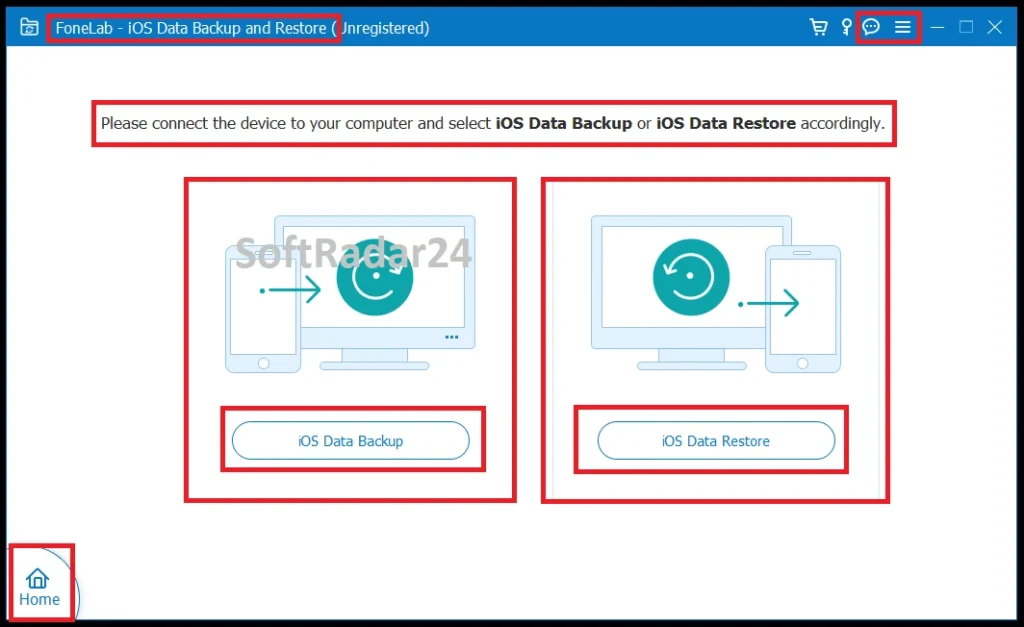
FoneLab iOS Data Backup & Restore uses a simple two-path dashboard rather than a general file-manager layout. The home screen separates iOS Data Backup from iOS Data Restore; backup mode then asks for Standard or Encrypted protection, while restore mode lists available archives and opens them for category-level preview.
Compatibility & Coverage
FoneLab iOS Data Backup & Restore currently lists iPhone models through the iPhone 17 family, all iPad Pro/Air/mini/iPad models, Windows 11 through Windows 7, Mac OS X 10.7+ including macOS Tahoe, iOS through iOS 26 and iPadOS through iPadOS 26. The current vendor compatibility table does not list iOS 27 beta.
| Area | Current documented coverage | Decision note |
|---|---|---|
| iPhone | Current list runs through iPhone 17 Pro Max / 17 Pro / Air / 17 and older models | Use the current FoneLab iOS Data Backup & Restore build with newly released devices. |
| iPad | All models of iPad Pro, iPad Air, iPad mini and iPad | Current vendor-listed tablet coverage. |
| iPod | iPod touch 5 and iPod touch 4 | Legacy iPod coverage remains listed. |
| iOS | Current table lists iOS 26, 18, 17, 16, 14, 13, 12, 11, 10.x, 9 and earlier | iOS 27 beta is not named on the current FoneLab iOS Data Backup & Restore support table. |
| iPadOS | iPadOS 26 / 18 / 17 / 16 / 15 / 14 / 13 | Use the latest build when pairing with a newly updated iPad. |
| Windows / macOS | Windows 11 / 10 / 8.1 / 8 / 7 · Mac OS X 10.7+ including macOS Tahoe | Current desktop OS range. |
Backup & Restore Direction Matters
| Direction | Current documented coverage | What it means |
|---|---|---|
| iOS → computer backup | 26+ vendor-listed data types, including messages, contacts, call history, voicemail, social-app data, notes, photos, audio, video, calendar, Safari and app documents | This is the broadest FoneLab iOS Data Backup & Restore direction. |
| Backup → computer | Preview and export supported categories from saved FoneLab archives | Useful when you need readable/selectable data without restoring the entire phone. |
| Backup → iOS device | Current product table lists Contacts and Notes & Attachments | Direct selective restore to iOS is much narrower than backup/export coverage. |
FoneLab Selective Backup vs. Apple Full Backup
| Decision question | FoneLab iOS Data Backup & Restore | Apple backup / migration |
|---|---|---|
| Can I choose data categories? | Yes. FoneLab iOS Data Backup & Restore is built around category selection. | Apple’s computer/iCloud backup is designed as a device backup rather than a FoneLab-style category export tool. |
| Can I preview archive content before output? | Yes. Saved FoneLab backups can be opened and previewed before selective restore/export. | Apple’s normal full-restore workflow is not designed as a category-by-category backup browser. |
| Can I keep several FoneLab backup versions? | Yes. Current FoneLab documentation says newer backups coexist without overwriting previous versions. | Apple backup behavior differs by method and should not be assumed to provide the same FoneLab version-history workflow. |
| Does the backup include full device settings/apps? | No full-device-image claim. FoneLab iOS Data Backup & Restore focuses on listed data categories. | Apple backups and Quick Start are intended for broader device migration, including settings and app-related data where supported. |
| What does encrypted Apple local backup add? | FoneLab iOS Data Backup & Restore offers its own password-protected archive mode. | Apple says encrypted local backups can include saved passwords, Wi-Fi settings, website history, Health data and call history. |
| Does full restore require erasing/setup state? | FoneLab can selectively restore its supported inbound categories. | Apple’s full backup restore targets a new or newly erased iPhone. |
Features & Capabilities
FoneLab iOS Data Backup & Restore is most useful as a controlled archive system rather than a one-time “Back Up Now” button. The key capabilities are selective scope, password protection, version history and the ability to inspect a backup before deciding what to export or restore.
Selective Local Backup
- Category-level iPhone/iPad/iPod backup to Windows or Mac
- 26+ vendor-listed supported data types
- Custom backup destination path
- Local archive workflow without FoneLab cloud upload
- Multiple dated backup versions without overwriting older FoneLab archives
Encrypted Backup Protection
- Standard Backup and Encrypted Backup modes
- User-created backup password for protected FoneLab archives
- Password required again when accessing/restoring an encrypted FoneLab backup
- Local storage keeps the archive under the user’s computer-side storage control
Backup Preview & Export
- List backup versions by archive
- View Now workflow before restore
- Preview supported messages, media, contacts and other categories
- Selective Restore to PC output
- Current Aiseesoft guides document HTML, CSV or vCard output for applicable data
Messages, Media & Social-App Data
- Messages & Attachments, Contacts, Call History and Voicemail
- WhatsApp, WeChat, Kik, Line, Viber, QQ and Messenger data/attachments where currently supported
- Notes & Attachments, Reminders, Calendar and Safari data
- Photos, App Photos, Audio, Voice Memos and Videos
- App Documents and other vendor-listed supported categories
Important Conditions & Limitations
The important limitation is not whether FoneLab iOS Data Backup & Restore can create a backup. It is understanding what that backup represents. FoneLab iOS Data Backup & Restore is designed for supported data categories and selective output; Apple still has a stronger role when the goal is full-device continuity.
Restore to iOS Is Much Narrower Than Backup Coverage
FoneLab iOS Data Backup & Restore advertises 26+ data types for backup and computer-side restore/export, but the current product table lists only Contacts and Notes & Attachments under Restore Backup to iOS. Buyers who expect messages, WhatsApp history, photos, videos or every other backed-up category to be written directly back to the phone should not infer that capability.
FoneLab iOS Data Backup & Restore Is Not a Full iPhone System Clone
FoneLab iOS Data Backup & Restore does not present itself as a full image of every app, credential, device setting and operating-system state. Apple’s Quick Start and encrypted local backup are the more appropriate tools when you want to reproduce a whole device. Use FoneLab iOS Data Backup & Restore for selective data protection and readable archive access.
Current Documentation Stops at iOS 26
The current FoneLab iOS Data Backup & Restore compatibility table lists iOS through iOS 26 and iPadOS through iPadOS 26. It does not currently name iOS 27 beta. If your primary device is running a beta or a newer build than the vendor lists, test the current FoneLab iOS Data Backup & Restore version before relying on it for an important backup.
A New Backup Can Only Capture Data the Device Still Exposes
FoneLab iOS Data Backup & Restore can restore lost or deleted data from an earlier FoneLab archive when that archive actually contains it. If a file was deleted before any usable backup captured it, backup software does not manufacture a historical copy. Use a separate data-recovery workflow when no backup contains the missing item.
Device Access Still Matters
FoneLab iOS Data Backup & Restore begins by connecting the iPhone/iPad/iPod to the computer. A broken screen, forgotten passcode, USB problem or Trust failure can block a new backup. Do not interpret “local backup” as a way to bypass Apple device authorization after the phone becomes inaccessible.
Apple iCloud Sync and iCloud Backup Are Not the Same Thing
Apple currently separates information that syncs continuously through services such as iCloud Photos, iCloud Drive and Messages in iCloud from information stored inside iCloud Backup. For example, photos or messages already syncing to iCloud are not duplicated in the same way inside the daily backup. This distinction matters when deciding what extra local FoneLab iOS Data Backup & Restore archive you actually need.
Encrypted FoneLab Backup and Encrypted Apple Backup Are Different Archives
FoneLab iOS Data Backup & Restore can password-protect its own selective archive. Apple’s encrypted Finder/Apple Devices/iTunes backup is a separate format and Apple says it can include saved passwords, Wi-Fi settings, website history, Health data and call history. Do not assume choosing encryption in FoneLab iOS Data Backup & Restore gives the FoneLab archive the same data scope as Apple’s encrypted full backup.
Password Loss Can Make an Encrypted Backup Useless
FoneLab iOS Data Backup & Restore requires a password for its encrypted backup mode and the password is needed when that archive is restored. Store the password separately from the iPhone. A backup that exists but cannot be opened is not a usable safety copy.
Current Refund Messaging Differs by Aiseesoft Page
The current FoneLab iOS Data Backup & Restore product page displays a 7-Day Money Back badge, while Aiseesoft’s current purchase pages state that lifetime licenses can receive a 30-day refund when there is a qualifying quality problem. Treat the refund period as license- and condition-dependent and verify the current checkout/refund terms for the exact license before payment.
Free Trial / Free Version
Aiseesoft provides Free Download links for FoneLab iOS Data Backup & Restore, and the current product page also displays a “100% FREE” label in its feature area. At the same time, Aiseesoft sells paid licenses and does not publish one clear current feature-limit table on the primary product page. Use the free build to test the exact backup/restore workflow rather than assuming every licensed action is unrestricted.
| What to test | Why it matters | Best pre-purchase check |
|---|---|---|
| Device recognition | FoneLab iOS Data Backup & Restore needs the iPhone/iPad to connect and authorize access. | Use the actual device, cable and computer that will perform the backup. |
| Required data categories | The buying reason is usually a specific category such as Messages, WhatsApp, Photos or Contacts. | Confirm that FoneLab iOS Data Backup & Restore exposes the exact category on your current iOS version. |
| Encrypted backup | A protected archive is useful only if you understand the password workflow. | Create a small encrypted backup and verify that you can reopen it. |
| Backup preview | Preview is a major reason to choose FoneLab iOS Data Backup & Restore instead of a blind full restore. | Open a test archive with View Now and inspect representative items. |
| Restore direction | Computer export coverage is broader than direct restore to iOS. | Check whether your real goal is Restore to PC or the much narrower Restore to Device workflow. |
System Requirements
The current FoneLab iOS Data Backup & Restore page publishes a compact cross-platform requirement set. The 200 MB figure is application disk space; your real backup archives can require much more storage depending on how many photos, videos, messages and attachments you select.
| Requirement | Current documented value | Decision note |
|---|---|---|
| Windows | Windows 11 / 10 / 8.1 / 8 / 7 | Current FoneLab iOS Data Backup & Restore support table. |
| macOS | Mac OS X 10.7 or above, including macOS Tahoe | Current vendor-listed Mac range. |
| CPU | 1 GHz Intel/AMD CPU or above | Current documented minimum. |
| RAM | 1 GB RAM or more | Current documented minimum. |
| Application disk space | 200 MB or more free space | Does not represent the storage needed for your actual FoneLab backup archives. |
| iOS | Through iOS 26 on the current support table | Current documentation does not list iOS 27 beta. |
| iPadOS | iPadOS 13 through iPadOS 26 on the current support table | Use the latest FoneLab iOS Data Backup & Restore build after major iPadOS updates. |
Alternatives & Better-Fit Options
Choose an alternative according to the real data-management job rather than treating every mobile utility as interchangeable. For the wider product family and current offers, visit the Aiseesoft software page on SoftRadar24.
FoneLab Android Data Backup & Restore
Choose FoneLab Android Data Backup & Restore when the phone or tablet that needs a computer-side backup is Android. FoneLab iOS Data Backup & Restore is built around Apple-device data and should not be stretched into an Android backup role.
Aiseesoft FoneTrans
A better fit when the files are still on the iPhone and your priority is active file management rather than maintaining dated backup archives. Aiseesoft FoneTrans is designed for moving and organizing photos, music, videos, contacts, messages and other supported iOS content between devices and computers.
Aiseesoft MobieSync
Use Aiseesoft MobieSync when an Android phone is part of the transfer path as well as iPhone. Its cross-platform phone-management role is different from FoneLab iOS Data Backup & Restore’s local Apple-device archive and selective restore workflow.
FoneLab iPhone Data Recovery
The relevant direction when the important photo, message or contact was already deleted and no usable FoneLab iOS Data Backup & Restore archive contains it. Data recovery and preventive backup solve different stages of the loss problem.
iMobie AnyTrans
Worth comparing when you need a broader Apple-device management and transfer environment rather than a focused backup-version workflow. Compare the exact migration, content-management and archive tasks you need instead of choosing solely by the number of listed features.
FAQ
These answers cover current FoneLab iOS Data Backup & Restore pricing, coupon behavior, licensing, compatibility and practical backup questions without repeating the scenario rows above.
How much does FoneLab iOS Data Backup & Restore cost with the current SoftRadar24 offer?
Current SoftRadar24 prices are US$12.00 for the 6-device / 1-PC or 1-Mac offer, US$12.45 for 1 Month / 1 PC or Mac, US$18.72 for Lifetime / 1 PC or Mac, and US$35.40 for the Lifetime / 3-PC or 3-Mac option. Choose Windows or macOS first so the correct checkout product is used.
Is there a FoneLab iOS Data Backup & Restore coupon code or current discount?
Yes. The current SoftRadar24 campaign applies the eligible FoneLab iOS Data Backup & Restore coupon discount automatically through the approved purchase links. The campaign is presented as 50% off eligible options, so no manual coupon-code entry is required.
Does FoneLab iOS Data Backup & Restore offer a lifetime license?
Yes. The current SoftRadar24 Lifetime option is US$18.72 for 1 Windows PC or 1 Mac. A separate Lifetime option for 3 Windows PCs or 3 Macs is currently US$35.40.
Which FoneLab iOS Data Backup & Restore license should I choose?
Choose the current US$12.00 6-device offer when its device/computer allowance matches your setup and you want the lowest entry price. The US$12.45 1-Month option fits a short backup or migration project, while the US$18.72 Lifetime / 1-computer option is the stronger comparison for repeated use. The US$35.40 Lifetime tier is intended for multi-computer use.
Is FoneLab iOS Data Backup & Restore free?
Aiseesoft provides Free Download links and the current product page displays a “100% FREE” label in one feature area, but Aiseesoft also sells paid FoneLab iOS Data Backup & Restore licenses and does not publish one clear current feature-limit table on the primary page. Test the free build for your exact backup and restore workflow before assuming every action is unrestricted.
What is the FoneLab iOS Data Backup & Restore refund period?
Current official Aiseesoft pages are not perfectly uniform. The main FoneLab iOS Data Backup & Restore page displays 7-Day Money Back, while current purchase pages say lifetime licenses can qualify for a 30-day refund when there is a quality problem. Verify the policy attached to the exact license you buy.
Does FoneLab iOS Data Backup & Restore support iPhone 17 and iOS 26?
Yes. The current FoneLab iOS Data Backup & Restore support table lists iPhone 17 Pro Max, iPhone 17 Pro, iPhone Air and iPhone 17, and lists iOS 26. The same table does not currently name iOS 27 beta.
What data can FoneLab iOS Data Backup & Restore back up?
Aiseesoft currently advertises 26+ supported data types. The list includes messages and attachments, contacts, call history, voicemail, WhatsApp and several other social-app categories, notes, reminders, photos, audio, voice memos, videos, calendar, Safari data and app documents.
Can FoneLab iOS Data Backup & Restore restore every backed-up category directly to iPhone?
No. The current FoneLab iOS Data Backup & Restore product table lists Contacts and Notes & Attachments under Restore Backup to iOS. Computer-side restore/export covers a broader set of supported categories.
Can FoneLab iOS Data Backup & Restore create encrypted backups?
Yes. FoneLab iOS Data Backup & Restore provides Standard Backup and Encrypted Backup modes. Encrypted Backup uses a password that is required when opening/restoring that protected FoneLab archive, so the password should be stored separately and safely.
Does FoneLab iOS Data Backup & Restore overwrite older backups?
The current Aiseesoft product page says new FoneLab iOS Data Backup & Restore archives can coexist with older backup versions rather than overwriting them, allowing users to select a specific backup date later.