Quick Summary
Aiseesoft Screen Recorder is a Windows and macOS screen, game, webcam and audio recorder with full-screen, custom-region and window capture, system-audio plus microphone recording, real-time annotation, scheduled recording, screenshots and built-in post-recording tools. The current product page adds up to 8K capture, frame rates up to 120 FPS, H.265 recording, AI webcam background removal and phone-screen mirroring. The buying decision depends heavily on platform and hardware: the AI background feature requires an NVIDIA GeForce RTX 20 Series GPU or newer, while Aiseesoft’s current Windows and Mac documentation does not describe every feature and output format identically.
- Core recording modes
- Full screen · custom region · window · game · webcam · audio · phone
- Maximum vendor-listed capture
- Up to 8K · 5–120 FPS · H.265 / HEVC options
- Platforms
- Windows and macOS · separate platform-specific purchase SKUs
- Free trial
- 3 minutes per screen-recording session; advanced audio/editing functions remain paid-only
Purchase Options
License & Purchase · Aiseesoft Screen Recorder · 50% OFF Official Discount & Coupon Code
If you searched for an Aiseesoft Screen Recorder coupon code or lifetime license, choose the operating system first because the existing SoftRadar24 campaigns use separate Windows and macOS product SKUs.
1-Month License
1 Windows PC · 1-month Aiseesoft Screen Recorder campaign license
Included with this license- Aiseesoft Screen Recorder for 1 Windows PC
- Full paid recording time instead of the 3-minute trial limit
- Paid-only audio enhancement, specified-app audio and post-recording tools
- Short-term option for a project, course, webinar or recording campaign
US$12.50/ month
Discount automatically applied
Buy NowWindows · 1-Month License · 1 PC
The current official public store also lists the Windows 1-month plan at US$12.50, reduced from US$25.00.
Aiseesoft’s current public store now highlights Windows 1 Month / 1 PC at US$12.50, Lifetime / 1 PC at US$49.96 and a separate multi-user offer starting at US$79.96. It also promotes 7-day access to Aiseesoft Blu-ray Player with Screen Recorder purchases and states that the Blu-ray Player subscription renews at US$31.20 per month unless canceled. Review optional extras, platform, device count, renewal terms and the final total before payment.
Can This Software Do What I Need?
Aiseesoft Screen Recorder covers many recording jobs, but the useful distinction is what you are trying to capture, on which operating system, and whether you need capture, live production, or post-production. The decision rows below separate those cases rather than treating every screen-recording task as identical.
I need to record my Windows or Mac screen with system audio and microphone together
Screen + dual audio
YesThe current product and tutorial document screen recording with System Sound, Microphone, or both. You can adjust their levels independently and test audio before recording.
I need to record a game at 60 FPS or 120 FPS
Gameplay recording
Yes — hardware dependentAiseesoft Screen Recorder includes a dedicated Game Recorder on Windows and advertises recording up to 120 FPS. Actual smoothness depends on the game, GPU/CPU load, recording codec, resolution and storage speed.
I need an 8K screen recorder
High-resolution capture
Yes — source and hardware dependentThe current product page advertises recording up to 8K and allows 5–120 FPS plus H.265 settings. This is a maximum capability, not a guarantee that every monitor, source or computer can sustain 8K at the highest frame rate.
I want to record one window or a custom area instead of the whole desktop
Window / region capture
YesThe current product page lists Window Recorder, Full Screen and Custom Screen Record modes. The tutorial also lets you draw a custom region or select a specific window.
I need to capture a tutorial with mouse highlights, keystrokes and live annotations
Tutorial / training content
YesAiseesoft Screen Recorder supports real-time arrows, text, shapes, highlights and whiteboard-style annotations, plus mouse-click highlighting and hotkey controls that help viewers follow software demonstrations.
I want to remove or replace my webcam background with AI
AI webcam background
Conditional — RTX GPU requiredThe current product page says AI webcam background removal/replacement requires an NVIDIA GeForce RTX 20 Series GPU or newer. Because current Macs use Apple Silicon rather than NVIDIA RTX graphics, do not assume this AI feature is available on macOS.
I want to record my iPhone or Android screen on the computer
Phone mirroring / recording
Windows workflow is clearly documentedAiseesoft’s current tutorial documents Phone Recorder, iOS Recorder and Android Recorder under the Windows computer workflow. The Mac tutorial does not document an equivalent Phone Recorder section, so Mac phone recording should be tested before purchase rather than assumed.
I need scheduled recording to start and stop automatically
Task Schedule
YesThe current Windows and Mac tutorials both document Task Schedule with a start time, end time or recording length and a selected recording set.
I need to record audio from one specific application instead of the whole system
Application-specific audio
Paid versionAiseesoft’s current Free Trial vs Paid table lists recording audio from a specified application as a paid-only feature.
I want to trim, merge, compress or convert the recording after capture
Quick post-recording tools
YesThe current tutorial includes Advanced Trimmer, Video Compressor, Media Converter, File Merger, metadata editing, Sound Extractor and Sound Booster. These are useful cleanup tools, not a full multi-track editing suite.
I need a virtual webcam, scene switching and multicasting to several live platforms
Live production / virtual camera
Better fit: ManyCamAiseesoft Screen Recorder is primarily a capture-and-export tool. For virtual webcam routing, multiple live video sources and simultaneous RTMP streams, ManyCam is the more directly aligned internal option.
I need a full video-editing and conversion suite after recording
Deep post-production
Better fit: AVS4YOUAiseesoft Screen Recorder has quick editing and conversion tools, but a broader timeline-based editing/conversion suite is a better fit when post-production is the main job rather than capture.
My real goal is to save an existing online video file, not record the screen
Download vs screen capture
Different taskA downloader can be more efficient when the media source legitimately supports direct downloading. In that case, Allavsoft is a different workflow to compare rather than using real-time screen recording.
I need MKV, MOV or another non-MP4 video output on Mac
Mac output formats
Verify firstAiseesoft’s current product page describes 20+ output formats broadly, but its detailed reference table currently lists Mac video output as MP4 only. Because the official pages differ, test the exact Mac output format you need before buying.
How It Works
The normal workflow is capture first, quick cleanup second: choose the recording mode, set the screen/audio sources, record with annotations or hotkeys if needed, then preview and export. Specialized modes such as Game Recorder, Phone Recorder and Task Schedule use the same general structure but add source-specific controls.
Record the Screen with System Audio and Microphone
Start with Video Recorder, choose full screen or a custom window/region, then enable System Sound, Microphone or both. The current Windows tutorial also provides microphone noise cancellation/enhancement and per-application volume controls.
- Choose the screen area: full display, fixed size, custom region or a specific window.
- Select System Sound, Microphone or both and test the audio before the real recording.
- Start recording, add live annotations if needed, then preview and export the finished capture.
Use Game Recorder for High-FPS Gameplay
On Windows, the dedicated Game Recorder lets you select the running game, add webcam reaction video and capture system audio plus microphone commentary. The current product page advertises up to 120 FPS, while the actual stable frame rate depends on the game and hardware.
- Launch the game, then choose Game Recorder and select the active game process.
- Enable webcam, system audio and microphone if the recording needs reaction or commentary.
- Choose the frame-rate / codec settings your hardware can sustain and run a short test before a long session.
Record a Phone Screen on the Computer
The current Windows tutorial provides separate iOS Recorder and Android Recorder workflows. iPhone mirroring uses the same WLAN, while Android can be mirrored through Wi-Fi or USB, with PIN-code and QR-code connection options documented.
- Open Phone Recorder and choose iOS Recorder or Android Recorder.
- Mirror the phone to the Windows computer using the documented connection method.
- Record the mirrored phone screen and export the result from the desktop application.
Schedule, Preview and Clean Up the Recording
Task Schedule can automate start/end timing, while Recording History and the post-recording toolbar cover quick cleanup. Current tools include trimming, compression, conversion, merging, metadata editing, audio extraction and volume/delay adjustment.
- Create a Task Schedule when the recording must start at a specific time.
- After capture, open Recording History and preview the result.
- Use the built-in quick tools for trimming, compression, conversion or merging when full timeline editing is unnecessary.
Product Interface & Workflow
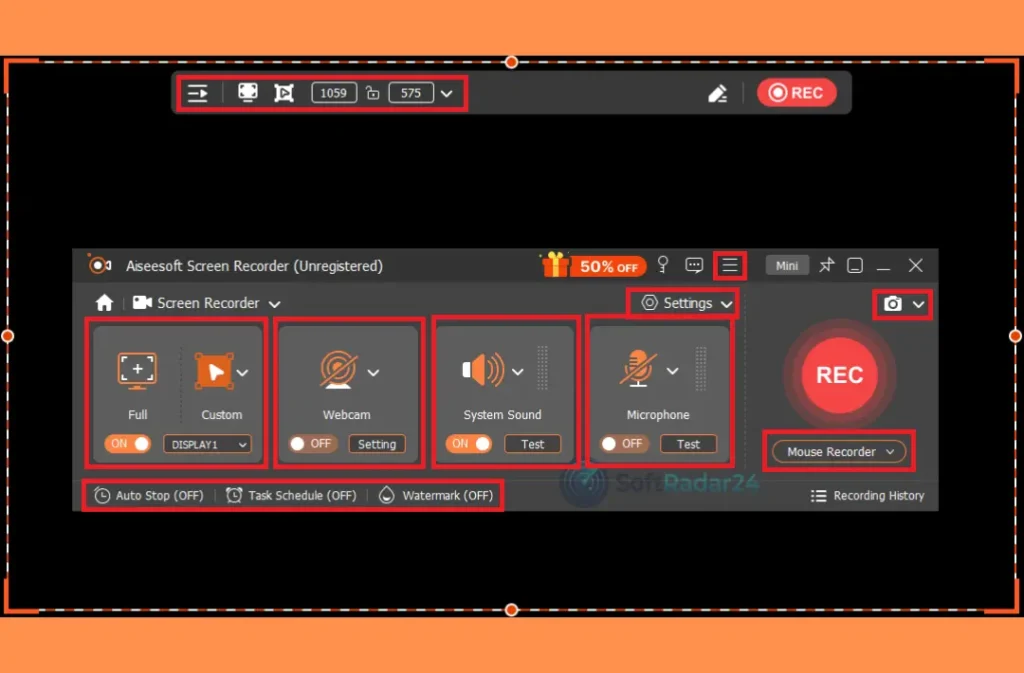
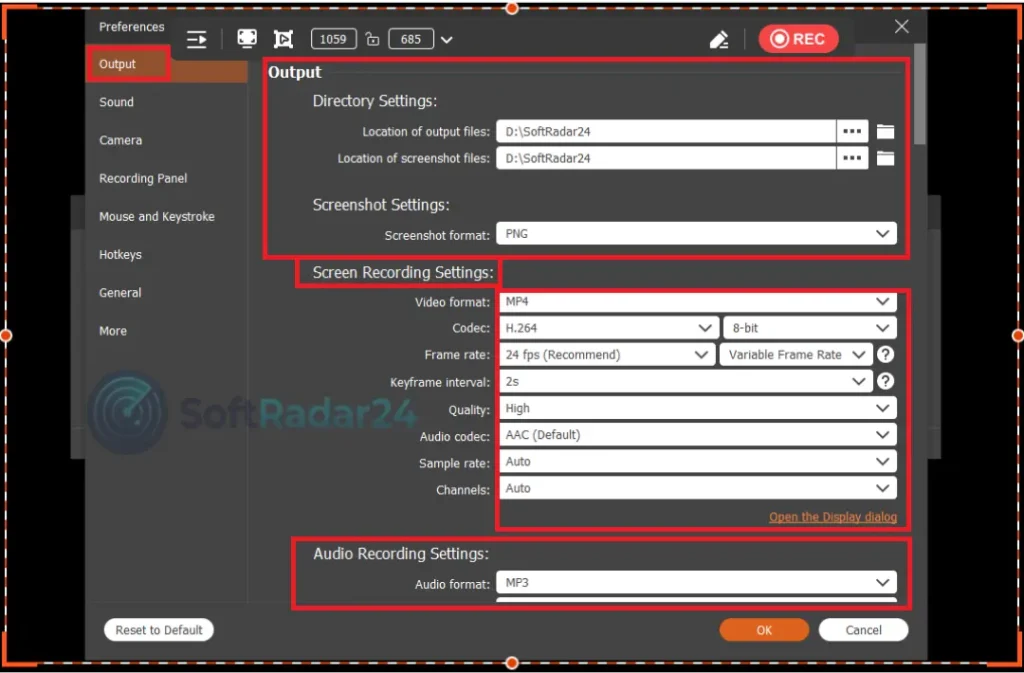
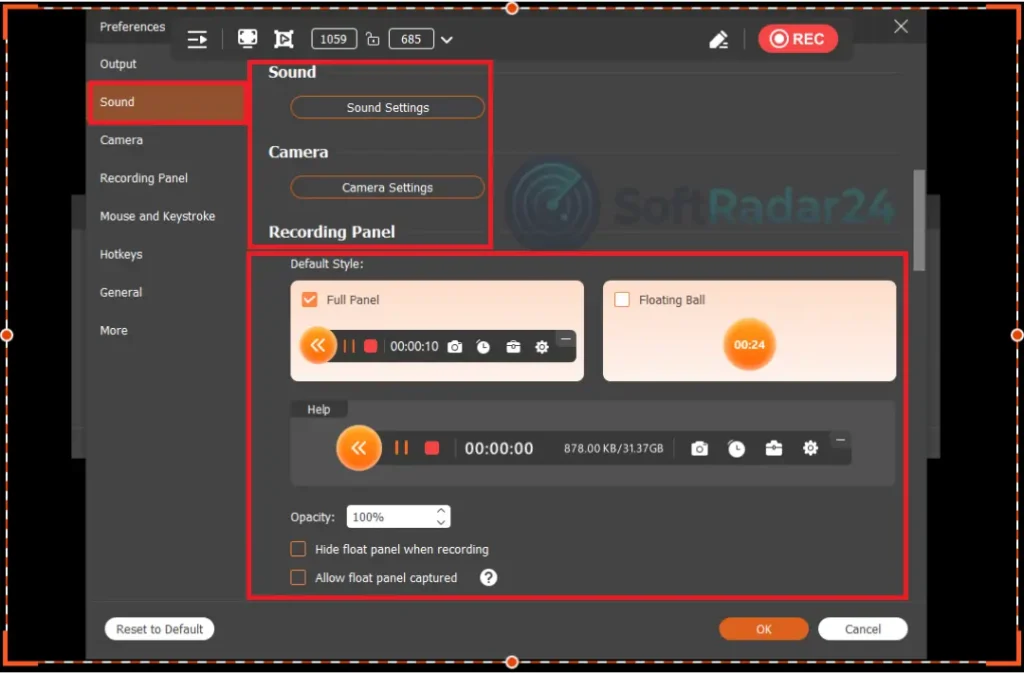
The screenshots below are reused from the existing SoftRadar24 Aiseesoft Screen Recorder article. They document our own captured interface, audio, output, panel, mouse/keystroke and hotkey settings; no vendor-hosted image is added.
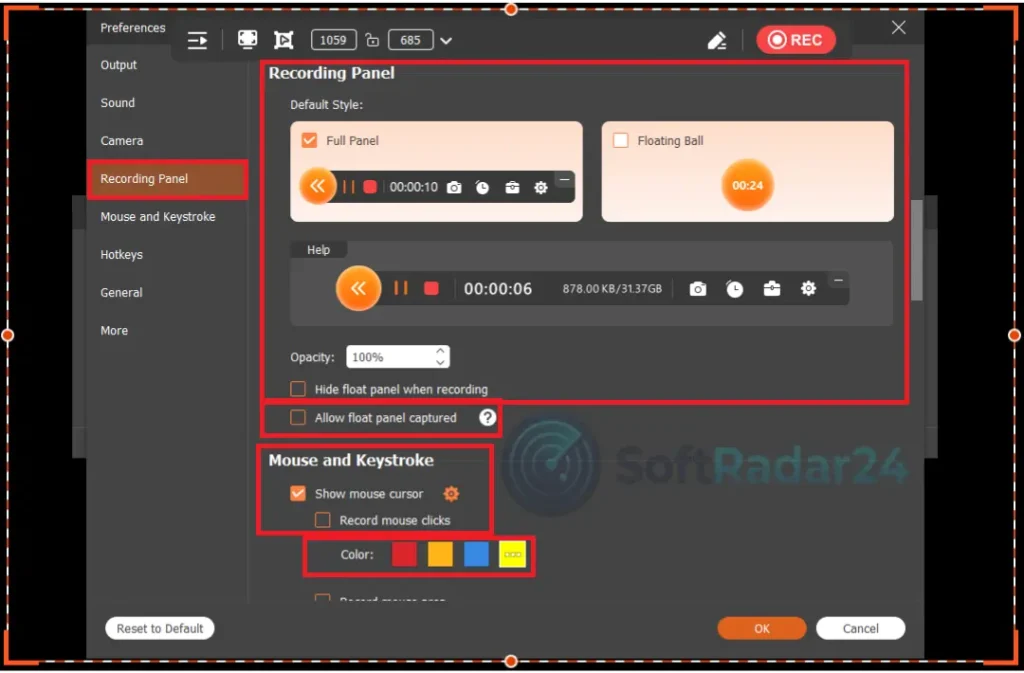
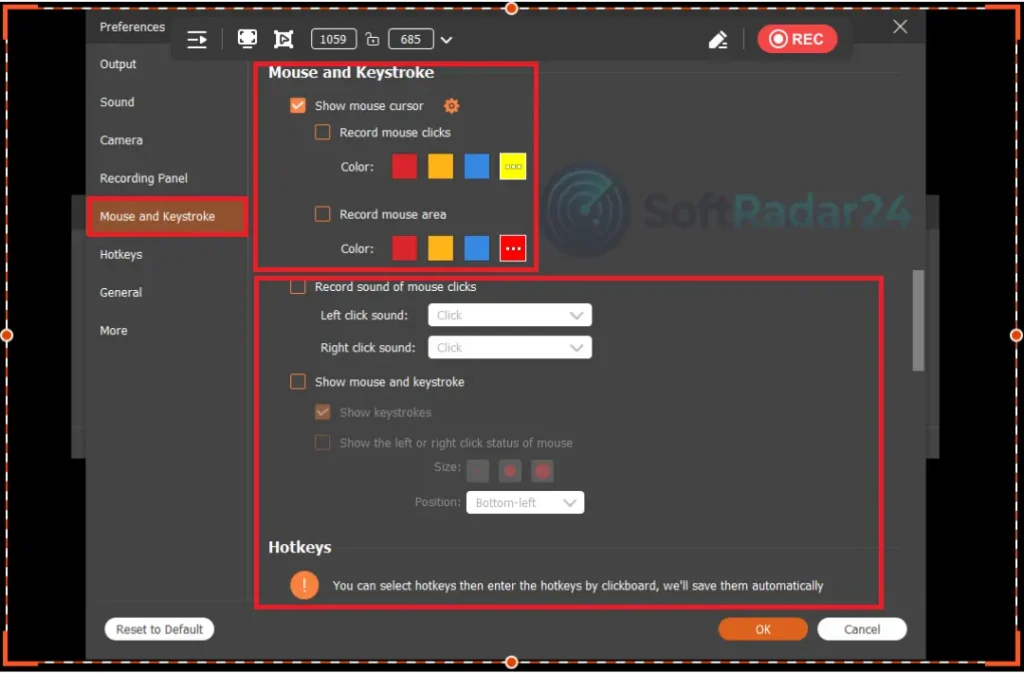
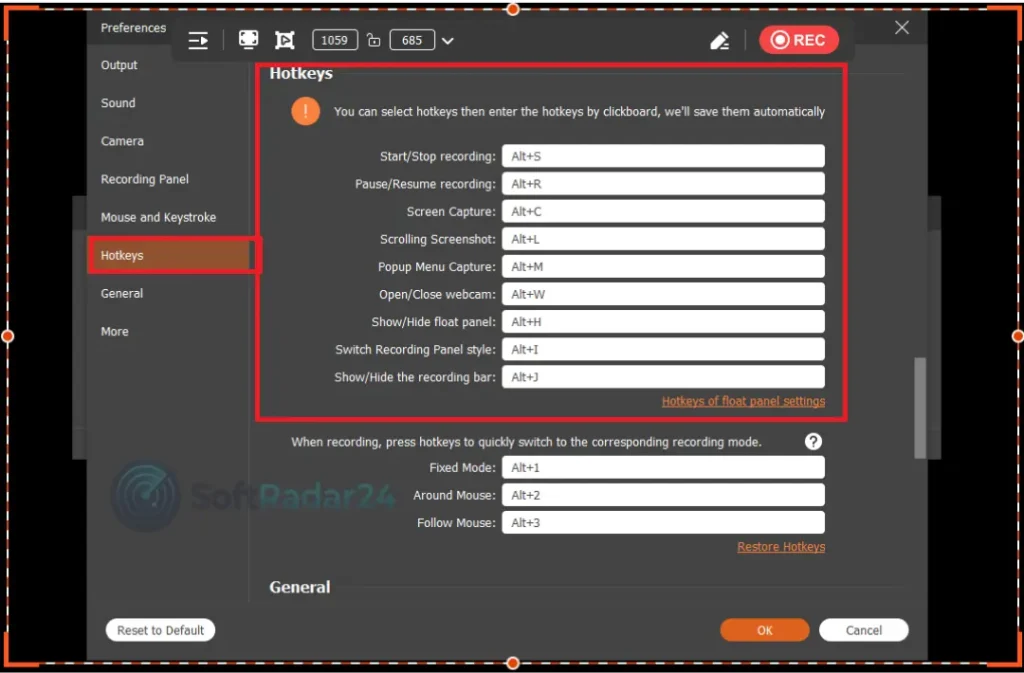
Compatibility & Coverage
Aiseesoft Screen Recorder supports Windows and macOS, but the current official pages contain several platform-specific differences. The detailed reference is more useful than the short product badges because it lists CPU/RAM requirements and separate output-format tables, while the product page documents newer 8K, 120 FPS and AI capabilities.
Operating Systems & Hardware Baseline
| Item | Current official coverage | Important note |
|---|---|---|
| Windows | Windows 11 / 10 / 8 / 8.1 / 7; detailed reference also lists Vista and XP | The product page highlights Windows 11/10/8/7. |
| macOS | Current pages differ: product badge says macOS 10.13+, while the detailed table includes macOS Sierra 10.12 and newer releases | Use macOS 10.13+ as the conservative public baseline unless you test 10.12 directly. |
| Windows CPU | Dual-core CPU at 2.0 GHz or faster | Published current minimum. |
| Mac CPU | 1 GHz Intel processor or Apple M-series chip, including M5 | Published detailed reference. |
| Windows RAM | 4 GB or more | Published current minimum. |
| Mac RAM | 512 MB or more; 1 GB recommended | Published detailed reference, although demanding 8K/AI workloads will be constrained by practical hardware capability. |
Platform-Specific Recording & Output Differences
| Capability | Windows | macOS |
|---|---|---|
| Screen / webcam / audio / screenshot | Documented | Documented |
| Task Schedule | Documented | Documented |
| Dedicated Game Recorder | Explicitly documented in current tutorial | Not separately documented in the Mac tutorial |
| Phone Recorder | iOS and Android recorder workflow explicitly documented | Equivalent Phone Recorder section is not documented in the current Mac tutorial |
| AI webcam background removal | Requires NVIDIA GeForce RTX 20 Series or newer | Current Apple Silicon Macs do not meet the stated NVIDIA RTX requirement |
| Detailed reference: video output | GIF, MP4, WMV, MOV, AVI, TS, F4V, M4V | MP4 listed in the current detailed reference |
| Detailed reference: audio output | MP3, WMA, AAC, M4A | MP3, WMA, FLAC, Ogg, Opus |
| Detailed reference: image output | PNG, JPG, JPEG, BMP, GIF, TIFF | PNG |
Features & Capabilities
The product is easiest to evaluate as four practical tool groups: capture modes, high-quality/audio controls, tutorial and screenshot tools, and post-recording automation/cleanup.
Screen, Game, Window & Webcam Capture
- Full-screen, custom-region and specific-window recording
- Dedicated Game Recorder documented for Windows
- Webcam-only recording and webcam overlay workflows
- Minimized-window / application-window capture described by the current product page
High-Quality Video & Audio Control
- Vendor-listed capture up to 8K and 5–120 FPS
- H.265 / HEVC option plus bitrate, keyframe, sample-rate and audio-channel controls
- System Sound and Microphone capture with independent source control
- AI noise reduction / echo cancellation and paid-only specified-application audio
Tutorial, Annotation & Snapshot Tools
- Real-time text, arrows, shapes, highlights, images, labels and whiteboard-style annotations
- Mouse-click highlighting, cursor controls and custom hotkeys
- Standard screenshots plus scrolling screenshots and pop-up menu capture on the current product page
- Snapshot markup for rectangles, circles, arrows, text and freehand areas
Automation & Quick Post-Recording Tools
- Task Schedule with start/end time or recording length
- Recording History for preview, edit and file management
- Advanced Trimmer, Video Compressor and Media Converter
- File Merger, metadata editor, Sound Extractor and Sound Booster
Important Conditions & Limitations
The current product is capable, but several details can materially change the buying decision: peak-resolution claims depend on hardware, the AI background feature has a specific RTX requirement, Mac documentation is not identical to Windows, and the checkout currently promotes an additional Blu-ray Player subscription trial.
8K and 120 FPS Are Maximum Capabilities, Not Universal Recording Results
Aiseesoft advertises up to 8K and up to 120 FPS, but sustained recording depends on the source resolution, selected codec, frame rate, GPU/CPU load, storage speed and the application being captured. Test the actual workload before assuming the highest values are practical on every system.
AI Webcam Background Removal Requires NVIDIA RTX 20 Series or Newer
The current product page gives a specific hardware requirement for AI background removal/replacement. This makes the feature unsuitable for systems without a compatible NVIDIA RTX GPU and effectively excludes current Apple Silicon Macs from that stated hardware path.
Windows and Mac Feature Documentation Is Not Identical
Aiseesoft’s Windows tutorial explicitly documents Game Recorder and Phone Recorder, while the Mac tutorial covers screen, webcam, audio, screenshots and Task Schedule but does not provide equivalent Game Recorder or Phone Recorder sections. Treat undocumented Mac feature parity as something to test, not assume.
The Current Mac Output-Format Documentation Conflicts with the Broad 20+ Format Marketing
The main product page broadly advertises 20+ video/audio/image formats, but the detailed reference currently lists Mac video output as MP4 only, Mac audio as MP3/WMA/FLAC/Ogg/Opus and Mac images as PNG. If a specific Mac output format matters, verify it in the installed trial.
Current macOS Minimum Wording Also Differs Across Official Pages
The product page says Mac OS X 10.13 or higher, while the detailed reference includes macOS Sierra 10.12 and newer systems. This page uses 10.13+ as the conservative baseline and flags the broader detailed table rather than silently choosing one source.
The Free Trial Is Limited to Three Minutes per Screen Recording
Aiseesoft’s current purchase comparison lists 3 minutes for the Free Trial and no limit for the Paid Version. The trial also omits microphone noise cancellation/enhancement, specified-application audio, lossless FLAC/WAV output, compression, full editing, conversion and file merging.
Quick Editing Is Not a Full Nonlinear Video Editor
The built-in tools are useful for trimming, merging, compression, conversion, metadata and audio cleanup. They are not positioned as a full multi-track timeline editor with deep compositing, project management and advanced post-production.
Aiseesoft Screen Recorder Is Not Primarily a Live Broadcasting / Virtual Webcam Studio
Its core workflow is recording and export. If the main requirement is virtual-camera routing, scene composition and simultaneous live streaming, a tool designed for live production is a better fit.
Recording an Online Video and Downloading the Original File Are Different Workflows
Screen recording captures what is rendered on the display in real time. If the goal is an authorized original-media download, a downloader may preserve source quality and metadata more efficiently than recording playback.
The Current Checkout Promotes a Separate 7-Day Blu-ray Player Trial
Aiseesoft’s current Screen Recorder purchase page says buyers also receive 7-day access to Aiseesoft Blu-ray Player and that this separate subscription renews at US$31.20 per month unless canceled before renewal. Review optional extras before completing the order.
The Current Public Store and the Existing SoftRadar24 Campaign Are Different Offer Grids
Aiseesoft’s public store currently emphasizes US$12.50 for 1 Month / 1 PC, US$49.96 for Lifetime / 1 PC and a multi-user plan from US$79.96. The existing SoftRadar24 article retains separate Windows and Mac campaign SKUs, including lower lifetime and 3-device prices. The final checkout should control.
Refund Wording Is Conditional
The current purchase page lists a 30-day money-back policy and specifically states support for 30-day refunds on lifetime licenses when there is a quality problem. Treat the vendor’s current refund terms as controlling rather than assuming every purchase is an unconditional refund.
Free Trial / Free Version
Aiseesoft Screen Recorder has a free trial designed to test capture quality and the interface, not to provide a complete free recorder. The current purchase comparison limits screen recording to 3 minutes per session and keeps several advanced audio and post-recording functions in the paid version.
| Free access | What you can do | What requires payment |
|---|---|---|
| Free trial | Test screen capture, recording-area selection, basic system/microphone audio behavior and the interface for up to 3 minutes per screen recording. | Paid access removes the 3-minute recording limit and unlocks advanced audio processing, specified-application audio, lossless FLAC/WAV output, compression, editing, conversion and merging. |
| Aiseesoft Free Screen Recorder Online | Aiseesoft also offers a separate browser-oriented Free Screen Recorder Online product for basic video/audio capture. | That online recorder is a separate product and should not be confused with the desktop Screen Recorder paid license or its feature set. |
System Requirements
Aiseesoft publishes a current detailed requirements table, but the Mac operating-system wording differs slightly between the product page and reference page. The table below preserves the documented CPU/RAM values and uses the more conservative macOS baseline in the public recommendation.
| Requirement | Supported / Required | Notes |
|---|---|---|
| Windows OS | Windows 11 / 10 / 8 / 8.1 / 7; detailed reference also lists Vista / XP | Current detailed reference. |
| macOS | Use macOS 10.13+ as the conservative baseline | Product page says 10.13+; detailed reference also includes Sierra 10.12 and newer releases. |
| Windows CPU | At least dual-core CPU, 2.0 GHz or faster | Current detailed reference. |
| Mac CPU | 1 GHz Intel processor or Apple M-series chip, including M5 | Current detailed reference. |
| Windows RAM | 4 GB or more | Current detailed reference. |
| Mac RAM | 512 MB or more; 1 GB recommended | Current detailed reference. |
| AI background removal | NVIDIA GeForce RTX 20 Series or newer | Specific current hardware requirement for the AI webcam background feature. |
| Storage | No current minimum application-storage value specified on the reviewed official pages | Recording storage requirements vary widely with resolution, frame rate, codec and duration. |
Alternatives & Better-Fit Options
There is no need to force unrelated software into a fake “screen recorder alternatives” list. The links below are used only when the visitor’s actual job changes. For more products and current offers from the same vendor, visit the Aiseesoft page on SoftRadar24.
ManyCam
A better fit when the main job is live video production rather than recording: virtual webcam routing, multiple live sources, picture-in-picture scenes and simultaneous streaming to platforms are closer to ManyCam’s core workflow.
AVS4YOU Unlimited Subscription
A better fit when capture is already finished and the real requirement is deeper post-production: timeline video editing, broader video/audio conversion, audio editing and other media-processing tools beyond Aiseesoft Screen Recorder’s quick cleanup utilities.
Allavsoft Video and Music Downloader
A different-task option when the goal is to save an online media file directly rather than record its playback in real time. Use a downloader only for sources and content you are authorized to save.
FAQ
These questions focus on the details that most often change the purchase decision: 8K/120 FPS recording, audio routing, Mac/Windows differences, AI webcam requirements, phone recording, scheduled capture, trial limits, output formats and the current checkout add-on.
Can Aiseesoft Screen Recorder record system audio and microphone at the same time?
Yes. The current product page and tutorial document simultaneous System Sound and Microphone recording with separate source controls. The Windows tutorial also includes audio testing, microphone noise cancellation/enhancement and per-application volume controls.
Can Aiseesoft Screen Recorder record in 8K and 120 FPS?
The current product page advertises capture up to 8K and frame rates from 5 to 120 FPS, with H.265/HEVC available for supported recording workflows. These are maximum capabilities; actual performance depends on the source, codec, GPU/CPU load, storage and the application being recorded.
Does Aiseesoft Screen Recorder have a dedicated Game Recorder?
Yes on Windows. The current tutorial documents a Game Recorder that selects the running game and can add webcam, system sound and microphone commentary. The Mac tutorial does not provide a separate Game Recorder section.
Can Aiseesoft Screen Recorder record a specific window or custom area?
Yes. The current product page lists Window Recorder, Full Screen Record and Custom Screen Record, while the tutorial also allows a custom region or a selected window.
Can Aiseesoft Screen Recorder record audio from one specific application?
Yes in the paid version. Aiseesoft’s current Free Trial vs Paid comparison lists recording audio from a specified application as a paid-only feature.
Does Aiseesoft Screen Recorder support AI webcam background removal?
Yes, but Aiseesoft states that AI webcam background removal/replacement requires an NVIDIA GeForce RTX 20 Series GPU or newer. Systems without a compatible NVIDIA RTX GPU should not expect this feature to work.
Can Aiseesoft Screen Recorder record an iPhone or Android screen?
The current Windows tutorial explicitly documents Phone Recorder with separate iOS and Android workflows. iPhone mirroring uses the same WLAN, while Android can use Wi-Fi or USB. The current Mac tutorial does not document an equivalent Phone Recorder section, so Mac users should test this requirement before buying.
Can Aiseesoft Screen Recorder schedule a recording automatically?
Yes. The current Windows and Mac tutorials both document Task Schedule, including a start time, end time or recording length and a selected recording set.
What can I do with a recording after I stop?
The current tutorial includes preview and Recording History plus Advanced Trimmer, Video Compressor, Media Converter, File Merger, metadata editing, Sound Extractor and Sound Booster. These are quick post-recording tools rather than a full multi-track video editor.
What is the Aiseesoft Screen Recorder free-trial recording limit?
The current Aiseesoft purchase comparison limits Free Trial screen recording to 3 minutes and lists No Limit for the Paid Version. Several advanced audio, compression, editing, converting and merging functions are also paid-only.
Which video formats can Aiseesoft Screen Recorder save on Windows?
The current detailed reference lists GIF, MP4, WMV, MOV, AVI, TS, F4V and M4V as Windows video outputs. It separately lists MP3, WMA, AAC and M4A for Windows audio and several common screenshot formats.
Which video formats can Aiseesoft Screen Recorder save on Mac?
Aiseesoft’s current pages are not fully consistent. The main product page broadly advertises 20+ video/audio/image formats, but the detailed reference currently lists MP4 as the Mac video output, MP3/WMA/FLAC/Ogg/Opus for audio and PNG for images. If a specific Mac format is essential, verify it in the trial.
What macOS versions does Aiseesoft Screen Recorder support?
The current product page says Mac OS X 10.13 or higher, while the detailed reference also includes macOS Sierra 10.12 and newer releases. This page uses 10.13+ as the conservative baseline because the official pages currently differ.
Does Aiseesoft Screen Recorder include a 30-day money-back guarantee?
Aiseesoft’s current purchase and reference pages display a 30-day money-back policy. The purchase page specifically says lifetime licenses are eligible for a 30-day refund when there is a quality problem, so the vendor’s current refund conditions should be checked for the selected plan.
Does buying Aiseesoft Screen Recorder add a Blu-ray Player trial?
The current Aiseesoft purchase page says Screen Recorder buyers also receive 7-day access to Aiseesoft Blu-ray Player and that the separate Blu-ray Player subscription renews at US$31.20 per month unless canceled before renewal. Review optional extras at checkout.
Is Aiseesoft Screen Recorder the best choice for live streaming and virtual webcam use?
Not when live production is the main job. Aiseesoft Screen Recorder is primarily a capture-and-export tool. For virtual webcam routing, multiple live sources and multicasting, ManyCam is the more directly aligned SoftRadar24 option.