Quick Summary
Epubor Nook Converter is a Windows and macOS utility built for a problem that became much harder after Barnes & Noble stopped supporting NOOK for PC, NOOK for Mac and the NOOK for Windows App: getting purchased NOOK eBooks and NOOK audiobooks into portable local formats. The current Epubor Nook Converter workflow uses the NOOK Android app inside an Android emulator, then exports purchased NOOK eBooks as EPUB and NOOK audiobooks as chapter-split MP3 files. That distinction matters: Epubor Nook Converter does not directly create Kindle files or PDF files; Kindle and printing workflows require an additional step after the EPUB output.
- Current listed version
- Epubor Nook Converter 1.0.1.60 · March 6, 2024
- Direct output
- NOOK eBooks → EPUB · NOOK audiobooks → chapter-split MP3
- Platforms
- Windows and macOS
- Current desktop dependency
- Android emulator + Barnes & Noble NOOK Android app for new PC/Mac setups
Purchase Options
License & Purchase · Epubor Nook Converter · 20% OFF Official Discount & Coupon Code
Choose Windows or macOS first, then choose the license period and device count. The current SoftRadar24 offers below are the existing official checkout campaigns from this Product page; the displayed campaign prices are 20% below their current reference prices.
1-Year License
1 Windows PC · 1-year Epubor Nook Converter license · free updates during the term
Included with this license- Epubor Nook Converter for 1 Windows PC
- NOOK eBook to EPUB and NOOK audiobook to MP3 workflows
- Free version upgrades during the 1-year license period
- Current official order terms list a 30-day money-back window and remote assistance for one-year licenses
US$31.99/ year
Discount automatically applied
Buy NowWindows · 1-Year License · 1 PC
The current SoftRadar24 checkout reduces the Windows 1-year license from US$39.99 to US$31.99 before applicable tax.
Epubor’s current official order page also offers shorter 1-month and 3-month plans plus Lifetime plans, but those are not substituted for the six existing SoftRadar24 campaigns here. All six SoftRadar24 options are one year or longer, and Epubor currently lists a 30-day money-back window plus free remote assistance for those license lengths. Review the final platform, device count, term, tax and price at checkout before paying.
Can This Software Do What I Need?
The most useful way to evaluate Epubor Nook Converter is to start with the exact problem you are trying to solve. Reading a NOOK purchase in the official app, creating a portable EPUB, sending that EPUB to Kindle, printing pages, and converting a Barnes & Noble audiobook to MP3 are different workflows—and Epubor Nook Converter is not required for all of them.
How do I download Nook books to PC or Mac now that the desktop apps are no longer supported?
Current desktop acquisition problem
Epubor Nook Converter can solve the local-export partBarnes & Noble no longer supports NOOK for PC, NOOK for Mac or the NOOK for Windows App. Epubor’s current desktop workflow therefore uses the NOOK Android app inside an Android emulator on Windows or macOS, then Epubor Nook Converter detects the downloaded purchased content and prepares the local output.
How do I read Nook books on Kindle or Kindle Paperwhite?
Nook to Kindle
Two-stage workflowEpubor Nook Converter outputs the purchased NOOK eBook as EPUB. It does not directly create a Kindle AZW3 or MOBI file in the current product workflow. After you have an authorized DRM-free EPUB, use Amazon’s Send to Kindle or another compatible EPUB-to-Kindle path.
How do I read Nook books on iPad?
Nook on iPad
You may not need Epubor Nook ConverterIf your goal is simply to read purchased NOOK books on an iPad, Barnes & Noble still supports the NOOK app for iOS, so signing in there is the simplest route. Epubor Nook Converter becomes relevant when you specifically need a local EPUB for Apple Books or another reader instead of staying inside the NOOK app.
How do I print Nook eBooks?
Nook eBook printing
Epubor Nook Converter is only the first conversion stepEpubor Nook Converter creates EPUB, not PDF. To print an authorized copy, the EPUB must then be converted to a printable format such as PDF or DOCX using a separate tool before the normal print workflow.
How do I convert Barnes & Noble Nook audiobooks to MP3?
Nook audiobook conversion
YesEpubor Nook Converter directly converts downloaded Barnes & Noble NOOK audiobooks to MP3 and saves them as individual chapter-split MP3 files. This is one of the product’s two core output paths.
How do I play Barnes & Noble audiobooks on an MP3 player?
Portable audiobook playback
Yes — after MP3 exportOnce an authorized Barnes & Noble audiobook has been processed by Epubor Nook Converter, the resulting MP3 chapter files can be copied to an MP3-compatible player, car system or other device that supports ordinary MP3 playback.
Where are Nook books stored on Android or Windows?
File-location problem
Usually you should not need to browse hidden storageNOOK downloads can live inside app-managed or protected storage, and legacy Windows installations use a separate app-data location. Epubor Nook Converter is designed to synchronize and detect the downloaded library so the normal workflow does not depend on manually hunting through hidden directories.
How do I copy text from Nook books?
Copy / quote text
Converter may be unnecessary for short excerptsEpubor’s current guide says the NOOK Android and iOS apps can copy selected text directly. If you only need a short quotation, use the mobile app first. Epubor Nook Converter is more relevant when you need an authorized local EPUB that can be opened in a normal EPUB reader.
I want a one-click desktop solution with no Android emulator setup
Setup complexity
NoFor a new Windows or Mac setup, Epubor’s current Nook workflow depends on an Android emulator because the old desktop NOOK download path is no longer the supported route. Emulator setup is therefore part of the practical requirement, not an optional cosmetic step.
I do not want to enter my Nook account credentials into third-party software
Account / privacy decision
Epubor Nook Converter is probably not a fitThe current Epubor Nook Converter user guide requires the NOOK account credentials inside Epubor Nook Converter to generate the key used by its processing workflow. If entering those credentials into third-party software is unacceptable to you, do not buy the product.
I need one tool for Kindle, Kobo, Google Play Books and other eBook stores as well as Nook
Broader eBook library
Better fit: Epubor UltimateEpubor Nook Converter is deliberately specialized around the current Barnes & Noble NOOK workflow. For a broader mixed-store eBook library, Epubor Ultimate is the more appropriate Epubor product to compare, while current NOOK acquisition remains a specialized Epubor Nook Converter workflow.
I only want to read my purchased Nook library on a supported device or browser
Official reading access
No converter requiredBarnes & Noble currently keeps purchased NOOK content available through supported Android/iOS apps and NOOK for Web. Epubor Nook Converter solves portability and local-format needs; it is not necessary just to continue reading inside the official NOOK ecosystem.
How It Works
The current Epubor Nook Converter workflow is best understood as acquisition → detection → export → destination. The critical 2026 change is that the acquisition stage is no longer a supported NOOK desktop-app workflow for new users.
How to Download Nook Books to PC or Mac in the Current Workflow
Barnes & Noble currently supports NOOK reading through Android, iOS and NOOK for Web rather than maintaining the old PC/Mac desktop applications. Epubor Nook Converter therefore relies on the NOOK Android app running inside an Android emulator when a new Windows or Mac user needs locally downloaded purchased content for conversion.
- Prepare the supported NOOK Android reading environment inside an Android emulator on the Windows PC or Mac.
- Sign in to the Barnes & Noble account and make the purchased eBooks or audiobooks available offline inside that NOOK Android environment.
- Open Epubor Nook Converter and let it synchronize the locally downloaded NOOK library rather than manually searching protected application folders.
What Epubor Nook Converter Actually Converts
The current product has two direct outputs. Purchased NOOK eBooks are saved as EPUB while NOOK audiobooks are saved as MP3 files split by chapters. That narrower, accurate description is more useful than claiming Epubor Nook Converter directly creates every downstream format.
| Source / Goal | Direct Epubor Nook Converter output | What happens next |
|---|---|---|
| NOOK eBook | EPUB | Open in a compatible EPUB reader or use a separate destination workflow. |
| NOOK audiobook | MP3 files split by chapters | Play in ordinary MP3 software/devices or copy to a supported MP3 player. |
| Kindle / Kindle Paperwhite | Not a direct Kindle-format output | Use the exported EPUB with Send to Kindle or another compatible conversion path. |
| Printable PDF | Not a direct PDF output | Convert the exported EPUB to PDF/DOCX using a separate tool, then print. |
How to Read Nook Books on Kindle, iPad or Another Reader After Export
The destination determines whether another conversion step is needed. Kindle accepts DRM-free EPUB through Send to Kindle; an iPad can simply use the official NOOK app if local EPUB portability is not required; Apple Books and other EPUB readers can use an authorized EPUB directly.
- For Kindle, treat the Epubor Nook Converter EPUB as the intermediate file and use Amazon’s current Send to Kindle route.
- For iPad reading only, compare the official NOOK iOS app first; conversion is optional unless you specifically want a local EPUB outside the NOOK app.
- For printing, use a separate EPUB-to-PDF or EPUB-to-DOCX step because Epubor Nook Converter itself does not directly generate the printable file.
Product Interface & Workflow
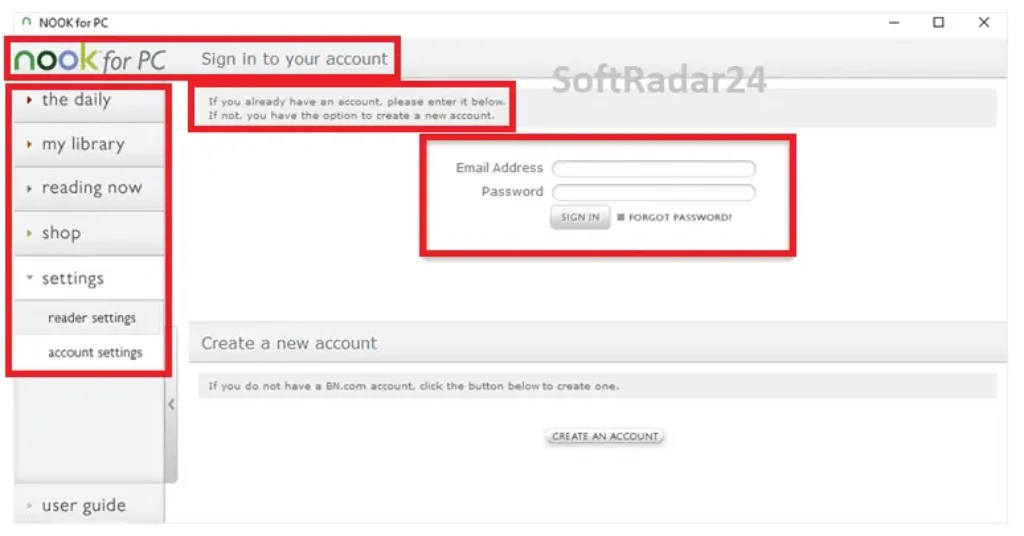
The visuals below come from the existing SoftRadar24 Epubor Nook Converter article. The historical NOOK for PC screenshot is kept only to explain why old desktop-app guides are no longer the current workflow; Barnes & Noble now directs users to supported mobile apps and NOOK for Web.

Compatibility & Coverage
Epubor Nook Converter is available for Windows and macOS, but the practical compatibility question is now larger than the operating system. A new desktop setup also needs an Android-emulator environment that can run the Barnes & Noble NOOK Android app and expose the locally downloaded library to Epubor Nook Converter.
Platform & Current NOOK Access
| Item | Current coverage | What it means |
|---|---|---|
| Windows | Supported by Epubor Nook Converter | Current Epubor Nook Converter user guide explicitly supports Windows. |
| macOS | Supported by Epubor Nook Converter | The same current workflow can be performed on a Mac. |
| NOOK for PC / Mac / Windows App | No longer supported by Barnes & Noble | Do not build a new 2026 workflow around discontinued desktop-app instructions. |
| NOOK Android app | Current Epubor desktop-acquisition dependency | Epubor Nook Converter’s new-user workflow uses the Android app inside an emulator. |
| NOOK iOS app | Current official reading option | If reading on iPad/iPhone is the only goal, conversion may be unnecessary. |
| NOOK for Web | Current official browser-reading option | Useful for reading on a desktop browser, but it is not the local Epubor Nook Converter acquisition path. |
Content & Output Coverage
| Item | Epubor Nook Converter support | Important distinction |
|---|---|---|
| Purchased NOOK eBooks | Yes | Direct current output: EPUB. |
| Purchased NOOK audiobooks | Yes | Direct current output: individual MP3 files split by chapters. |
| Kindle / AZW3 / MOBI direct output | No direct current output documented | Use the exported EPUB with Send to Kindle or another separate destination step. |
| PDF direct output | No direct current output documented | Printing requires a separate EPUB-to-PDF or EPUB-to-DOCX step. |
| Storytel | Different Epubor product | Epubor Telstory Converter is the specialized better fit. |
| Audible AA / AAX | Different Epubor product | Epubor Audible Converter is the specialized better fit. |
Features & Capabilities
The product is valuable because it focuses on one narrow library problem rather than pretending to be a universal eBook converter. Its useful capabilities are current NOOK acquisition compatibility, automatic library detection, two clean output paths and one application for both eBooks and audiobooks.
Current NOOK Library Acquisition Workflow
- Works with the Barnes & Noble NOOK Android app running inside an Android emulator on Windows or macOS
- Designed for the post-desktop-app environment after the old NOOK PC/Mac download route stopped being the supported new-user path
- Synchronizes locally downloaded NOOK eBooks and audiobooks into the Epubor Nook Converter library
- Avoids making the user manually locate protected Android application-storage files during the normal workflow
NOOK eBook to EPUB
- Direct current eBook output is EPUB
- Epubor says the EPUB output preserves the original eBook quality
- Useful as an intermediate portable format for compatible EPUB readers and downstream Kindle/PDF workflows
- Keeps the product’s actual job separate from later device-specific conversion
NOOK Audiobook to MP3
- Direct current audiobook output is MP3
- Audiobooks are saved as individual MP3 files split by chapters
- MP3 output can be used with ordinary MP3-compatible playback software and devices
- Epubor advertises at least 1000× local audiobook conversion speed, including a 500 MB example of about two seconds; treat this as a vendor performance claim rather than a guaranteed result
License & Product Management
- One application covers both NOOK eBook and NOOK audiobook conversion
- Current user guide supports Windows and macOS
- Registration uses the purchased license email and registration code
- Epubor Nook Converter supports update notifications and deregistration when moving or changing an installation
Important Conditions & Limitations
Epubor Nook Converter solves a real portability problem, but the current workflow has several conditions that should be visible before anyone buys it. The most important are the Android-emulator dependency, account-credential requirement, narrow direct-output formats and the fact that some common NOOK questions do not actually require conversion software.
A New PC or Mac Setup Requires an Android Emulator
Barnes & Noble no longer supports updates to its old NOOK desktop apps. Epubor’s current Windows/Mac workflow therefore depends on running the NOOK Android app inside an Android emulator before Epubor Nook Converter can synchronize newly downloaded purchased content.
The Emulator Step Is Real Setup Work, Not a One-Click Detail
Epubor’s current guide and support discussions show that emulator configuration can affect whether the downloaded library is detected. This is a specialized workflow and may require troubleshooting or vendor support on some systems.
Epubor Nook Converter Requires Your NOOK Account Credentials
The current Epubor Nook Converter user guide says users must enter their NOOK account credentials inside Epubor Nook Converter so the software can generate the key used by its processing workflow. This is a legitimate privacy and trust consideration. If you do not want to provide those credentials to third-party software, the product is not a good fit.
Epubor Nook Converter Does Not Directly Convert Nook Books to Kindle Format
The current Epubor Nook Converter output for eBooks is EPUB. The updated Epubor Kindle workflow then uses that DRM-free EPUB with Send to Kindle or another separate conversion path. Older pages that imply a direct AZW3/MOBI output should not be treated as the current product behavior.
Epubor Nook Converter Does Not Directly Create PDF Files
The current product and user guide specify EPUB for eBooks. Epubor’s printing guide explicitly adds a separate EPUB-to-PDF or EPUB-to-DOCX conversion step before printing.
Reading on iPad Does Not Automatically Require Epubor Nook Converter
Barnes & Noble still supports the NOOK app on iOS. If your only goal is to read the library on an iPad, the official app is the simpler route. Conversion is relevant when you specifically need a portable local EPUB outside the NOOK app.
Copying a Short Passage May Not Require Epubor Nook Converter
Epubor’s current copy-text guide says the NOOK Android and iOS apps can copy selected text. A conversion workflow makes more sense when you need a reusable local EPUB rather than a short quotation.
The Trial Converts Only One Item in Total
The current user guide says the trial allows conversion of only one NOOK eBook or audiobook. That is enough to verify whether your library can be detected and whether the output meets your needs, but it is not a batch-evaluation mode.
The 1000× Audiobook Figure Is a Vendor Claim About Local Conversion
Epubor advertises at least 1000× audiobook-to-MP3 conversion and gives a 500 MB / roughly two-second example. That figure should not be read as the total time from account login to finished MP3: downloading the audiobook, emulator setup and library synchronization are separate steps.
The Current Product Page Still Lists Version 1.0.1.60 from March 2024
Epubor’s current Nook Converter product page lists version 1.0.1.60 dated March 6, 2024 with minor bug fixes. This page does not invent a newer version number simply because the workflow documentation has been updated more recently.
Legacy NOOK for PC Screenshots Are Historical, Not Current Setup Instructions
Users who already have a legacy Windows app may encounter different paths, but Barnes & Noble’s current support page says it no longer supports updates to NOOK for PC, NOOK for Mac or the NOOK for Windows App. New buyers should evaluate the emulator-based workflow, not old desktop-app tutorials.
DRM and Circumvention Rules Vary by Country
Epubor Nook Converter is designed to process protected purchased content. Use it only for eBooks and audiobooks you are authorized to process, and check the rules that apply in your jurisdiction before converting protected material.
Free Trial / Free Version
Epubor Nook Converter has a deliberately narrow free trial rather than an unlimited free edition. The current Epubor Nook Converter user guide says the trial can convert only one NOOK eBook or audiobook in total.
| Free access | What you can do | What requires payment |
|---|---|---|
| Epubor Nook Converter trial | Install Epubor Nook Converter, test whether the current emulator-based library is detected, and convert one purchased NOOK eBook or one purchased NOOK audiobook. | Additional items require a paid Epubor Nook Converter license. |
| Paid Epubor Nook Converter | Use the licensed Windows or macOS edition for the purchased license period, with free version upgrades during that period. Current one-year-and-longer plans also list remote assistance. | The existing SoftRadar24 offers are 1-year, 5-year and 5-year family licenses; Epubor’s broader current store also sells other durations. |
System Requirements
The current Epubor Nook Converter product and user-guide pages do not publish conventional CPU, RAM or installation-storage minimums. The practical requirement that matters more in 2026 is the Android-emulator environment needed to make newly downloaded NOOK content available on a Windows PC or Mac.
| Requirement | Supported / Required | Notes |
|---|---|---|
| Operating system | Windows or macOS | The current Epubor Nook Converter user guide explicitly supports both platforms. |
| Current NOOK acquisition environment | Android emulator capable of running the Barnes & Noble NOOK Android app | Required by Epubor’s current new-user Windows/Mac workflow after the supported desktop-app route ended. |
| Barnes & Noble account | Required for access to the purchased NOOK library | The NOOK Android environment must be able to sign in and make the purchased content available locally. |
| Epubor Nook Converter account step | Current guide requires NOOK credentials inside Epubor Nook Converter | Used by the software’s current processing/key-generation workflow; this should be evaluated as a privacy/trust requirement. |
| Internet connection | Needed for initial account access, NOOK downloads, licensing and updates | The final EPUB/MP3 files are local outputs after processing. |
| CPU / RAM | Not specified on the current Epubor Nook Converter pages reviewed | The Android emulator may impose a materially heavier practical requirement than Epubor Nook Converter itself. |
| Free storage | Not specified as a current minimum | Allow space for the emulator, downloaded NOOK content and converted EPUB/MP3 output. |
Alternatives & Better-Fit Options
Epubor Nook Converter is deliberately specialized around Barnes & Noble NOOK eBooks and audiobooks. If your library problem belongs to another store or content type, a different Epubor product is the cleaner fit. For Epubor-wide offers and related products, visit the Epubor page on SoftRadar24.
Epubor Ultimate
A better fit when your library spans Kindle, Kobo, Google Play Books or other eBook ecosystems and you need a broader eBook conversion/management tool. Current NOOK desktop acquisition remains a specialized Epubor Nook Converter workflow rather than something to assume Epubor Ultimate replaces.
Epubor Telstory Converter
Use this when the source is Storytel content rather than Barnes & Noble NOOK. It solves a different audiobook/eBook ecosystem problem and should not be presented as a direct Epubor Nook Converter replacement.
Epubor Audible Converter
The better fit for Audible AA/AAX audiobooks. Epubor Nook Converter is for Barnes & Noble NOOK audiobooks, while Epubor Audible Converter is designed around the Audible ecosystem.
Epubor Readly Mate
Use this when the content problem is Readly magazines rather than NOOK eBooks or NOOK audiobooks. It belongs to a different subscription/content workflow.
FAQ
These answers resolve the questions most likely to cause a wrong purchase: what Epubor Nook Converter actually outputs, why the Android emulator exists, whether Kindle/PDF conversion is direct, when the official NOOK app is enough, and what account information the current workflow requires.
What does Epubor Nook Converter actually convert?
Epubor Nook Converter currently has two direct output paths: purchased NOOK eBooks are saved as EPUB, and purchased NOOK audiobooks are saved as individual MP3 files split by chapters. The current product page does not document direct PDF, AZW3 or MOBI output.
Why does Epubor Nook Converter use an Android emulator?
Barnes & Noble no longer supports updates to NOOK for PC, NOOK for Mac or the NOOK for Windows App. Epubor’s current Windows/Mac workflow therefore uses the NOOK Android app inside an Android emulator so purchased content can be downloaded locally and synchronized with Epubor Nook Converter.
Can Epubor Nook Converter download Nook books to PC or Mac?
Epubor Nook Converter is part of the current desktop workflow, but the initial library download happens through the NOOK Android app running inside an Android emulator. Epubor Nook Converter then detects and synchronizes the downloaded purchased content for local conversion.
Can Epubor Nook Converter convert Nook books directly to Kindle format?
No direct Kindle-format output is documented in the current Epubor Nook Converter product workflow. Epubor Nook Converter first creates an EPUB. The updated Epubor Kindle guide then uses that DRM-free EPUB with Send to Kindle or another compatible Kindle conversion route.
Can I send an Epubor Nook Converter EPUB to Kindle Paperwhite?
Yes, if the EPUB is authorized for your use and is DRM-free. Epubor’s updated 2026 guidance says Send to Kindle supports DRM-free EPUB, so the Epubor Nook Converter EPUB can be the intermediate file for a Kindle Paperwhite workflow.
Can Epubor Nook Converter convert Nook books directly to PDF?
No. The current direct eBook output is EPUB. Epubor’s printing guide adds a separate EPUB-to-PDF or EPUB-to-DOCX conversion step before printing, so PDF should not be described as a direct Epubor Nook Converter output.
How can I print Nook eBooks after using Epubor Nook Converter?
Use Epubor Nook Converter to create the authorized EPUB first, then convert that EPUB to a printable format such as PDF or DOCX with a separate tool. Printing is therefore a two-tool workflow rather than a direct Print command inside Epubor Nook Converter.
Do I need Epubor Nook Converter just to read Nook books on iPad?
Usually no. Barnes & Noble still supports the NOOK app for iOS, so signing in to the official app is the simplest way to read purchased NOOK books on an iPad. Epubor Nook Converter is relevant when you specifically need a local EPUB for another reader such as Apple Books.
Can Epubor Nook Converter convert Barnes & Noble Nook audiobooks to MP3?
Yes. The current product and user guide say Epubor Nook Converter saves NOOK audiobooks as individual MP3 files split by chapters. Those MP3 files can then be used with ordinary MP3-compatible software and devices where your rights permit.
Can I play converted Barnes & Noble audiobooks on an MP3 player?
Yes. After an authorized NOOK audiobook has been converted by Epubor Nook Converter, the resulting chapter-split MP3 files can be transferred to an MP3-compatible player, car system or other device that supports standard MP3 playback.
Where are Nook books stored on Android or Windows?
NOOK downloads can live inside app-managed or protected storage, while an already-installed legacy Windows app uses its own application-data location. In the current Epubor Nook Converter workflow, automatic library synchronization is more useful than manually browsing hidden file paths.
Can I copy text from Nook books without Epubor Nook Converter?
For short excerpts, often yes. Epubor’s current guide says NOOK for Android and NOOK for iOS can copy selected text through the mobile interface. Epubor Nook Converter is more useful when you need a reusable local EPUB outside the official NOOK app.
Do I have to enter my Nook account credentials into Epubor Nook Converter?
Yes according to the current Epubor Nook Converter user guide. It says users must enter their NOOK account credentials inside Epubor Nook Converter so the software can generate the key used by its processing workflow. If you are not comfortable with that requirement, do not use the product.
What is the Epubor Nook Converter free-trial limit?
The current Epubor Nook Converter user guide says the trial can convert only one NOOK eBook or audiobook in total. Use that one item to verify library detection, account compatibility and the expected EPUB or MP3 output before buying.
What is the current version of Epubor Nook Converter?
The current Epubor Nook Converter product page lists version 1.0.1.60 dated March 6, 2024 and describes that release as fixing minor bugs. No newer version number is published on the current product page reviewed for this update.
Is the Epubor Nook Converter 20% official discount available for Windows and Mac?
The six current SoftRadar24 campaign checkouts cover Windows and macOS 1-year, 5-year and 5-year family licenses. Each checked campaign currently shows a 20% reduction from its reference price. The final platform, device count, term, tax and total price shown by checkout should always be verified before payment.