Quick Summary
Aiseesoft Data Recovery is a Windows and macOS file-recovery utility for permanently deleted, formatted, inaccessible and lost data on internal drives, external hard drives, SSDs, USB flash drives, SD/memory cards and other supported storage. It combines Quick Scan and Deep Scan, file-type/path filtering, preview before recovery, support for 2000+ documented file types, AI-assisted photo repair and a bootable Crashed PC Recovery workflow for Windows computers that cannot start normally.
- Best for
- Shift+Delete · emptied Recycle Bin/Trash · formatted drives · USB/SD recovery · crashed Windows PCs
- Platforms
- Windows & macOS
- License
- 1-Month / 1-Year / Lifetime
- Key limitation
- SSD TRIM or overwriting can make recovery impossible
Do This Before You Scan
Stop writing new data to the affected storage. Deleted space can be reused, and every new download, installation, update, browser cache or copied file can overwrite data that might still be recoverable. If the missing file is still available through Recycle Bin, Mac Trash, File History, Previous Versions, Time Machine, iCloud Drive, OneDrive or another backup, use that restore path first. Aiseesoft Data Recovery is most valuable after those normal recovery routes no longer contain the file.
Aiseesoft Data Recovery Pricing, Discount Code & License Options
The current 50% Aiseesoft Data Recovery coupon discount is applied automatically through the approved SoftRadar24 checkout links below. No manual coupon-code entry is required.
Choose Windows or macOS first, then select 1 Month, 1 Year or Lifetime. The 1-Year option is selected first because its current SoftRadar24 price is $24.97, which is lower than the current $30.00 1-Month option.
Current Aiseesoft Data Recovery License Prices
- Aiseesoft Data Recovery · Windows / 1 PC · 1 Year · $24.97
- Aiseesoft Data Recovery · Windows / 1 PC · 1 Month · $30.00
- Aiseesoft Data Recovery · Windows / 3 PCs · Lifetime · $90.00
- Aiseesoft Data Recovery for Mac · 1 Mac · 1 Year · $24.97
- Aiseesoft Data Recovery for Mac · 1 Mac · 1 Month · $30.00
- Aiseesoft Data Recovery for Mac · 3 Macs · Lifetime · $90.00
Aiseesoft Data Recovery · 1-Year License
Windows · 1 PC · 1-year license
Included with this license- Full recovery/export access for one Windows PC
- Internal-drive, external-drive, USB/SD and supported crashed-PC workflows
- Quick Scan, Deep Scan, filtering and file preview
- AI-assisted photo repair for supported recoverable images
At the current SoftRadar24 prices, the 1-Year license is the lowest-cost option at $24.97. The 1-Month license is $30.00, while Lifetime expands coverage to 3 PCs or 3 Macs at $90.00.
The eligible discount is applied automatically. Select the Windows or Mac edition and the license term that matches the computers you need to cover.
Can This Software Do What I Need?
The right recovery method depends on how the data was lost and what type of storage held it. The safest path is always the least destructive one: restore from a native recycle/backup feature when possible, scan only when that path is gone, and move to professional hardware recovery when the drive itself is failing physically.
The file is still in Windows Recycle Bin or Mac Trash
Native restore is safer and faster
Better fitRestore it directly from Recycle Bin or Trash. Aiseesoft Data Recovery is unnecessary while the operating system still has the original deleted item available for normal restoration.
I used Shift + Delete on Windows and bypassed Recycle Bin
Permanent deletion without Recycle Bin
SupportedAiseesoft Data Recovery can scan the original drive for deleted file records and signatures. Stop using that drive as much as possible first. If File History, Previous Versions or a cloud backup already contains the file, restore from that backup instead of scanning.
I emptied Recycle Bin and there is no backup
Deleted-file scan after bin removal
SupportedThis is a core Aiseesoft Data Recovery use case. Scan the original drive, use Filter and Preview to identify the right file, and recover to another drive. The deleted blocks must still exist; continued PC use can overwrite them.
I emptied Mac Trash and have no Time Machine backup
Mac recovery with SSD caveats
ConditionalThe Mac edition can scan supported storage, but modern Mac SSDs can become unrecoverable quickly after permanent deletion because of TRIM. Also check iCloud Drive’s Recently Deleted area when the missing file was synchronized there. Trial-scan and preview before buying for a specific deleted Mac file.
I accidentally formatted an external drive, USB stick or SD card
Logical recovery after formatting
SupportedAiseesoft Data Recovery can scan formatted and logically inaccessible storage. Do not reformat the device again, create a new partition or copy new files to it. Use Deep Scan when Quick Scan does not locate the missing data.
I deleted files from an SSD or NVMe drive
TRIM can remove the recovery window
ConditionalAiseesoft Data Recovery can scan SSD storage, but TRIM allows deleted blocks to be cleared in the background. If those blocks have already been erased, no recovery program can reconstruct the original bytes. Do not buy any software on the assumption that “deep scan” defeats completed TRIM.
Windows will not boot and I need files before reinstalling
Bootable Windows recovery environment
SupportedCrashed PC Recovery creates a bootable USB larger than 4 GB on another working computer. You then boot the failed Windows PC from that USB and scan or copy files without loading the damaged Windows installation. The USB is formatted during creation.
My hard drive clicks, disconnects or is not detected reliably
Possible physical failure
Different taskAiseesoft Data Recovery is a logical/software recovery tool. A mechanically failing, electrically damaged or completely undetected drive may need a professional data-recovery lab. Repeated scanning can add stress to unstable hardware.
I lost photos or videos from a camera card, USB drive or computer
Media-focused recovery
SupportedAiseesoft Data Recovery supports common photo/video formats and lets you narrow the scan to media. Preview recovered files before export. Large videos can still be incomplete if the original file was fragmented or partially overwritten.
A recovered JPG or PNG is damaged or has a broken thumbnail
AI-assisted photo repair
ConditionalSupported scan results can expose an AI Repair option for damaged images. This can improve some corrupted photos, but image repair is not evidence that missing or overwritten source bytes can always be recreated perfectly.
I reset or reinstalled Windows and later noticed missing files
Recovery after heavy disk writes
ConditionalFirst check whether the reset used Keep my files or whether a Windows.old folder still contains the old user data. If the files are truly gone, recovery becomes harder because reinstall/reset writes large amounts of new data to the system drive. Stop using the PC and scan quickly if no preserved copy exists.
I accidentally saved over a Word or Excel document
Version history before sector recovery
Better fitCheck Office AutoRecover, OneDrive/SharePoint version history, File History, Previous Versions or Time Machine first. Aiseesoft Data Recovery can find files/caches that still exist on disk, but it cannot reverse sectors that were genuinely overwritten by the new document data.
I want a free Windows recovery method before buying software
Microsoft command-line option
Better fitWindows File Recovery is Microsoft’s free command-line utility for deleted files on local internal, external and USB storage. It is worth trying when you are comfortable with command syntax. Aiseesoft Data Recovery is the easier visual path when you want drive/location selection, preview, filters, Quick/Deep Scan and crashed-PC tools in one interface.
I need files deleted directly from an iPhone or Android phone
Mobile data lives in a different recovery workflow
Different taskAiseesoft Data Recovery is the desktop/storage product. Direct phone databases, app data and mobile storage require a mobile-specific recovery workflow rather than assuming the PC/Mac disk scanner covers the phone itself.
How It Works
A safe recovery workflow protects the source first, checks existing backups second, and scans only when necessary. Preview is an important checkpoint because seeing a filename in search results does not prove the underlying file is intact.
Recover Permanently Deleted Files on Windows
- Stop writing new data to the affected drive. Avoid installing Aiseesoft Data Recovery onto the same partition when the missing data is especially important and another installation location is practical.
- Check Recycle Bin, File History, Previous Versions, OneDrive/SharePoint version history and Office AutoRecover where relevant.
- Open Aiseesoft Data Recovery, select the original drive or specific location and click Start Scan for the initial Quick Scan.
- Use Filter, path/type browsing and Preview to verify the target files. If the file is missing, run Deep Scan.
- Recover selected files to a different healthy drive or storage location, not back into the affected source area.
Recover from USB Drives and SD Cards
- Stop using the removable device and connect it through a stable USB port or card reader.
- Choose USB/SD Recovery in Aiseesoft Data Recovery and select the correct device.
- Run the scan, narrow results with Filter and preview representative files.
- Save recovered files to the computer or another healthy drive instead of the affected USB/SD device.
Recover Files from a Crashed Windows PC
- On a working computer, launch Aiseesoft Data Recovery and select Crashed PC Recovery.
- Insert a USB drive larger than 4 GB. Copy anything important off that USB first because the recovery-media process formats it.
- Create the bootable USB, connect it to the failed PC and use the BIOS/UEFI boot menu to start from the recovery device.
- Scan the internal storage or copy accessible data to separate healthy storage before reinstalling or resetting Windows.
Recover Deleted Files on Mac
- Check Trash, Time Machine, iCloud Drive Recently Deleted and application-specific recovery/version-history features first.
- If disk scanning is still necessary, minimize writes to the affected Mac storage and start the Mac edition of Aiseesoft Data Recovery.
- Select the drive/location and file categories, run the initial scan and use Deep Scan only when the first pass does not find the target files.
- Preview results before recovery and save restored files to separate storage when possible. On modern internal SSDs, TRIM can sharply reduce recovery chances.
Product Interface & Workflow
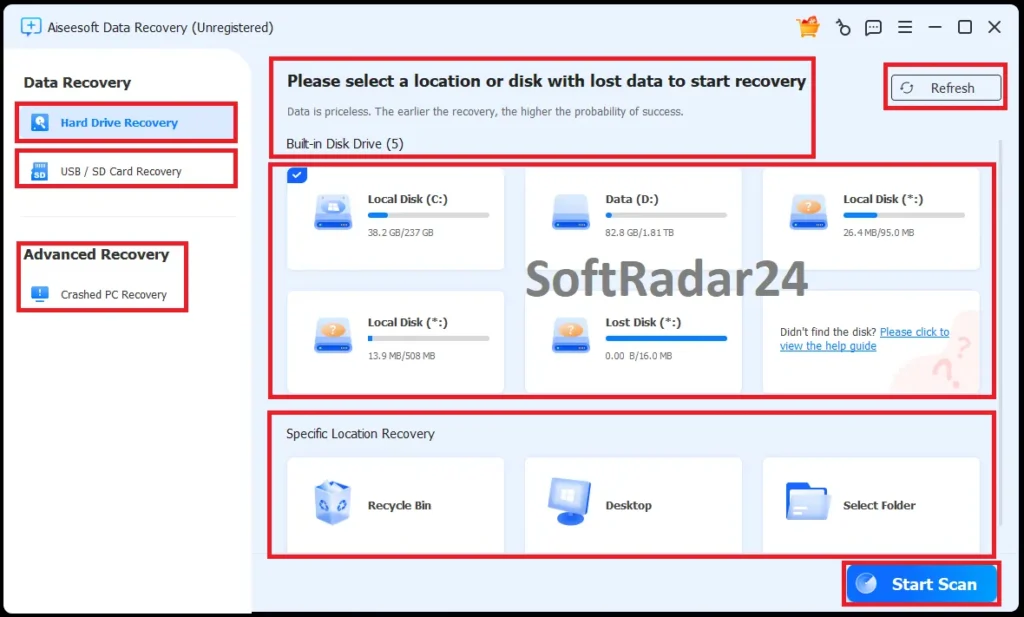
The Windows dashboard separates Hard Drive Recovery, USB/SD Card Recovery and Crashed PC Recovery. The central area lists available disks and specific locations such as Recycle Bin, Desktop and Select Folder, letting you start with a focused location instead of scanning every connected drive.
Compatibility & Coverage
Aiseesoft Data Recovery covers ordinary computer storage and many common file categories. The practical requirement is that the storage remains readable enough for the operating system or recovery environment to access it and that the deleted blocks have not already been overwritten or cleared.
| Area | Current documented coverage | Decision note |
|---|---|---|
| Windows | Windows 11 / 10 / 8.1 / 8 / 7 / Vista / XP SP2+ | Current desktop compatibility range. |
| macOS | Mac 10.7+ including macOS Tahoe and macOS 27 Golden Gate beta | Current compatibility line also lists Apple M-series chips through M5. |
| Storage | Internal HDD/SSD, external hard drives, USB flash drives, SD/memory cards, camera storage and additional supported removable media | SSD support does not override TRIM. |
| File coverage | 2000+ documented file types | Includes images, documents, audio, video, email, archives, programs and additional data types. |
| Photo examples | JPG/JPEG, TIFF/TIF, PNG, BMP, GIF, PSD, CRW, CR2 and more | Some damaged scan results can expose AI Repair. |
| Video examples | AVI, MOV, MP4, M4V, 3GP, WMV, ASF, FLV and more | Partially overwritten or fragmented videos can recover corrupted/incomplete. |
| Windows crashed-PC recovery | Bootable USB recovery environment | Requires a USB drive larger than 4 GB and formats that USB. |
HDD vs. SSD Recovery
Deleting a file from a traditional HDD usually marks its space as available, so the underlying data can remain until new data overwrites it. SSDs add TRIM: deleted blocks can be scheduled for clearing by the drive controller. This is why an HDD and SSD with the same “deleted yesterday” story can have very different recovery prospects.
Built-In Windows and Mac Restore Options Still Matter
Windows File History and Previous Versions can restore older copies when those protections were already enabled. Microsoft also provides Windows File Recovery for command-line recovery from local storage. On Mac, Time Machine and iCloud Drive’s Recently Deleted recovery can be preferable when they already contain the missing file. These routes avoid an unnecessary sector scan.
Features & Capabilities
The most useful capabilities are the ones that help you identify recoverable files before writing anything back to disk: progressive scanning, focused location selection, filter/search, preview and separate recovery modes for ordinary drives, removable media and a failed Windows installation.
Quick Scan & Deep Scan
- Quick Scan begins from the selected drive or location
- Deep Scan provides a more thorough second pass
- Scanning can be paused or stopped
- Useful across accidental deletion, formatting and other logical-loss scenarios
Filter, Preview & Selective Recovery
- Filter large result sets
- Browse results by path and file type
- Preview supported files before recovery
- Restore selected items rather than every scan result
Storage & File Coverage
- 2000+ documented file types
- Internal HDD/SSD and external-drive recovery
- USB flash drive and SD/memory-card recovery
- Photos, documents, audio, video, email and additional file categories
Photo & Video Recovery
- Common photo and video formats supported
- Preview before restoration where the file is readable enough
- AI Repair for some damaged JPG/JPEG/PNG results
- Media-only scanning can reduce irrelevant results when only photos or videos are missing
Crashed PC Recovery
- Create a bootable recovery USB on a working PC
- Start a failed Windows PC without loading the damaged OS
- Scan internal storage or copy accessible data
- Useful before destructive reset/reinstall operations
Important Conditions & Limitations
No recovery application can override the physical state of the storage. The key question is whether the missing data still exists on readable media. Overwriting, SSD TRIM, physical failure and destructive reset/format operations can reduce or eliminate the recovery window.
Stop Writing to the Source Drive
Deleted space is available for reuse. Downloads, software installation, updates, temporary files and normal system activity can overwrite blocks that still contain recoverable data. Recover to a different drive whenever possible.
SSD TRIM Can Make Recovery Impossible
The current SSD guidance explains that TRIM proactively removes blocks identified as deleted, making SSD recovery more difficult. If the drive has already cleared those blocks, no paid license or deeper scan can recreate the original bytes.
Do Not Restore to the Same Affected Storage During Recovery
Writing recovered files back onto the source can overwrite other deleted files that have not yet been restored. Use another physical drive or safe destination for the recovery output.
Preview Helps, but It Is Not a Universal Guarantee
A working preview is a strong sign that a file is readable, but large fragmented files can still be incomplete. A filename alone is weaker evidence. Use preview on representative documents, photos and videos before paying when one specific file determines the purchase.
Physical Drive Failure Requires Different Handling
Clicking, repeated disconnects, burning smells, severe overheating or total hardware non-detection can indicate physical failure. In those cases, repeatedly running desktop scans can be the wrong first move and professional recovery may be appropriate.
Overwritten Data Cannot Be Undeleted
Recovery software can find data that still exists in unallocated space, old records, caches or backup copies. It cannot reconstruct sectors after unrelated new data has actually replaced the original content.
Mac Recovery Has an Important Security Setup Requirement
The current Mac recovery tutorial instructs users on Mac OS X El Capitan or later to disable System Integrity Protection before using the Mac recovery workflow. SIP is a core macOS security control, so this is a meaningful setup condition—not a trivial checkbox. Prefer Time Machine/iCloud restore when those already solve the problem, and follow the current Mac instructions carefully if disk scanning is still necessary.
Bootable Crashed-PC Recovery Is a Windows Workflow
The documented bootable USB procedure uses a Windows PC recovery path with BIOS/UEFI startup. Do not assume the same recovery-media process applies to a non-booting Mac.
99.8% Success and 3-Minute Scan Are Performance Claims, Not Guarantees
Aiseesoft advertises a 99.8% success rate and a 3-minute average scan time. Real results depend on drive size, file system, deletion method, SSD TRIM, overwriting, physical health and whether Deep Scan is necessary. No percentage can guarantee one particular file.
The 30-Day Money-Back Policy Is Conditional
Aiseesoft publishes a 30-day money-back policy tied to quality problems. Data recovery itself is uncertain by nature, so use the trial scan and preview to see whether the files you need are actually visible before purchasing recovery/export access.
Free Trial / Free Version
The free trial is most useful as a diagnosis step. Current Aiseesoft material allows you to search for deleted/lost files and preview recoverable results before the final paid recovery. That lets you test your real drive and files instead of buying from a generic compatibility promise.
| What to test | Why it matters | Best pre-purchase check |
|---|---|---|
| Exact target files | Finding the file you need matters more than a general success-rate percentage. | Search/filter by name, extension, path or file type. |
| Preview quality | A valid preview helps distinguish usable data from a stale file record. | Open several representative files before purchase. |
| Quick vs. Deep Scan | Older or formatted data can require a deeper pass. | Run Deep Scan if the important file is missing from Quick Scan. |
| SSD/NVMe result | TRIM can clear deleted blocks. | If the scan cannot find or preview the file, do not assume payment changes the physical SSD state. |
| External-media detection | The software needs stable read access to scan. | Confirm the USB drive, SD card or external disk appears reliably before buying for that device. |
System Requirements
The application requirements are modest. Recovery success depends much more on storage condition and overwrite/TRIM status than on processor speed.
| Requirement | Current documented value | Decision note |
|---|---|---|
| Windows | Windows 11 / 10 / 8.1 / 8 / 7 / Vista / XP SP2+ | Current supported OS range. |
| Windows CPU | 1 GHz Intel/AMD CPU or above | CPU speed cannot compensate for missing source data. |
| Windows RAM | 512 MB+ · 1024 MB recommended | Current requirement. |
| Windows free space | 200 MB+ | Application space only; recovered data needs separate destination capacity. |
| macOS | Mac 10.7+ including macOS Tahoe / macOS 27 Golden Gate beta | Current Mac compatibility line. |
| Mac CPU | 1 GHz 64-bit CPU and Apple M-series chips including M5 | Current processor coverage. |
| Mac RAM | 512 MB+ · 1024 MB recommended | Current requirement. |
| Mac free space | 100 MB+ | Application space only; recover to separate storage where possible. |
| Crashed-PC USB | USB drive larger than 4 GB | The USB is formatted during boot-media creation. |
Alternatives & Better-Fit Options
The correct alternative depends on where the lost data lives. For the broader Aiseesoft catalog and current offers, visit the Aiseesoft software page on SoftRadar24.
FoneLab iOS System Recovery
Choose this when the main problem is an iPhone/iPad system failure such as an Apple-logo loop, Recovery Mode issue or failed iOS update. It repairs iOS system states; it does not replace desktop deleted-file scanning.
FoneLab Android Data Recovery
A better fit when the missing data is stored on an Android phone/tablet rather than on PC/Mac storage. Mobile databases, permissions and device access require a different workflow.
FoneLab iPhone Data Recovery
Use this for deleted or lost iPhone/iPad data and available iOS backup sources. Aiseesoft Data Recovery is the computer/storage product and should not be purchased for direct iPhone database recovery.
FAQ
These answers focus on the questions that change a recovery decision: permanent deletion, Recycle Bin/Trash, SSD TRIM, backups, formatted drives, boot failure and the current Aiseesoft Data Recovery purchase options.
What is the current Aiseesoft Data Recovery coupon code and discount?
SoftRadar24 currently applies a 50% Aiseesoft Data Recovery coupon discount automatically through the approved purchase links. Current prices are $24.97 for 1 Year / 1 PC or Mac, $30.00 for 1 Month / 1 PC or Mac, and $90.00 for Lifetime / 3 PCs or Macs.
Can permanently deleted files be recovered on Windows 11?
Sometimes. If the file is not in Recycle Bin or backup, Aiseesoft Data Recovery can scan the original storage for data that still exists. Recovery becomes impossible when the relevant blocks are overwritten or cleared by SSD TRIM.
Can I recover files after emptying Recycle Bin?
Yes when the deleted data has not been overwritten. Check File History, Previous Versions and cloud backups first. If no backup exists, scan the original drive and recover found files to another drive.
Can Shift+Delete files be recovered without a backup?
They can be recoverable if the disk blocks still contain the old data. Shift+Delete bypasses Recycle Bin, so minimize use of the source drive and scan quickly. Aiseesoft also recommends saving recovered files to a different drive.
Can deleted files be recovered from an SSD?
Sometimes, but SSD TRIM can remove the recovery window. Once deleted blocks have been cleared by the SSD, recovery software cannot recreate them. Trial-scan the actual SSD instead of assuming a paid Deep Scan can reverse TRIM.
Can Aiseesoft Data Recovery recover files from a formatted drive?
It can scan formatted hard drives, USB devices and memory cards for surviving data. Do not format the device again or write new files to it. Deep Scan is the stronger second pass when Quick Scan does not locate the target files.
Can I recover files from a Windows PC that will not boot?
Yes, using the documented Crashed PC Recovery workflow. Create a bootable USB larger than 4 GB on another working computer, boot the failed PC from it, then scan or copy files before destructive Windows repair or reinstallation.
Can I recover deleted Mac files without Time Machine?
Aiseesoft Data Recovery for Mac can scan supported storage when no backup exists. Modern internal Mac SSDs can be much harder after permanent deletion because of TRIM. Also check iCloud Drive Recently Deleted when the missing file was synchronized there.
Should I install recovery software on the same drive where I lost files?
Avoid new writes to the affected drive whenever possible. Installation, downloads and background activity can overwrite deleted blocks. For important data, minimize use and recover to separate storage.
Can Windows recover deleted files without paid software?
Yes in some cases. File History and Previous Versions can restore existing backups, and Microsoft provides Windows File Recovery as a free command-line recovery tool for local storage. Aiseesoft provides a more visual scan/filter/preview workflow and additional crashed-PC tools.
Does the Aiseesoft Data Recovery free trial recover files?
Current Aiseesoft material positions the free trial as a way to search for deleted/lost files and preview recoverable results before final recovery. Use it to see whether the files you care about are actually visible before purchasing a license.
How many file types does Aiseesoft Data Recovery support?
Current technical information documents 2000+ file types across photos, documents, audio, video, email and additional categories, with support for internal/external drives, USB and memory-card storage.
Is Aiseesoft Data Recovery guaranteed to recover my files?
No recovery tool can guarantee one particular file. Aiseesoft advertises a 99.8% success rate, but real results depend on overwriting, TRIM, formatting, fragmentation and physical drive health.
What is the Aiseesoft Data Recovery refund period?
Aiseesoft publishes a 30-day money-back policy tied to quality problems. Because file recoverability depends on the storage itself, use the trial scan and preview before purchase when one specific lost file determines your decision.