Macxvideo AI Review: The Ultimate All-in-One Video Enhancer? Ever shot an amazing video on your smartphone or GoPro, only to realize later that the footage is shaky, grainy, or simply too massive to upload?
Usually, fixing these common media problems means bouncing between three different expensive programs: one to upscale the quality, another to stabilize the camera, and a third just to compress the giant 4K file. It is frustrating and incredibly time-consuming.
Instead of relying on basic, outdated filters, MacX DVD – Macxvideo AI utilizes a deep-learning AI framework to actively reconstruct and rescue your footage. Whether you need to upscale old family videos to crisp 4K, smooth out a bumpy drone clips, or remove annoying background noise, it handles the heavy lifting with just a few clicks.
🎁 Verified 2026 Deal: Save 67% on Macxvideo AI – 4K 8K Video Quality Enhancer Tool
Ready to rescue your blurry or shaky footage? Skip the endless search for expired promo codes. Clicking our secure links automatically applies your guaranteed 67% discount directly at the official Macxvideo checkout.
Speed Without the System Crash
What truly makes Macxvideo AI stand out isn’t just the artificial intelligence—it’s the hardware acceleration. Editing 4K or 8K video usually melts an average computer, but this software utilizes Level-3 GPU acceleration. This means it processes batch conversions and heavy AI enhancements up to 47x faster while keeping your CPU usage surprisingly low.
Whether you are a content creator trying to shrink a video for TikTok, or an educator needing to record a flawless 60fps screen tutorial, Macxvideo AI provides a single, high-efficiency workspace to get the job done.
💿 Have a Physical DVD Collection?
While Macxvideo AI is incredible for upscaling and editing digital files, it cannot bypass the strict copyright encryption on physical discs. If your goal is to rescue and digitize a physical movie collection before running it through the AI enhancer, you will need a dedicated ripping tool. Check out our comprehensive MacX DVD Ripper Pro review to see how you can safely convert those fragile discs into digital formats in minutes.
What Macxvideo AI Actually Does: Core Features
Forget the marketing jargon. If you handle video regularly, you just want tools that work without crashing your computer. Here is exactly what this software brings to your daily editing routine:
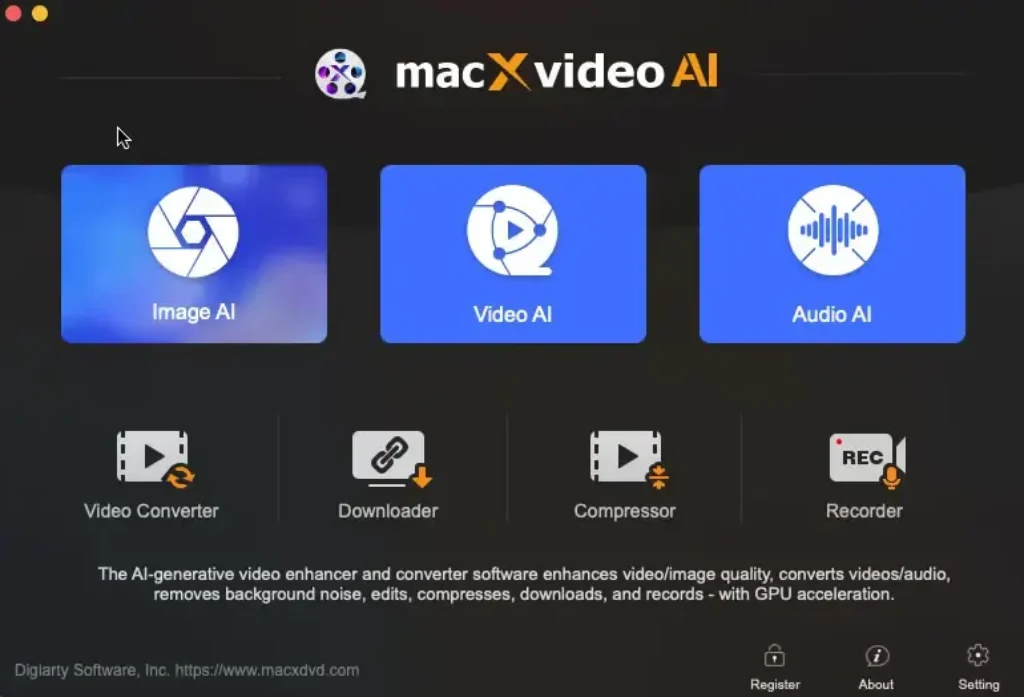
- Fix and Upscale Bad Footage (AI Enhancement): Have a blurry video or a bouncy drone clip? The AI tools clean it up. You can upscale low-res videos to a crisp 4K or 8K, stabilize shaky action camera shots, and even push frame rates to 480fps for real, smooth slow-motion. It also features a recovery tool to restore and colorize old, scratched photos.
- Clean Up Your Audio: Great video is useless with terrible sound. A dedicated noise suppression tool strips out distracting background wind, hums, and static. Need just the vocals or just the instrumental track? The built-in vocal remover separates them cleanly.
- Change Formats Fast (Without Freezing Your PC): It handles the stubborn formats—like HEVC, AV1, and multi-track MKV—across hundreds of profiles. Because it relies heavily on your graphics card (Hardware GPU Acceleration), it processes these massive 4K or 8K files up to 47 times faster. Best of all, it keeps your CPU usage incredibly low, so you can keep using your computer while it renders in the background.
- Shrink Massive 4K Files (Video Compression): Anyone shooting in high definition knows the storage struggle. You can compress giant video files by up to 90% so they actually fit in an email, or upload quickly to Instagram and YouTube. It preserves the original visual quality surprisingly well, so your compressed footage will not look like a pixelated mess.
- Quick Edits and Fixes: You don’t always need a heavy, complicated editor like Premiere Pro. Here, you can quickly trim out dead space, crop your video for TikTok or Reels (9:16 aspect ratio), merge different clips together, fix annoying GoPro fisheye distortion, and drop in subtitles.
- Record Your Screen (4K at 60fps): If you make tutorials, record webinars, or capture gameplay, the built-in screen recorder grabs your desktop at a smooth 60 frames per second. You can add your webcam to the corner (Picture-in-Picture), remove your background using a chroma-key, and record your microphone all at the same time.
Testing the Macxvideo AI Engine: Does It Actually Work?
A lot of software companies slap the “AI” label on basic color filters. Macxvideo AI takes a different approach. It uses real deep-learning models to analyze and reconstruct missing pixels in your media. During our testing, a few specific tools stood out as genuine lifesavers for damaged or low-quality files:
- Rescuing Blurry Footage (AI Super Resolution): If you have old home videos or heavily compressed clips downloaded from the internet, you can push them through the upscaler. It doesn’t just stretch the image; it predicts and fills in missing details, turning a grainy 720p clip into a highly watchable 4K video. It also works incredibly well on digital art and low-res images, upscaling them up to 10K for large printing.
- Fixing the “Shaky Hands” Problem (AI Stabilization): Shooting action sports on a smartphone or an older GoPro usually results in nauseating, bouncy footage. The stabilization tool actively tracks the movement and smooths out the camera trajectory. It saves clips that you would otherwise throw in the trash.
- Creating Cinematic Slow-Mo (Frame Interpolation): If you try to slow down a standard 24fps or 30fps video, it looks choppy and broken. Macxvideo’s AI analyzes the gap between each frame and generates entirely new, fake frames to blend them together. You can take a standard clip and turn it into a buttery-smooth 120fps or 480fps slow-motion sequence.
- The Vintage Photo Restorer: Beyond video, the software includes a dedicated Face Recovery and Colorization tool. If you have a scanned, black-and-white photo of your grandparents that is covered in scratches, the AI recognizes the facial structures, repairs the damage, and predicts natural skin tones to bring the photo back to life in full color.
The Built-in Editing & Compression Toolkit
While the AI handles the heavy lifting of restoring quality, Macxvideo AI also acts as a highly capable daily workspace. You don’t need to export your AI-enhanced video and drag it into Premiere Pro just to make a few cuts.
- The 90% Compression Rule: This is arguably the most practical tool in the entire suite. 4K and 8K videos create massive file sizes that eat up your hard drive and fail to send over email. The built-in compression engine lets you shrink these giant files by up to 90% (turning gigabytes into megabytes). Because you have full control over the bitrate and resolution, the software manages to preserve roughly 98% of the original visual quality. It is perfect for quickly prepping videos for WhatsApp, Instagram, or local storage.
- Fixing GoPro Fisheye & Syncing Audio: Action cameras often leave an unnatural, curved “fisheye” distortion on the edges of your video. The toolkit includes a one-click lens correction feature to flatten the perspective back to reality. Additionally, if your microphone recorded out of sync with your camera, you can manually adjust the audio delay directly on the timeline.
- Formatting for Social Media: You can easily crop out dead space or change the aspect ratio of your video. If you shot a horizontal video (16:9) but need it for TikTok or YouTube Shorts, you can quickly crop it to vertical (9:16). From there, you can drop in custom watermarks to protect your work, rotate accidentally upside-down clips, and embed subtitle files (.srt) before you hit export.
The Built-In 4K Screen Recorder
If you record gameplay, host webinars, or create YouTube tutorials, you normally have to download a separate, heavy program like OBS Studio. Macxvideo AI eliminates that step by including a highly capable screen recorder right in the dashboard.
It doesn’t just record a flat screen. It captures your desktop in ultra-clear 4K at a buttery-smooth 60 frames per second (60fps). You can draw a custom box to record only a specific part of your screen, turn on Picture-in-Picture (PIP) to drop your webcam feed into the corner, and even use the chroma-key feature to remove your messy room background. It records your system audio and your microphone at the same time, making it the perfect tool for voiceover presentations.
How It Actually Works: A 3-Step Workflow
You don’t need a degree in video production to figure out the interface. It has a very clean, Mac-style layout that avoids the cluttered timelines of traditional editing software. Here is the typical process:
- Step 1: Drag and Drop: Open the app and drag your messy, heavy, or unsupported video file right into the center of the screen. You can also highlight an entire folder of videos if you want to batch-process them all at once.
- Step 2: Pick Your Fix: Look at the toolkit and choose exactly what you need to do. Click the “AI” section to upscale your quality or stabilize the camera. Alternatively, click the “Compress” button to shrink the file size, or pick a new output format (like MP4 or HEVC) from the massive drop-down menu.
- Step 3: Export and Let the GPU Work: Once you select your format or aspect ratio, just click the big “RUN” button. This is where the Level-3 Hardware Acceleration kicks in. The software pushes the heavy processing to your graphics card, finishing the job in the background without freezing your computer.
Is the Macxvideo AI Full License Worth Buying?
Macxvideo AI offers a free trial so you can test the AI on your own computer. I highly recommend downloading it to make sure the interface runs smoothly on your specific machine. However, you need to know exactly what the trial actually does—and what it blocks.
The Strict Limits of the Free Version The Macxvideo AI trial is essentially a test drive. You cannot use it to finish a real project because of these built-in restrictions:
- The 5-Minute Cap: The AI enhancer, audio tools, and converter will only process the first 5 minutes of your video or audio file.
- The Photo Limit: The AI Image Enhancer will only upscale a maximum of 5 photos.
- The Recording Watermark: If you use the screen recorder, the software slaps a massive, permanent watermark across your final video.
- Capped Downloads: If you use the built-in media downloader to grab videos from the internet, you are limited to 10 files total, and the quality is locked at 720p (no 4K downloads).
Why People Upgrade to the PRO Version If the Macxvideo AI trial proves that the AI can actually rescue your blurry videos, paying for the premium license makes sense. Upgrading instantly removes the 5-minute cap and the recording watermark, allowing you to process feature-length documentaries or record professional, clean tutorials.
More importantly, a paid license unlocks unlimited, batch downloads in 4K/8K from over 1,000 sites. Finally, because AI technology evolves so rapidly, the lifetime license guarantees you receive free software updates forever. The developers also frequently throw in valuable bonus software (like MacX MediaTrans) when you secure a lifetime key.
Macxvideo AI Pricing and 2026 Discount Codes
Video editing software is notoriously expensive, with most big companies forcing you into endless, expensive monthly subscriptions. Macxvideo AI takes a completely different approach by offering highly affordable, one-time payment options.
If you are looking for a verified Macxvideo AI discount code for 2026, you do not need to waste time hunting down expired promo links on sketchy websites. By using the official links in our selection boxes below, you instantly lock in up to a 67% official discount applied directly at checkout.
Here is a quick breakdown of the discounted plans so you can choose exactly what fits your editing workflow:
1-Year Plan (3 Macs) – $19.95 (67% Off): Great for short-term projects. It lets you test the full AI suite and hardware acceleration across three different Apple computers for an entire year.
Lifetime Plan (1 Mac) – $29.95 (67% Off): The absolute best value. You pay once and get permanent access for a single machine. More importantly, this tier guarantees free future AI model updates forever, keeping your software completely up to date as video formats change.
Family Plan (3-5 Macs) – $57.95 (64% Off): Perfect for small studios, creative agencies, or households with multiple content creators who need to process massive 4K files simultaneously.
Ready to rescue your bad footage? Select your preferred license below to instantly grab your Macx DVD discount and start enhancing your media.


Macxvideo AI for MacOS X – Up to 67% OFF
Macxvideo AI (1-Year Plan / Up to 3 Macs)
Ideal for Short-Term Projects: Access the complete AI enhancement suite and hardware-accelerated converter across three Apple computers for a full year.
Macxvideo AI (Lifetime Plan / 1 Mac)
The Absolute Best Value: Pay once and secure permanent access to all AI tools, plus free future artificial intelligence model upgrades forever on a single machine.
Macxvideo AI (Family Plan / 3-5 Macs)
Perfect for Creative Teams: Equip your entire household or small studio with top-tier video processing and stabilization tools at a massive, bundled discount.
System Requirements
Video editing and AI processing usually demand a massive, incredibly expensive computer. If you try to upscale a 4K video on a standard editor, your Mac’s fans will likely sound like a jet engine, and your timeline will freeze.
Macxvideo AI avoids this completely because it is natively built for the macOS ecosystem. The secret weapon here is its Level-3 Hardware Acceleration. Instead of choking your processor (CPU) when exporting 4K or 8K files, it intelligently hands the heavy computational lifting over to your graphics card (GPU).
This means your computer keeps running smoothly—often keeping CPU usage under a shocking 2%—so you can actually keep browsing the web or checking emails while your massive video folders render in the background.
Check the table below for the core operational specifications and supported formats:
| Specification Category | Official Software Capabilities |
|---|---|
| Operating Environment | macOS (Optimized with a native Mac-style interface) |
| Hardware Acceleration | Level-3 Full GPU Acceleration (Fast inference without crashes) |
| Performance Efficiency | Maintains CPU usage under 2% during bulk 4K/8K conversions |
| Supported Input Formats | 370+ inputs including HEVC, AV1, MP4, MOV, multi-track MKV, and VR/3D files |
| Supported Output Profiles | 420+ outputs tailored for Mac, QuickTime, iPhone, iPad, YouTube, and TikTok |
| Compatible Media Sources | iPhone footage, GoPro, DJI drones, Canon cameras, and DVD/Blu-ray rips |
Macxvideo AI Frequently Asked Questions (FAQ)
Will Macxvideo AI run smoothly on an older Mac, or do I need the latest Apple Silicon processor?
The software is engineered to function efficiently across a wide range of Apple computers, not just the newest M-series models. Thanks to its Level-3 hardware acceleration, the application actively shifts the heavy rendering workload to your existing graphics card. This means even older Intel-based Macs can process high-resolution media and run the AI models without instantly freezing or maximizing CPU usage.
What exact limitations apply when using the Macxvideo AI free trial version?
Evaluating the software without a premium license comes with strict processing boundaries designed just for testing. The trial restricts your AI video enhancements, audio processing, and formatting conversions to only the first five minutes of your media. Furthermore, any desktop screen recordings will export with a permanent watermark, and the AI image upscaler is strictly capped at processing a maximum of five photos.
Can the software fix heavily distorted or bouncy action camera footage?
Rescuing unusable drone and smartphone clips is actually one of the primary strengths of the AI framework. The toolkit includes a dedicated video stabilization module that actively tracks and smooths out erratic, shaky camera movements. It also features a built-in lens correction utility that instantly flattens the unnatural “fisheye” curve commonly seen on raw GoPro recordings.
How much visual quality is lost when compressing a massive 4K video down by 90%?
Reducing a giant gigabyte file into a highly portable megabyte format usually destroys pixel data, but this platform uses a highly optimized compression engine to prevent that pixelation. By allowing you to manually adjust the bitrate, resolution, and GOP length, the software shrinks the overall storage footprint drastically while still preserving roughly 98% of the original visual and audio fidelity.
Does Macxvideo AI include tools for cleaning up bad audio in outdoor vlogs?
Outdoor video recordings are notoriously difficult to use due to unpredictable wind and background interference. To solve this without requiring a separate audio editor, the application features an intelligent audio suppression module that strips away distracting hums, static, and wind noise from your tracks. You can even utilize the built-in vocal remover to extract clean instrumentals or acapella segments from a media clip.