Digitizing a physical movie collection is the ultimate way to preserve your favorite films, but the process is rarely straightforward. Enthusiasts often encounter frustrating technical obstacles, ranging from cryptic “No Valid Source” errors and stubborn region code locks to audio synchronization issues. While free tools are popular, they frequently fail against the advanced encryption protocols found on modern discs. In this comprehensive guide, we analyze the 15 most common Blu-ray ripping failures reported by users in 2026. Whether you are struggling with 4K UHD conversion, missing subtitles, or slow performance, discover the professional solutions needed to build a flawless digital library without quality loss.
Troubleshooting Blu-ray Ripping: 15 Critical Problems Solved
Even with high-end hardware, ripping Blu-ray discs can be plagued by software crashes, copy-protection failures, and disappointingly slow conversion speeds. Many users waste hours struggling with free tools like HandBrake, only to face “No Valid Source” errors or pixelated video output that ruins the cinematic experience.
To help you navigate these challenges, we have analyzed the 15 most common scenarios that prevent successful disc backup. From bypassing advanced encryption to optimizing 4K file sizes, the following section outlines exactly why these errors occur and how professional software eliminates them effortlessly.
💬
Real User Scenario: Playback Issues on Windows
“I have dozens of Blu-ray discs, but I can’t seem to play them on my Windows 10 PC… I’m aware that Windows 10 doesn’t come with built-in support for Blu-ray playback, any solution to get this working?”
As seen in the discussion above, Windows lacks native Blu-ray support. Instead of buying expensive player software that only works on one PC, the smartest solution is to rip your discs to digital formats using AnyMP4. This solves the playback issue permanently on all your devices.
Troubleshooting Copy-Protected Blu-ray Disc Errors
⛔ The Error Message:
“Why won’t HandBrake rip my movie? It crashes immediately or shows a ‘No Valid Source Found’ error even though the disc is brand new.”
🛡️ The Answer: Built-in Decryption Engine
HandBrake is a transcoder, not a decrypter. It cannot legally bypass commercial protections like AACS or BD+ without complex third-party plugins (like libdvdcss) that often fail on new releases.
- ✔ Automatic Detection: Professional rippers include a constantly updated decryption database that recognizes and bypasses the latest DRM schemes instantly.
- ✔ No Plugins Needed: Unlike free tools, you do not need to hunt for external DLL files or scripts. The software handles the security handshake internally.
⛔ The Error Message:
“I bought a Blu-ray from overseas (UK/Japan), but my ripping software says ‘Region Code Mismatch’ and refuses to load the content.”
🌍 The Answer: Remove Region Locks
Physical drives are hardware-locked to specific regions (A, B, or C) and allow only limited changes. Software ripping is the safest way to bypass this permanent hardware restriction.
- ✔ Universal Unlock: The ripping process strips the region coding metadata entirely, converting the movie into a region-free digital file.
- ✔ Hardware Safety: You avoid using up your physical drive’s 5-change limit, preserving your hardware’s lifespan.
⛔ The Error Message:
“The software scans the disc for 5 minutes and then crashes or says ‘Analysis Failed’. It seems it cannot find the main movie title.”
🧠 The Answer: Smart Title Detection
Modern discs use “playlist obfuscation” (fake playlists) to confuse rippers, creating hundreds of fake video tracks. Basic software gets lost in this maze.
- ✔ Advanced Algorithms: Professional ripping software automatically analyzes the java structure of the disc to correctly identify the true “Main Movie” file among the fakes.
- ✔ Stability: Optimized coding prevents memory leaks during the analysis phase, ensuring the application doesn’t freeze even on 100GB discs.
Preserving Quality When Ripping 4K Blu-ray Movies
⛔ The Error Message:
“I don’t want to compress my movies. How can I rip a Blu-ray to my PC without losing a single pixel of video quality or degrading the audio?”
💎 The Answer: Lossless MKV Output
Standard MP4 conversion compresses data. To keep the original fidelity, you must use a “Lossless” profile which acts as a digital container rather than a compressor.
- ✔ 1:1 Backup: Select “Lossless MKV” to passthrough the original video stream and high-definition audio (TrueHD/DTS-HD Master Audio) without modification.
- ✔ Multi-Track Support: This format preserves all subtitle streams and audio tracks, allowing you to switch languages during playback just like on the disc.
⛔ The Error Message:
“A raw 4K movie rip takes up 60GB-80GB of space! My hard drive is full after ripping just 5 movies. Is there a way to reduce size without ruining the picture?”
📉 The Answer: H.265 (HEVC) Compression
You don’t need to keep the raw file to enjoy 4K. The solution lies in using modern, high-efficiency codecs that are designed specifically for Ultra HD content.
- ✔ High Efficiency: Converting to H.265 (HEVC) can compress a 60GB file down to a pristine 20GB file, saving 60% storage space with virtually no visible loss in quality.
- ✔ Smart Bitrate: The software adjusts the bitrate dynamically, allocating more data to complex action scenes and less to static scenes to optimize file size.
⛔ The Error Message:
“Why do my rips look blocky, pixelated, or washed out? The dark scenes look terrible compared to the original disc.”
🎨 The Answer: Video Enhancement Tools
Pixelation usually occurs when the bitrate is set too low or the encoding settings are poor. Advanced rippers allow you to upscale and optimize the visual data during conversion.
- ✔ Resolution Upscaling: You can upscale standard 1080p Blu-rays to 4K resolution, using algorithms to sharpen edges and reduce video noise.
- ✔ Color Correction: Built-in video effect tools allow you to manually adjust brightness, contrast, and saturation to fix “washed out” colors before the final rip is created.
Fast Blu-ray Ripping & Hardware Acceleration
⛔ The Error Message:
“It takes over 3 hours to rip a single Blu-ray movie! At this rate, it will take me years to digitize my entire collection.”
⚡ The Answer: 30× Faster Conversion
Software that relies solely on the CPU (Central Processing Unit) is inefficient for video encoding. The key to speed is utilizing the dedicated graphics hardware you already own.
- ✔ GPU Acceleration: By supporting NVIDIA CUDA, AMD, and Intel Quick Sync, the software offloads the heavy lifting to your graphics card, boosting speeds by up to 30 times.
- ✔ Multi-Core Support: It maximizes every core of your processor, allowing a full Blu-ray movie to be ripped in minutes, not hours.
⛔ The Error Message:
“My computer fans spin like a jet engine, and the PC freezes or shuts down due to overheating halfway through the ripping process.”
❄️ The Answer: Efficient Resource Management
Overheating happens when software is poorly optimized and forces the CPU to run at 100% load for extended periods. Efficient software balances the load.
- ✔ Hardware Offloading: By shifting the encoding task to the GPU (Graphics Processing Unit), the CPU load is significantly reduced, keeping temperatures low.
- ✔ Background Processing: The optimized engine allows you to continue working on other tasks (like browsing the web) while the rip completes in the background without lagging your PC.
Universal Blu-ray Playback on TV & Mobile
⛔ The Error Message:
“I ripped my movie to MKV, but my Smart TV says ‘File Format Not Supported’. Which format should I use for universal playback?”
📱 The Answer: Device-Specific Profiles
Stop guessing about bitrates and codecs. The most reliable way to ensure playback is to convert specifically for the device you own, not just a generic format.
- ✔ 500+ Presets: Simply select your device from the list (e.g., iPhone 17, Samsung QLED, PS5, Xbox). The software automatically applies the perfect resolution and format settings.
- ✔ Universal MP4: When in doubt, converting to H.264 MP4 provides the highest compatibility, working on 99% of all computers, tablets, and media players.
⛔ The Error Message:
“The lips move but the sound comes 2 seconds later! Also, the forced subtitles for foreign parts (like alien languages) are missing.”
🔊 The Answer: Full Track Control
Sync issues often happen during sloppy conversion. Professional tools keep the audio/video timestamps aligned and give you control over subtitle streams.
- ✔ Subtitle Management: You can choose to “burn-in” subtitles permanently (hardcode) or keep them as selectable tracks (softcode), ensuring you never miss a dialogue.
- ✔ Audio Selection: Manually select the correct audio stream (e.g., English 5.1 vs Commentary Track) to ensure you are ripping the main movie audio.
⛔ The Error Message:
“I have a concert Blu-ray and I just want the songs for my phone. I don’t want the massive video file taking up space.”
🎵 The Answer: Audio Extractor
You don’t have to rip the video to get the sound. The software functions as a powerful audio extractor, separating the soundtrack from the visual data.
- ✔ Format Flexibility: Convert the extracted audio directly to universal MP3, AAC, M4A, or high-fidelity lossless FLAC formats.
- ✔ High Quality: It preserves the original audio bitrate, making it perfect for creating high-quality playlists from concert discs or movie scores.
Fixing Damaged Discs & Advanced Ripping Features
⛔ The Error Message:
“My favorite movie freezes at the same spot every time due to a scratch. Is the disc ruined forever?”
🚑 The Answer: Digital Rescue
Physical players are sensitive and give up easily on scratches. Ripping software uses advanced error-correction algorithms to read the data sector-by-sector.
- ✔ Data Recovery: It can often read through minor scratches that cause players to freeze, successfully converting the movie to a smooth digital file.
- ✔ Permanent Fix: Once digitized, the video will never skip again, and you can retire the damaged physical disc to prevent further deterioration.
⛔ The Error Message:
“I don’t want just the movie file; I want the menus, the extras, and the deleted scenes. Converting to MP4 strips all of that away.”
📂 The Answer: Full Disc Copy
For the complete experience, you need to clone the disc structure rather than converting it. This creates a virtual replica of the physical media.
- ✔ Blu-ray Folder / ISO: Backup the entire disc to a BDMV folder or ISO image. This preserves the navigation menus, special features, and chapter points exactly as they are on the disc.
- ✔ Virtual Drive Ready: These files can be mounted on a virtual drive or played by advanced media players, treating your PC hard drive like a physical Blu-ray player.
⛔ The Error Message:
“The movie is too dark, or I only want to save a specific 5-minute clip to share on YouTube. I don’t want to rip the whole 2-hour movie first and then edit it later.”
✂️ The Answer: Built-in Video Editor
Why use two different programs? A premium ripper includes a built-in video editor toolbox, allowing you to modify the content before the conversion happens.
- ✔ Cut & Crop: Easily trim the video to keep only the scenes you want, crop black bars, or rotate the video orientation.
- ✔ Effects & Watermark: Adjust brightness, contrast, and saturation to fix dark scenes, or add a personal watermark to protect your content.
⛔ The Error Message:
“My old ripping software keeps crashing on Windows 11 or won’t even install. It seems like it hasn’t been updated in years.”
💻 The Answer: Modern OS Optimization
Legacy tools are often abandoned by their developers and lack support for modern 64-bit operating systems. Security updates and stability patches are crucial.
- ✔ Fully Compatible: The software is optimized specifically for Windows 11 and Windows 10, ensuring zero crashes and smooth integration with the latest system updates.
- ✔ Regular Updates: Continuous development ensures support for new hardware drivers and upcoming OS features, keeping your software investment safe.
AnyMP4 Blu-ray Ripper – 50% Discount Code
AnyMP4 Blu-ray Ripper is a professional-grade decryption tool designed to convert physical discs, folders, and ISO files into universally compatible digital formats like MP4, MKV, and MOV. Powered by advanced GPU acceleration technology, it rips Blu-rays up to 50x faster while maintaining 1:1 lossless quality for 4K UHD and 1080p content. Beyond simple ripping, the software features a comprehensive toolbox with AI video enhancement and editing capabilities, making it the ultimate solution for digitizing and archiving movie collections.
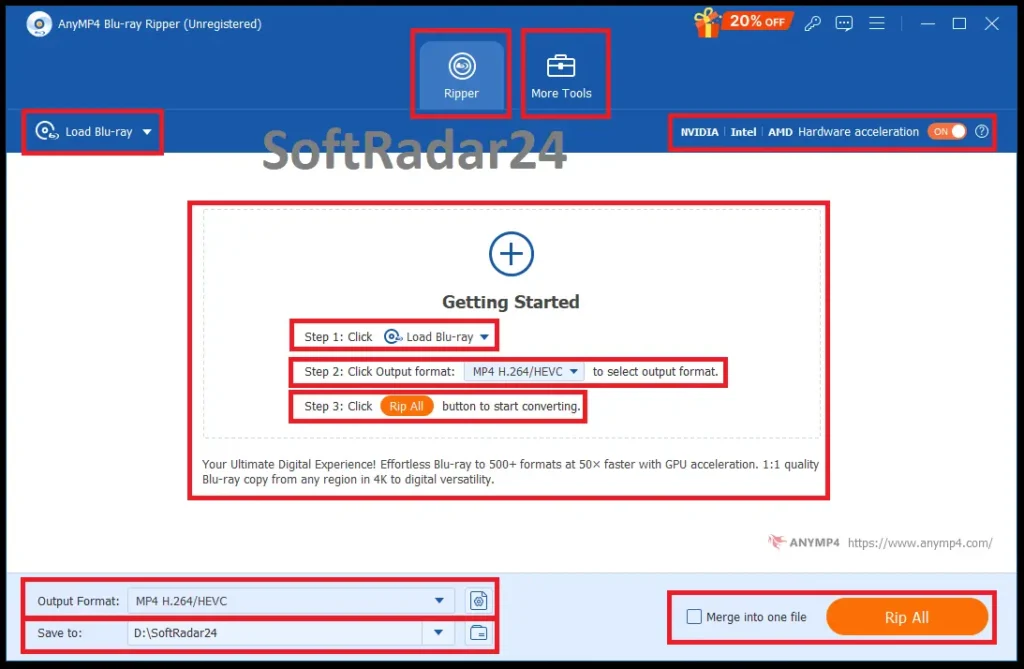
User-Friendly Interface: The main dashboard of AnyMP4 Blu-ray Ripper allows you to load discs, select output formats (like MKV/MP4), and enable hardware acceleration with a single click.
Key Features
-
✔
Universal Conversion: Rip Blu-ray to 500+ digital formats including MP4, AVI, WMV, and device presets for iPhone, Android, and Game Consoles. -
✔
Lossless Quality: Supports 1:1 ripping to MKV Lossless, preserving original audio tracks, subtitles, and menus without compression. -
✔
Region-Free Ripping: Automatically removes region code restrictions (A, B, C) to rip and play discs from any country without hassle. -
✔
50x Faster Speed: Utilizes NVIDIA CUDA, AMD, and Intel GPU acceleration to boost ripping speed significantly. -
✔
4K & 3D Support: Fully compatible with 4K UHD sources (HEVC/H.265) and capable of converting 2D movies into 3D formats. -
✔
AI Enhancement: Built-in AI technology upscales video resolution, reduces noise, and optimizes brightness for a clearer picture. -
✔
Professional Editor: Includes tools to cut, crop, rotate, add watermarks, and even create GIFs from your favorite movie scenes.
👍 Pros
- Supports 1:1 Lossless backup (ISO/Folder).
- High-speed conversion with GPU support.
- Includes advanced AI Video Enhancer.
- Simple interface suitable for beginners.
👎 Cons
- No Linux version available.
- AI upscaling requires moderate system resources.

AnyMP4 Blu-ray Ripper – 1 PC / 1 Year
🔥 50% OFF: Official 1 Year License for 1 PC. Instant digital delivery via email. Includes free updates & tech support.
AnyMP4 Blu-ray Ripper – 1 PC / Lifetime
🔥 Best Deal: Official Lifetime License for 1 PC. One-time payment for unlimited use. Includes free lifetime upgrades & tech support.
AnyMP4 Blu-ray Ripper for Mac – 1 Mac / 1 Year
🔥 Mac Special: Official 1 Year License for 1 Mac. Instant digital delivery via email. Includes free updates & tech support.
AnyMP4 Blu-ray Ripper for Mac – 1 Mac / Lifetime
🔥 Best Value: Official Lifetime License for 1 Mac. One-time payment for unlimited use. Includes free lifetime upgrades & tech support.
How to Use Blu-ray Ripper
Step 1: Load Blu-ray disc/Folder
Click Load Blu-ray button to load the Blu-ray disc you want to convert; or select “Load Blu-ray Disc” or “Load Blu-ray Folder” from the drop-down list of Load Blu-ray. You can also click the big plus icon in the main interface to load the Blu-ray disc.
Step 2: Select the output format
The default output format is MKV Lossless, which keeps the same image and audio quality as the original Blu-ray file. Click the drop-down button of Output Format to select the proper video format, audio format, or the format that suits the device.
Step 3: Rip Blu-ray to videos
Click the drop-down button of the Save to option to select a destination folder. Then click Rip All button to start ripping your Blu-ray to video.
How to Edit Blu-ray Video Before Ripping
AnyMP4 Blu-ray Ripper provides multiple video tools to edit the Blu-ray video. Simply click Edit (the magic stick icon) to start editing your masterwork.
Cut Video
Blu-ray Ripper enables you to cut long video into pieces. With the powerful cutting feature, you can clip the video to perfection.
- Step 1: Click the Cut (the scissor icon) to enter the video cutting window.
- Step 2: Drag the slider and click Set Start/Set End button to set the starting or ending of the video.
- Step 3: The Fast Split feature lets you cut one video file into several clips by average through setting the time or file number.
Then click the Save button to save the video clip.
Note: You can check the Fade in or Fade out option to get the according video effects.
Rotate & Crop Video
This program offers you to quickly remove the black edges on your video. If the video stays in the wrong direction, you can use the Rotate feature to adjust it to the right angle.
- Step 1: Click the Edit button to enter the editing window. Then select the Rotate & Crop tab.
- Step 2: You are free to drag the frame border or enter a fixed size in the Crop Area box. You can also choose 16:9, 4:3, 1:1, 9:16 as the Aspect Ratio. Besides, you are able to select Letter Box, Pan & Scan, Full as the Zoom Mode.
- Step 3: Click Left Rotate, Right Rotate, Horizontal Flip or Vertical Flip icon to adjust to the desired rotation. Then click OK button to select the changes.
Add Effects & Filters
The Effect & Filter feature lets you adjust basic effects like Contrast, Saturation, Brightness and Hue. There are many filters for you to choose from to perfect your Blu-ray video.
- Step 1: Click the Edit icon and select Effect & Filter tab.
- Step 2: You can drag the slider to adjust contrast, saturation, brightness and hue. Besides, you can also click one filter to apply it to your video.
- Step 3: Click OK button to apply the changes.
Add Watermark
The Watermark option allows you to add a logo to your Blu-ray video. You are able to add a text or image to the video.
- Step 1: Click Edit icon and select Watermark tab.
- Step 2: Check the Text or Image option to add text/image watermark to the video. You can adjust the text font, size, color, position, rotation and opacity.
- Step 3: Click OK button to save the changes.
Adjust Audio
In the “Audio” tab, you can select the audio track from local computer.
- Step 1: Click Edit icon and select Audio tab.
- Step 2: Click Add Audio button to choose an audio track from your computer. Drag the volume slider to turn up or turn down the volume. If the audio doesn’t come up with the image, you can adjust the delay between the image and audio.
- Step 3: Click OK button to save the audio track to your video.
Add Subtitles
The “Subtitle” option of AnyMP4 Blu-ray Ripper lets you add subtitles to the Blu-ray movie.
- Step 1: Click Edit icon and select Subtitle tab.
- Step 2: Click Add Subtitle(s) button to choose a subtitle from local computer. You can also adjust the subtitle font, size, color, outline, position, opacity and delay.
- Step 3: Click OK button to apply the changes.
How to Use Toolbox
There are useful tools in Toolbox of AnyMP4 Blu-ray Ripper, including Media Metadata Editor, Video Compressor, GIF Maker, 3D Maker, and Video Enhancer. View the steps below to use these magic tools.
Media Metadata Editor
Step 1: Add media file
Click Media Metadata Editor in the Toolbox window, and click the big plus area to add the video or audio you want to edit.
Step 2: Edit ID3 tag
You can edit the ID3 tags like title, artist, album, composer, genre, year, track and comments. You can also add a photo as the cover.
Video Editor (Compressor)
Step 1: Add video file
Select Video Compressor in Toolbox window, and click the big plus button to add the video you want to compress.
Step 2: Compress the video file
You can move the slider to reduce the file size. Besides, you can also change the video name, select output format, resolution, bitrate and more. Then click the Preview button to preview the compressed video file for 10 seconds. Click Compress button to start compressing the video file.
GIF Maker
Step 1: Add the video or photo file
Select GIF Maker in Toolbox and click Video to GIF or Photo to GIF option to import one video or photo file from the computer.
Step 2: Make GIF from video
You can use the Edit button or Cut feature to cut down the long video. You should set the output size, frame rate and loop animation. Then click Generate GIF button to start making GIF from the video.
3D Maker
Step 1: Add 2D file
Click 3D Maker under Toolbox. Next, click the big plus, and a pop-up window shows that you need to browse and add the 2D video into this software.
Step 2: Convert 2D to 3D
Select the 3D effect that you want to apply from Anaglyph or Split screen. Then choose the detailed 3D mode from either of the 2 modes. You can select an ideal format and video quality that you want to save for the 3D file from the right-side.
Move the slide bar to adjust the Depth, click the three-dot to choose a location to store the 3D file.
Finally, click Generate 3D to start converting 2D to 3D.
Video Enhancer
Step 1: Add a video
Click Video Enhancer under Toolbox. Then click the big plus icon to add the video that you want to apply the enhancement feature into this tool.
Step 2: Enhance video quality
Here are 4 options to improve your video quality, Upscale Resolution, Optimize Brightness and Contrast, Remove Video Noise, and Reduce Video Shaking.
Select the checkbox before the option you want, and choose the output format and resolution you need.
The Preview button enables you to view the video effects before outputting.
The Cut button lets you split a video into segments easily.
Finally, click Enhance to start optimizing your video quality.
AnyMP4 Blu-ray Ripper FAQ: Expert Answers
What is AnyMP4 Blu-ray Ripper mainly used for?
AnyMP4 Blu-ray Ripper is a professional tool designed to decrypt and convert physical Blu-ray discs into digital files like MP4, MKV, and AVI. It is used to backup movie collections and fix playback errors caused by region codes.
Can AnyMP4 Blu-ray Ripper bypass copy protection and region codes?
Yes, the software has a built-in decryption engine that automatically bypasses AACS, BD+, and Region Codes (A, B, C). This allows users to rip commercial discs for personal use without needing third-party plugins.
Does AnyMP4 software support ripping 4K UHD Blu-ray discs?
Absolutely. AnyMP4 fully supports 4K UHD inputs and can convert them to HEVC (H.265) video. It ensures that the HDR10 details and high resolution of your 4K movies are preserved during the ripping process.
Will video quality decrease after ripping Blu-ray with AnyMP4?
It depends on your settings. If you choose the “Lossless MKV” profile in AnyMP4, there is zero quality loss (1:1 copy). If you compress to MP4 to save space, the software uses advanced algorithms to minimize visible quality degradation.
What digital formats does AnyMP4 Blu-ray Ripper export to?
The tool supports over 500 formats, including MP4, MKV, MOV, AVI, and WMV. It also includes device-specific presets optimized for iPhone, iPad, Android, Samsung TV, and PlayStation, eliminating compatibility guesswork.
Is AnyMP4 Blu-ray Ripper compatible with Windows 11 and macOS?
Yes, AnyMP4 is fully updated for Windows 11/10 and creates native versions for macOS (including support for Apple M1/M2/M3 Silicon chips), ensuring stable performance on all modern computers.
Why is AnyMP4 faster than other Blu-ray rippers?
AnyMP4 utilizes Hardware Acceleration technology (NVIDIA CUDA, AMD, Intel Quick Sync). By offloading the conversion task to your GPU, it achieves up to 30x faster ripping speeds compared to CPU-only software.
Can I keep original subtitles and audio tracks using AnyMP4?
Yes, AnyMP4 allows you to select specific audio streams (like Dolby TrueHD) and subtitles. You can choose to “burn-in” subtitles permanently or keep them as selectable soft-subtitles in the output file.
How to fix audio sync issues with AnyMP4 Blu-ray Ripper?
Unlike basic rippers, AnyMP4 has a built-in “Audio Delay” adjustment tool in its editor. If you encounter sync issues, you can manually align the audio track with the video timeline before starting the rip.
How much storage does an AnyMP4 Blu-ray rip take up?
A raw MKV rip can be 30-50GB. However, using AnyMP4’s H.265 (HEVC) compressor, you can reduce a 4K movie to a high-quality 15-20GB file, saving significant hard drive space.
Is AnyMP4 Blu-ray Ripper safe to download and install?
Yes, the official version of AnyMP4 Blu-ray Ripper is 100% clean, virus-free, and contains no adware. It operates locally on your PC and does not upload your personal video content to any cloud server.
Is AnyMP4 suitable for beginners with no technical skills?
Yes. AnyMP4 features a straightforward “Load Disc > Select Profile > Rip All” interface. Beginners can use the default settings for instant results, while pros can tweak bitrate and frame rates manually.
Does AnyMP4 support batch conversion for TV series?
Yes, it supports batch processing. If you are ripping a TV show Blu-ray, AnyMP4 can detect and list all episodes separately, allowing you to convert the entire season in one click.
AnyMP4 vs. HandBrake: Which is better for Blu-ray?
HandBrake cannot rip commercial (encrypted) discs without complex plugins. AnyMP4 is better because it handles decryption natively, works faster with GPU, and offers dedicated customer support.
Is AnyMP4 suitable for archiving a movie collection?
Yes, AnyMP4 is ideal for digital archiving. By converting fragile discs to digital ISO or Folders, you protect your library from “disc rot” and physical damage forever.