Upgrading your rig to the latest OS is exciting, but once the update finishes, the nagging question often shifts to long-term data security and finding the best backup software for Windows 11/10. While the operating system has evolved, the need for a reliable safety net remains constant. Unfortunately, navigating the market is frustrating; it is flooded with generic pc backup & restore tools that often confuse users with overly technical interfaces rather than solving the core problem of data safety.
For both home users preserving memories and professionals managing critical files, the challenge is deciding on a Windows System & Disk Backup utility that balances advanced power with simplicity. Users shouldn’t have to be IT experts to automate a basic sync task or clone a drive. This is where AOMEI aims to stand out, positioning itself not as a complex server tool, but as an accessible solution for every level of computer user facing storage anxiety.
In this AOMEI Backupper Pro review, we analyze its performance to see if it truly simplifies disaster recovery. Moreover, for those ready to secure their digital life, we have verified an exclusive opportunity: an AOMEI Backupper Professional deal that utilizes a specific coupon code to drop the price from $69.95 to just $16.95 (Lifetime Upgrades). Below, we explore whether this software—and this massive discount—is the smart investment you’ve been looking for.
Native vs. Third-Party: Why Abandon Windows Backup and Restore?
Microsoft has largely deprecated its built-in legacy tool, confusingly still labeled as Windows Backup and Restore (Windows 7) within the control panel. While it is functional for basic image creation, it lacks the sophistication required for modern workflows. It operates on a strict schedule, consumes excessive disk space due to poor compression, and often fails when trying to restore an image to a computer with different components.
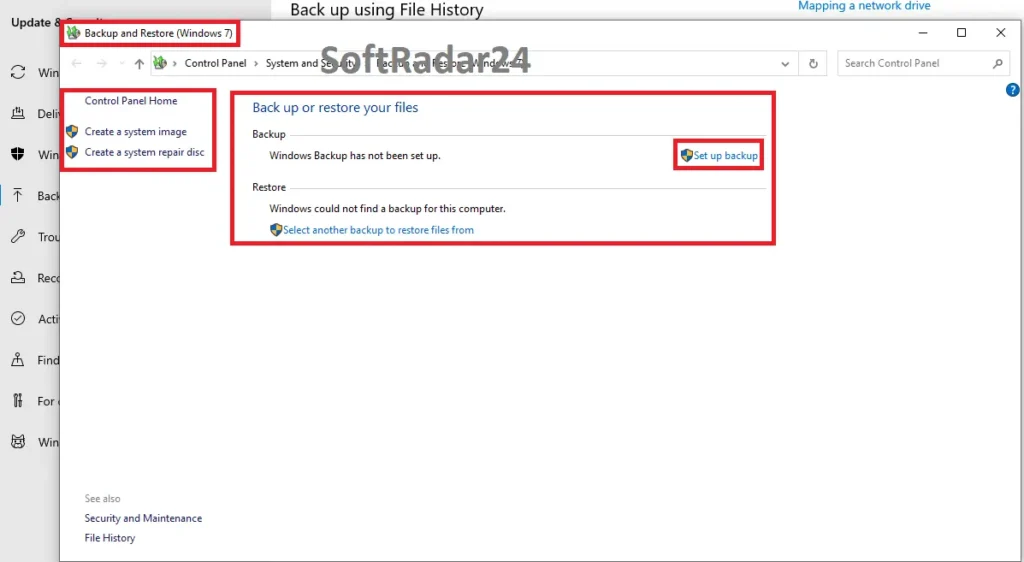
The confusingly named “Windows 7” legacy backup tool still found in modern Windows 10 Control Panel, lacking advanced encryption and scheduling features.
For users seeking the best backup software options, the limitation is clear: the native tool is passive. It does not offer smart file management or incremental backup schemes that automatically delete old images to save space. AOMEI Backupper Pro fills this gap by moving from a “static” backup approach to an “active” protection system that monitors your system’s health without user intervention.
ℹ️
Editor’s Note on Native Tools:
Before investing in professional software, it is useful to understand the baseline capabilities of your operating system. For a technical comparison, you can review the official documentation on how to back up your Windows PC provided directly by Microsoft, which highlights the differences between basic “File History” and the advanced system imaging features we analyze in this review.
The Core Distinction: System Backup vs. Disk Backup Explained
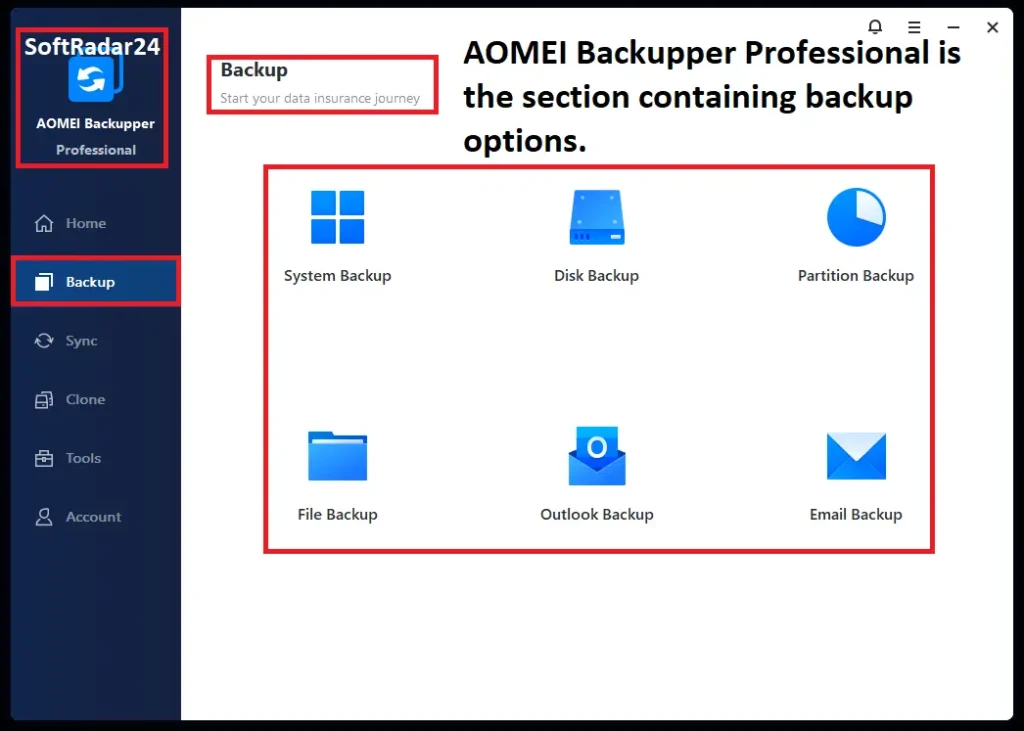
Unlike the cluttered native tools, AOMEI Backupper Professional offers a streamlined dashboard where you can clearly choose between System, Disk, or File backups without any technical guesswork.
One of the most common confusion points for newcomers is distinguishing between Windows System Backup and full Disk Backup. Understanding this difference is critical to ensuring your data is actually safe.
- System Backup: This mode is precise. AOMEI Backupper Pro automatically detects and isolates the C: drive, along with the hidden EFI and Boot partitions required to start Windows. It is ideal when you want to insure your operating system against crashes but keep your media files separate.
- Disk Backup: This is the comprehensive nuclear option. It captures the entire physical drive, including all partitions (D:, E:, Recovery), installed games, and personal archives.
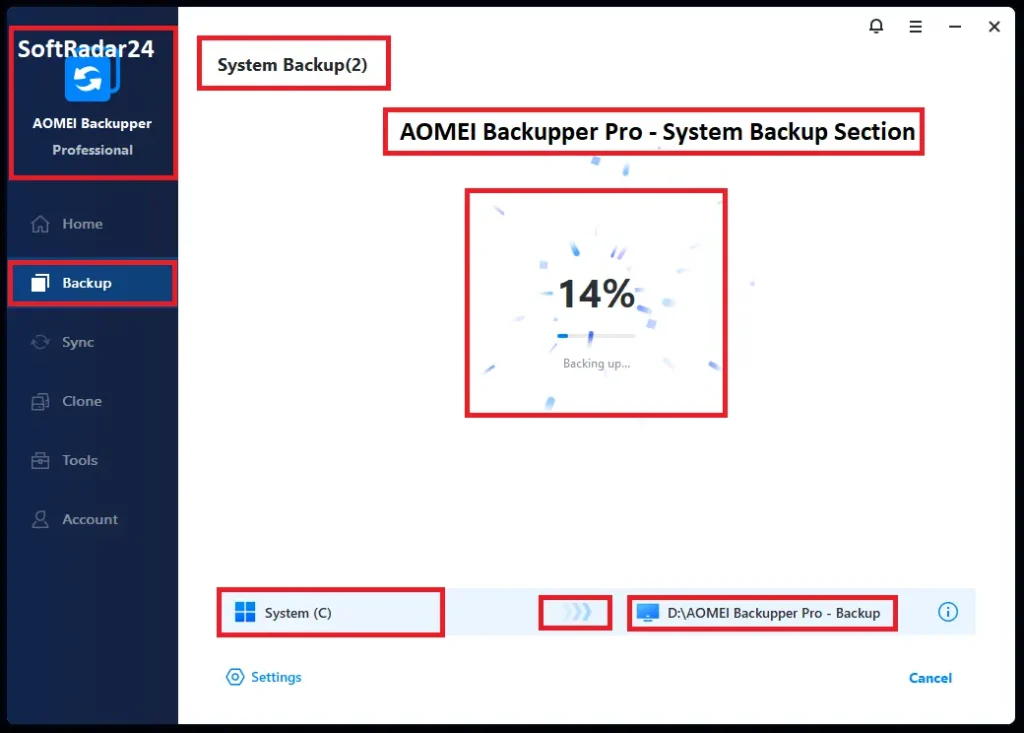
Notice how the software automatically identifies and selects both the C: drive and the hidden “System Reserved” partitions. This prevents the common mistake of backing up files but missing the critical boot sector required to start Windows.
If your goal is to migrate everything to a new drive or secure an external hard drive against total failure, relying solely on system backup is a mistake. AOMEI’s interface simplifies this selection, preventing the “missing partition” errors often seen in manual cloning attempts.
Automatic Protection: Real-Time Windows File Sync
For creative professionals, photographers, or anyone working on critical documents, a daily backup schedule is often insufficient. A few hours of work can be lost in a split second due to a power outage or accidental deletion. AOMEI Backupper Pro addresses this gap with its Real-Time Sync feature, which is fundamentally different from standard backup.
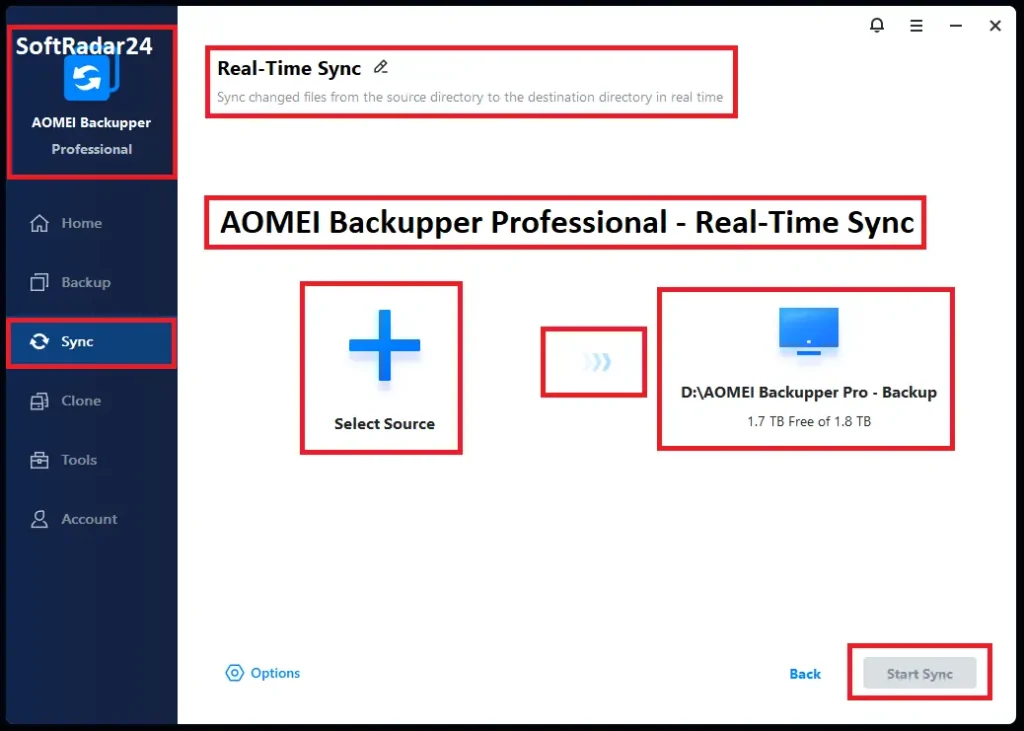
A game-changer for creative professionals: Real-Time Windows Sync doesn’t wait for a daily schedule. As shown here, it monitors your critical folders and instantly backs up every change the moment you save a file.
Unlike traditional methods that wait for a scheduled time, this feature monitors your designated folders in the background. As soon as you modify or save a document, the software automatically synchronizes files to your target location (such as a NAS, external drive, or cloud storage) without delay. This creates a seamless Windows file synchronization workflow where your backup is always as current as your last keystroke, effectively eliminating the risk of data gaps between schedules.
Hardware Migration: How to Clone Windows to SSD Without Reinstalling
Upgrading from a slow mechanical hard drive to a fast NVMe SSD is the best performance boost for any PC, but the migration process intimidates many users. The primary challenge is that the target SSD is often smaller than the original HDD (e.g., migrating a 1TB HDD to a 500GB SSD). Most free tools fail here, refusing to clone to a smaller drive.
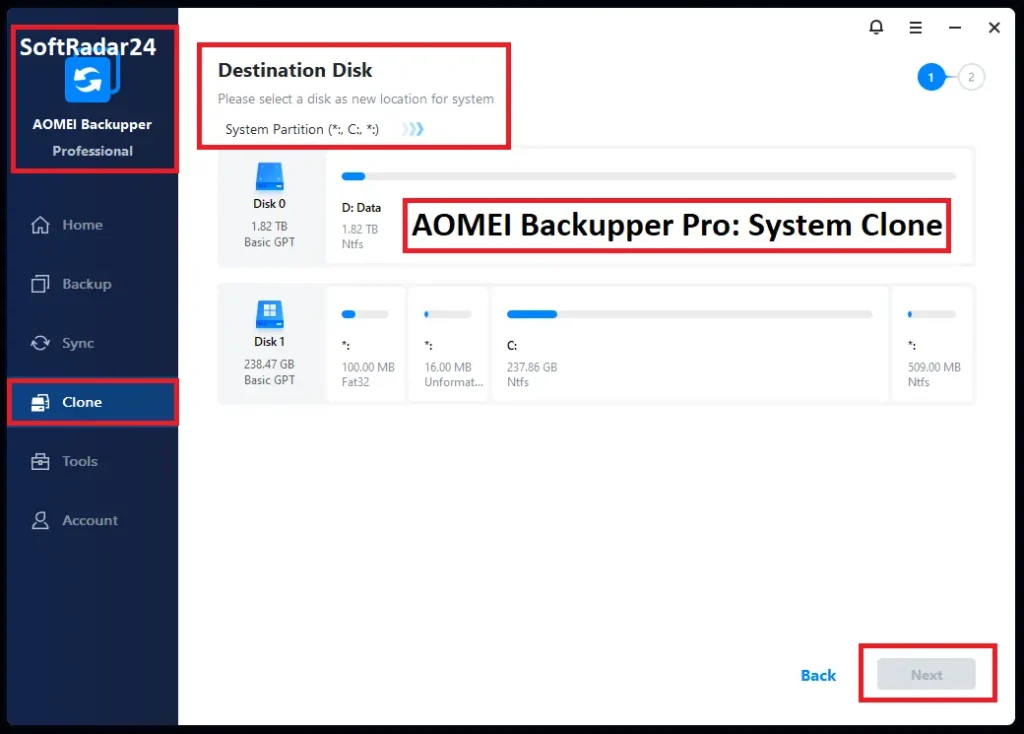
Don’t ignore the small checkbox at the bottom! Enabling ‘SSD Alignment‘ performs a 4K alignment on the fly, ensuring your new NVMe or SATA SSD runs at its maximum read/write speed and lasts longer after the migration.
AOMEI Backupper Professional solves this with its Intelligent Clone technology. Instead of copying every single sector blindly, the software only copies the used sectors of the file system. This allows you to clone Windows 11 to a smaller SSD successfully, provided the data fits the new drive. Additionally, the software automatically handles SSD Alignment (4K alignment) during the process, which is critical for ensuring your new drive operates at its maximum read/write speed and lifespan.
Storage Optimization Note: Establishing a advanced disaster recovery framework frequently requires adjusting underlying disk partitions or converting legacy hardware formats. For advanced storage reallocation and safe MBR to GPT modifications, exploring the AOMEI Partition Assistant Pro capabilities perfectly complements routine system backups.
The “Universal Restore” Advantage: Restoring to Dissimilar Hardware
Standard Windows backup tools have a major flaw: if your motherboard fails and you buy a new computer with different hardware (e.g., switching from Intel to AMD), restoring an old system image usually results in a Blue Screen of Death (BSOD) due to driver conflicts.
This is where the Professional edition justifies its price tag. The Universal Restore (Dissimilar Hardware Restore) feature allows you to restore a complete Windows system image to a computer with entirely different hardware components. The software acts as a bridge, stripping away the old hardware-dependent drivers while keeping your operating system, applications, and data intact. For users looking for a future-proof disaster recovery solution, this capability alone is often worth the upgrade from the free version.
AOMEI Backupper Free vs. Professional: Do You Need the License Key?
The “AOMEI Backupper Standard” edition is undeniably one of the most generous free backup tools on the market, perfect for basic file protection. However, for users planning a Windows migration or those who need automated “set-and-forget” security, the limitations become apparent.
Below, we compare the critical differences to help you decide if the Professional edition upgrade is worth the investment.
| Features | AOMEI Backupper Free | AOMEI Backupper Pro | Why Upgrade? |
| System Clone | ❌ (Disk Clone Only) | ✅ YES | Migrate Windows to SSD without reinstalling. |
| Universal Restore | ❌ | ✅ YES | Restore your system to a new PC with different hardware. |
| Real-Time Sync | ❌ | ✅ YES | Auto-sync files instantly when changed. |
| Backup Speed | Standard | 🚀 Faster | Priority execution for faster backups. |
| Disk Support | Basic MBR/GPT | ✅ Dynamic Disks | Support for advanced dynamic disk volumes. |
| Backup Scheme | ❌ (Manual Delete) | ✅ Auto-Cleanup | Automatically deletes old backups to save space. |
| Security | None | 🔒 Encryption | Password protect your sensitive backups. |
| PXE Boot Tool | ❌ | ✅ YES | Boot multiple computers over network (IT Pros). |
| Support | Business Hours | 🕒 24/7/365 | Lifetime priority technical support. |
SoftRadar24 Analysis: If you are simply saving a few photos to a USB stick, the Standard version is sufficient. However, if you are looking to clone Windows 11 to a new drive or insure your PC against motherboard failure, the AOMEI Backupper Professional License is not just a luxury—it is a necessity. The lack of “Windows System Clone” in the free version forces users to clone the entire disk, which is often impossible when migrating to smaller SSDs.
AOMEI Backupper Professional Discount Coupon Code 2026
Finding a working AOMEI Backupper PRO discount code can be frustrating with so many expired offers online. To save you time and money, we have verified these exclusive deals that drop the price of the Lifetime License to just $16.95—making it significantly cheaper than even the standard 1-year subscription. Simply choose the package below that fits your needs to instantly activate this 75% OFF deal for 2026.
✂️ AOMEI Coupon Applied Automatically at Checkout – Last Update: May 11, 2026
AOMEI Backupper Pro – Lifetime / 1 PC
🔥 76% OFF Best Seller: The ultimate “no-brainer” deal. Pay once and secure your PC forever with lifetime free upgrades and support.
AOMEI Backupper Pro – 1 Year / 1 PC
Standard License: Flexible annual plan. Get full access to System Clone, Universal Restore, and Real-Time Sync for one year.
AOMEI Backupper Pro – Lifetime / 2 PCs
Double Protection: Ideal for dual-setup users. Secure both your main desktop and laptop with a single lifetime license key.
AOMEI Backupper Pro Family – Lifetime / 5 PCs
🔥 25% OFF Family Value: The most economical choice. Protect up to 5 computers in your household with one master key.
AOMEI Backupper Pros & Cons
SoftRadar24 Verdict: AOMEI Backupper

4.8
/ 5.0
While the software market is flooded with complex tools, AOMEI Backupper Professional strikes a rare balance between enterprise-grade power and home-user simplicity. Its unique ability to migrate Windows to smaller SSDs without boot errors and restore systems to completely different hardware transforms it from a simple backup utility into a complete disaster recovery suite.While the AOMEI Backupper free edition is solid for basic files, relying on it leaves you vulnerable during major hardware failures where the ‘Universal Restore’ feature is essential.
Considering the potential cost of professional data recovery services, securing a Lifetime License for just $16.95 is arguably the most cost-effective insurance policy available for modern Windows PCs today.
Technical Specifications & FAQ
Frequently Asked Questions (FAQ)
1. Is AOMEI Backupper Professional safe to use for sensitive data?
Yes, AOMEI Backupper Professional is a non-destructive backup utility that uses “Read-Only” access when creating images, ensuring your original files are never modified. Additionally, it offers a robust Image Encryption feature, allowing you to password-protect your backups so unauthorized users cannot access your financial records or private photos.
2. Can I restore my Windows system to a completely different computer?
Yes, this is one of the standout features of the Professional edition. The “Universal Restore” (Dissimilar Hardware Restore) function allows you to restore a system image created on one PC (e.g., an old Intel machine) to a new computer with different hardware (e.g., a new AMD build) by automatically resolving driver compatibility issues during the restoration process.
3. Why does the “System Clone” feature matter for SSD upgrades?
Many users upgrade from large HDDs (e.g., 1TB) to smaller but faster SSDs (e.g., 500GB). The free version often fails here because it forces you to clone the entire disk. AOMEI Backupper Professional features an “Intelligent Clone” mode that migrates only the OS and used data, allowing you to successfully clone Windows to a smaller drive without boot errors.
4. What is the difference between “Real-Time Sync” and standard backup?
Standard backups run on a fixed schedule (e.g., daily at 8 PM). If your PC crashes at 7 PM, you lose that day’s work. AOMEI Backupper Professional includes “Real-Time Sync,” which monitors specific folders and instantly synchronizes changes to your backup drive the moment you save a file, offering zero-data-loss protection for critical documents.
5. Does AOMEI Backupper Professional support Dynamic Disks?
Yes. While the Standard (Free) edition is limited to basic MBR/GPT disks, AOMEI Backupper Professional fully supports backing up and restoring Dynamic Disk volumes. This is essential for advanced users who use software-based RAIDs or spanned volumes in Windows Disk Management.
6. Can I use one license key on multiple computers?
The standard single license covers only one PC. However, if you have a desktop and a laptop, we recommend the “1 License / 2 PCs” option. For households, the “Family Pack” is the most economical choice, covering up to 5 computers with a single AOMEI Backupper Professional license key.
7. Will AOMEI Backupper slow down my computer while running?
No. AOMEI Backupper Professional utilizes Microsoft’s VSS (Volume Shadow Copy Service) technology. This allows the software to perform system backups in the background without locking files, meaning you can continue to work, browse the web, or watch movies without interruption while the backup completes.
8. How does the “Backup Scheme” save disk space?
One of the biggest issues with regular backups is running out of space. The “Backup Scheme” in AOMEI Backupper Professional solves this by automatically deleting old backup images based on rules you set (e.g., “Keep only the last 5 versions”). This ensures your backup drive never overflows while keeping your latest data safe.
9. What happens if my computer won’t boot at all?
AOMEI Backupper Professional allows you to create “Bootable Media” (on a USB drive or CD). If Windows fails to start due to a virus or corruption, you can boot the PC from this USB stick to load the AOMEI recovery environment and restore your system image, bringing your PC back to life in minutes.
10. Does the Lifetime License really include future upgrades?
Yes. Unlike subscription models that require yearly payments, the “Lifetime Upgrades” edition ensures you are entitled to every future version of AOMEI Backupper Professional for free. Whether it’s version 8.0 or a future update for Windows 12, your license key remains valid forever.
🤝 Affiliate Disclosure: Our Transparency Promise
Transparency is one of our core values at SoftRadar24. We believe in building a relationship of trust with our visitors. Before you explore our software deals and reviews, we want you to understand exactly how this website operates and how we are funded.
How We Are Funded
SoftRadar24 is a reader-supported independent publication. We are not owned by any software giant. To keep this website free for you—without cluttering it with annoying pop-up ads—we participate in various Affiliate Marketing Programs.
What Does This Mean for You?
When you click on a link (like “Buy Now”) and make a purchase, we may earn a referral commission.
✅ No Extra Cost: This commission comes at no extra cost to you. In fact, our direct partnerships often unlock exclusive coupons that make the product cheaper than the regular price.
The purchase process happens entirely on the official vendor’s secure website. We simply refer you to them; we do not process payments.