Quick Summary
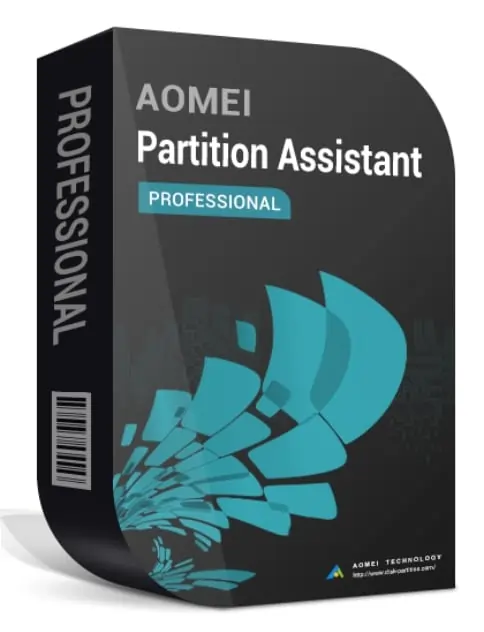
AOMEI Partition Assistant Professional is a Windows disk and partition manager for resizing and moving partitions, allocating free space, cloning disks and system drives, migrating Windows to another SSD or HDD, converting disks between MBR and GPT, managing BitLocker, creating bootable media and repairing selected boot problems. The current AOMEI release line is version 10.12.0, published August 13, 2026. The Professional edition is for Windows PCs; Windows Server requires a Server-class edition rather than the Professional license.
- Best for
- Partition resizing · C-drive expansion · Windows migration · SSD/HDD cloning · MBR/GPT conversion · bootable disk maintenance
- Current version
- AOMEI Partition Assistant 10.12.0 · August 13, 2026
- Platforms
- Windows 11 · Windows 10 · Windows 8.1/8 · Windows 7
- Important boundary
- Professional is a Windows PC edition; Windows Server management requires AOMEI Partition Assistant Server or a higher server-capable edition
AOMEI Partition Assistant Professional Pricing, Discount Code & License Options
The current AOMEI Partition Assistant Professional discount is applied automatically to the eligible license options below. No manual coupon code entry is required.
License & Purchase · AOMEI Partition Assistant Professional · Current Discount & Coupon Offer
Current AOMEI Partition Assistant Professional License Prices
The purchase selector currently includes the following discounted license options:
- AOMEI Partition Assistant Professional Lifetime License · 2 Windows PCs · US$48.96
- AOMEI Partition Assistant Professional 1-Year License · 2 Windows PCs · US$34.96
- AOMEI Partition Assistant Professional Family Lifetime License · 5 Windows PCs · US$89.95
Choose the license term and PC count that match your setup. The Lifetime / 2 PCs option is selected first because it adds lifetime upgrades for only US$14.00 more than the current 1-year price, while the Family Lifetime option is intended for households that need up to five PCs.
AOMEI Partition Assistant Professional · Lifetime License
2 Windows PCs · lifetime use and lifetime upgrades
Included with this license- AOMEI Partition Assistant Professional for up to 2 Windows PCs
- Lifetime use with lifetime upgrades for the licensed Professional edition
- System-disk cloning, OS migration, MBR/GPT system-disk conversion and advanced partition-management tools
- Current AOMEI technical support and 90-day money-back guarantee terms
The current Lifetime / 2 PCs checkout reduces the US$69.95 reference price to US$48.96. The 1-year option reduces US$49.95 to US$34.96, while Family Lifetime currently shows US$89.95 versus US$174.88 for up to five PCs.
The 1-year plan is a subscription and AOMEI’s official store describes yearly licenses as auto-renewing unless canceled. Lifetime and Family Lifetime are one-time license terms with lifetime upgrades. Taxes can be added at checkout depending on billing location. Confirm the product edition, PC count, renewal setting, tax and final total before payment.
Can This Software Do What I Need?
AOMEI Partition Assistant Professional covers far more than basic partition creation, but several tasks have important edition, file-system, encryption or boot-mode conditions. Use the scenarios below to match the tool to the actual job before changing a disk layout.
I need to extend the C: drive when Windows Disk Management cannot use the available free space
C-drive expansion
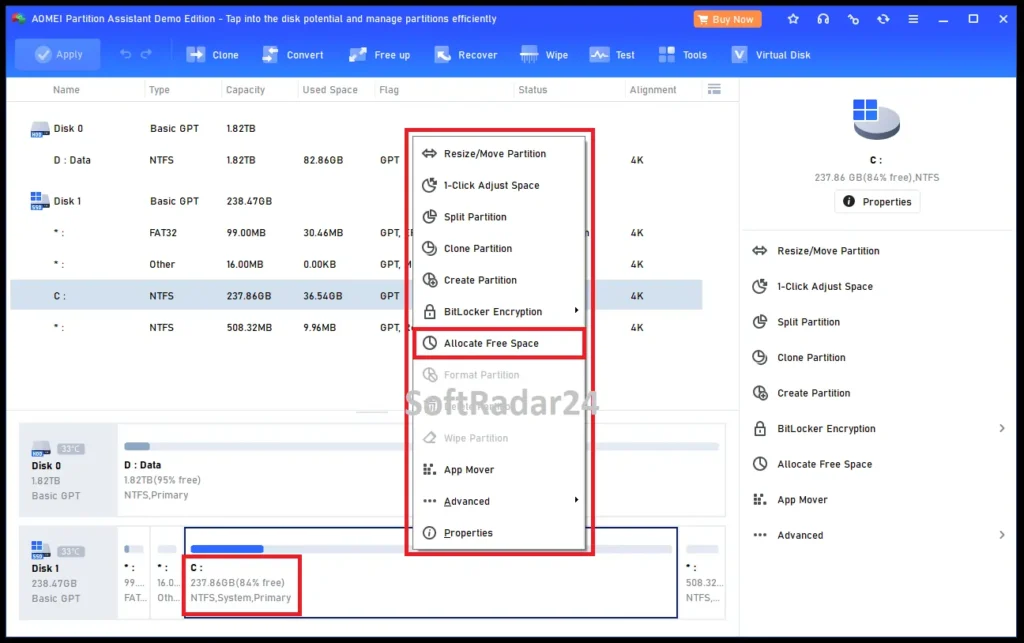
SupportedAOMEI Partition Assistant Professional includes Resize/Move, 1-Click Adjust Space, Allocate Free Space, Merge Partitions and Extend Partition Wizard. Allocate Free Space is especially useful when you want to move capacity from another partition to C: without first deleting that partition.
I want to migrate Windows to a new SSD without reinstalling Windows and applications
OS migration
SupportedThe Professional edition includes Migrate OS to SSD/HDD. The workflow copies the Windows system environment to the target drive, but the target layout, available space and firmware boot mode still need to be compatible. For a detailed SoftRadar24 walkthrough, see how to migrate Windows to an SSD with AOMEI.
I want to clone a larger hard drive to a smaller SSD
Smaller-target cloning
ConditionalAOMEI Partition Assistant can clone only the used sectors so a physically smaller SSD can work when its capacity is at least as large as the used data being transferred. A BitLocker-encrypted source or certain non-Windows file systems can force sector-by-sector cloning, which can require a target as large as the source.
I need to convert a Windows system disk between MBR and GPT without formatting it
MBR/GPT conversion
SupportedProfessional includes system-disk conversion between MBR and GPT. Boot configuration matters: converting a boot disk can require matching UEFI/EFI or Legacy/CSM firmware settings. Review the a GPT-to-MBR workflow guide when partition-style conversion is the primary task.
I am preparing an older PC for Windows 11 and the system disk is still MBR
Windows 11 preparation
ConditionalAOMEI specifically positions MBR-to-GPT conversion as a Windows 11 upgrade workflow. GPT is only one part of Windows 11 readiness, however; firmware mode, Secure Boot, TPM and the rest of the hardware requirements still need to be satisfied separately.
I want to resize or clone BitLocker-encrypted volumes
BitLocker
ConditionalAOMEI Partition Assistant Professional includes BitLocker encryption/decryption management, but the current technical page groups BitLocker with file systems that cannot be resized and can instead be moved or cloned. BitLocker can also force sector-by-sector behavior during cloning. Do not assume every ordinary NTFS resize workflow applies unchanged to an encrypted volume.
I need to resize a ReFS, Ext or other non-NTFS partition
Non-NTFS file systems
Verify firstAOMEI’s current pages are not perfectly aligned here. The Professional technical specification says exFAT/ReFS, Ext2/3/4, BitLocker and other file systems cannot be resized but can be moved and cloned, while the current Help overview describes a narrower operation set for ReFS/Ext/exFAT. Verify the exact operation and file system before purchasing for this reason alone.
I need to manage Windows Server partitions
Server operating systems
Not supportedThe Professional edition is the Windows PC tier. AOMEI’s current edition matrix assigns Windows Server 2025/2022/2019/2016/2012 support to Server and higher editions, so Professional should not be purchased as a Windows Server license.
I only need to create, delete or format ordinary partitions
Basic partition management
Better fitAOMEI Partition Assistant Standard is freeware and covers many everyday disk-management jobs. Windows Disk Management can also handle basic partition creation and formatting. Paying for Professional makes more sense when you need Professional-only migration, system-disk clone/conversion, allocation, advanced recovery or maintenance functions.
I need scheduled system-image backups rather than partition resizing
Backup and disaster recovery
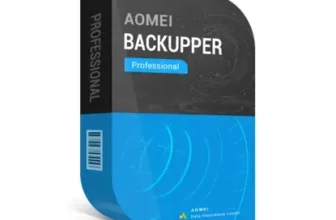
Different taskAOMEI Backupper Professional is the better same-brand fit when scheduled image backups, incremental/differential backup and restore are the primary requirement. Partition Assistant focuses on disk layout, migration, conversion and cloning rather than being a complete backup scheduler.
I want another Windows backup-and-clone suite before deciding
Backup alternative
Different taskHasleo Backup Suite is relevant when the decision is primarily backup, restore and system/disk cloning. It is not a direct replacement for AOMEI Partition Assistant Professional’s broader partition-layout and disk-conversion toolkit.
My SSD or hard drive is physically failing
Hardware failure
Not supportedAOMEI Partition Assistant can check disk health, scan sectors and clone accessible data, but software cannot repair a physically failing drive. Minimize unnecessary writes, secure important data first and replace failing hardware.
How It Works
AOMEI Partition Assistant Professional uses a pending-operation model: you choose disk changes first, review the proposed result, then apply them. This is important because resize, conversion, clone and migration operations can affect boot structures and partition tables.
Resize or Extend a Partition
- Select the target partition and choose Resize/Move, 1-Click Adjust Space, Allocate Free Space or another appropriate resize tool.
- Set the new size or choose the source partition that will donate free space.
- Review the proposed disk layout and the Pending Operations list before applying the change.
- Click Apply only after confirming the target disk, partition letters and final sizes. A reboot or PreOS operation can be required when the active system volume cannot be safely locked inside Windows.
Migrate Windows to an SSD or HDD
- Connect the destination drive and open Migrate OS from the Clone tools.
- Choose suitable destination space and adjust the target system-partition size.
- Review the boot note and pending migration operation, then apply the task.
- After migration, install the destination appropriately and select the cloned system disk in BIOS/UEFI if it is not chosen automatically.
Clone a Disk to a New SSD or HDD
Choose Clone Disk, select the source and destination, enable 4K alignment when the destination is an SSD if appropriate, and decide how partitions should fill the new disk. The destination disk is overwritten when the operation is committed. A smaller destination can work only when the selected clone method and the source’s used data fit within that target.
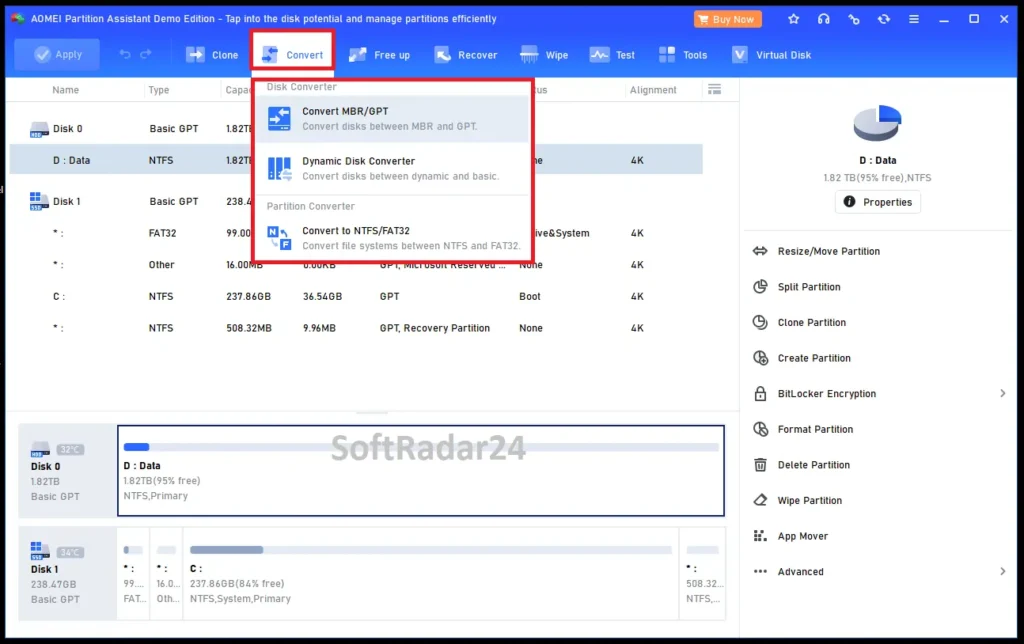
Convert MBR and GPT
Select the source disk through the Convert tools and preview the partition-style change before applying it. For a Windows boot disk, confirm the motherboard supports the boot mode required by the destination layout and have a recoverable backup before changing partition-table structure.
Product Interface & Workflow
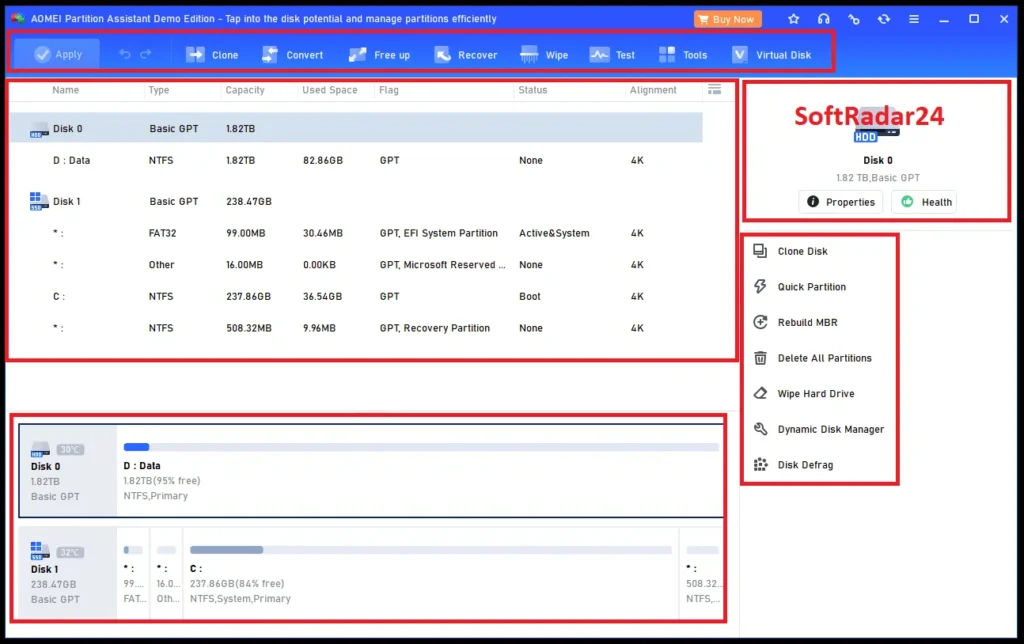
AOMEI Partition Assistant Professional presents physical disks, partitions, file systems, used space, boot status and alignment in one workspace. Most actions can be started from the top tool groups, the right-side action panel or a partition’s context menu.
Compatibility & Coverage
AOMEI Partition Assistant Professional has broad Windows storage support, but operating-system edition, file system, disk style, encryption and clone method can change which operations are available.
| Area | Current coverage | Decision note |
|---|---|---|
| Professional OS | Windows 11 / 10 / 8.1 / 8 / 7 | Windows Server requires Server or a higher server-capable edition. |
| CPU architecture | Current download center provides standard Windows and a separate Windows ARM64 download | Verify the exact build for an ARM-based PC before installation. |
| Storage | HDD · SSD · SSHD · USB/external disks · IDE · SATA · SCSI · iSCSI · RAID · Windows-recognized storage | Actual operation support still depends on file system and device state. |
| Partition styles | MBR and GPT · UEFI/EFI support | System-disk conversion can require a matching firmware boot-mode change. |
| Disk scale | Current Professional technical page lists MBR/GPT disks up to 16TB+ and up to 128 disks | Hardware/controller/OS limits can still apply. |
| NTFS / FAT | Primary resize, move, create, format and conversion workflows | These are the best-documented normal partition-management paths. |
| ReFS / exFAT / Ext / BitLocker | Limited compared with ordinary NTFS/FAT operations | AOMEI’s current pages differ on exact operation breadth; verify the target action before purchase. |
| Virtual disks | VMware / VirtualBox / Virtual PC virtual disk partition support is listed | Version 10.12 also sits in a broader toolset that now includes virtual-disk and VM functions. |
Features & Capabilities
The Professional edition combines core partition management with migration, cloning, conversion, recovery and maintenance functions. The most useful way to understand it is by task rather than by one long feature list.
Partition Size & Space Management
- Resize and move partitions
- 1-Click Adjust Space
- Split and merge partitions
- Allocate free space between partitions
- Extend Partition Wizard
- 4K partition alignment
SSD, HDD & Windows Migration
- Migrate Windows to SSD or HDD
- Clone system disk
- Clone data disk and partitions
- Clone used sectors to a smaller target when capacity conditions are satisfied
- Adjust destination partition sizes during clone
- SSD 4K alignment during supported clone workflows
Disk & File-System Conversion
- Convert data and system disks between MBR and GPT
- Convert dynamic disk to basic and manage dynamic disks
- Convert FAT/FAT32 and NTFS
- Convert partitions between primary and logical where applicable
- Support UEFI/EFI boot environments
Boot, Recovery & Rescue Tools
- Boot Repair for selected BCD/boot-sector problems
- Make Windows PE bootable media
- Integrate into Windows Recovery Environment
- Rebuild MBR
- Partition recovery and data-recovery access within the current product ecosystem
- Windows password-reset and UEFI BIOS boot-option tools
Disk Maintenance & Cleanup
- Disk health, temperature, speed and bad-sector checks
- App Mover
- Disk Space Analyzer
- Junk, large-file and duplicate-file tools
- File shredding and disk/partition wiping
- SSD Secure Erase
Recent 2026 Improvements
- Version 10.12.0 redesigned Recover Data and improved Deep Scan
- Version 10.12.0 simplified Windows PE bootable-media creation through direct recovery-environment download
- Version 10.11.0 added Create VM for Hyper-V virtual-machine deployment
- Version 10.11.0 improved APFS, HFS, XFS and SWAP partition recognition
Important Conditions & Limitations
Partition software can make changes below the normal file-and-folder layer, so the most important limitations are operational rather than cosmetic. Several current AOMEI help pages explicitly document reboot, encryption and clone constraints that should be understood before applying changes.
Professional Does Not License Windows Server
AOMEI’s edition matrix separates Professional for Windows PCs from Server and higher editions. Do not use the Professional offer as a substitute for a Windows Server license.
Some Operations Require PreOS or WinPE
If a live volume cannot be locked because Windows, antivirus software or another service is using it, AOMEI can require a reboot into PreOS or a Windows PE environment. This is normal for certain system-volume changes and means not every operation is a background task completed entirely inside the normal Windows desktop.
Cloning Overwrites the Destination Disk
AOMEI’s current clone guide explicitly warns that data on the selected destination disk is wiped when the clone operation is committed. Back up anything important on the target before proceeding.
A Smaller SSD Must Still Fit the Used Data
Used-sector cloning can move a larger source disk to a smaller SSD only when the target can contain the source’s used data. BitLocker encryption or a large non-Windows file-system partition can trigger sector-by-sector behavior and eliminate that smaller-target advantage.
BitLocker Does Not Behave Like Normal NTFS
AOMEI includes BitLocker management, but the current Professional technical specification does not describe BitLocker volumes as normally resizable. Encrypted-source cloning can also require a target at least as large as the source. Verify the exact encrypted-volume workflow rather than applying assumptions from an unencrypted NTFS partition.
ReFS and Other Non-NTFS Coverage Needs Operation-by-Operation Verification
AOMEI’s current Professional technical specification says ReFS/exFAT/Ext/BitLocker and other file systems cannot be resized but can be moved and cloned, while the general Help overview describes a narrower supported-operation set for ReFS/Ext/exFAT. That documentation conflict is material if one of these file systems is the buying reason.
System-Disk Conversion Can Change Boot Requirements
Converting a boot disk between MBR and GPT changes the partition-table environment. A successful conversion does not automatically guarantee the PC firmware is already configured for the destination boot mode. Confirm UEFI/EFI or Legacy requirements before rebooting.
Partition Management Is Not a Full Backup Strategy
Cloning can duplicate a disk, but AOMEI Partition Assistant Professional is not a scheduled image-backup system with the same backup-versioning and restore workflow as dedicated backup software. Protect irreplaceable data separately before structural disk operations.
Free Trial / Free Version
AOMEI currently provides both a freeware Partition Assistant Standard edition and a Professional trial/demo download. The Standard edition is a real free product for many normal partition tasks; Professional adds advanced Windows migration, system-disk cloning/conversion and other paid functions.
| Option | Best use | What to know |
|---|---|---|
| Partition Assistant Standard | Basic personal partition management | Freeware. Useful for assessing the interface and completing supported basic tasks without purchasing Professional. |
| Professional trial/demo | Evaluate Professional workflow | AOMEI provides a Try/Free Download path. Use it to inspect your disks and confirm that the required Professional tool is present before paying; activation may be required to commit Professional-only operations. |
| Professional license | Advanced PC disk management | Required for the full Professional feature set such as system-disk clone, OS migration, advanced MBR/GPT system conversion and other paid tools. |
System Requirements
The current AOMEI Help overview lists modest minimum hardware requirements. The more important practical requirement is that Windows must correctly detect the storage controller and disks involved in the operation.
| Requirement | Current documented value | Decision note |
|---|---|---|
| Professional OS | Windows 11 / 10 / 8.1 / 8 / 7 | Professional is a PC edition; Server operating systems require another edition. |
| CPU | 500 MHz x86 or compatible CPU | Current general Help minimum. |
| Memory | 256 MB RAM | Current general Help minimum; modern Windows systems will normally have far more memory. |
| Input | Mouse or another pointing device recommended | The interface is heavily visual and disk-layout based. |
| Storage visibility | Destination/source drives must be recognized by Windows or the relevant boot environment | Storage-controller drivers can matter in WinPE/PreOS and on unusual hardware. |
| Boot environment | UEFI/EFI supported | System-disk MBR/GPT changes and cloned-boot disks may require firmware boot-mode adjustments. |
Alternatives & Better-Fit Options
The best alternative depends on whether the actual job is partition management, Windows migration or backup. For the wider AOMEI product range and current offers, visit the AOMEI page on SoftRadar24.
AOMEI Backupper Professional
Choose AOMEI Backupper Professional when scheduled system, disk, partition or file backup and restore are more important than resizing partitions or converting MBR/GPT. It is complementary to Partition Assistant rather than a direct replacement for the full partition-management feature set.
Hasleo Backup Suite
Hasleo Backup Suite is another Windows-focused option for system/disk backup, recovery and cloning. Compare it when disaster recovery is the primary goal, not when you need advanced partition layout and conversion tools.
Hard Disk Sentinel Professional
Hard Disk Sentinel Professional is the better fit when the main concern is SSD/HDD health, S.M.A.R.T. monitoring, temperature, performance and early warning of storage problems. It complements AOMEI Partition Assistant Professional: use Hard Disk Sentinel Professional to monitor drive condition, and a partition manager when the task is resizing, migration, conversion or disk-layout changes.
Windows Disk Management
Windows’ built-in Disk Management can create, delete, format, shrink and extend volumes in straightforward layouts. It is the better starting point when the task is simple enough to complete without paid migration, conversion or advanced allocation features.
Task-Specific AOMEI Guides
If the purchase decision centers on one risky operation rather than the whole toolkit, use the SoftRadar24 guides for migrating Windows to an SSD and converting GPT to MBR without formatting to understand the workflow first.
FAQ
These answers cover the commercial and technical questions that most often change the AOMEI Partition Assistant Professional buying decision.
How much does AOMEI Partition Assistant Professional currently cost?
SoftRadar24 currently lists three verified Windows offers: US$34.96 for 1 Year / 2 PCs, US$48.96 for Lifetime / 2 PCs with lifetime upgrades, and US$89.95 for the Family Lifetime / 5-PC option. Taxes can change the final checkout total by location.
Is there an AOMEI Partition Assistant Professional coupon code or current discount?
Yes. The current SoftRadar24 purchase links apply the eligible discount automatically at checkout, so no manual coupon code entry is required. The 2-PC annual and lifetime offers currently show a 30% reduction from their reference prices, while the Family Lifetime checkout uses its own current promotional pricing.
Does AOMEI Partition Assistant Professional offer a lifetime license?
Yes. The current 2-PC Lifetime option is a one-time purchase with lifetime upgrades. AOMEI also offers a Family Lifetime option for up to five PCs.
Which AOMEI Partition Assistant Professional license should I buy?
The 1-year / 2-PC plan has the lowest upfront cost. The Lifetime / 2-PC plan currently costs US$14.00 more and adds lifetime upgrades, making it the stronger long-term value if you expect to keep using the software. Family Lifetime is intended for households that need up to five PCs.
How many PCs does an AOMEI Partition Assistant Professional license cover?
The current standard Professional yearly and lifetime plans cover two PCs. The Professional Family Lifetime plan covers five PCs. AOMEI’s current FAQ also describes the normal Professional license as a maximum two-PC registration.
Does the AOMEI Partition Assistant Professional yearly license auto-renew?
AOMEI’s current official store describes yearly licenses as automatically renewing and cancellable at any time. Lifetime and Family Lifetime are one-time purchase terms rather than annual subscriptions.
What is the AOMEI Partition Assistant refund policy?
AOMEI’s current edition-comparison and sales pages advertise a 90-day unconditional money-back guarantee for paid Partition Assistant purchases. The checkout and vendor terms in force at the time of purchase should control the final transaction.
What is the current version of AOMEI Partition Assistant?
The current AOMEI changelog and download center list version 10.12.0, released August 13, 2026. That release redesigned Recover Data, improved Deep Scan, simplified Windows PE bootable-media creation and reduced installer size.
Can AOMEI Partition Assistant Professional migrate Windows to an SSD without reinstalling Windows?
Yes. Migrate OS is a documented Professional workflow for moving Windows to another SSD or HDD without reinstalling the operating system and installed environment. A boot-mode adjustment can still be required after migration depending on the source and destination disk styles.
Can AOMEI Partition Assistant Professional clone a larger HDD to a smaller SSD?
Yes, conditionally. AOMEI can clone only used sectors when the destination is large enough for the used data. BitLocker-encrypted sources and some non-Windows file-system layouts can force sector-by-sector cloning, which may require a destination as large as the source disk.
Can AOMEI Partition Assistant Professional convert MBR to GPT without formatting?
Yes. AOMEI documents data- and system-disk conversion between MBR and GPT. For a boot disk, conversion should be planned together with the firmware boot mode, and important data should be backed up before changing partition-table structure.
Does AOMEI Partition Assistant Professional support Windows Server?
No, not as the Professional license tier. AOMEI’s current edition matrix assigns Windows Server support to Partition Assistant Server and higher editions. Professional is the Windows PC edition.
Can AOMEI Partition Assistant Professional resize BitLocker or ReFS partitions?
Do not assume standard NTFS resize behavior. AOMEI’s current Professional technical page says BitLocker, ReFS, exFAT and Ext file systems cannot be resized, though it lists move/clone support. The general Help overview is even more restrictive for some non-NTFS file systems, so verify the exact source file system and intended operation first.
Is AOMEI Partition Assistant Professional a backup program?
Not in the same sense as dedicated backup software. It can clone disks and migrate Windows, but scheduled image backup and restore are better matched to software such as AOMEI Backupper Professional or Hasleo Backup Suite.