
WinX DVD Ripper Platinum License Deals and Discount Codes
Compare the available lifetime, family, bundle, and short-term licenses. Each offer below lists the advertised price, computer allowance, and relevant license terms. Check the final order details before purchasing.
WinX DVD Ripper Platinum for PC Lifetime + Free Gift License Coupon Code – 56% OFF
Lifetime License / 1 PC + Free Gift
- Lifetime use on one Windows PC; one-time license purchase.
- Free lifetime software updates and version upgrades.
- Updates to improve support for newly released DVDs.
- Priority technical support for registered customers.
- Free gift offered with this deal; check the gift name and license term at checkout.
- 30-day money-back policy, subject to Digiarty’s conditions.
WinX DVD Ripper Platinum for 2–5 PCs License Discount Code – 63% OFF
Family License / 2–5 PCs
- Family license for installation on 2–5 Windows PCs.
- Lifetime use as described in Digiarty’s family-license offer.
- Free upgrades for the licensed WinX DVD Ripper Platinum product.
- Ongoing updates for new DVD releases and disc structures.
- Email technical support for registered license holders.
- 30-day money-back policy, subject to the vendor’s conditions.
WinX DVD Ripper Platinum + WinX DVD Copy Pro – Lifetime (BOGO) License Discount Code – 39% OFF
Lifetime BOGO Bundle / Two DVD Tools
- BOGO offer listing WinX DVD Ripper Platinum with WinX DVD Copy Pro.
- WinX DVD Ripper Platinum converts and backs up DVDs to video files.
- WinX DVD Copy Pro copies DVDs to discs, ISO images, and VIDEO_TS folders.
- Advertised as a lifetime promotion; confirm the second product’s license and upgrade rights at checkout.
- License and registration details are delivered by email after purchase.
- 30-day refund policy applies under Digiarty’s published conditions.
WinX DVD Ripper Platinum + WinX DVD Copy Pro Lifetime License Coupon Code – 63% OFF
Two-Product Lifetime Bundle
- Includes WinX DVD Ripper Platinum and WinX DVD Copy Pro.
- Lifetime use for the two DVD tools in the advertised bundle.
- Convert DVD content to video files or create DVD disc and ISO backups.
- Digiarty lists free lifetime upgrade service for its official lifetime DVD combo.
- Priority technical support for paid license holders.
- 30-day money-back policy, subject to the refund conditions.
WinX DVD Ripper Platinum + WinX DVD Copy Pro 1 Year / 3 PCs License Discount Code – 73% OFF
One-Year Bundle / 3 PCs
- One-year / 3-PC bundle offer featuring WinX DVD Ripper Platinum and WinX DVD Copy Pro.
- Full access to the licensed DVD tools during the paid term.
- Free updates during the one-year subscription period.
- Email technical support for registered customers.
- Check the per-product activation allowance and renewal terms at checkout.
- 30-day money-back policy, subject to Digiarty’s conditions.
WinX DVD Ripper Platinum – 3-Month / 1 PC License Coupon Code – 50% OFF
Three-Month Subscription / 1 PC
- Paid three-month WinX DVD Ripper Platinum subscription for one PC.
- Access to the licensed ripping and DVD backup features during the term.
- Free software updates during the paid membership period.
- Email support for registered customers.
- Check recurring billing and cancellation terms before payment.
- 30-day money-back policy, subject to the vendor’s conditions.
Discount percentages are calculated from the listed regular and sale prices. Promotional availability, gift entitlements, renewals, device limits, and taxes should be checked on the final checkout page. Refund requests are subject to Digiarty’s published conditions.
What Is WinX DVD Ripper Platinum and What Does It Do?
WinX DVD Ripper Platinum is a Windows program for converting video DVDs into files that can be stored on a computer or played without the original disc. It accepts DVD discs, DVD folders, and ISO images. Depending on the chosen output profile, it can produce a smaller video file such as MP4 or retain more of the original DVD content in a backup format.
The distinction matters when buying DVD software. Someone who wants a movie to play from a USB drive needs a different result from someone who wants to retain a disc’s original structure. WinX DVD Ripper Platinum provides both conversion and backup profiles, along with title selection, audio and subtitle controls, basic editing, and hardware-assisted video processing. The condition of the source disc and the selected settings still affect the result.
Key Features of WinX DVD Ripper Platinum
These features address different stages of copying or converting a DVD; they are not separate license products.
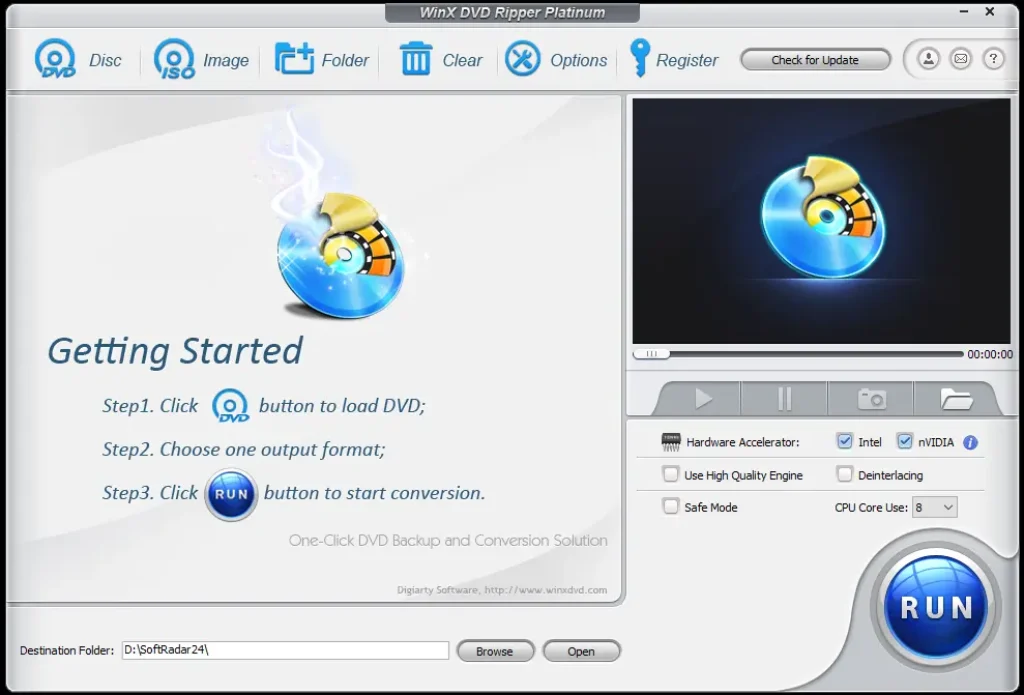
- Three source types: Open a physical DVD, an ISO image, or a previously saved DVD folder.
- DVD title detection: Identify the main movie among multiple titles, including discs with unusually complex title lists.
- Video conversion: Produce MP4/H.264, HEVC and other supported video outputs for local storage and compatible playback devices.
- DVD backup profiles: Retain a fuller DVD copy or save the main title in a format closer to the source, instead of automatically compressing everything to MP4.
- Audio and subtitle selection: Choose a DVD audio track, select built-in subtitles, or add an external SRT subtitle file.
- Basic video editing: Trim sections, crop black borders, adjust audio volume, and merge selected titles when appropriate.
- Output controls: Adjust codec, resolution, bitrate, frame rate, aspect ratio, and audio settings to match the intended playback device.
- Hardware-assisted conversion: Use supported graphics hardware for video processing when the selected format and drivers allow it.
- Recovery options for difficult discs: Change DVD file-system detection or try Safe Mode when disc reading or conversion behaves unexpectedly.
How to Use WinX DVD Ripper Platinum
The official workflow follows a clear sequence: load the source, choose an output profile, confirm the required tracks and settings, then start the job. These steps also explain the decisions that affect file size, quality, and playback compatibility. Digiarty provides the corresponding controls in its official user guide.
1. Load a DVD Disc, ISO Image, or DVD Folder
Open WinX DVD Ripper Platinum and choose DVD Disc for a disc in an optical drive, ISO Image for an existing image file, or Folder for a saved DVD directory. Select the source and confirm with OK. A physical DVD requires a readable internal or external DVD drive; an ISO image or DVD folder can be loaded from storage instead.
For a DVD that fails to load normally, the source dialog provides file-system choices including Auto Detect, Force UDF, and Force ISO. Keep Auto Detect for ordinary discs. The forced modes are troubleshooting choices, not settings that should be enabled for every DVD.
2. Select the Correct Title and Output Profile
After reading the source, WinX DVD Ripper Platinum opens the Output Profile window. General Profiles contains common video formats; DVD Backup Profile offers preservation-oriented modes; Device Profile contains device-oriented presets; and Common Video/Music Profile includes general video and audio outputs. Choose the result you actually need, then click OK.
The program attempts to identify the main movie automatically. On a concert disc, television series, exercise DVD, or a disc with many similar titles, inspect the listed titles and durations before starting. Converting the wrong title can produce a trailer, a single episode, or a misleadingly short file even when the encoding itself succeeds.
3. Choose Audio Tracks and Subtitles
WinX DVD Ripper Platinum can use a selected audio track from the DVD rather than assuming the first language is the one you want. For subtitles, the editing controls include an Inner option for subtitles already present on the disc and an Extra option for an external .srt file. The subtitle controls also provide position choices. Check the movie preview before converting a long title, particularly when the disc contains several language tracks or forced subtitles.
Choosing a subtitle track for a video file is different from retaining the complete DVD navigation system. If original DVD menus and structure matter, choose a suitable backup profile instead of expecting an MP4 file to function as a DVD.
4. Adjust Video Quality and Make Necessary Edits
The gear icon in WinX DVD Ripper Platinum opens output settings for video and audio codecs, bitrate, resolution, frame rate, aspect ratio, sample rate, and related values. A higher bitrate can increase file size without restoring detail absent from the DVD. For broad playback compatibility, start with a standard MP4 profile and change settings only where the intended device or storage limit requires it.
The editing controls also support Trim for an excerpt, Crop for unwanted borders, audio-volume adjustment, and Merge titles for combining selected items. Check cropping carefully: removing black bars is useful, but an incorrect crop may cut off part of the picture. Use the Default option in output settings if you need to restore the profile’s original values.
5. Set the Destination and Start Conversion
Use Browse to select the folder where the resulting file will be saved. Confirm that the destination has enough free space, especially when selecting a DVD backup profile. Review the title selection and output profile once more, then click RUN in the lower-right area of WinX DVD Ripper Platinum. After completion, open the saved result and check the opening minutes, a later chapter, audio language, and any selected subtitles before removing or reorganizing the source files.
6. Troubleshoot Disc Reading and Conversion Problems
When WinX DVD Ripper Platinum stops unexpectedly or processes titles in the wrong order, its official guide recommends trying Safe Mode. If the disc is not detected correctly, revisit the DVD source dialog and its file-system setting. If the output has visible interlacing lines, the Deinterlacing option may help; Use High Quality Engine is another quality-related setting. These choices address different problems and should not be treated as universal speed improvements.
A heavily scratched disc or failing optical drive can still prevent a complete backup. Software processing cannot guarantee recovery of sectors the drive cannot read.
DVD Conversion or DVD Backup: Which Output Should You Choose?
A smaller video file is convenient for playback, while a fuller backup is better when the original disc structure matters. The right output depends on what you intend to keep.
| Output choice | Best suited to | Important trade-off |
|---|---|---|
| MP4 / H.264 | Everyday playback on computers, TVs, phones, and USB storage | Re-encodes the video; does not preserve interactive DVD menus |
| HEVC / H.265 | Reducing storage needs on devices with compatible playback support | Older players may not support the codec; conversion time varies |
| DVD ISO image | Keeping a disc-image backup for compatible software or later disc work | Can occupy much more storage than a compressed movie file |
| DVD folder | Retaining DVD files and structure for compatible playback or storage | Less convenient than one MP4 file for phones and basic media players |
| Main-title MPEG-2 backup | Keeping the selected movie with less change to its original video | Usually larger than a modern compressed video file |
| MP3 / AAC audio | Saving a compatible audio track from the disc | No video is retained in an audio-only output |
Practical choice: For a movie file that will be played from a USB drive or copied to a phone, a compatible MP4 profile is usually easier to manage. For preservation, consider the DVD backup options and plan for the additional storage they require. Re-encoding also means that a video file should not be described as an identical copy of the original disc.
How Hardware Acceleration Affects DVD Ripping
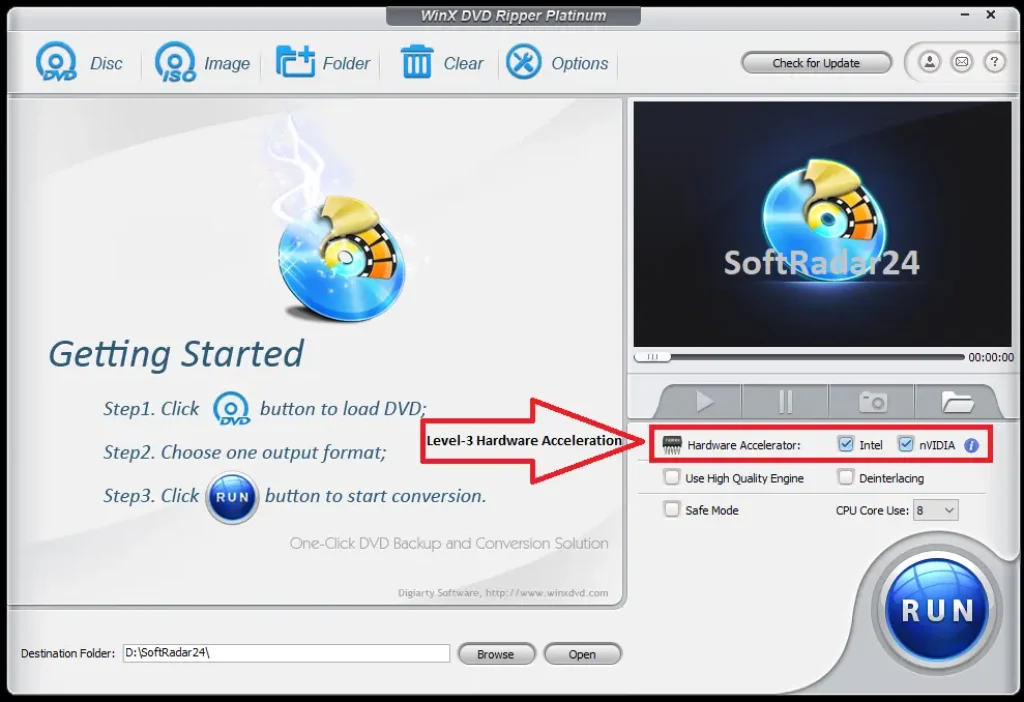
WinX DVD Ripper Platinum supports hardware-assisted video processing. When a compatible graphics processor, driver, and output profile are available, some decoding or encoding work can be handled by dedicated media hardware rather than relying entirely on the CPU. Digiarty describes support involving Intel, NVIDIA, and AMD hardware, but the actual acceleration path depends on the computer and selected codec.
Hardware acceleration can shorten processing time, particularly when several titles must be converted. It does not increase the reading speed of a damaged DVD automatically, guarantee a fixed number of minutes per disc, or create detail that was not present in the source. Disc condition, optical-drive speed, output resolution, and quality settings can still limit total conversion speed. Digiarty discusses these conditions in its hardware acceleration guide.
- Check compatibility first: Confirm that the graphics driver and selected video format support hardware processing.
- Use a suitable output profile: A DVD backup operation and an H.264 or HEVC conversion do not necessarily use the same processing path.
- Balance speed and quality: The high-quality engine, deinterlacing, and bitrate settings can affect processing time and the final file.
- Troubleshoot rather than assume: If an output fails, check the selected profile and processing options before treating the GPU as the cause.
WinX DVD Ripper Platinum Technical Specifications
The following specifications summarize Digiarty’s published input, output, editing, platform, and language information. A device preset identifies an intended playback format; it does not mean the program installs directly on that device.
| Product platform | Windows desktop software; the vendor offers a separate Mac DVD ripping product |
|---|---|
| Windows versions listed | Windows 11, 10, 8/8.1, 7, and several earlier releases on the vendor’s specification page |
| Source media | DVD disc, DVD folder, DVD ISO image |
| DVD handling | Multiple titles; region-related and other complex disc structures described by Digiarty; success depends on the particular disc |
| Selected video formats | MP4/H.264, HEVC, AVI, MOV, MPEG, WMV, M4V, FLV, and additional output profiles |
| DVD backup formats | DVD image/folder options and MPEG-2-oriented backup profiles |
| Selected audio formats | MP3, AAC, AC3 |
| Device-oriented profiles | Profiles for phones, tablets, TVs, and other compatible playback devices |
| Video and audio controls | Codec, resolution, bitrate, frame rate, aspect ratio, audio channels, and sample rate |
| Editing and subtitles | Trim, crop, merge selected titles, volume adjustment, built-in subtitle selection, external SRT subtitles |
| Hardware processing | GPU-assisted encoding/decoding where supported by the system and selected output |
| Interface languages listed | English, French, German, Italian, Japanese, Spanish, Chinese |
For additions to the supported formats or operating systems, consult Digiarty’s official technical specifications. If a particular computer uses older Windows hardware, checking the current installer and graphics-driver compatibility is more useful than relying on an operating-system name alone.
What to Check Before Buying a License
The full version removes the trial’s five-minute conversion limit and makes the paid features available under the selected license. Before choosing among the offers above, confirm the permitted number of PCs, whether the license is a subscription or a one-time purchase, and which upgrades are included. A lifetime right to use a version of a product is not automatically the same as unlimited future upgrades for every promotional bundle.
Also distinguish WinX DVD Ripper Platinum from two related products. WinX DVD Copy Pro provides additional disc-copying and burning functions; DVD-to-MP4 conversion does not by itself create a new playable DVD disc. Separately, improving a converted DVD video to a higher display resolution is addressed by Winxvideo AI, not by the DVD ripper’s ordinary output controls. Increasing a file’s resolution does not guarantee that missing picture detail can be recovered. See Digiarty’s DVD copying information and video enhancement information for those separate tasks.
For packages that combine different Digiarty products, the WinXDVD software bundle deals page lists their separate contents and prices.
Only copy or convert discs you are authorized to handle. Rules concerning copyrighted discs and copy protection differ between jurisdictions; owning a DVD does not automatically establish that every form of copying is permitted.
WinX DVD Ripper Platinum FAQs
Can WinX DVD Ripper Platinum work without a DVD drive?
Yes, if the DVD content is already available as a readable ISO image or DVD folder. Use the ISO Image or Folder source control instead of DVD Disc. Reading an original physical DVD still requires a compatible internal or external optical drive. This distinction is useful for laptops without built-in disc drives.
Does the free trial convert complete DVD movies?
No. Digiarty’s user guide states that the trial is limited to converting a five-minute portion for evaluation and does not provide all paid features or full-version updates. Use it to inspect loading, output selection, and basic compatibility, but do not expect it to replace a paid license for archiving a full-length movie. The license you buy determines the permitted computers and upgrade rights.
Why does a DVD show dozens of titles, and how do I choose the main movie?
Some discs contain multiple episodes, bonus material, alternate cuts, or titles that do not represent the main feature. WinX DVD Ripper Platinum attempts to select the relevant title automatically, but the result should still be checked against the expected movie length and available preview. For a television-series DVD, there may be several correct episode titles rather than one main title. If conversion produces the wrong scenes or sequence, reconsider the title selection and try the documented Safe Mode where appropriate.
Can an MP4 output keep the original DVD menus and subtitles?
An MP4 video is not the same structure as a DVD, so the original interactive disc menus are not carried over as functioning DVD menus. You can choose available subtitle tracks or add an external SRT subtitle during conversion, but how those subtitles appear depends on the output choices. If preserving the disc’s broader structure is the priority, assess the DVD backup profiles rather than using a normal MP4 conversion preset.
Will hardware acceleration make every DVD conversion faster?
No fixed speed improvement applies to every PC or DVD. Hardware acceleration needs a compatible graphics processor, driver, and supported encoding or decoding operation. A slow optical drive, damaged disc, unusual source structure, or demanding output settings can remain the limiting factor. If speed is disappointing, first confirm the selected format and whether a supported hardware path is available.
Can WinX DVD Ripper Platinum burn a copied movie directly to a blank DVD?
DVD ripping and DVD burning are different tasks. WinX DVD Ripper Platinum converts discs to video files and offers backup output options; it should not be purchased on the assumption that its MP4 conversion controls also author and burn a replacement DVD. Digiarty markets WinX DVD Copy Pro for disc copying, ISO mounting, and burning tasks. If a bundle includes both products, check the exact license and device allowance for each one before ordering.


