
VideoProc Converter AI for PC License Deals and Discount Codes
Compare VideoProc Converter AI licenses for Windows by subscription length, the number of PCs allowed, and future upgrade rights. The yearly plans provide access and updates for one year, while lifetime plans include ongoing version upgrades. Each offer below has its own purchase price and license terms.
For macOS license options, please visit the VideoProc Converter AI for Mac Discount Codes page.
VideoProc Converter AI for Windows PC handles video and audio conversion, file compression, quick editing, DVD digitization, screen recording, and online media downloads in one desktop program. It also includes tools for improving low-resolution footage, stabilizing shaky clips, restoring images, and cleaning up audio. The Windows license options below differ mainly in how many PCs can use the software and whether access and updates last one year or for the lifetime of the license. Compare those terms before choosing a discounted license.
VideoProc Converter AI Lifetime License Coupon Code – 62% OFF
Lifetime License / 1 PC
- All-in-one: enhance, convert, edit & more.
- Unlimited use of current & future AI tools.
- One-time payment. Install on 1 PC.
- Lifetime access to all AI & media features.
- Lifetime updates (major & minor included).
- 30+ AI models, plus future models for life.
- Instant delivery of Full Version license code.
- 30-day money-back guarantee.
VideoProc Converter AI [Lifetime for 1 PC] + Gifts License Coupon Code – 39% OFF
Lifetime License / 1 PC + Gifts
- All-in-one: enhance, convert, edit & more.
- Unlimited use of current & future AI tools.
- One-time payment. Install on 1 PC.
- Lifetime access to all AI & media features.
- Lifetime updates (major & minor included).
- 30+ AI models, plus future models for life.
- Instant delivery of Full Version license code.
- 30-day money-back guarantee.
VideoProc Converter AI Lifetime Family License Discount Code – 67% OFF
Lifetime Family License / 2–5 PCs + Gifts
- Provide everything from Lifetime License.
- Unlimited use of current & future AI tools.
- One-time payment. Install on up to 5 PCs.
- Lifetime access to all AI & media features.
- Lifetime updates (major & minor included).
- 30+ AI models, plus future models for life.
- Instant delivery of Full Version license code.
- 30-day money-back guarantee.
VideoProc Converter AI Year (1-PC) License Coupon Code
One-Year License / 1 PC
- All-in-one: enhance, convert, edit & more.
- Unlimited use of all AI tools for 1-year.
- Install on 1 PC.
- 1-year access to all AI & media features.
- 1-year updates included (major & minor).
- 30+ AI models, plus future models.
- Instant delivery of Full Version license code.
- 30-day money-back guarantee.
License price
$19.95 Buy NowVideoProc Converter AI Year (Premium 365 | 3 PCs) License Discount Code – 50% OFF
Premium 365 / 1 Year / 3 PCs
- All-in-one: enhance, convert, edit & more.
- Unlimited use of all AI tools for 1-year.
- Install on 3 PCs.
- 1-year access to all AI & media features.
- 1-year updates included (major & minor).
- 30+ AI models, plus future models.
- Instant delivery of Full Version license code.
- 30-day money-back guarantee.
Discount percentages are calculated only when a regular price is established for that same license. Check final checkout prices, license entitlements and any included gifts before payment. Annual subscriptions can renew automatically; cancellation and refund conditions are determined by the vendor.
VideoProc Converter AI includes DVD conversion alongside its video and editing tools. If your main priority is converting and backing up DVDs, compare the dedicated WinX DVD Ripper Platinum License Discount Codes before choosing a product.
What Can VideoProc Converter AI Do on Windows?
VideoProc Converter AI covers several different media tasks, but they do not all produce the same result. Converting a file changes its format or codec; compressing it targets a smaller size; DVD backup can preserve disc structure; and video enhancement processes the picture itself. The features below help identify which tools matter for your own files.
- Video format conversion: Convert files such as MOV, MKV, AVI, and MP4 to outputs using H.264, H.265/HEVC, AV1, and other supported codecs for different players and devices.
- Batch conversion: Process multiple clips in one queue rather than converting each camera or phone recording separately.
- Video compression: Set a target file size or compression percentage, with options to adjust bitrate, resolution, and frame rate when an upload or storage limit matters.
- Quick video editing: Cut unwanted sections, crop the frame, rotate footage, merge clips, and change playback speed without exporting to a separate editor first.
- Subtitles and sound adjustments: Add or adjust subtitles, change volume, and correct audio delay when preparing a file for viewing.
- DVD-to-video conversion: Read supported DVD discs, ISO images, and VIDEO_TS folders, then save selected titles as playable video or audio files.
- DVD structure backup: Use the DVD module’s ISO or VIDEO_TS output when keeping disc-style content matters more than creating a compact playback file.
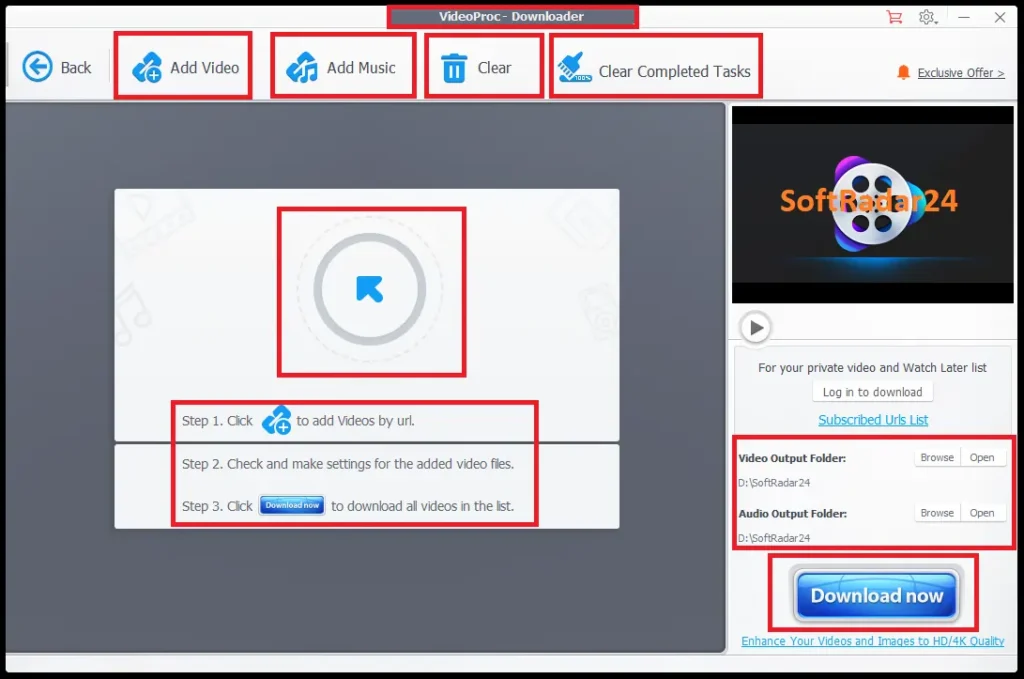
- Online media saving: Save supported videos, audio, subtitles, and playlists where downloading is permitted by the source and applicable rights.
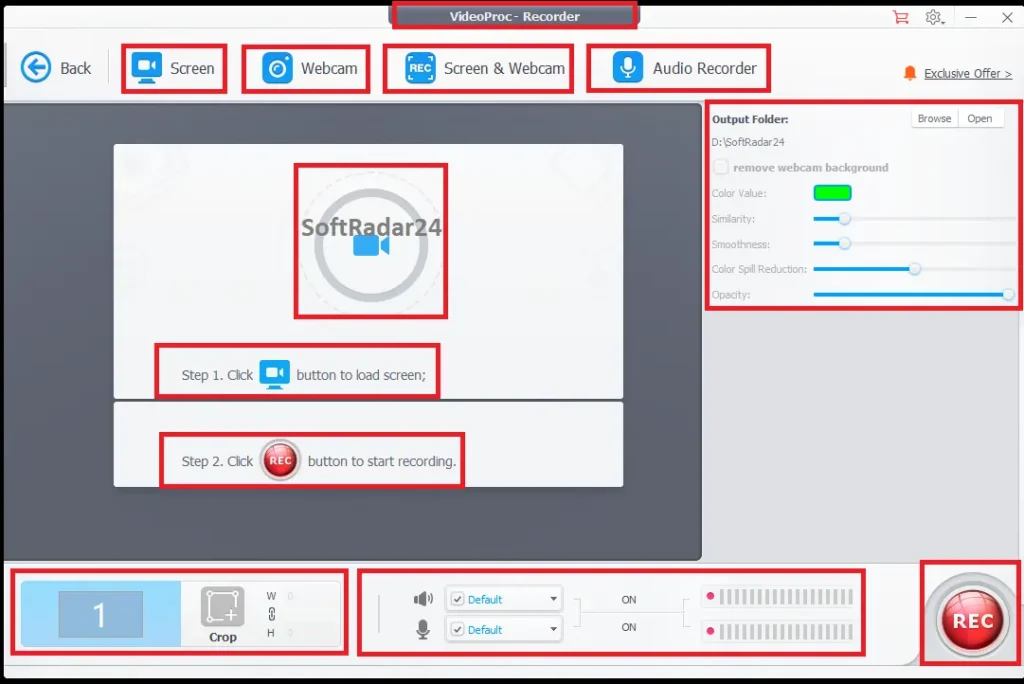
- Screen and webcam recording: Capture the desktop, microphone or system audio, and webcam, including picture-in-picture layouts for demonstrations.
- Super Resolution: Upscale low-resolution videos using the dedicated enhancement tools, with results depending on the condition of the original footage.
- Frame interpolation and stabilization: Generate intermediate frames for smoother motion or slow-motion output, and reduce visible camera shake in supported footage.
- Image restoration: Upscale photographs, reduce noise and blur, restore faces, and colorize black-and-white images through the image tools.
- Audio cleanup: Reduce unwanted background noise or separate vocals and instrumental audio when preparing recordings and media files.
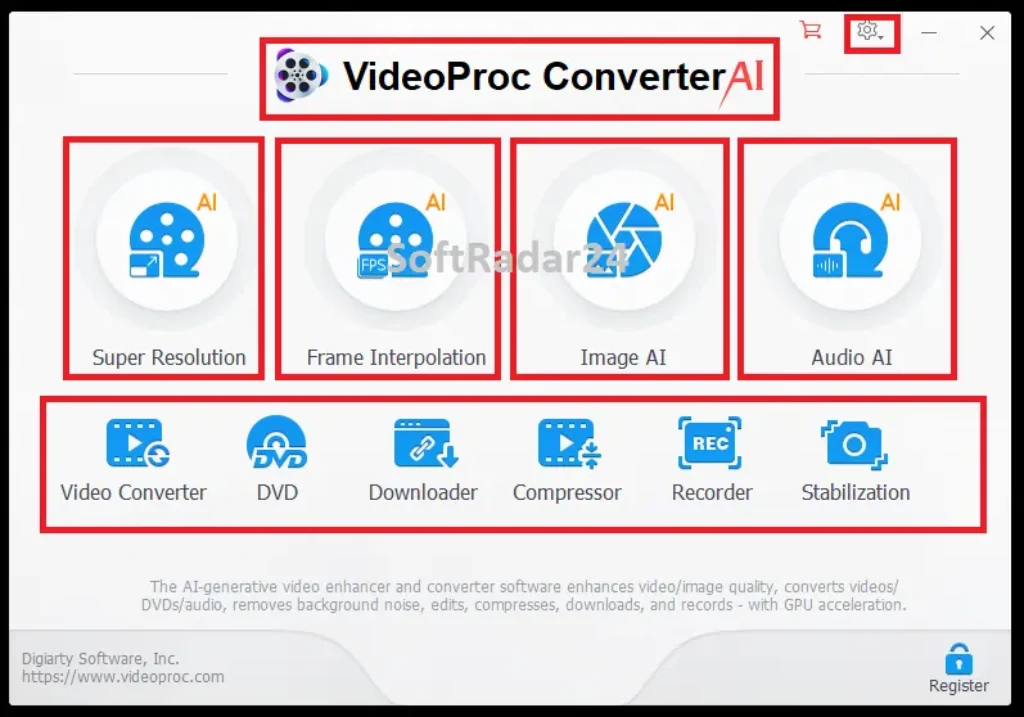
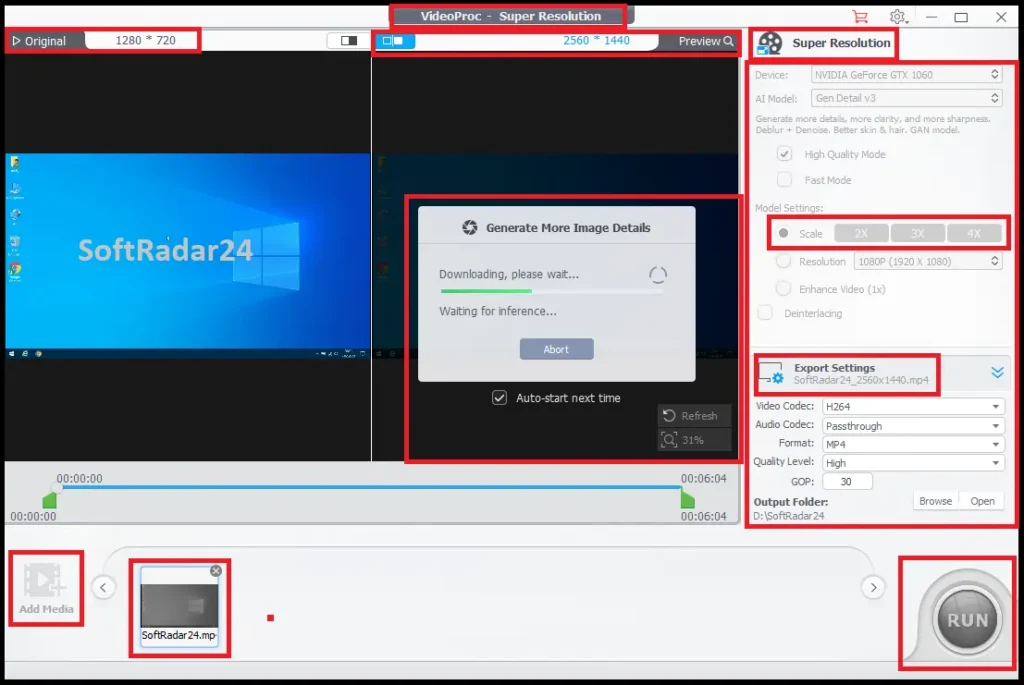
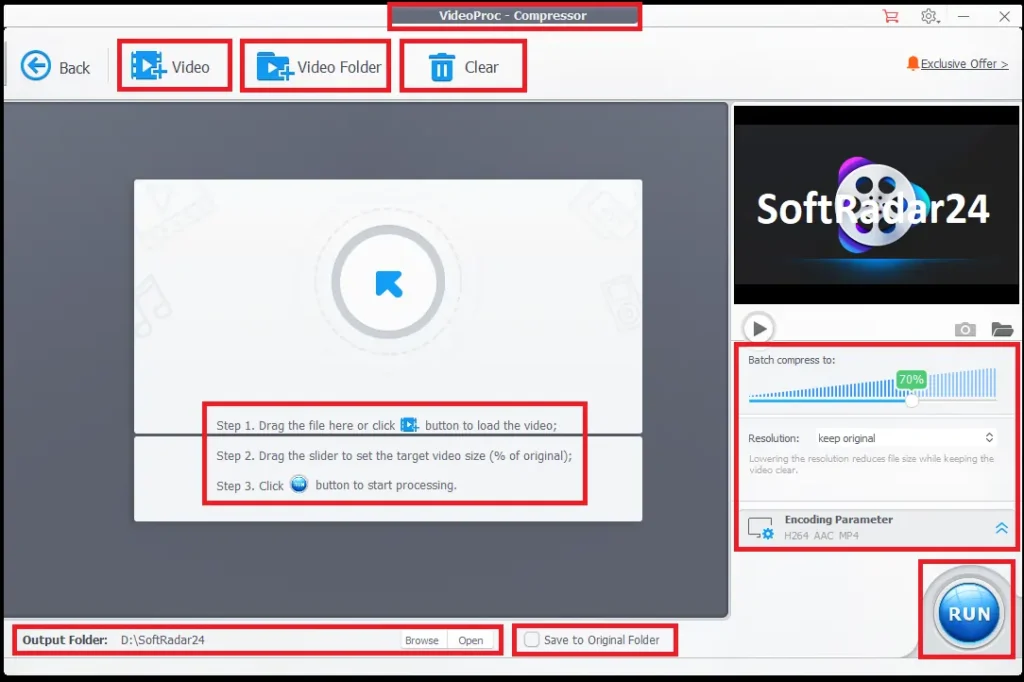
VideoProc Converter AI Interface and Feature Screenshots
These screenshots show how VideoProc Converter AI separates its main tools and handles common media tasks on Windows. You can examine the available controls before choosing a license. Click any screenshot to open a larger view.
Which VideoProc Converter AI Windows License Should You Choose?
All five offers on this page are for Windows. The choice is mainly between one-year access and lifetime access, followed by the number of PCs covered. The optional gift bundle is a separate purchase choice; its extras do not change the core purpose of the converter.
| License option | Best fit | Main condition |
|---|---|---|
| 1 Year / 1 PC | One Windows computer for a fixed project or a year of regular use | Full feature access and updates during the one-year term |
| Premium 365 / 3 PCs | Multiple Windows computers needing the software for one year | Three-PC allowance; one-year access and updates |
| Lifetime / 1 PC | One computer needing ongoing access without a yearly license | One-time purchase; lifetime software access and major/minor updates under the listed offer |
| Lifetime / 1 PC + Gifts | Buyers who specifically want the extra items included in that promotion | Same one-PC lifetime core license; check the separate gift entitlements |
| Lifetime Family / 2–5 PCs | A household or setup with several Windows PCs | Up to five PCs; lifetime access and updates under the listed family offer |
For one Windows computer, compare the standard lifetime price against the lifetime offer with gifts before paying more for extras you may not use. For several PCs, check the family allowance instead of assuming a single-PC key can be activated on every device. Yearly plans are not equivalent to lifetime ownership: continued use after the paid term should be confirmed in the order conditions.
VideoProc Converter AI Windows Technical Specifications
The basic installation requirements are not the same as the requirements for every enhancement feature. An older Windows PC may run the converter while lacking the graphics support needed for certain processing models.
| Specification | Official requirement or support |
|---|---|
| Operating systems | Windows 7, 8, 8.1, 10, and 11 or later; 32-bit and 64-bit builds listed |
| Processor | 1 GHz Intel or AMD processor minimum for the base program |
| Memory | 1 GB RAM minimum; 2 GB or more recommended for the base program |
| Installation space | 200 MB for the base installation |
| Enhancement tools | At least 2 GB RAM and 1 GB disk space listed separately for these tools; processing files can require more |
| Video acceleration families | Supported Intel, NVIDIA, and AMD graphics hardware; the available acceleration varies by GPU and codec |
| Frame interpolation | A compatible GPU with Vulkan 1.2 or later on Windows |
| Stabilization | CPU/GPU processing with OpenCL 1.0 or later listed for GPU support |
| Super Resolution | CPU or supported GPU; some models have additional DirectML, DirectX 12, TensorRT, CUDA, and driver requirements |
| Media format support | 370+ input codecs and 420+ output format options, including MP4, MKV, MOV, H.264, and HEVC |
For exact GPU models and the requirements of individual enhancement modes, see the official VideoProc Converter AI technical specifications. A GPU that supports ordinary hardware video encoding does not automatically support every Super Resolution or frame-interpolation mode.
What to Check Before Buying the Full Version
The free version is useful for checking compatibility, but it is not the same as a full license. Digiarty lists a five-minute file limit for many conversion and enhancement tasks, a five-image limit for some image tools, and a watermark on Windows screen recordings. Try a representative source file and the processing feature you actually intend to use before choosing a paid license.
Choose the right operation before exporting. If a file plays correctly but is too large to upload, compression is relevant; switching the filename extension alone will not reduce its size. If the file will not play on a device, choose a supported output codec or device profile. If an old recording looks soft or noisy, the enhancement tools address a different problem, and a higher output resolution cannot guarantee recovery of detail that was never recorded.
Other VideoProc and WinXDVD Purchase Options & Discount Codes
Need a Mac license instead? Check the separate macOS edition rather than buying a Windows license for the wrong operating system. If your work also involves DVD backups or image tools, the WinX DVD bundle discount codes show multi-product packages with their own product lists and license terms. Compare the included programs before choosing a larger bundle.
VideoProc Converter AI for Windows FAQs
Can VideoProc Converter AI save a DVD as MP4 without a separate DVD ripper?
Yes. The built-in VideoProc Converter AI DVD module accepts supported discs, ISO files, and DVD folders. Choose a video profile such as MP4 for everyday playback, or an ISO/VIDEO_TS output if retaining the disc-style structure is the priority. A converted MP4 and a full DVD backup are different deliverables, so select the format according to how you plan to store or watch the content.
Will compressing a 4K video always preserve its original picture quality?
No. Compression can substantially reduce storage requirements, but smaller files usually involve a compromise between bitrate, resolution, codec, and visible detail. VideoProc Converter AI lets you specify a target size or adjust encoding settings. For footage with fast movement or fine textures, review a short sample before compressing a whole batch; stronger compression may be more noticeable in those scenes.
Can VideoProc Converter AI make an old video look like native 4K footage?
The VideoProc Converter AI Super Resolution tools can increase resolution and improve the appearance of some low-quality clips, but the result depends on the source. Upscaling a noisy DVD or heavily compressed recording does not recover an untouched original. It is worth evaluating the output for artificial textures, altered edges, and faces before using the same settings across an entire collection.
Why might hardware acceleration or frame interpolation not work on my Windows PC?
Those functions depend on more than the operating-system version. For example, the official specifications list Vulkan 1.2 or later for Windows frame interpolation, while individual Super Resolution modes have their own GPU and driver requirements. Basic conversion may still work on a PC that cannot run a particular enhancement mode. Check the graphics hardware and driver against Digiarty’s specifications rather than relying only on the minimum CPU and RAM figures.
What can I check with the free version before buying a license?
You can check whether the software opens your files, offers the required output format, and supports the processing feature on your computer. The free edition limits many converted or enhanced video files to five minutes, restricts some image tasks to five images, and watermarks Windows recordings. These limits make it suitable for checking compatibility, not for assuming that an entire production job can be completed without a license.
How are paid licenses delivered, and what should I confirm at checkout?
Digiarty advertises digital delivery of a VideoProc Converter AI full-version license code and a 30-day money-back guarantee. Before completing payment, check that the order contains the Windows product, the intended one-year or lifetime term, the correct PC allowance, and any promised gifts. Confirm the final price and the vendor’s current refund and renewal conditions on the order page; the licensing rights shown in the offer boxes apply to the specific plans, not automatically to every other package.


