
Tipard Video Converter Ultimate converts video and audio into formats suited to phones, TVs, editing workflows and long-term storage. Alongside MP4, MKV, MOV and AVI conversion, Tipard Video Converter Ultimate handles DVD sources, custom H.264/HEVC/AV1 profiles, video compression, clip editing and short-form MV projects. The important choice is not simply a file extension: output codec, existing audio and subtitle tracks, hardware support and the intended playback device determine which conversion settings make sense.
Quick Summary
Tipard Video Converter Ultimate combines batch video/audio conversion with DVD ripping, media editing, compression and 3D output on Windows and Mac. Approved SoftRadar24 offers include a 1-Year License for $27.50 or a Lifetime License for $35.00, each discounted by 50% for one computer on the selected platform. A lifetime purchase suits repeated work; a one-year license keeps upfront cost lower.
- Best for
- MKV/MOV/AVI to MP4 · H.264 to HEVC · DVD digitizing · video compression · basic editing
- Platforms
- Windows 7–11; macOS 10.12+; separate Windows and Mac licenses
- License
- 1 Year / 1 computer · Lifetime / 1 computer · 50% discount
- Key limitation
- Not every unusual file, stream or codec can be remuxed; some sources require re-encoding or source-specific handling.
Tipard Video Converter Ultimate Pricing, Discount Code & License Options
Tipard Video Converter Ultimate discounts offers provide 50% savings on the Windows and Mac licenses listed below. The eligible coupon is carried by the corresponding SoftRadar24 checkout link; no manual coupon code entry is needed.
Current Tipard Video Converter Ultimate License Prices
- Tipard Video Converter Ultimate Lifetime License · Windows · 1 PC · $35.00 (regular $70.00; 50% discount)
- Tipard Video Converter Ultimate 1-Year License · Windows · 1 PC · $27.50 (regular $55.00; 50% discount)
- Tipard Video Converter Ultimate Lifetime License · macOS · 1 Mac · $35.00 (regular $70.00; 50% discount)
- Tipard Video Converter Ultimate 1-Year License · macOS · 1 Mac · $27.50 (regular $55.00; 50% discount)
Tipard Video Converter Ultimate Lifetime License
1 PC · lifetime · Windows
Included with this license- Lifetime access for one Windows PC
- Documented Converter, DVD Ripper, MV, Collage and More Tools functions
- Lifetime upgrades and support listed for Tipard lifetime licensing
$35.00one-time
50% discount automatically applied at checkout
Buy NowLifetime License · 1 PC · $35.00 · 50% discount
Lifetime costs $7.50 more than the 1-Year option on the same platform. Both offers cover one computer; the Mac license does not activate Windows, and vice versa.
Tipard’s store lists a 30-day money-back period for Lifetime licensing. Check optional add-ons: a separate seven-day Screen Capture trial can renew at $30.00 per month unless canceled; it is not part of the four license prices above.
Can Tipard Video Converter Ultimate Do What I Need?
The useful distinction is between changing a file container, re-encoding a codec, processing DVD titles and handling a source that is not ordinary video. The following cases identify when Tipard Video Converter Ultimate is appropriate and when source conditions need checking.
Convert MKV, MOV, AVI or MPEG files to MP4
File compatibility
SupportedConverter provides MP4 output presets for common source containers, plus audio and resolution settings. Choose an output codec that your actual playback device supports.
Change H.264 recordings to HEVC/H.265
Codec and storage planning
SupportedHEVC MP4 is an available output. Changing the codec requires re-encoding, so expected size and quality depend on bitrate, encoder settings and source footage.
Keep compatible H.264 tracks without re-encoding
Container-only change
ConditionalPassthrough/remuxing applies only where video, audio and subtitle streams are supported by the destination container. “Same as Source” alone is not proof of stream copying.
Save DVD titles as MP4 or keep a DVD image
Disc processing
SupportedRipper accepts discs, ISO images and DVD folders. Choose MP4 for a device-ready file or ISO/DVD folder for DVD-structure preservation; editing is unavailable while MPG Lossless is selected.
Reduce a large video to a chosen file size
Video Compressor
SupportedMore Tools > Video Compressor allows file-size, format and resolution changes with a short preview. A smaller re-encoded file may show quality loss at aggressive settings.
Convert WFP project files directly into MP4
Editing project versus rendered video
Verify firstWFP does not appear in the documented input format list. An editing project normally needs to be rendered from its original editor before it becomes a normal video file.
Download a remote M3U8 stream and save MP4
Playlist versus video
Verify firstAn M3U8 playlist references segments; a normal local video conversion does not establish downloader access to every remote or protected stream.
Open CCTV DAV recordings in any condition
DVR-specific files
ConditionalDAV is not explicitly included in the documented video input list. Encrypted or vendor-specific recording variants should not be assumed supported.
Turn flat video into actual 360-degree VR footage
3D video versus panorama
Different task3D Maker creates stereoscopic layouts, and the VR preset targets playback formats. Neither operation guarantees true 360-degree source imagery or head-tracked scenes.
Use one license on Windows and Mac
Activation scope
Not supportedTipard sells Windows and Mac entitlements separately. Each listed SoftRadar24 offer activates one computer of the selected platform.
How It Works
Tipard Video Converter Ultimate separates conversion, DVD ripping and individual media tools into distinct work areas. The procedures below follow the documented controls and explain the settings that can change the final file, rather than treating every task as a one-click export.
Convert MKV, MOV, AVI and MPEG Videos to MP4
- Open Tipard Video Converter Ultimate and choose Converter. Import one representative file with Add Files, the central Add button or drag-and-drop. For several clips, check that every source appears in the queue before assigning one output to all.
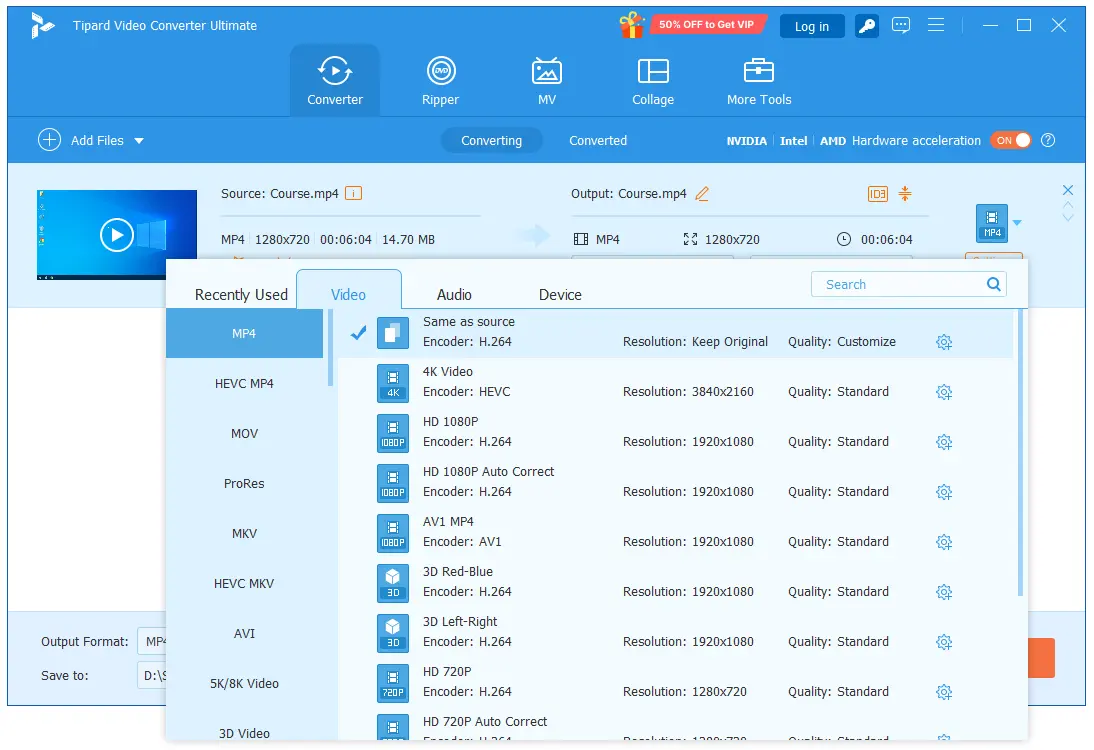
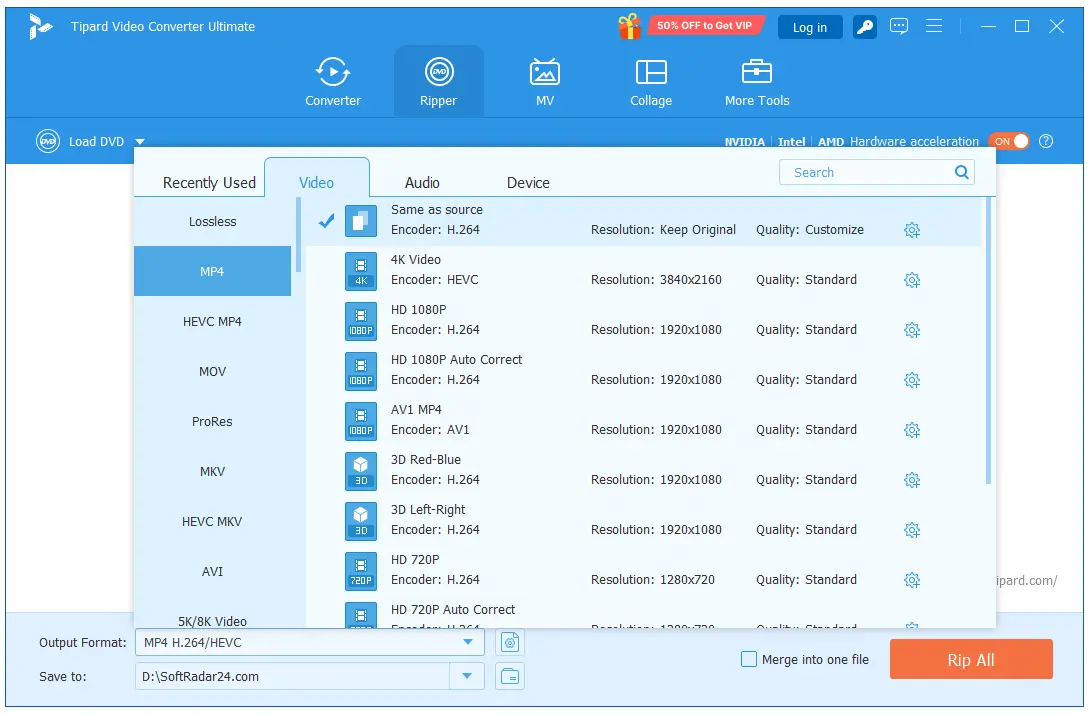
- Open Output Format and select Video > MP4. Choose a preset such as HD 1080P for ordinary playback or 4K Video when the source and destination warrant 4K. A larger output resolution does not add original camera detail.
- Open the Custom Profile gear beside the chosen preset if the receiving TV, editor or phone has specific requirements. Set video encoder, resolution, bitrate and frame rate; check the audio encoder and channel configuration rather than accepting a profile name as a compatibility guarantee.
- For an existing H.264 source being moved into MP4, assess whether compatible stream passthrough is possible. Container-only copying is different from choosing a new encoder. If subtitles or multiple soundtracks matter, check whether the MP4 output can preserve the tracks you need.
- Select Save to, then press Convert All. Open a resulting file on the target device and inspect sound, subtitle selection and playback before converting the rest of an archive.
Output decision: Use MP4 as a delivery format when the destination needs it; keep the source MKV if its multiple audio or subtitle tracks have no suitable MP4 equivalent.
Convert H.264 to H.265/HEVC or AV1
- Launch Tipard Video Converter Ultimate, enter Converter and add an H.264 recording. Check source resolution and frame rate first, since they affect how much processing is required.
- Open Output Format > Video and choose HEVC MP4 for an H.265 file. Where supported in the current build, choose an AV1 profile instead if the destination supports AV1 decoding.
- Click the Custom Profile gear. Adjust Encoder, Bitrate, Resolution and Frame Rate. Keep source resolution and frame rate when no deliberate scaling or timing change is needed; do not assume selecting a newer codec permits an arbitrarily low bitrate.
- If the computer supports a matching GPU encoding path, check the hardware acceleration option before a long batch. An NVIDIA, AMD or Intel GPU may support different codecs or profiles, so avoid treating the vendor’s advertised maximum speed as a fixed outcome.
- Choose Save to and Convert All. Compare a detailed, moving section of the output with the H.264 original at the intended screen size. If blocks, banding or blurred texture become obvious, revise the bitrate or codec choice.
Output decision: HEVC and AV1 can help reduce storage needs, but re-encoding creates a new video stream. The result cannot be called mathematically lossless merely because the output retains 1080p or 4K dimensions.
Rip a DVD to MP4, MKV, MPG Lossless or ISO
- Open Tipard Video Converter Ultimate and switch to Ripper. Select Load Disc to open a permitted DVD disc, DVD ISO or DVD folder. Allow the scan to identify the main movie title.
- If the disc contains episodes, extras or multiple relevant titles, use Full Title List instead of assuming the automatically chosen main title contains everything. Review audio and subtitle choices before creating the output.
- Decide what you need to retain. Use MPG Lossless when keeping original tracks and the documented lossless output is the goal; choose a suitable MP4 or MKV profile when a playable digital copy for a device is more useful.
- If you must crop, rotate, trim, add filters or place a watermark on the DVD video, switch away from MPG Lossless first. Tipard’s guide specifies that Edit and Clip operations require another output format.
- Use Rip All to create the chosen digital files. For a full disc-image or folder result, select ISO or DVD Folder as the intended output instead of calling an MP4 export an exact DVD backup. Handle discs only where you have permission to copy or convert them.
Output decision: An ISO or DVD folder preserves a disc-oriented structure; MP4 and MKV are media delivery containers. Pick the output based on whether menus and original tracks matter, rather than on file size alone.
Trim, Crop, Rotate and Add Subtitles or Watermarks
- In Tipard Video Converter Ultimate, load the clip under Converter and click its Edit control. For unwanted beginnings or endings, use the separate Cut control and define the clip segment first.
- In Rotate & Crop, straighten a sideways recording and select the target composition. Drag the crop frame for unwanted black bars, then choose an aspect ratio such as 16:9 or 9:16. Letter Box, Pan & Scan and Full alter how the frame fits.
- Open Effect & Filter only when the source needs a color adjustment. Change brightness, contrast, saturation or hue separately enough to see the effect; a filter applied to every clip may hide differences in lighting between sources.
- For an identification mark, open Watermark, select text or an image and adjust its position, size and opacity. For external captions, use Subtitle, inspect timing and position, and consider the output container’s support for separate subtitle tracks.
- Confirm the changes, choose the output codec and destination folder, and use Convert All. Check the final frame edges, readable text and audio continuity, especially if several trimmed clips were merged.
Output decision: Cropping and watermarking change picture pixels and therefore require processed output; they are not compatible with an unchanged video-stream remux.
Compress a Large 4K or HD Video to a Target Size
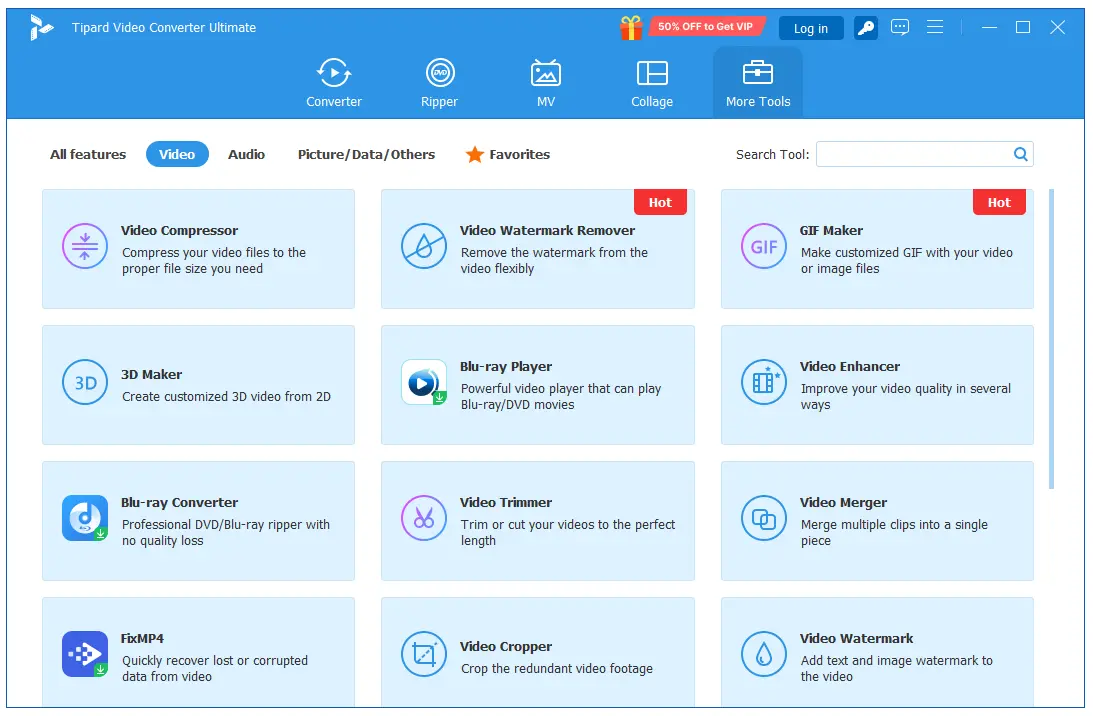
- Open Tipard Video Converter Ultimate > More Tools > Video Compressor. Click the central + and load one large source file. The separate compressor processes one selected video in the documented workflow.
- Move the file-size slider or enter the target size. Choose output Format and Resolution deliberately: a file intended for 4K TV viewing has different requirements from a smaller message attachment.
- Use Preview to inspect the 10-second sample. Check fast movement, dark gradients and text; these often expose compression damage sooner than a stationary scene.
- If the preview looks worse than acceptable, give the video a larger target size or use a more suitable codec and resolution. Do not force the smallest number without checking whether the output is usable.
- Press Compress, then review the saved file on the intended player. Keep the source until the compressed copy has been checked, since this workflow normally creates a newly encoded derivative.
Output decision: Target size is a storage decision, not a promise of unchanged visual information. A one-minute, low-motion interview and a one-minute sports clip can respond differently to the same size target.
Enhance Noisy, Dark or Shaky Video
- Open Tipard Video Converter Ultimate > More Tools > Video Enhancer and add the source clip. Identify the actual problem before selecting correction tools: low resolution, low brightness, sensor noise or camera shake.
- Choose Upscale Resolution when an output dimension increase is necessary. Choose Optimize Brightness and Contrast for a dark or flat-looking source; this is not the same adjustment as sharpening or upscaling.
- Select Remove Video Noise for visible grain or noise. Select Reduce Video Shaking when camera movement interferes with viewing. Use only the options connected to the source problem, rather than enabling every checkbox automatically.
- Click Enhance and review detailed areas, movement and edges in the output. Smoothing can remove fine texture; stabilization can alter the visible borders. Preserve the original for comparison and future processing.
Output decision: Increasing pixel dimensions cannot reconstruct every detail missing from the original capture. Describe the controls as image enhancement, not guaranteed restoration of lost visual evidence.
Create Stereoscopic 3D or Choose a VR Device Profile
- Launch Tipard Video Converter Ultimate and open More Tools > 3D Maker. Select the central Add control and import a supported 2D clip.
- Choose Anaglyph for a color-filtered stereoscopic view or Split Screen for side-by-side or top-and-bottom layouts. Match the layout to the intended 3D display or headset format.
- Use Switch Left/Right when stereo views need reversing and adjust Depth conservatively. Preview the perceived separation, especially around close objects and titles, before generating the full video.
- Click Generate 3D to save the stereoscopic output. If the goal is an existing VR playback device, use the separate Converter > Device > Game Studio > VR profile workflow for compatible video.
- Check the generated file in the intended playback environment. Two-eye 3D layouts and VR output profiles do not turn a flat recording into a true all-direction 360-degree scene.
Output decision: Generating side-by-side 3D does not establish a reverse 3D-to-2D processing mode for already split recordings. Use the named 3D Maker controls only for their documented output.
Product Interface & Workflow
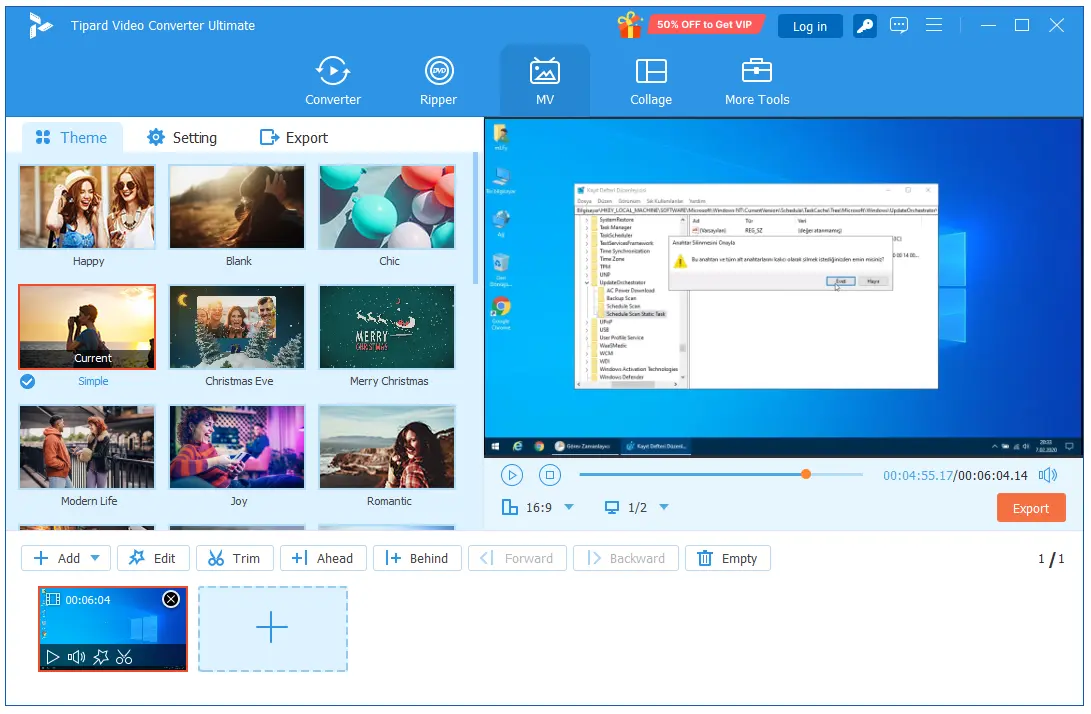
Four Tipard Video Converter Ultimate workspaces organize distinct tasks: queued file conversion, DVD processing, themed MV creation and specialized media tools. The screenshots help locate the correct area before following the procedures above.
Compatibility & Coverage
The input list determines what media can be opened; output profiles determine what video or audio can be made. Neither list alone proves that every incoming track can be copied untouched into every output container.
| Coverage | Documented examples | What matters when choosing |
|---|---|---|
| Video inputs | MP4, MKV, MOV, AVI, MPEG/MPG, WebM, MXF, MTS/M2TS, TS, WMV, VOB, FLV, 3GP | Supported extension is not a guarantee for every unusual codec, damaged recording or protected source. |
| Video encoders | H.264/AVC, HEVC/H.265, AV1, ProRes, VP9 and other documented encoders | H.264 generally prioritizes playback reach; HEVC and AV1 depend on compatible players and hardware. ProRes is a different choice for production-oriented files. |
| Video outputs | MP4, MOV, MKV, AVI, WebM, M4V, ProRes, MXF, MPEG, TS and others; resolutions through listed 8K profiles | Choose a codec within the container and check frame rate and audio. A larger resolution does not automatically improve the source. |
| Audio inputs and outputs | MP3, AAC, FLAC, WAV, M4A, AIFF, AC3 and several other formats | For music archives, distinguish compressed MP3/AAC from lossless FLAC/WAV. A codec change can change quality and size. |
| DVD inputs and outputs | DVD discs, ISO, DVD folders, VIDEO_TS/AUDIO_TS, AVCHD; ISO and DVD folder outputs | Disc images and DVD folders serve a different retention purpose from a re-encoded MP4. |
| 3D outputs | Anaglyph and split-screen Side by Side / Top and Bottom modes | Use the stereo layout required by the intended display. Do not confuse stereoscopic video with 360-degree recording. |
| Device presets | iPhone/iPad, TVs, consoles, VR and other listed targets | A device label selects an encoding target, not direct synchronization with that device or guaranteed acceptance by every model. |
Container Change or Codec Conversion?
An H.264 recording can already carry video suitable for MP4. When all relevant streams are compatible, passthrough can change the container without creating a new video encode. Converting H.264 into HEVC, lowering bitrate or applying crop and filters instead changes picture data. Source formats such as MKV may hold audio or subtitle tracks that an MP4 preset handles differently, so verify those tracks before deleting the original.
Windows and Mac Product Coverage
Both reference pages list broad video, audio, DVD and 3D support, while installation and acceleration details differ. Windows technical requirements name NVIDIA, AMD and Intel GPU acceleration; the Mac listing includes Intel and Apple Silicon processors. Verify the relevant Mac build and available hardware path before treating a Windows performance claim as a Mac expectation.
Features & Capabilities
In addition to the seven procedures, Tipard Video Converter Ultimate includes tools for short projects, multi-panel video layouts, audio adjustments and media-file preparation. These functions have their own controls and should be chosen for a specific output, not simply because they appear in the toolkit.
MV Maker: Clips, Themes and Background Music
- Combine several clips in an ordered sequence, trim individual material, select a visual theme and preview before export.
- Add opening or closing titles, replace the soundtrack, set volume and delay, and apply Fade in/Fade out or Loop play when needed.
- Use MV for a themed highlight reel rather than for a complex multitrack editing project.
Collage: Multiple Videos or Photos in One Frame
- Select a split layout, import files into individual panels and adjust the dividing lines and border style.
- Apply panel-specific corrections and choose background music when one composite export is needed.
- The chosen layout fixes how much visible room each source gets; wide clips may need cropping in narrow panels.
Audio and Media Metadata Tools
- Media Metadata Editor can adjust music tags such as artist, album, composer, year and track information.
- Audio Sync changes sound timing relative to video; Volume Booster adjusts sound level. Audio Compressor offers a separate size-reduction workflow.
- Use these utilities for correct labels, timing or loudness rather than changing video encoding settings unnecessarily.
Additional Short-Task Utilities
- GIF Maker turns selected video into an animated GIF with clip, size, frame-rate and looping controls.
- Video Merger, Rotator, Cropper and Reverser perform named single-purpose edits; Image Converter supports common JPG, PNG, TIFF and WEBP files.
- Preferences can hold default output folders for MV, Collage and tools; Task Schedule can determine what happens after a processing task completes.
Important Conditions & Limitations
Some files require more than choosing a new extension. A purchase made for one difficult source should be based on whether the source data can actually be opened, not merely on a help-page title naming the format.
WFP Projects Are Not Ordinary Video Files
A WFP file describes a Filmora editing project rather than containing a ready-made playback stream in the way an MP4 file does. Direct WFP import is not established in the documented Video Converter Ultimate input formats. If a WFP project is the only source available, export a playable video from its original editing environment first; do not purchase solely for unconfirmed direct project conversion.
M3U8 Playlists and DAV Camera Files Need Source Checks
An M3U8 document points to media segments; it is not necessarily a local video file that Converter can open without fetching those segments. Remote and protected streams require separate source access. DAV recordings may come from DVR systems with proprietary packaging or protection. DAV is not specifically listed among the documented video inputs. Test an actual unprotected sample before choosing a license for CCTV conversion.
Remuxing, Resolution and Lossless Claims
Passthrough can retain compatible source video and audio data, but codec changes, effects and aggressive compression produce new encodes. Keeping the same dimensions or choosing Same as Source does not alone establish lossless video. Check subtitles, audio tracks and metadata whenever a container changes.
Hardware Acceleration Depends on the Actual Encode
Tipard advertises conversion speeds up to 120× with supported GPU acceleration. This is a promotional ceiling, not a fixed speed for HEVC, AV1, DVD ripping or every 8K source. Available GPU encoders, input decoding and active filters affect processing time; macOS support should not be inferred solely from Windows GPU branding.
VR Compatibility Does Not Create a 360-Degree Scene
3D Maker produces stereoscopic output arrangements. A VR device preset prepares a file for a named playback target. Neither guarantees a real panoramic capture with full head-direction detail. Tipard’s separate 3D Converter material must not be treated as proof of a 3D-to-2D control here.
License Terms and Optional Store Extras
Windows and Mac licenses are platform-specific and the supplied offers cover one computer each. Tipard lists a 30-day money-back guarantee on Lifetime plans in its store; that does not mean every trial or subscription has identical terms. Its optional seven-day Screen Capture trial can renew monthly if left active. Check add-on selections separately from Video Converter Ultimate licensing.
Free Trial / Free Version
Tipard offers free downloads of Video Converter Ultimate for Windows and Mac before licensing. The trial is useful for checking whether a particular source opens and whether the needed output profile is present, but it is not an unrestricted replacement for paid conversion and DVD work.
Tipard’s general trial guidance refers to a five-minute converted-file limit. The product purchase page says trial features remain subject to usage conditions, without a complete current module-by-module quota table. Consequently, a five-minute statement should not be presented as the sole restriction for DVD ripping, compressor exports, MV themes or every utility in More Tools. Inspect the limitation shown by the installed trial for the exact task.
For MKV files with several soundtracks, verify whether the necessary subtitle and audio tracks are available before paying for batch conversion. For DAV, M3U8 or other uncommon sources, first establish that the source can be loaded. Trial success on an ordinary MP4 does not confirm support for an unrelated proprietary file.
System Requirements
Tipard publishes separate Windows and Mac specifications. The figures below are vendor minimums and recommendations, not guarantees of fast conversion of large 4K or 8K media.
| Requirement | Windows edition | Mac edition / decision note |
|---|---|---|
| Operating system | Windows 11, 10, 8.1, 8, 7 (32-bit/64-bit) | macOS 10.12 or later in Mac technical reference |
| Processor | 1 GHz Intel/AMD CPU or above | 1 GHz or faster Intel or Apple Silicon processor |
| Memory | 2 GB RAM minimum | 2 GB RAM minimum |
| Display | 1024 × 768 or higher | 1024 × 768 or higher |
| Free disk space | 2 GB or more recommended | 2 GB or more recommended; additional space needed for large source and export media |
| Acceleration | NVIDIA, AMD and Intel listed | Intel and Apple Silicon processor support listed; exact GPU encoder availability depends on Mac hardware and build |
| License activation | Windows 1-PC license | Mac 1-computer license; Windows and Mac entitlements are not interchangeable |
The listed processor and memory figures are installation minimums. Large media sources and generated outputs need additional working space, and support for a particular accelerated codec depends on the available computer hardware.