Are you tired of seeing that annoying “Disk Space Almost Full” warning pop up on your screen? We’ve all been there. Over the years, it’s incredibly easy for our computers to become digital dumping grounds. Between scattered photo albums, repetitive document backups, and multiple versions of the exact same video, hidden duplicate files quietly eat away at your valuable storage space.
Trying to manually sort through hundreds of folders to clean up this digital clutter is a nightmare. Not only does it take hours of your precious time, but you also run the constant risk of accidentally deleting an important file. Before you spend your hard-earned money on an expensive new external hard drive or upgrade your monthly cloud storage plan, there is a much smarter solution: Sorcim Clone Files Checker.
Unlike basic tools that just look at file names, this powerful duplicate file finder acts as a deep-cleaning assistant for your PC or Mac. It scans the actual content of your photos, songs, videos, and documents to safely remove identical clones with 100% accuracy. Whether your digital mess is hiding on your internal drive, a USB flash drive, or even in cloud platforms like Google Drive and OneDrive, Clone Files Checker 6.1 helps you instantly reclaim gigabytes of wasted capacity.
Let’s dive into how this tool can help you safely eliminate digital disorganization and optimize your storage in just a few clicks.
Related Guide: For detailed instructions focused exclusively on cloud storage cleanup, refer to the step-by-step tutorial: How to Find and Delete Duplicate Files in Google Drive.
Core Duplicate File Finder Capabilities
What Can Sorcim Clone Files Checker Do For Your Storage? Finding identical documents hidden deep inside countless folders requires serious precision. Clone Files Checker doesn’t just look at file names; it compares the actual data inside every single file to guarantee a 100% exact match.
- Clean Up Every Drive You Own: Whether your files are sitting on a Windows PC, an old USB flash drive, or an external hard drive, nothing escapes the scan. You can easily connect your SD cards or mapped network drives and wipe out identical copies taking up precious space.
- Declutter Your Cloud Storage (Without Downloading): Paying for extra Google Drive or Dropbox space? Stop right there. Clone Files Checker connects directly to your cloud accounts—including OneDrive and Amazon S3—to find and remove duplicates. The best part? It processes everything online. There is no need to download gigabytes of data back to your local hard drive just to clean them up.
- Rescue Your Music Library and iTunes: Music lovers know how frustrating a messy library can be. When scanning audio tracks, Clone Files Checker reads the actual music tags—like Title, Artist, Album, Bit Rate, and Duration. It easily spots identical MP3s or MP4s. For Apple users, it goes a step further by sweeping through your iTunes library to clear out duplicates and automatically purge those annoying dead tracks that refuse to play.
- Target Massive Files and Delete Empty Folders: Want to focus only on those giant video files eating up your disk? You can easily set custom size limits to ignore tiny text files and hunt down massive duplicates. Once the cleaning process finishes, a single click wipes out all the empty, useless folders left behind, leaving your directory structure perfectly organized.
- Zero Risk: How Your Important Files Stay Safe: Deleting things in bulk can feel terrifying. No one wants to accidentally erase a crucial system file or a cherished family memory. Fortunately, Clone Files Checker is built with strict safety nets to give absolute peace of mind.
- Automatic System Protection: Forget about breaking your computer. Default scanning parameters automatically ignore core Windows 11 and macOS operating directories. The scanning process skips hidden objects and system folders completely, ensuring critical boot components remain untouched.
- One-Click Backup and Restore: Made a mistake? Don’t panic. Before making any permanent changes, there is an option to create a secure backup. Should an accidental deletion happen, the built-in restore feature immediately brings deleted duplicates back to their exact original locations.
- Review Before Deleting: Never guess what you are erasing. Live preview panels let you view photos, watch videos, and listen to music right inside the interface before taking action. Instead of permanent deletion, you can export scan results to a CSV/HTML file or move identical copies into a separate archive folder for a final manual check.
Step-by-Step Guide to Deleting Duplicate Files
Getting rid of identical copies taking up disk capacity is a straightforward process. Sorcim Clone Files Checker uses a highly intuitive interface to find and remove repetitive data without requiring complex technical configurations. Here is the exact process to clear out digital clutter in minutes.
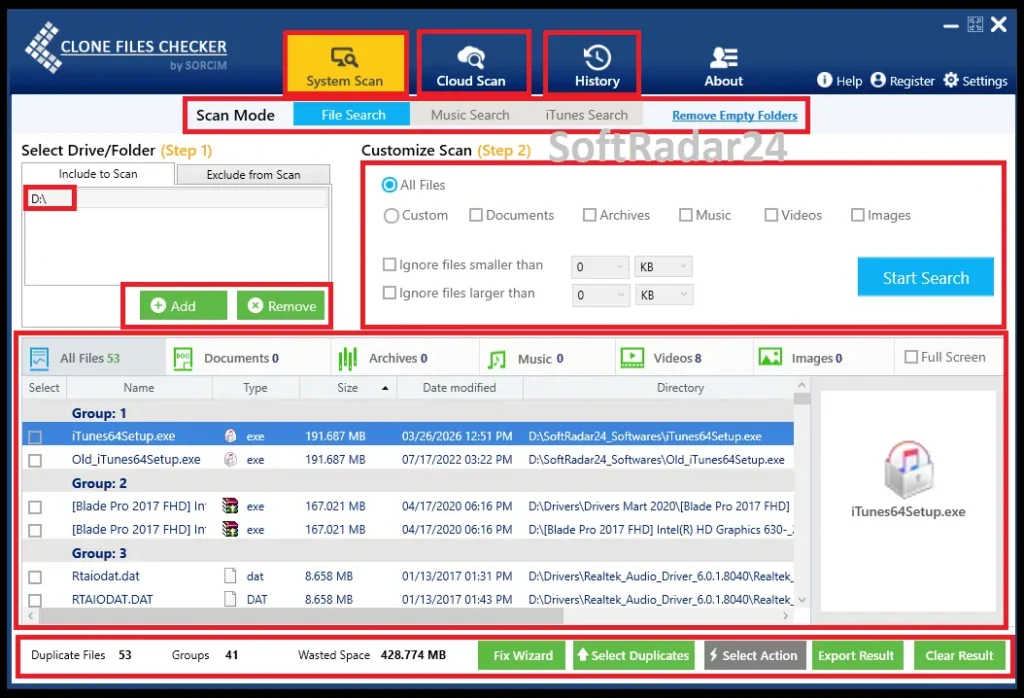
- Step 1: Select the Target Location: The Sorcim Clone Files Checker interface features a simple target box located in the upper left corner. Adding a location is as easy as clicking the green Add button and browsing through the system directories. Scanning can target a single folder, multiple directories at once, or an entire hard drive. It also works perfectly for connected external drives and USB sticks.
- Step 2: Run the Search Operation: After selecting the target paths, clicking the Start Search button initiates the scanning phase. The duration depends entirely on the volume of data stored in the selected directories. Once the scan finishes, a summary message appears on the screen, detailing the exact number of clones found and the total amount of wasted gigabytes available for recovery.
- Step 3: Review the Results (Optional but Recommended): Before deleting anything, reviewing the found items ensures complete control over the cleanup process. Expanding the window provides a detailed preview of identical photos, videos, and music files. The Select Duplicates menu offers smart filtering options to automatically mark files based on specific criteria:
- Retain the newest version
- Retain the oldest version
- Keep the most modified file
- Filter by specific folder location
The location-based filter is incredibly useful when dealing with multiple hard drives. It allows marking files in one specific directory while safely retaining the identical copies stored in a different location.
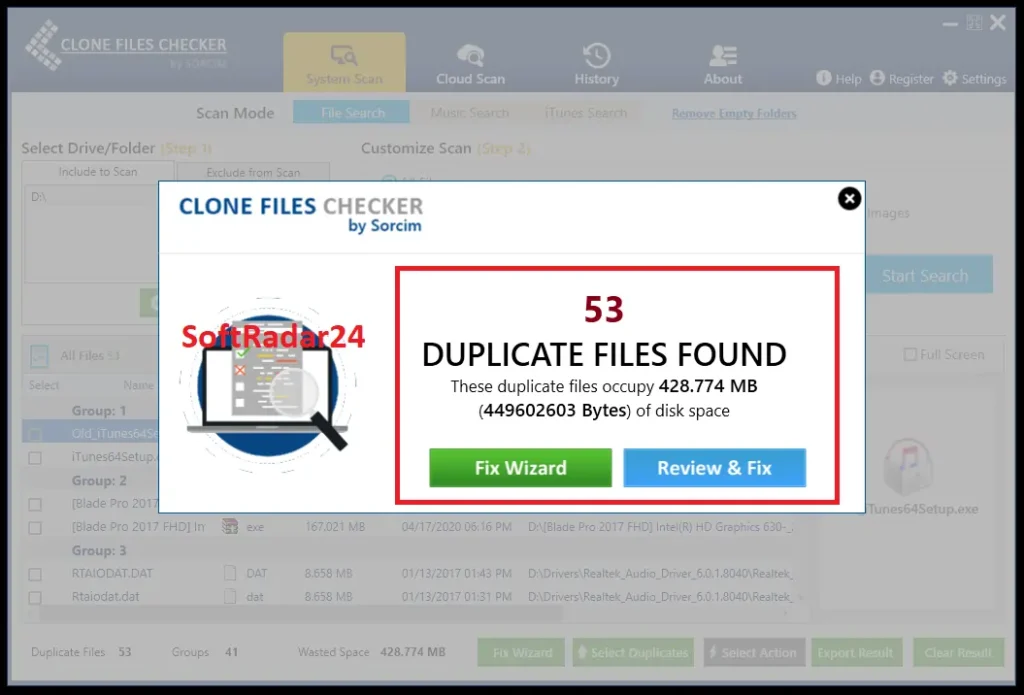
- Step 4: Execute the Cleanup Action: Once the right files are marked, clicking the Fix Wizard button finalizes the operation. There are two primary actions available: moving the identical copies to a separate backup folder for a final check, or deleting them permanently. A final confirmation message appears on the screen indicating a successful cleanup operation. For extra peace of mind, all deleted or moved items can be reviewed later from the History tab.
Technical Specifications & Feature Availability
Before running a scan, it is highly recommended to review the technical requirements and supported platforms. Sorcim Clone Files Checker operates with a minimal footprint, ensuring smooth performance even on older operating systems.
| Specification / Feature | Windows Edition | macOS Edition |
|---|---|---|
| Supported Operating Systems | Windows 11, 10, 8.1, 8, 7 | macOS Sequoia, Sonoma, Ventura, Monterey, Big Sur, Catalina, Mojave |
| Architecture | 32-bit & 64-bit | 64-bit |
| Minimum CPU Required | 400 MHz | 400 MHz |
| RAM Requirement | 128 MB free space | 128 MB free space |
| Installation Size | 3.24 MB | 2.4 MB |
| Storage Required | 11.4 MB | 17.4 MB |
| Cloud Scan Support | Google Drive, OneDrive, Dropbox | Google Drive, OneDrive, Dropbox, Box, Amazon S3 |
| One-Click Quick Fix | Supported | Supported |
| iTunes Dead Track Removal | Supported | Supported |
| Export Scan Results | CSV Format | CSV & HTML Formats |
| Context Menu Integration | Right-Click Scan (File Explorer) | Open File directly from scan results |
Sorcim Clone Files Checker Discount Coupon Code
Securing a premium license is currently highly cost-effective thanks to an official 60% price reduction. Buyers can choose between a 1-year or a 2-year subscription plan, and both options include a 100% free 1-year license for Sorcim Easy File Renamer as an exclusive gift. There is no need to search for or copy manual promo codes, as the entire discount and the complimentary bonus activate automatically upon visiting the official vendor page.



Sorcim Clone Files Checker + Gift (1 Year)
Secure a full year of exact duplicate cleaning and receive an exclusive file renaming application completely free.
Sorcim Clone Files Checker + Gift (2 Years)
Lock in twenty-four months of accurate storage optimization and claim a complimentary file renaming bonus.
Frequently Asked Questions (FAQ)
Can Clone Files Checker scan external hard drives?
The Sorcim Clone Files Checker scanner fully supports external hard drives, USB flash drives, SD cards, and mapped network drives. Connecting an external device allows the scanning process to detect and remove identical copies exactly like an internal computer drive.
How does the duplicate music scanner identify audio files?
Audio scanning relies on comparing internal music tags, including Title, Artist, Album, Bit Rate, and Duration. When dealing with iTunes libraries, the scanning process also locates identical tracks and automatically purges dead audio links directly from the database.
Does the duplicate scanner work on cloud storage platforms?
Cloud deduplication capabilities connect directly to major platforms such as Google Drive, OneDrive, Dropbox, Box, and Amazon S3. The process runs online, meaning identical files are identified and removed without requiring a local download to the computer.
Are critical operating system files protected during a scan?
Default settings automatically exclude core Windows and macOS operating directories. The Sorcim Clone Files Checker scanning parameters strictly ignore hidden objects, system folders, and critical boot components to prevent the accidental removal of essential computer data.
Is there a way to restore accidentally deleted duplicates?
Built-in data backup capabilities create a secure archive before executing any removal actions. Selecting the restore option from the History tab instantly returns the deleted identical files back to their exact original directory locations.