Quick Summary
FoneLab Android Data Backup & Restore is a Windows and macOS utility for creating local Android backups and restoring selected data later. FoneLab Android Data Backup & Restore currently supports contacts, messages, call logs, gallery items, videos, audio and documents, with Device Data Backup for selective archives and One-click Backup for a broader one-pass workflow. Backup files can be password-protected, previewed before restoration and restored to an Android device or exported to a PC/Mac.
- Best for
- Local Android backup · encrypted archives · selective restore · pre-reset safety copies
- Platforms
- Windows and macOS
- Current campaign
- 6-device promo · 1-Month · Lifetime · multi-computer options
- Key limitation
- Backs up 7 data types, not a full Android system image
FoneLab Android Data Backup & Restore Pricing, Discount Code & License Options
The current 50% FoneLab Android Data Backup & Restore coupon discount is applied automatically to eligible SoftRadar24 license options below. No manual coupon-code entry is required.
Choose Windows or macOS first, then select the license that matches your computer and device needs. The Windows 6-Device / 1-PC offer is selected first because it is the lowest-priced current SoftRadar24 option at US$7.20.
Current FoneLab Android Data Backup & Restore License Prices
The purchase selector currently includes the following approved SoftRadar24 license options:
- FoneLab Android Data Backup & Restore 6-Device License · Windows / 1 PC · US$7.20
- FoneLab Android Data Backup & Restore 1-Month License · Windows / 1 PC · US$12.45
- FoneLab Android Data Backup & Restore Lifetime License · Windows / 1 PC · US$18.72
- FoneLab Android Data Backup & Restore Lifetime License · Windows / 3 PCs · US$35.40
- FoneLab Android Data Backup & Restore for Mac 6-Device License · macOS / 1 Mac · US$7.20
- FoneLab Android Data Backup & Restore for Mac 1-Month License · macOS / 1 Mac · US$12.45
- FoneLab Android Data Backup & Restore for Mac Lifetime License · macOS / 1 Mac · US$18.72
- FoneLab Android Data Backup & Restore for Mac Lifetime License · macOS / 3 Macs · US$35.40
FoneLab Android Data Backup & Restore · 6-Device License
Windows · 1 PC · up to 6 Android devices
Included with this license- FoneLab Android Data Backup & Restore use on 1 Windows PC with the current 6-device allowance
- Selective and one-click backup modes for supported Android data
- Password-protected local backup archives
- Preview and selective restore from supported FoneLab Android Data Backup & Restore archives
US$7.20current offer
50% discount automatically applied
Buy NowWindows · 6 Devices · 1 PC
Selected first because it is the lowest-priced current SoftRadar24 FoneLab Android Data Backup & Restore option and covers up to 6 Android devices on 1 Windows PC.
SoftRadar24 partner prices can differ from Aiseesoft’s public store grid. Confirm the operating system, device/computer allowance, license term where stated, applicable tax and final checkout total before payment.
Can This Software Do What I Need?
Global Android-backup questions are usually triggered by risk: a factory reset, bootloader unlock, a new phone, cloud storage limits, a stalled photo backup, old SMS/call records or fear that a device will fail before the next sync. FoneLab Android Data Backup & Restore is useful when the data you need is among its seven supported categories and the Android device can still connect and authorize a local backup.
I want an Android backup on my PC or Mac instead of relying only on Google cloud storage
Local offline archive
SupportedFoneLab Android Data Backup & Restore stores supported contacts, messages, call logs, gallery items, videos, audio and documents on the computer. That local archive does not consume your Google Account storage quota and can be protected with a backup password. It complements cloud backup rather than reproducing every Google-backed app or system setting.
I am about to factory-reset my Android phone or unlock the bootloader
Backup before destructive maintenance
SupportedUse FoneLab Android Data Backup & Restore before erasing or modifying the device, while the phone is still accessible. Create the archive, open it, preview important categories and record the encryption password before proceeding. FoneLab Android Data Backup & Restore protects its supported personal-data categories; it is not a complete Android system image.
I only want to restore selected messages, contacts, call logs or media after setup
Selective on-demand restore
SupportedFoneLab Android Data Backup & Restore lists saved archives, lets you preview backup contents and supports selective restoration instead of forcing a complete device rollback. The current product page says selected backup data can be restored to an Android device or exported to PC/Mac for further use.
Google Photos is stuck and I need a separate copy of my gallery now
Local photo backup fallback
SupportedFoneLab Android Data Backup & Restore can back up the Gallery category locally to the computer, which gives you a second route while Google Photos syncing is stalled. It does not repair Google Photos itself; cloud issues such as storage quota, network problems, app cache or battery restrictions still need to be fixed separately.
I want a password-protected local backup for sensitive Android data
Encrypted backup archive
SupportedFoneLab Android Data Backup & Restore provides a password option for protecting backup files. Store that password separately and verify the encrypted archive before deleting anything from the phone; losing access to the backup password can defeat the purpose of the safety copy.
I want a complete clone with apps, app data, Android settings and home-screen state
Full-system Android image
Not supportedFoneLab Android Data Backup & Restore currently documents seven personal-data categories, not a full operating-system image. Google’s Android backup can cover additional areas such as apps/app data and device settings where the app supports backup, while manufacturer migration tools may cover other setup data. Do not buy FoneLab Android Data Backup & Restore expecting a byte-for-byte phone clone.
I need to recover SMS or photos that were already deleted before I made a backup
Deleted-data recovery
Different taskFoneLab Android Data Backup & Restore protects data that is available for backup and restores data from its existing backup files. Aiseesoft’s own SMS guidance separates deleted-message recovery from ordinary backup. If the file was already deleted and no usable backup contains it, use a data-recovery workflow instead of treating backup software as recovery software.
My Android screen is broken or the phone cannot be unlocked and authorized
Damaged-device access
ConditionalFoneLab Android Data Backup & Restore still needs the Android device to connect and be recognized so a backup can be created. If the damage prevents USB authorization, unlock or required device access, a normal backup may not be possible. Backing up before the device becomes unusable is therefore materially safer than waiting for a hardware failure.
I need a dedicated WhatsApp chat backup with WhatsApp media and conversation history
WhatsApp-specific backup
Different taskThe current FoneLab Android Data Backup & Restore supported-file list does not advertise WhatsApp as one of its seven backup categories. Aiseesoft’s current WhatsApp guidance points to WhatsApp’s own backup/export methods and a dedicated WhatsApp tool. Do not buy FoneLab Android Data Backup & Restore specifically for WhatsApp unless the current build explicitly shows the required WhatsApp data.
How It Works
FoneLab Android Data Backup & Restore separates selective and one-click workflows. The safest routine is not simply to click Backup and assume the job is complete; verify that the resulting archive opens and contains the categories that matter before you reset, unlock or retire the phone.
Create a Selective Android Backup on PC or Mac
- Open FoneLab Android Data Backup & Restore on the Windows PC or Mac and connect the Android phone or tablet with a USB cable.
- Complete the authorization or device-access prompts shown by FoneLab Android Data Backup & Restore so the connected Android device can be recognized.
- Choose Device Data Backup in FoneLab Android Data Backup & Restore, then select the supported categories you want: Contacts, Messages, Call Logs, Gallery, Videos, Audio and/or Documents.
- Enable password protection in FoneLab Android Data Backup & Restore when the archive contains sensitive material, store the password safely and start the local backup.
Use One-click Backup for a Faster Safety Copy
- After FoneLab Android Data Backup & Restore recognizes the Android device, choose One-click Backup instead of selecting categories individually.
- Let FoneLab Android Data Backup & Restore finish the local archive, then confirm that the backup appears in the restore list before relying on it.
Preview and Selectively Restore an Android Backup
- Open FoneLab Android Data Backup & Restore, connect the destination Android device when restoring to a phone, and choose Device Data Restore or One-click Restore.
- Select the correct FoneLab Android Data Backup & Restore archive from the displayed backup list and enter its password when the archive is protected.
- Preview the available backup content in FoneLab Android Data Backup & Restore and select the data you actually want to restore.
- Use FoneLab Android Data Backup & Restore to restore the selected supported data to the Android device or save the selected files to PC/Mac for local access.
Before a Factory Reset or Bootloader Unlock
- Create a fresh FoneLab Android Data Backup & Restore archive while the phone is still working and accessible.
- Open that archive in FoneLab Android Data Backup & Restore and preview the categories you cannot afford to lose.
- Record the backup location and encryption password somewhere separate from the Android phone.
- Only after the FoneLab Android Data Backup & Restore archive has been verified should you continue with a destructive reset or bootloader-unlock procedure.
Product Interface & Workflow
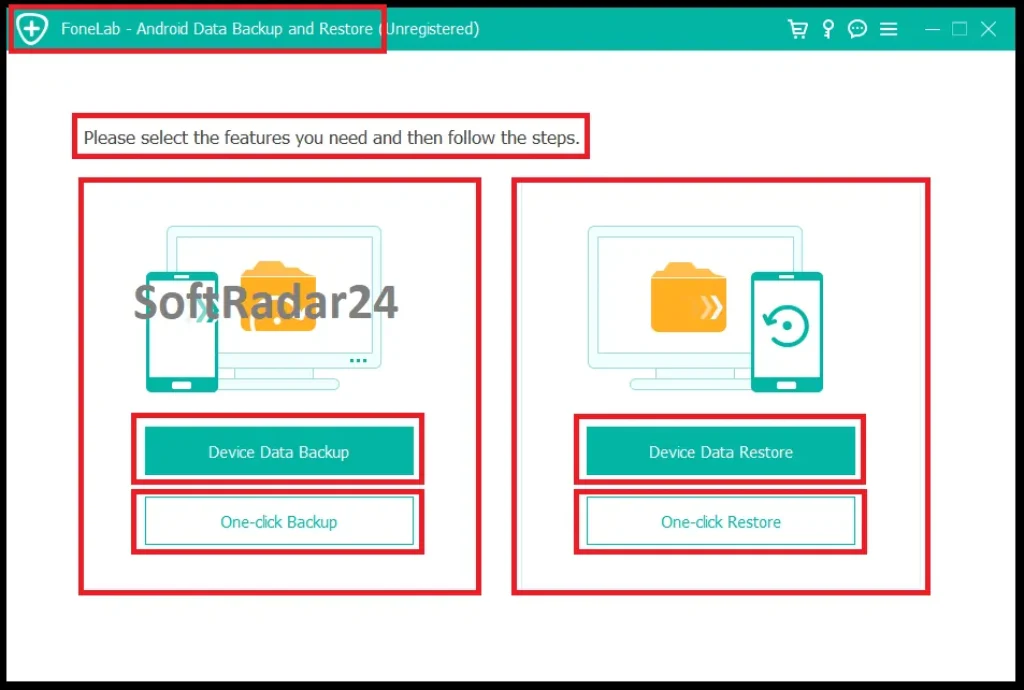
FoneLab Android Data Backup & Restore keeps backup and restore actions separate on the main screen. The interface exposes Device Data Backup and One-click Backup on one side and Device Data Restore and One-click Restore on the other, making the difference between selective and broad one-pass workflows visible before the user starts.
Compatibility & Coverage
FoneLab Android Data Backup & Restore currently supports Android 4.0 and later, including Android 16, and runs on Windows and macOS. The more important compatibility question is data coverage: FoneLab Android Data Backup & Restore protects seven documented categories rather than every app, setting and system component on the phone.
| Area | Current documented coverage | Decision note |
|---|---|---|
| Android | Android 4.0 and later, including Android 16 | Use the current FoneLab Android Data Backup & Restore build for newly released Android versions. |
| Windows | Windows 11 / 10 / 8.1 / 8 / 7 / XP | Current vendor tech-spec range. |
| macOS | Mac OS X 10.7 or above, including macOS Tahoe in current documentation | Current vendor tech-spec range. |
| Backup categories | Contacts · Messages · Call Logs · Gallery · Videos · Audio · Documents | These seven categories define the core FoneLab Android Data Backup & Restore scope. |
| Backup protection | Password-protected backup option | Useful for sensitive local archives; keep the password outside the phone. |
| Restore destinations | Android device or PC/Mac | Current product page documents preview plus selective restore from saved backups. |
FoneLab Local Backup vs. Google Android Backup
| Backup question | FoneLab Android Data Backup & Restore | Google Android backup |
|---|---|---|
| Where is the backup stored? | Local computer archive created through FoneLab Android Data Backup & Restore. | Uploaded to the Google Account. |
| Main documented data | Contacts, messages, call logs, gallery, videos, audio and documents. | Apps/app data where supported, call history, contacts, device settings, SMS/MMS; Google apps handle additional data such as Photos and RCS. |
| Storage quota | Uses local PC/Mac storage for the FoneLab archive. | Google currently provides 15 GB of account storage at no charge, with additional storage available through Google One. |
| Restore timing | FoneLab Android Data Backup & Restore can open saved archives and restore selected supported data on demand. | Google documents full backup restore primarily during initial device setup or after a factory reset; completion can take up to 24 hours. |
| Can every app restore everything? | Not applicable: FoneLab Android Data Backup & Restore does not claim full app/app-setting backup. | No. Google explicitly says not all apps can back up or restore all settings and data. |
| Android-version rule | Current FoneLab Android Data Backup & Restore support begins at Android 4.0. | Google warns that restoring a backup from a higher Android version to a lower version can result in incomplete transfer. |
Features & Capabilities
FoneLab Android Data Backup & Restore is deliberately narrower than a whole-phone migration suite. Its value comes from predictable local copies of common personal data, an encrypted archive option, and the ability to inspect backups before restoring only what is needed.
Selective & One-Click Backup
- Device Data Backup for category-level selection
- One-click Backup for a faster broad backup workflow
- Local backup storage on a Windows PC or Mac
- Password protection for sensitive backup archives
Supported Personal Data
- Contacts and text messages
- Call logs
- Gallery photos
- Videos and audio
- Documents
Preview & Selective Restore
- List available FoneLab Android Data Backup & Restore archives
- Preview supported backup content before restoration
- Select only the data needed from a saved archive
- Restore supported data to an Android device
- Export selected backup data to PC/Mac for further use
Current Platform Coverage
- Android 4.0 and later, including Android 16
- Windows 11 through Windows XP in current documentation
- Mac OS X 10.7+ including macOS Tahoe in current documentation
- 1 GHz Intel/AMD CPU minimum and 1 GB RAM minimum
Important Conditions & Limitations
A backup utility is useful only when the buyer understands exactly what the archive contains and what it does not. The biggest risks with FoneLab Android Data Backup & Restore are assuming it is a full Android clone, waiting until the phone can no longer authorize USB access, or expecting backup software to recover data that was already deleted.
FoneLab Android Data Backup & Restore Is Not a Full System Image
The current FoneLab Android Data Backup & Restore product page lists Contacts, Messages, Call Logs, Gallery, Videos, Audio and Documents. It does not advertise a complete image of Android, installed apps, every app database, home-screen state or all system settings. Use a second backup/migration method when those areas matter.
Create the Backup Before the Phone Becomes Inaccessible
FoneLab Android Data Backup & Restore begins with a USB-connected Android device that the desktop application can recognize. If a broken screen, forgotten lock code or hardware failure prevents the required authorization, creating a new backup can become impossible. A pre-existing verified backup is much more valuable than a backup plan made after device failure.
Backup and Deleted-Data Recovery Are Different Jobs
FoneLab Android Data Backup & Restore restores from backup files it has already created. If messages, photos or other files were deleted before a valid backup captured them, ordinary backup cannot recreate those missing files. Aiseesoft’s own guidance treats deleted SMS/MMS recovery as a separate data-recovery workflow.
WhatsApp Is Not Listed Among the Seven Core Backup Categories
The current FoneLab Android Data Backup & Restore supported-file table does not list WhatsApp chats or WhatsApp media as a dedicated category. Aiseesoft publishes separate WhatsApp backup guidance and separate WhatsApp software. Use WhatsApp’s native backup/export path or verify a dedicated WhatsApp tool when chat history is the deciding requirement.
Cloud Backup and Local Backup Solve Different Problems
Google Android backup can include apps/app data where supported, device settings and additional account-linked data that FoneLab Android Data Backup & Restore does not claim. FoneLab Android Data Backup & Restore instead gives you a computer-side archive for seven supported personal-data categories. For important phones, the strongest strategy is often layered backup rather than assuming one method covers everything.
Google Photos Backup Problems Are Separate from FoneLab Local Backup
A stalled Google Photos backup can be caused by storage quota, network conditions, app/cache problems, battery-saving restrictions or a large pending upload queue. FoneLab Android Data Backup & Restore can create a local Gallery backup while you troubleshoot cloud syncing, but it does not repair the Google Photos service itself.
Old Manufacturer Guides Are Workflow Context, Not Current Device Requirements
Aiseesoft maintains long-running Samsung and LG backup tutorials that reference older vendor tools and older phone generations. Those pages are useful for understanding why users back up contacts, messages, call logs and media before resets or device changes, but current FoneLab Android Data Backup & Restore compatibility should be taken from the current product and tech-spec pages, not an old handset tutorial.
The 30-Day Money-Back Guarantee Is Conditional
Aiseesoft publishes a 30-day money-back guarantee, but its current refund policy says the guarantee is not unconditional. Qualifying cases include specified purchase/registration problems or technical problems for which no solution is provided within the guarantee period. Change-of-mind requests and failures caused by misunderstanding the product’s functions are specifically restricted.
Free Trial / Free Version
Aiseesoft provides free downloads of FoneLab Android Data Backup & Restore for Windows and Mac, but the current primary product page does not publish one detailed trial-limit table for every backup and restore action. Use the free build as a compatibility test instead of assuming that every licensed action is available without registration.
| What to test | Why it matters | Best check before purchase |
|---|---|---|
| Device recognition | FoneLab Android Data Backup & Restore cannot create a useful backup if the phone cannot connect and authorize access. | Test the real phone and USB cable you intend to use. |
| Your required data categories | The current product scope is seven categories, not every Android data type. | Confirm that Contacts, Messages, Call Logs, Gallery, Videos, Audio or Documents cover your actual need. |
| Archive location | A local backup is valuable only if you know where it is stored and have enough free disk space. | Create a representative backup and confirm the destination folder. |
| Encrypted backup workflow | Password protection adds privacy but also creates a credential you must retain. | Test the password-protected archive workflow before a destructive reset. |
| Restore preview | The buying reason for many users is selective restore rather than a blind full restore. | Confirm that the current build exposes the preview/restore workflow you expect. |
System Requirements
The current FoneLab Android Data Backup & Restore product page publishes one consolidated Windows, Mac and Android requirement set. These are compatibility minimums; the size of your Gallery, videos, audio and documents will determine the real disk space needed for backup archives.
| Requirement | Current documented value | Decision note |
|---|---|---|
| Windows | Windows 11 / 10 / 8.1 / 8 / 7 / XP | Current FoneLab Android Data Backup & Restore tech-spec range. |
| macOS | Mac OS X 10.7 or above, including macOS Tahoe | Current FoneLab Android Data Backup & Restore tech-spec range. |
| CPU | 1 GHz Intel/AMD CPU or above | Current documented minimum. |
| RAM | 1 GB RAM or more | Current documented minimum. |
| Application disk space | 200 MB or more free space | This is the published program requirement, not the storage required for your Android backup archives. |
| Android | Android 4.0 and above, including Android 16 | Current documented mobile-device range. |
| Backup storage | Depends on selected data and archive size | Large photo/video libraries can require far more free space than the application’s 200 MB installation minimum. |
Alternatives & Better-Fit Options
FoneLab Android Data Backup & Restore is specifically an Android backup/restore utility. For the wider Aiseesoft mobile and data-protection portfolio, visit the Aiseesoft software page on SoftRadar24.
FoneLab iOS Data Backup & Restore
Choose FoneLab iOS Data Backup & Restore when the device that needs local backup and selective restoration is an iPhone or iPad rather than Android. It is the platform-matched alternative for users whose backup workflow has moved into the Apple ecosystem.
FAQ
These answers focus on current FoneLab Android Data Backup & Restore pricing, coupon behavior, licensing, compatibility and high-value backup questions without repeating the scenario rows above.
How much does FoneLab Android Data Backup & Restore cost with the current SoftRadar24 offer?
Current SoftRadar24 prices are US$7.20 for the 6-device / 1-PC or 1-Mac promotional option, US$12.45 for 1 Month / 1 PC or Mac, US$18.72 for Lifetime / 1 PC or Mac, and US$35.40 for the Lifetime / 3-PC or 3-Mac option. Choose Windows or macOS first so the correct checkout product is used.
Is there a FoneLab Android Data Backup & Restore coupon code or current discount?
Yes. The current SoftRadar24 campaign applies the eligible FoneLab Android Data Backup & Restore coupon discount automatically through the approved purchase links. The campaign is presented as 50% off eligible options, and no manual coupon-code entry is required.
Does FoneLab Android Data Backup & Restore offer a lifetime license?
Yes. The current SoftRadar24 Lifetime option is US$18.72 for 1 Windows PC or 1 Mac. A separate Lifetime option for 3 Windows PCs or 3 Macs is currently US$35.40.
Which FoneLab Android Data Backup & Restore license should I choose?
Choose the current US$7.20 6-device offer when its device/computer allowance matches your setup and you want the lowest entry price. The US$12.45 1-Month option fits a short backup or reset project, while the US$18.72 Lifetime / 1-computer option is the stronger comparison for repeated use. The US$35.40 Lifetime tier is intended for multi-computer use.
Is there a free trial of FoneLab Android Data Backup & Restore?
Aiseesoft provides free downloads for Windows and Mac. The current primary product page does not publish one detailed trial-limit table covering every FoneLab Android Data Backup & Restore backup and restore action, so use the free build to test device recognition and your exact workflow before purchase.
What is the FoneLab Android Data Backup & Restore refund policy?
Aiseesoft publishes a 30-day money-back guarantee, but its current policy explicitly says it is conditional. Eligible cases include specified order/registration problems and unresolved technical problems; change of mind and buying without first understanding the product’s functions are among the stated restrictions.
What Android versions does FoneLab Android Data Backup & Restore support?
The current FoneLab Android Data Backup & Restore tech-spec table lists Android 4.0 and above and explicitly includes Android 16.
What data can FoneLab Android Data Backup & Restore back up?
The current supported-file list contains seven categories: Contacts, Messages, Call Logs, Gallery, Videos, Audio and Documents. FoneLab Android Data Backup & Restore does not advertise a complete backup of every app, app setting or Android system setting.
Can FoneLab Android Data Backup & Restore protect a backup with a password?
Yes. The current product page states that FoneLab Android Data Backup & Restore can set a password to protect important backup data. Keep that password separate from the phone and verify the archive before any factory reset or other destructive maintenance.
Can FoneLab Android Data Backup & Restore restore data without factory-resetting the phone?
The current product workflow opens saved FoneLab Android Data Backup & Restore archives inside the desktop application, allows preview/selection and restores supported data to an Android device or PC/Mac. The documented workflow does not require triggering Android’s setup-time cloud restore or performing a factory reset merely to open the local archive.