Borrowing digital books from your local library is a great way to read, but dealing with strict 21-day lending limits and closed app systems can be highly frustrating. Many users quickly realize that their favorite titles disappear the moment a library drops its service, or they find themselves completely unable to transfer borrowed content to e-ink screens like Kindle or Kobo. If you want to secure permanent offline access to your borrowed materials, you need a safe way to bypass these digital restrictions.
This is exactly where Epubor Hoopla Converter provides a permanent solution. As a dedicated Hoopla backup software, it detects your downloaded library files and automatically removes the DRM protection, allowing you to easily convert Hoopla to EPUB for standard text ebooks. For graphic novel readers, it flawlessly handles the Hoopla to PDF conversion, keeping every image and panel in its original layout. By extracting your rentals into these standard formats, you can bypass monthly borrow limits, build a personal local archive, and read your books on any device without an internet connection.
Related Resource: If you also stream audiobooks from Storytel and want to save them permanently as MP3 files, we have a dedicated tutorial for that platform. Read our comprehensive guide and apply the official Epubor Telstory Converter Coupon Code to get an automatic 20% discount across all license types.
Where Are Hoopla Downloads Stored?
When users try to read offline on a desktop, they immediately encounter a major roadblock: Hoopla does not offer a direct download button for PC or Mac. You are forced to stream content through a web browser with an active internet connection. Even if you use the mobile app, the platform hides your downloads deep inside system folders with heavy DRM encryption to prevent file sharing. You cannot simply locate these proprietary files and copy them to a Kindle or Kobo e-reader. Gaining full offline desktop functionality requires creating a virtual mobile environment and following a specific extraction process.
Quick Step-by-Step Guide: How to Export Books to Your Computer
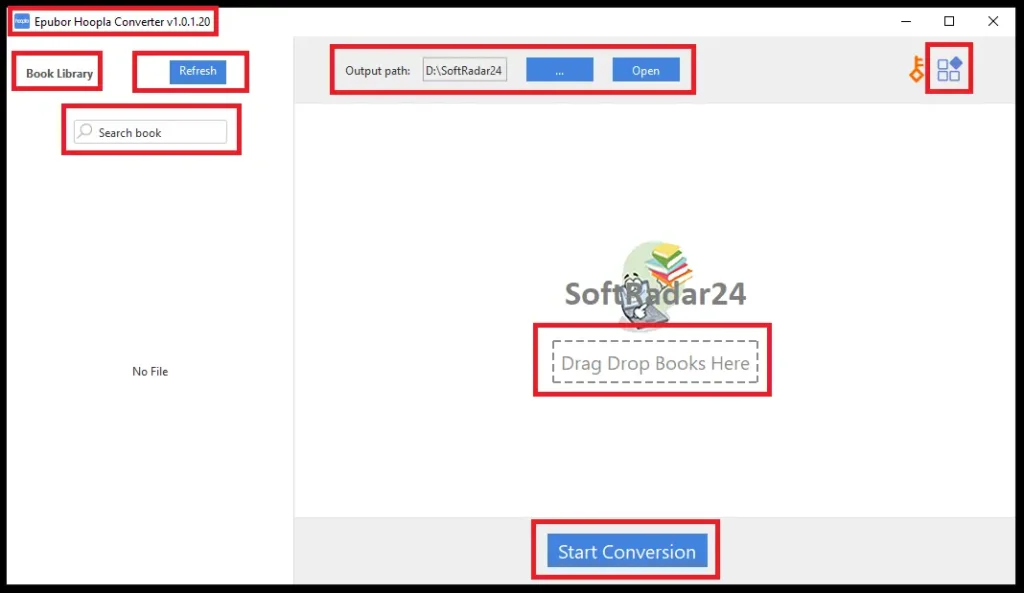
- Step 1: Set Up the Android Emulator: Install Android Studio on your Windows PC or Mac. While gaming emulators often cause syncing errors with library apps, Android Studio provides the exact system architecture needed. Once configured, install the official Hoopla app via an APK file and log into your account.
- Step 2: Download Your Books Locally: Navigate to your borrowed titles inside the emulator and tap the download icon. You must wait until the button text changes to Tap here to delete. This specific change confirms the media is fully saved to the local drive.
- Step 3: Auto-Sync with the Converter: Launch the Epubor Hoopla Converter. Click the Refresh button located at the top of the interface. The program will automatically locate the hidden files inside the emulator and load your downloaded titles into the left panel.
- Step 4: Export to DRM-Free Formats: Drag your selected items to the right panel and initiate the extraction. The system will automatically convert standard text ebooks to EPUB and graphic novels to PDF. Click the Open icon to access your permanent files.
How to Convert Hoopla to EPUB and Extract Comics to PDF
After securing the files within the emulator, transferring them requires no manual folder searching. Clicking the “Refresh” button inside Epubor Hoopla Converter triggers an auto-upload function. The program instantly scans the virtual device and populates the left panel with all your completely downloaded library materials.
Dragging these items to the right panel initiates the extraction process. The system applies specific format rules based on the media type to ensure optimal reading quality. Standard text-based library books undergo a direct Hoopla to EPUB conversion. Simultaneously, graphic novels and highly illustrated materials trigger a seamless PDF extraction, perfectly preserving the original image resolution, panel layouts, and text bubbles.
Stripping the DRM encryption during this rapid process entirely removes the platform’s original reading restrictions. Readers who previously wondered if they can copy and paste from Hoopla or export their study highlights can now do so freely. The resulting DRM-free files belong entirely to you, ready to be organized in local desktop folders or transferred to dedicated e-ink devices.
How to Read Hoopla Books on Kindle and Kobo eReaders
A major reason many users prefer Libby over Hoopla is hardware compatibility. Officially, the Hoopla app does not support e-ink devices like Kindle Paperwhite, Kindle Oasis, or Kobo. The platform expects you to read on a glowing smartphone or tablet screen, which quickly causes eye strain during long reading sessions. However, once you extract your library into standard formats, bypassing this restriction becomes incredibly simple.
For Amazon device owners, you do not even need cables. Open your desktop web browser, visit the official Amazon “Send to Kindle” page, and drag your newly converted EPUB files into the upload box. Amazon will process the files and wirelessly sync them directly to your e-reader.
For Kobo users, the process relies on direct sideloading. Connect your Kobo device to your computer using a USB cable. Once your computer recognizes the e-reader as an external drive, simply copy your DRM-free EPUB or PDF files and paste them into the storage folder. Eject the device safely, and your borrowed titles will immediately appear in your local library, ready for a comfortable, distraction-free reading experience.
How to Overcome Monthly Borrow Limits and the “Early Return” Trap
Depending on your local library’s budget, your account is restricted to a strict monthly quota—usually between 3 to 15 titles. Many readers mistakenly believe that returning a finished book early will free up a slot to borrow something new. Unfortunately, the platform does not work this way. Once you use a monthly borrow credit, it is gone until the next calendar month, regardless of when you return the item.
Since that credit is already spent and the title will automatically vanish after 21 days, letting the rental expire is a massive missed opportunity. Instead of losing access, you can back up the file permanently before the deadline. By securing the DRM-free versions through the converter, you eliminate the time pressure completely and can read heavy novels at your own pace.
Furthermore, households can easily maximize this strategy by using multiple library cards. If family members borrow different titles and extract them to their desktop, you can merge those files into a single, comprehensive offline archive. This approach not only bypasses individual monthly restrictions but also guarantees your household never loses a favorite read, even if your local library eventually cancels its digital lending subscription.
Important Notice Regarding Hoopla Audiobooks and Movies
While securing your reading materials is a straightforward process with the desktop software, audio and video formats require a different approach. It is crucial to note that the Epubor Hoopla Converter program exclusively processes text and graphic novel formats (EPUB and PDF). It does not automatically convert audio or video files.
If your primary goal is finding out how to download Hoopla audiobooks, movies, or TV shows to your computer, Epubor offers a separate, dedicated “Hoopla Conversion Service.” Because desktop browsers strictly limit these media types to online streaming, this is a manual service. You must purchase this specific service tier and email your library login credentials directly to their support team to process the backup.
Security Tip: If you decide to use this manual conversion service for your audio and video media, we highly recommend changing your library account password to a temporary one before emailing your details. Once the support team successfully delivers your offline files, you can immediately change your password back to ensure your account remains completely secure.
Feature Comparison: Standard Hoopla vs. Epubor Hoopla Converter
The following breakdown highlights exactly how the software eliminates restrictive platform rules, such as 21-day lending periods and e-ink hardware incompatibility. It effectively transforms temporary, DRM-locked library rentals into permanent EPUB and PDF files for unrestricted offline reading on any device.
| Feature / Limitation | Standard Hoopla Experience | With Epubor Hoopla Converter |
|---|---|---|
| PC & Mac Offline Access | No (Online streaming only) | Yes (Downloaded to local hard drive) |
| Lending Duration | Files vanish after 21 days | Permanent (Yours to keep forever) |
| E-Ink Device Support | None (Tablets & Phones only) | Full support (Kindle, Kobo, Nook) |
| Copy/Paste & Highlighting | Blocked by DRM encryption | Fully allowed (DRM-free files) |
| Supported Export Formats | Hidden proprietary format | Standard EPUB (Text) & PDF (Comics) |
| Audiobooks & Movies | In-app streaming/download | Requires separate manual service |
Epubor Hoopla Converter Discount Coupon Code
Securing your digital library does not have to be expensive. We are happy to share an official 20% price reduction for all subscription plans. You do not need to manually search for or type in any promotional strings. This exclusive Epubor Hoopla Converter coupon code applies automatically to your cart. Simply choose your preferred license option below. The 20% savings will instantly appear on the official secure checkout page. Strip DRM from Hoopla books and decrypt eBooks into EPUB format and comics into PDF.


20% OFF – Epubor Hoopla Converter for Windows

Epubor Hoopla Converter for Windows (1-Year / 1 PC)
Secure your library for a full year on a single Windows PC. Convert eBooks to EPUB and comics to PDF for permanent offline reading.
Epubor Hoopla Converter for Windows (5-Years / 1 PC)
Enjoy long-term access on a single Windows machine. Bypass 21-day limits and build your DRM-free local archive over five years.
Epubor Hoopla Converter for Windows (5-Years / 5 PCs)
The perfect family solution for Windows users. Install on up to 5 PCs to merge household library accounts into one massive collection.
20% OFF – Epubor Hoopla Converter for Mac
Epubor Hoopla Converter for Mac (1-Year / 1 Mac)
Back up your borrowed titles on a single Mac for one year. Easily extract standard text to EPUB and graphic novels to PDF.
Epubor Hoopla Converter for Mac (5-Years / 1 Mac)
Secure five years of uninterrupted Mac conversions. Stop worrying about library discontinuations and keep your favorite reads permanently.
Epubor Hoopla Converter for Mac (5-Years / 5 Macs)
The ultimate Mac household package. Authorize up to 5 Apple computers to safely export and share your DRM-free titles.
Epubor Hoopla Converter Frequently Asked Questions
Before you begin securing your digital library, reviewing these common inquiries about Epubor Hoopla Converter can save you valuable setup time. The following answers address the most critical technical and compatibility concerns users face during the extraction process.
Why does Epubor Hoopla Converter require Android Studio instead of gaming emulators?
Gaming-focused virtual machines such as Bluestacks or LDPlayer frequently cause system synchronization errors when running digital library applications. Android Studio provides the exact system architecture that Epubor Hoopla Converter needs to seamlessly detect and process the raw media files without crashing the official app.
Can Epubor Hoopla Converter extract my borrowed audiobooks and movies?
The automated desktop software is strictly designed to handle text-based eBooks and graphic novel PDFs. Backing up audiobooks, movies, and TV shows is not supported by the Epubor Hoopla Converter program itself; it requires purchasing their separate manual conversion service where the support team processes the media directly.
What happens to my Epubor Hoopla Converter files if my 21-day lending limit expires?
Once the extraction process removes the DRM encryption, the resulting EPUB or PDF files become entirely independent of the original platform’s time limits. Your converted books remain permanently saved on your local hard drive, meaning you never lose access even after the official 21-day library lending period ends.
How do I transfer the files generated by Epubor Hoopla Converter to my Kindle or Kobo?
The software exports your library into standard DRM-free EPUB and PDF formats, making them universally compatible across almost all e-ink devices. You can easily upload these files to an Amazon Kindle using the official Send to Kindle web tool, or transfer them directly to a Kobo e-reader by sideloading the documents via a USB cable.