

Winxvideo AI License Deals and Discount Codes
WinxDVD – Winxvideo AI combines video, image, and audio enhancement with conversion, compression, downloading, screen recording, and video editing on Windows PCs. The five offers below cover single-PC lifetime use, family lifetime licenses, a one-year plan for three PCs, and packages with two temporary gift licenses. Compare the number of computers, update period, and included gifts before choosing a license.
Winxvideo AI Lifetime License Coupon Code – 77% OFF
Lifetime License / 1 PC
- Lifetime access to all Winxvideo AI features.
- Free updates for all future versions.
- Unlimited AI enhancements with no credit limits; batch processing runs locally.
- 30+ AI models, with continuing refinements.
- One-time payment for installation on 1 PC; no subscription fees.
- Convert, compress, download, record, and edit video.
- 30-day money-back guarantee, subject to the vendor’s refund policy.
Winxvideo AI [Lifetime/1 PC] + 2 Gifts: Aiarty Image Matting + WinX MediaTrans License Coupon Code – 57% OFF
Lifetime License / 1 PC + Two 6-Month Gift Licenses
- Lifetime access to all Winxvideo AI features.
- Free updates for all future versions.
- Unlimited AI enhancements with no credit limits; batch processing runs locally.
- 30+ AI models, with continuing refinements.
- One-time payment for Winxvideo AI on 1 PC; no subscription fees for the main license.
- Convert, compress, download, record, and edit video.
- Gift: Aiarty Image Matting — 6-month license.
- Gift: WinX MediaTrans — 6-month license.
- 30-day money-back guarantee, subject to the vendor’s refund policy.
Winxvideo AI Family Lifetime License Coupon Code – 67% OFF
Family Lifetime License / 3–5 PCs
- Includes all features provided with the Lifetime Plan.
- One-time payment; installation on up to 5 PCs.
- Free updates for all future versions.
- Unlimited AI enhancements with no credit limits; batch processing runs locally.
- 30+ AI models, with continuing refinements.
- Convert, compress, download, record, and edit video.
- 30-day money-back guarantee, subject to the vendor’s refund policy.
Winxvideo AI [Family Lifetime] + 2 Gifts: Aiarty Image Matting + WinX MediaTrans License Coupon Code – 67% OFF
Family Lifetime License + Two 6-Month Gift Licenses
- Lifetime access to all Winxvideo AI features.
- Free updates for all future versions.
- Unlimited AI enhancements with no credit limits; batch processing runs locally.
- 30+ AI models, with continuing refinements.
- Family Lifetime plan with a one-time payment; confirm the PC allowance for this gift promotion at checkout.
- Convert, compress, download, record, and edit video.
- Gift: Aiarty Image Matting — 6-month license.
- Gift: WinX MediaTrans — 6-month license.
- 30-day money-back guarantee, subject to the vendor’s refund policy.
Winxvideo AI Year License Discount Code – 50% OFF
1-Year License / 3 PCs
- Full access to all Winxvideo AI features for 1 year.
- Installation on up to 3 PCs.
- Free software updates during the 1-year term.
- Unlimited AI video, image, and audio enhancements with no credit limits.
- Ongoing AI model updates during the 1-year term.
- Convert, compress, download, record, and edit video.
- First-year price works out to less than $3 per month across the 3-PC license.
- 30-day money-back guarantee, subject to the vendor’s refund policy.
Discount percentages are rounded to the nearest whole number from the listed regular and sale prices. Gift licenses are limited to six months. Check final checkout prices, PC allowances, taxes, renewal terms, and refund conditions before payment.
What Is Winxvideo AI Used For?
Winxvideo AI is a Windows media toolkit for improving video and photo quality, working with sound, and preparing finished files. Its Video AI tools address blurry footage, camera shake, and uneven motion; Image AI can enlarge and restore pictures; and Audio AI handles unwanted noise or separates vocals from instruments. Separate conversion, compression, download, editing, and recording tools cover jobs that do not require enhancement.
These functions solve different problems. Enlarging a recording does not change its original camera quality, adding frames does not fix blurred detail, and converting an MP4 to another format does not restore missing picture information. Choosing the correct tool first usually matters more than selecting the highest output resolution.
Winxvideo AI Features and Practical Uses
The following functions are documented in Digiarty’s Winxvideo AI product guide. Their usefulness depends on the condition of the source files and the hardware available.
- Super Resolution: Enlarge low-resolution footage or enhance it at its original size to address softness, noise, and visible compression artifacts.
- Scene-specific enhancement models: Select Gen Detail, Real Smooth, Anime, or Zyxt according to whether the material contains detailed live action, smooth surfaces, animation, or photographic content.
- Frame Interpolation: Create intermediate frames for smoother motion or slow-motion output while retaining control over scene-change detection.
- Video Stabilization: Reduce handheld shake using presets that prioritize stability, speed, or preservation of the frame edges.
- Image restoration: Sharpen and enlarge still pictures, work with faces, and colorize monochrome photos through the Image AI section.
- Noise Suppression: Reduce steady background hum, traffic noise, or other distractions in a spoken recording, with adjustable suppression strength.
- Vocal separation: Extract a vocal or instrumental track from supported audio or video for editing and other permitted uses.
- Video conversion: Choose formats and codecs such as MP4/H.264, HEVC, AV1, MOV, and MKV, with settings for resolution, frame rate, and audio tracks.
- Video compression: Reduce file size through a compression slider or manual bitrate, codec, and resolution adjustments.
- Quick editing: Cut, crop, rotate, merge, add subtitles or watermarks, and prepare clips without moving to a separate video editor.
- Media downloading: Analyze supported online media links, select available formats or tracks, and save videos or audio that you have the right to download.
- Screen and webcam recording: Capture desktop activity, a webcam feed, or combined recordings with audio and picture-in-picture options.
Winxvideo AI Interface and Hardware Detection Screenshots
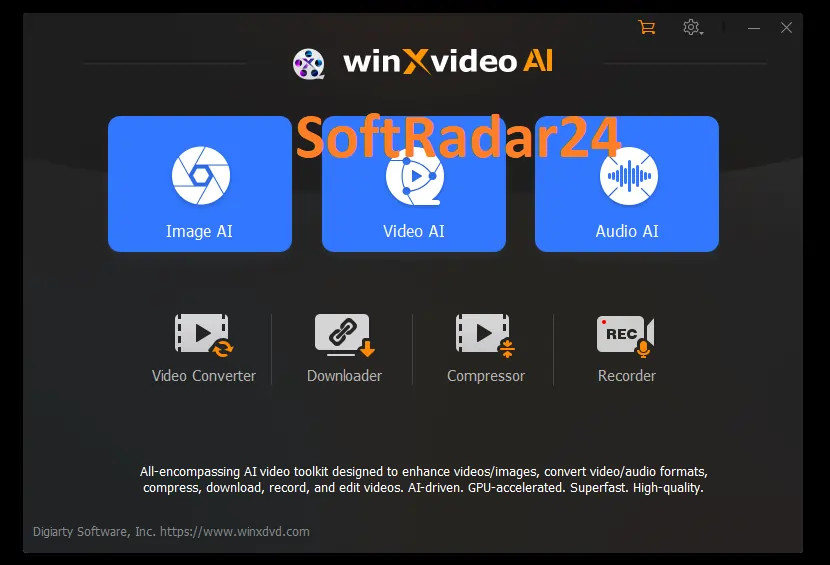
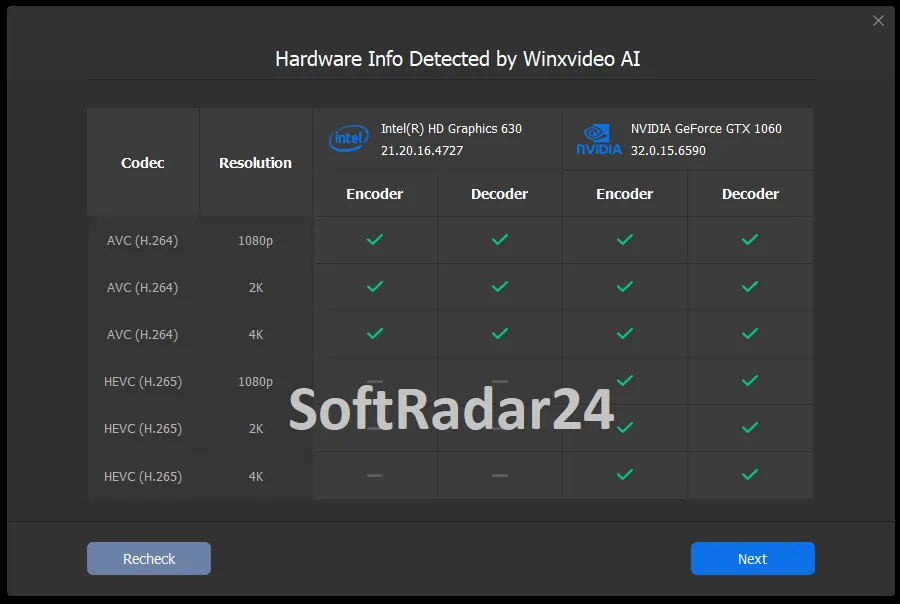
The screenshots below show the main Winxvideo AI workspace and its hardware detection results. The first identifies the available media tools, while the second shows how video encoding and decoding support can differ between graphics processors.
How to Use Winxvideo AI on Windows
The procedures below follow the controls named in Digiarty’s official user guide. The Video AI, Image AI, and Audio AI panels have their own settings; the general video converter and compressor are separate workspaces.
Enhance a Low-Resolution Video Without Enlarging It More Than Necessary
Open Winxvideo AI, choose Video AI, and use Add Video to import the source. Enable Super Resolution and select a model. Gen Detail v3 is intended for detailed material, while Real Smooth v3 is better suited to simpler textures; Anime is intended for cartoons. Preview a short passage with faces, fine lines, or text before processing the whole clip.
Use Enhance Video (1X) if the file already has a suitable resolution and mainly needs cleanup. For genuinely small footage, try 2X first, then consider higher scaling only if the preview warrants it. Choose Fast Mode or High Quality Mode according to your time and output needs. If the result shifts skin tones or other colors, adjust Keep Original Colors. Under Export Settings, choose the video codec and quality level, select an output folder with Browse, and click RUN. Enlargement creates a larger file; it cannot recover factual detail that was never captured.
Raise the Frame Rate Without Interpolating Across Scene Cuts
In Winxvideo AI, open Video AI, wait for hardware detection, and add the clip with Add Video. Enable Frame Interpolation. The Set FPS multiplier controls the new frame count: for example, 2X turns 30 fps into 60 fps. It does not increase resolution or sharpen a poor frame.
For clips with quick cuts, enable Skip Scene Changes so the program avoids inventing transitional frames between unrelated shots. Adjust Sensitivity and compare the original and processed previews. Choose an output folder through Browse and press RUN. Use a short test around difficult movement or an abrupt cut before exporting a long recording; generated frames can produce doubling or distorted edges when motion is hard to estimate.
Stabilize Handheld Footage While Controlling the Crop
Launch Winxvideo AI, enter Video AI, and import a shaky clip. Enable Stabilization, then choose a processing mode: One Pass for quicker analysis or Two Pass when you can accept longer processing for improved stabilization. Select Balanced as a starting preset; compare it with Best Stability, Fastest, or Minimum Crop according to how much of the original frame must remain visible.
Use Crop Type and Crop Ratio to control how the edges are handled; Border Color offers alternatives including replicated or reflected edge pixels. A stronger correction may remove more of the outer picture. Preview people or objects close to the borders, choose export settings, then click RUN. Stabilization compensates for frame movement; it will not necessarily repair motion blur already recorded by the camera.
Reduce Background Noise in Speech Recordings
In Winxvideo AI, select Audio AI and use Add Media to bring in an audio or video recording. Turn on Noise Suppression and choose the relevant model. Start with restrained values for Noise Attenuation Limit (dB) and Post-Filter Threshold rather than applying maximum suppression. The vendor’s guide gives roughly 6–12 dB as a light attenuation range and 18–24 dB for stronger reduction, depending on the recording.
Use Play to compare the original sound with the filtered result. Listen especially to consonants and quiet words: aggressive noise reduction can make speech sound thin or unnatural. For several recordings with similar noise, Apply to All can reuse the settings. Select the output format and press RUN. When an unwanted voice or music is mixed with the main recording, the separate vocal/instrumental extraction tool serves a different purpose from general noise suppression.
Restore or Enlarge Photos in the Image AI Workspace
Open Winxvideo AI and select Image AI. Use Add Image or drag files into the window; Add Image Folder is available for a batch. Choose a model according to the subject, then adjust scaling and restoration settings. For a black-and-white photograph, the separate Colorizing Monochrome Image option can add estimated colors; these are generated interpretations, not recovered historical color records.
Preview important details such as facial features, lettering, and straight edges. If the source is already large, avoid scaling simply to make the pixel dimensions bigger. Select JPG or PNG and click RUN. Keep the original picture as a reference before accepting any generated facial details or color choices.
Compress Large Video Files for Storage or Sharing
Select Compressor from the Winxvideo AI main screen, then import files using +Video, +Folder, or drag and drop. Adjust the compression slider to set a target reduction. For greater control, open Codec Option and review the codec, bitrate, resolution, and frame rate. HEVC or AV1 may produce smaller files than older codecs at comparable perceived quality, but playback compatibility varies by device.
If the recipient only needs 1080p, lowering a 4K source to 1080p can save space; if editing is planned, preserving a higher-quality source may be preferable. Check a fast-moving scene and an area with fine detail before processing the full batch. Confirm the destination and press Done, then RUN. Compression saves space by changing the encoded file; it is not the same operation as Super Resolution.
Convert a Video While Preserving the Audio Track You Need
Choose Video Converter in Winxvideo AI and click +Video to load the source. Select a preset from the Video tab or open Target Format for more choices. MP4/H.264 is a useful compatibility starting point; HEVC or AV1 may be appropriate when file size matters and the target device supports them. In Codec Option, review resolution, frame rate, bitrate, and audio settings instead of accepting an unsuitable preset.
For an MKV file with several audio or subtitle tracks, inspect the track controls before export so the required language or track is retained. Click Browse to choose the save location and RUN to convert. If you only need to trim or rotate an existing file, consider the editing controls first; a full conversion is not automatically necessary for every change.
Winxvideo AI Technical Specifications
The manufacturer separates general video-processing requirements from those for Video AI and Image AI. Meeting the basic converter requirements does not establish that Super Resolution, Stabilization, or Frame Interpolation will run on the same PC.
Windows Compatibility and General Video Tools
| Specification | Official requirement or support | What to check |
|---|---|---|
| Operating system | Windows 7, 8/8.1, 10, 11; 64-bit supported | The downloader is no longer supported on Windows 7. |
| Processor | 1 GHz Intel or AMD minimum for general tools | This is not a benchmark for video enhancement speed. |
| Memory | 1 GB minimum; 2 GB or more recommended for general tools | Long or high-resolution clips may need substantially more. |
| Installation space | 200 MB for general tools | Allow additional free space for source and exported media. |
| Hardware acceleration examples | NVIDIA GeForce GT 630+, Intel HD Graphics 2000+, AMD Radeon HD 7700-series/VCE 1.0+ | Supported acceleration depends on the actual GPU and driver. |
| Video inputs | Examples include MP4, MKV, MOV, AVI, WebM, AV1, H.264, and HEVC | Individual codecs and unusual files can have separate limits. |
| Image and audio inputs | Examples include JPG, PNG, TIFF, WebP, HEIC; MP3, AAC, FLAC, WAV | Choose the matching Image AI or Audio AI workspace. |
| Video outputs | MP4/H.264, HEVC, AV1, MKV, MOV, WebM and other profiles | Confirm that the intended playback device supports the output codec. |
Requirements for AI Video and Image Processing
| Component | Manufacturer’s specification | Why it matters |
|---|---|---|
| GPU computing support | Vulkan 1.2.x or higher and OpenCL 1.0 or higher, as listed by the vendor | A GPU that plays video normally may still lack the required processing support. |
| NVIDIA examples | Quadro 410+, GeForce GT 630+, or GTX 645+ listed for general AI support | These are vendor-listed minimum examples, not guaranteed speeds. |
| Intel and AMD examples | Intel UHD 620 / Graphics 510+; AMD Radeon RX 550-series+ | Confirm the precise model and supported graphics APIs. |
| NVIDIA TensorRT acceleration | Compute capability 6.0+; GTX 1050+; CUDA runtime 11.1+; driver 452.39+ | TensorRT optimization has additional requirements beyond basic use. |
| Memory | 2 GB minimum listed for AI tools | Large source frames, long clips, or multiple jobs increase practical needs. |
| Free disk space | 1 GB or more listed for AI tools | Keep extra working and output space for large files. |
| Results and speed | Depend on GPU, model, quality mode, source length and resolution | Check a short sample on your own PC before a long export. |
What Do Digiarty’s Performance Tests Actually Show?
Digiarty published comparisons between Winxvideo AI 4.0 and 3.9 using a Windows 11 PC with an AMD Ryzen 7 7700X, NVIDIA GeForce RTX 3060 Ti, and 32 GB RAM. The reported processing times for selected video examples were:
| Vendor test | Version 3.9 | Version 4.0 | Time saved |
|---|---|---|---|
| 2K to 4K upscale | 3 min 08 sec | 1 min 46 sec | 1 min 22 sec (about 44%) |
| 1080p to 4K upscale | 2 min 58 sec | 1 min 56 sec | 1 min 02 sec (about 35%) |
| 720p to 1080p upscale | 49 sec | 31 sec | 18 sec (about 37%) |
These are manufacturer-run comparisons, not independent tests of the licenses sold on this page. The first percentage above is calculated from the published times rather than repeating the vendor’s stated reduction figure. The results cannot predict export time on a different graphics card, with a different model, or on longer footage. A five-second preview may help judge appearance, but a representative longer sample is more useful for estimating processing time.
What Can You Test Before Buying a Winxvideo AI License?
The trial has different restrictions for enhancement, ordinary video processing, recording, and downloading. The limits below come from Digiarty’s current user guide; they are not the same across all modules.
| Trial tool | Documented limit | Useful pre-purchase check |
|---|---|---|
| Video AI and Image AI | Up to five watermark-free exports; later exports include a watermark | Try different source types and model settings. |
| Audio AI | Up to five watermark-free video exports or audio processing of up to five minutes | Listen for changes to speech clarity. |
| Converter, Compressor and Editor | Processes video files up to five minutes | Check output compatibility and image quality. |
| Screen Recorder | Recorded output includes a watermark | Check capture sources and recording controls. |
| Downloader | Output resolutions below 1080p in the trial | Confirm that the desired source is supported. |
| Future tools and updates | Not included as free future upgrades in the trial | Compare the paid license’s update period. |
Check the license boxes above for the difference between a one-year plan and a lifetime plan, particularly the number of PCs covered. The two gift bundles also include six-month licenses for their extra products; those gifts should not be confused with lifetime rights to Winxvideo AI. If you need several Digiarty products rather than one, the WinXDVD bundle offers provide a separate comparison.
For the manufacturer’s feature descriptions and current license information, see the official Winxvideo AI product page.
Winxvideo AI FAQs
Does upscaling a 720p video to 4K make it equal to footage recorded in 4K?
No. Winxvideo AI can increase output dimensions and estimate cleaner-looking details, which may improve a low-quality source on a larger screen. It cannot guarantee the same accurate textures or detail as footage originally captured by a high-resolution camera. For older recordings, compare 1X enhancement, 2X enlargement and higher scaling before choosing an output size.
Why can the video converter work even when Super Resolution or Frame Interpolation does not?
The general video tools and AI modules have different minimum hardware requirements. Conversion may work on an older graphics card while AI enhancement fails because Vulkan/OpenCL support, graphics drivers, or available memory are insufficient. Check the exact GPU model and its supported APIs, not just the Windows version. The software’s hardware detection and a short trial export are useful checks before buying.
Does frame interpolation make every video smoother without changing the action?
Not necessarily. It creates estimated frames between the originals. This may improve motion in suitable footage, but rapid object movement, flashes and scene cuts can cause visible artifacts. Use the Skip Scene Changes control on edited footage and inspect the preview. Frame interpolation also differs from changing a video’s playback speed: slow-motion settings affect how the finished clip is played.
Why are the edges cropped after stabilizing shaky footage?
Stabilization shifts or reframes individual images to counter camera movement, which can expose missing areas near the borders. Winxvideo AI offers Minimum Crop, Balanced, Best Stability and other presets, plus crop and border-fill controls. Keeping more of the original frame can mean accepting some remaining shake. Footage with faces or text near an edge is worth previewing before export.
Can Audio AI remove background noise without changing the speaker’s voice?
Some recordings improve significantly, but perfect voice preservation is not guaranteed. High attenuation or a strong post-filter can remove parts of quiet speech along with noise. Start with moderate settings, switch Noise Suppression on and off during preview, and listen to words containing soft consonants. A recording with overlapping voices or loud music may require a different approach from steady fan or traffic noise.
How do I activate Winxvideo AI after purchasing a license?
Digiarty’s guide says the license details are delivered by email after the order. Open Winxvideo AI, select Register, enter the Licensed Email and License Code, and click Activate. Copying the code helps avoid extra spaces or typing errors. An internet connection is required for registration. Keep the original order email and check that the license matches the PC allowance and update period shown in your chosen offer.


