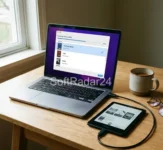
You finally bought a Kindle Paperwhite or Oasis. The battery lasts for weeks, the screen is crisp, and it fits perfectly in your hand. But then, reality hits you: Your massive library of books is trapped inside the Barnes & Noble ecosystem.
You paid hundreds of dollars for those Nook books over the years. Naturally, you try to drag and drop a Nook file onto your Kindle via USB. The result? Nothing. The Kindle doesn’t even show the file. It’s invisible.
This isn’t a bug; it’s a “Format War.” Barnes & Noble uses the ePub language protected by a digital lock (DRM), while Amazon Kindle only speaks the AZW3 or KFX language.
In this comprehensive 2026 guide, we will act as the peacekeeper. We will show you exactly how to strip that digital lock, translate your books into Amazon’s native format, and transfer them wirelessly to any Kindle device (Paperwhite, Scribe, Oasis, or Fire Tablet) without losing a single page.
⚠️ STOP! Do You Have the Actual Files?
This is where 90% of users fail. You cannot convert books if you don’t have the files on your computer first.
The Reality Check: The old “Nook for PC” app is dead. If you are trying to find your books in a hidden Windows folder, you will only find empty files. You MUST use the “Android Emulator Method” to download valid files.
If you haven’t done this yet, please pause here and follow our guide:
👉 Read First: How to Download Nook Books to PC/Mac (2026 Guide)
Step 1: Removing DRM and Converting to “Amazon Language”
Once you have your downloaded Nook ePub files (thanks to the guide above), they are still encrypted. If you try to open them, you will get a “Protected Content” error.
We need a tool that does two things simultaneously:
- Decrypt: Unlocks the digital rights management (DRM).
- Convert: Changes the file extension from
.epubto.azw3.
🤔 “Can’t I just use Calibre for free?”
Yes, you can. We love Calibre. However, Calibre cannot remove Nook DRM out of the box. You would need to:
1. Search GitHub for the “DeDRM” plugin.
2. Find your specific Nook encryption keys (which is very hard without a physical device).
3. Hope the plugin hasn’t been patched by B&N.
If you are tech-savvy, go for it. If you value your time and want a “1-click solution” that detects keys automatically, we use Epubor Nook Converter in this guide.
📥 Epubor Nook Converter Download Free Trial
Epubor Nook Converter for Windows (Latest)
🪟 Windows 11/10 Support: The only tool with built-in Emulator detection. Download the free trial to test DRM removal today.
Epubor Nook Converter for Mac (macOS)
🍎 Intel & Apple Silicon (M1/M2/M3): Fully compatible with modern macOS. Decrypt your Nook books and back them up instantly.
1. Launch and Load
Open Epubor Nook Converter. If you kept your Emulator open (as we suggested in the previous guide), the software should automatically detect your library. Look at the left sidebar under the “Nook” or “Android” tab.
2. The “Magic” Drag & Drop
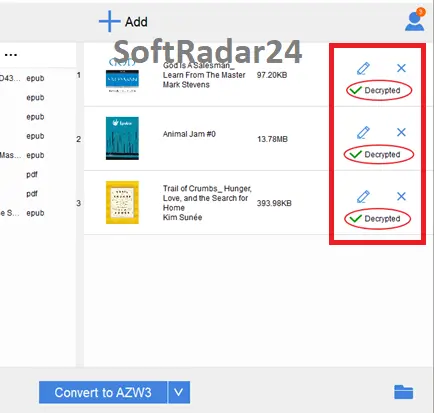
Select all the books you want to move to your Kindle. Drag them from the left sidebar to the main window on the right.
Watch the status column. You will see a green checkmark ✔ Decrypted appear next to each title. This is the moment your books become truly yours.
3. Selecting the Perfect Kindle Format (Crucial!)
At the bottom of the screen, you will see the “Convert to…” button. Don’t click it yet. First, click the dropdown arrow to choose the format.
- ✅ AZW3 (The Winner): Also known as Kindle Format 8. This is the best choice for Paperwhite, Oasis, Scribe, and Voyage. It supports high-resolution covers, bold fonts, and proper formatting.
- ⚠️ Mobi (The Relic): Only choose this if you are using a very old Kindle (Generation 1, 2, or Keyboard) from 2010. Amazon is slowly killing this format.
- ❌ PDF (The Last Resort): Avoid this for e-Readers. The text will not reflow, meaning you’ll have to zoom in and out to read a single sentence. Only use PDF for textbooks or printing.
Select AZW3 and click the blue convert button. The folder containing your unlocked books will pop open.
Step 2: Transferring Books to Your Kindle (2026 Methods)
Now you have the .azw3 file on your computer. How do we get it to the device? You have two paths: the “Modern Way” (Cloud) or the “Classic Way” (Cable).
Method A: Send to Kindle (Wireless & Best for Covers) ⭐
Amazon has a powerful feature called “Send to Kindle.” When you use this, the book is saved to your Amazon Cloud. This means if you buy a new Kindle later, your Nook books will automatically sync to it. Plus, it fixes a common bug.
Sometimes, transferring files via USB causes the book cover to vanish (showing a generic grey box). Using the “Send to Kindle” website forces Amazon’s servers to process the file, which ensures the Cover Art appears correctly on your lock screen.
- Go to amazon.com/sendtokindle on your browser.
- Login with your Amazon account.
- Drag your converted AZW3 or ePub file into the box. (Yes, Amazon now accepts ePub via this tool, but converting to AZW3 first guarantees better formatting).
- Click Send.
- Wait 2 minutes, then turn on your Kindle’s Wi-Fi and hit “Sync”.

Windows Tip: Can’t see the file extension?

By default, Windows hides file extensions (like .epub or .azw3). To ensure you have successfully converted your books, you need to see the file type.
Method B: USB Transfer (Offline Mode)
If you don’t have internet access or prefer total privacy, use the cable.
- Connect your Kindle to your PC/Mac using a USB-C cable.
- Your Kindle will appear as an external drive (like a USB stick).
- Open the Kindle drive and look for a folder named “documents”.
- Copy your converted .azw3 file.
- Paste it inside the “documents” folder. (Do not create a new folder).
- Eject the device safely.
Step 3: What About Kindle Fire Tablets?
Kindle Fire (Fire HD 8, Fire Max 11) users often get confused. “Do I need to convert too?”
Technically, no. Your Fire Tablet is just an Android tablet with an Amazon skin. You have a superpower:
- Option 1 (No Conversion): You can install the Nook Android App onto your Fire Tablet (via sideloading the APK) and read directly. However, the Nook app can be slow and buggy on Fire OS.
- Option 2 (Smooth Experience): Use the conversion steps above to create an ePub file. Then, install a superior reading app like Moon+ Reader or Aldiko on your Fire Tablet to read your books smoothly.
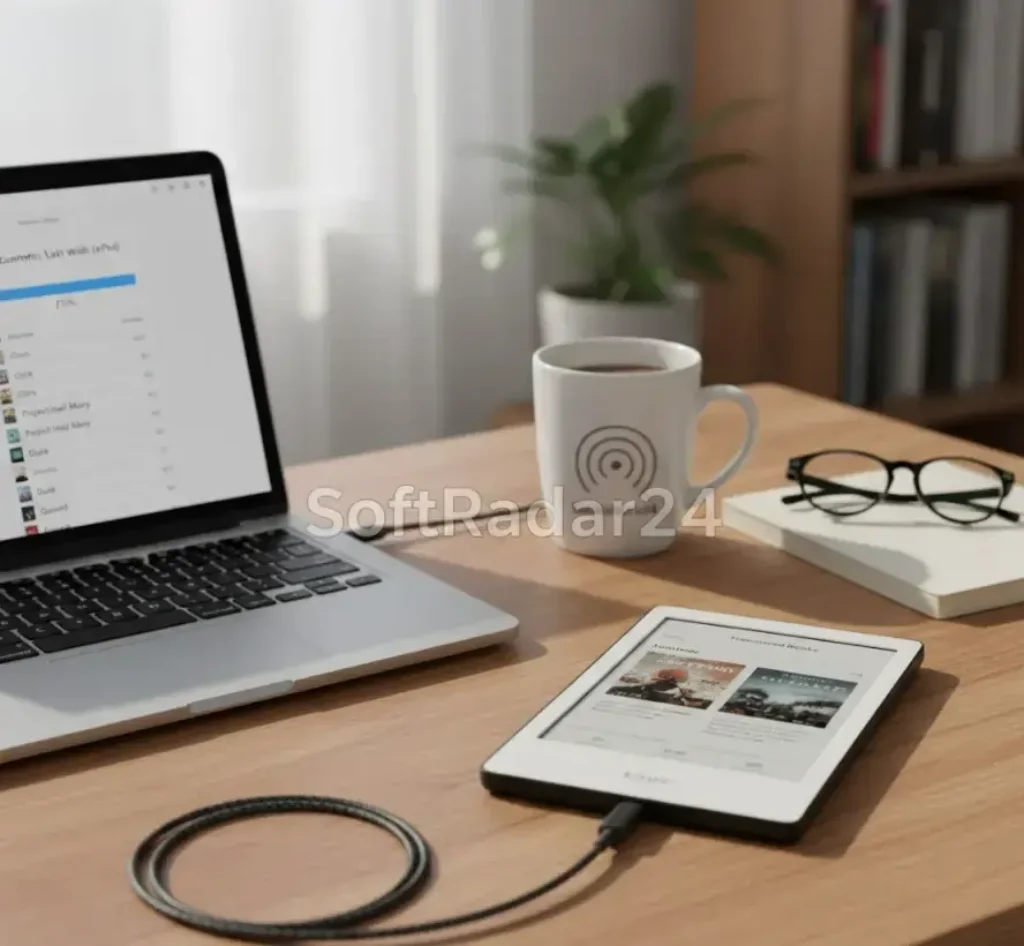
🔓 **Freedom to Read:** Learn the simple method to unlock your Nook library and transfer your favorite books to any Kindle device (Paperwhite, Oasis, or Scribe).
💡 Why This Matters: Protecting Your Library
At the end of the day, your digital library represents a significant financial investment and years of reading memories. You shouldn’t be forced to abandon your favorite stories just because you decided to switch from a Nook to a Kindle Paperwhite. While the “Format War” between Barnes & Noble and Amazon is frustrating for consumers, stripping the DRM lock is the only way to truly own the files you paid for.
By converting your books to a standard format like AZW3, you are not just transferring files; you are future-proofing your collection against app shutdowns or device obsolescence. Whether you choose the complex manual route or the automated tool we recommended above, the goal remains the same: obtaining total reading freedom on the device of your choice.
🤔 Frequently Asked Questions (We Answered Google’s Top Queries)
1. Can I transfer my Nook eBooks to my Kindle directly?
The Short Answer: No. If you connect both devices via USB and try to drag files across, it will fail.
The Reason: Amazon and Barnes & Noble are competitors. Nook books are locked with DRM (Digital Rights Management) and use the ePub format. Kindles cannot open locked ePub files. You must use a converter tool (like the one in this guide) to remove the lock and change the format to AZW3 before the Kindle can read them.
2. Can my Nook bookstore be transferred to my Amazon Fire Tablet?
Yes, and you have two options here because Fire Tablets are actually Android devices:
Option A (The App Way): You can “sideload” the Nook Android App onto your Fire Tablet. This lets you read your books inside the Nook app, but they won’t appear on your main Kindle bookshelf.
Option B (The Clean Way): Use our conversion method to turn your books into generic ePubs. Then, you can open them with any reader app (like Moon+ Reader) on your Fire Tablet without relying on the buggy Nook app.
3. Can I download a NOOK book as a PDF for Kindle?
Technically yes, but we strongly advise against it.
PDFs are “fixed” images. On a small Kindle screen (6 inches), a PDF page looks tiny. You cannot increase the font size; you can only zoom in and pan around, which is a terrible reading experience. Always convert to AZW3 instead. This format allows you to resize text, change fonts, and highlight words just like a real Kindle book.
4. How can I read Nook books without a NOOK device?
Your books are not tied to the plastic device; they are tied to your account. Even if your old Nook GlowLight is broken or lost, your books are safe in the cloud.
You can use the Emulator Method for Nook Books (explained in our previous guide) to download your library to your PC or Mac. Once downloaded and decrypted, you can read them on any device—a computer, an iPad, an Android phone, or a Kindle.
5. What is the best eBook converter for Nook to Kindle?
It depends on your technical skills:
For Tech Wizards: Calibre is free and powerful, but it requires finding and installing complex “DeDRM” plugins and hunting for encryption keys manually.
For Everyone Else: Epubor Nook Converter is the industry standard. It automatically detects the keys from the emulator and converts the books in one click. It costs money, but it saves hours of frustration.
6. Can Nook books be read on the Kindle App (iPhone/Android)?
Yes! Once you convert your Nook book to AZW3 or MOBI, you can send it to your Kindle Cloud.
Open the Kindle app on your iPhone or Android, go to your Library, and the book will be there. It will even sync your reading progress between your phone and your physical Kindle e-Reader.
7. Why do my transferred books have no cover art?
This is a very common bug when transferring via USB cable. Amazon’s device indexer sometimes fails to generate the thumbnail image.
The Fix: Stop using the USB cable. Use the “Send to Kindle” website feature. When you upload the file wirelessly, Amazon’s servers process the file and ensure the cover art appears correctly on your lock screen.
8. Can I read library books (Overdrive/Libby) on a Kindle?
This guide is strictly for books you have purchased and legally own.
Library books borrowed via Overdrive have a different type of time-sensitive lock. While some US libraries allow direct “Send to Kindle” via Libby, you generally cannot (and should not) strip DRM from borrowed library books using this converter method.
9. Is the Nook App discontinued? How do I get my books off?
The “Nook for PC” and “Nook for Mac” desktop applications were effectively discontinued years ago and no longer allow downloading books. The Windows Store app is also broken for many users.
This is why we use the Android Emulator method. It tricks the Barnes & Noble servers into thinking you are using a real, supported Android tablet, allowing you to download your “trapped” books successfully in 2026.
10. Is it legal to remove DRM from books I bought?
We believe in the principle: “If you bought it, you own it.”
Stripping DRM for the purpose of “Format Shifting” (moving a file from one device you own to another device you own) is widely considered Fair Use. However, sharing these unlocked files on the internet or with friends is piracy and is illegal. Keep your files for your own personal backup.
Unlock Your Library Today
Don’t let a “Format War” dictate where you can read the stories you paid for. By converting Nook to Kindle, you ensure that your library survives, no matter which device you choose in the future.
🤝 Affiliate Disclosure: Our Transparency Promise
Transparency is one of our core values at SoftRadar24. We believe in building a relationship of trust with our visitors. Before you explore our software deals and reviews, we want you to understand exactly how this website operates and how we are funded.
How We Are Funded
SoftRadar24 is a reader-supported independent publication. We are not owned by any software giant. To keep this website free for you—without cluttering it with annoying pop-up ads—we participate in various Affiliate Marketing Programs.
What Does This Mean for You?
When you click on a link (like “Buy Now”) and make a purchase, we may earn a referral commission.
✅ No Extra Cost: This commission comes at no extra cost to you. In fact, our direct partnerships often unlock exclusive coupons that make the product cheaper than the regular price.
The purchase process happens entirely on the official vendor’s secure website. We simply refer you to them; we do not process payments.