Learn the only working method to download Nook books to PC, Mac, and Android. Decrypt your library, convert to Kindle/PDF, and keep your books forever.
May 1, 2026
You have legally purchased your eBooks from Barnes & Noble, but when you try to download them to your computer to read on another device (like a Kindle) or simply to back them up, you hit a wall. The “Download” button is missing, the Windows app is discontinued, and your expensive library feels trapped inside the Nook app.
You are not alone. In 2026, Barnes & Noble has made it incredibly difficult to export your own files. Whether you want to read Nook books on Kindle, transfer them to an iPad, or convert Audiobooks to MP3, the official apps won’t let you do it.
✨ The Good News: There is a Solution
This isn’t just another generic article. In this comprehensive guide, we will walk you through the only working method in 2026 using a specific tool setup. We will ignore the broken official methods and show you exactly How to Download Nook Books to PC, Mac, Android, and iOS step-by-step, so you can truly own your digital library.
The Truth About Downloading Nook Books (Why It’s So Hard?)
Before we start the “How-to” part, it is crucial to understand why the old methods (that you might see on other websites) do not work anymore. Knowing this will save you hours of frustration trying to install broken software.
1. Why “Nook for PC” & “Nook Study” Don’t Work Anymore
Years ago, you could simply download a “Nook for PC” application, log in, and your books would be saved as PDF or ePub files on your computer. Unfortunately, Barnes & Noble discontinued these desktop applications.
⚠️ IMPORTANT WARNING:
Do not waste your time searching for “Nook for PC” or “Nook Study” installation files on the internet. Even if you install them, the login servers are shut down. You will see endless “Login Failed” or “Network Error” messages because the digital door has been bricked up by B&N.
What about the Windows Store App?
Even the official Nook app found in the Microsoft Store (Windows 10/11) has removed the local download feature for most users. It acts merely as a “Reader,” not a “Downloader.”
2. The Problem with Android & iOS Apps (Hidden Files)
You might think: “I have the Nook app on my Android phone, I can just copy the files from there!”
Sadly, it is not that simple. When you download a book on your phone (iPhone or Android), Barnes & Noble hides the actual book file inside a Hidden Partition (a locked area of your phone’s storage).
On Android: The files are buried deep in a system folder that you cannot open without “Rooting” (hacking) your phone.
On iOS (iPad/iPhone): Apple’s strict security makes it impossible to access the app’s internal data folder to get the book files.
So, what is the solution?
Since we cannot use the PC app, and we cannot access the files on a physical phone, we will use a clever trick: An Android Emulator.
(Definition) What is an Android Emulator?
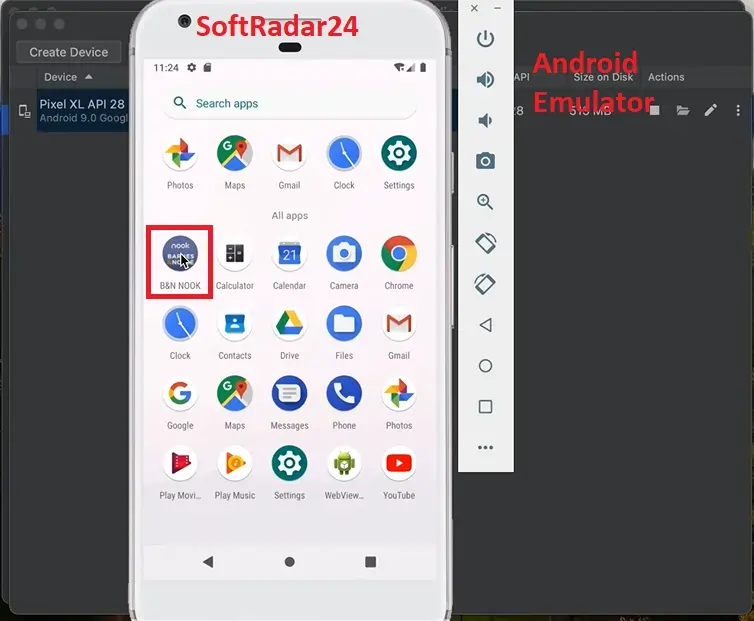
Think of an Emulator as a “Virtual Phone” that lives inside your computer screen. It tricks the Nook app into thinking it is running on a real phone, but since it is on your computer, we can easily reach inside and grab the book files.
How to Download Nook Books to PC & Mac (The Only Working Method)
Since Barnes & Noble closed the door on standard downloads, we will build our own door. We are going to create a “Virtual Android Device” right inside your computer.
Don’t panic. This sounds technical, but it is actually as easy as installing a game. Once we set this up (it takes about 10 minutes), you will have a permanent way to download every book you ever buy.
🛠️ What You Will Need (The Checklist)
A Computer (Windows 10/11 or macOS).
An Android Emulator (We recommend LDPlayer or Nox App Player because they are free and stable).
Your Barnes & Noble account login details.
Coffee (Optional, but recommended!).
1
Step 1: Install the Android Emulator
First, we need the “Virtual Phone.” Go to the official website of LDPlayer (or Nox) and download the latest version for your computer. Run the installer and click “Install.”
(Note: If you are on a Mac with an M1/M2/M3 chip, make sure to download the specific version labeled “For Apple Silicon” on their website.)
✅ Visual Check: Your screen should look like a virtual Android tablet. Locate the “Play Store” icon to proceed.
🚀
Pro Tip for Windows Users: Speed Up Your Emulator
If the emulator feels slow or laggy, your PC’s “Virtualization” might be turned off. This is a common Windows setting essential for running virtual apps smoothly.
Once the Emulator opens, you will see a screen that looks exactly like an Android tablet.
Click on the Play Store icon (Google Play).
It will ask you to sign in with your Google (Gmail) account. This is safe; it’s just like signing into a new phone.
In the search bar, type “Nook”.
Click Install on the official “NOOK: Read eBooks & Magazines” app.
✅ Action Item: Verify the publisher is “Barnes & Noble” and click the green “Install” button to download the app to your virtual device.
3
Step 3: Download Your Nook Books
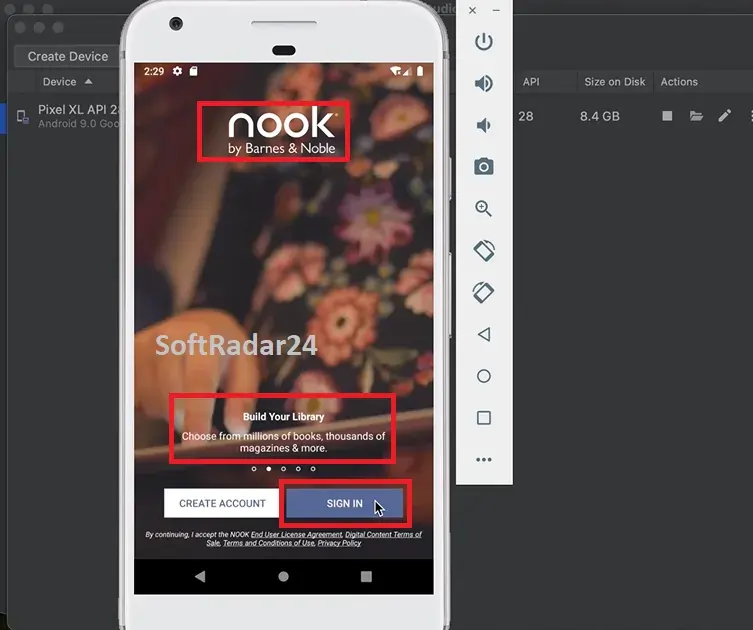
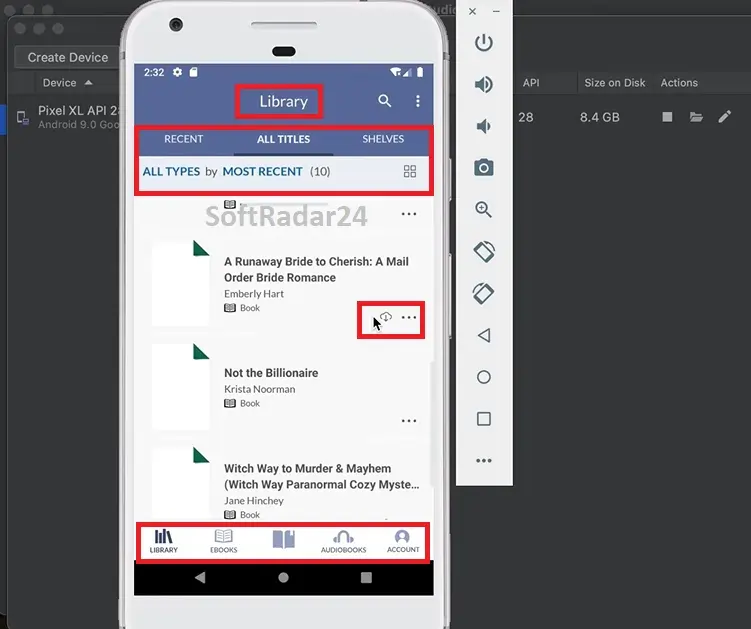
Now, open the Nook app inside the Emulator and log in with your Barnes & Noble account. You will see your library.
Crucial Step: You must physically download the books to this virtual device. Just seeing the cover isn’t enough.
Tap the Download arrow (cloud icon) on the book cover.
Wait until the download circle completes and the book opens.
Do this for every book you want to save.
⚠️ Critical Step: Tap the “Cloud/Arrow” icon on the book cover. Wait for the download to finish completely.
4
Step 4: The Secret Sauce (Enable Root)
This is where most people get stuck. Remember the “Hidden Partition” we talked about? To see the files we just downloaded, we need to give ourselves “Super User” (Root) permission in the Emulator.
💡 Beginner Tip: Don’t worry, this does NOT affect your actual computer. It only affects the virtual emulator window.
How to do it in LDPlayer/Nox:
Click the Settings (Gear icon) on the sidebar of the Emulator window (usually on the right).
Go to the “Other” or “General” tab.
Find “Root Permission” (or simply “Root”).
Check the box to Enable it.
Click Save Settings and Restart the Emulator.
Congratulations! You now have full access to the hidden files. Now let’s go find them.
Where are Nook Books Stored on Android & Windows?
This is one of the most frequently asked questions. You downloaded the book, but where exactly did it go?
Normally, digging for these files is like looking for a needle in a haystack because Barnes & Noble hides them deep inside system folders.
📍 inside the Android Emulator (The Correct Path)
Since we are using an Emulator, your books are stored safely inside that virtual device. Because we enabled “Root” in the previous step, we can see exactly where they live:
/data/data/bn.ereader/files/B&N Downloads/Books
Do you need to go there manually? NO. You don’t need to be a hacker. The conversion tool we are about to use will “teleport” these files from that complex folder directly to your desktop automatically.
📍 On Windows 10/11 (The “Dead End” Path)
If you previously used the Windows Store app (before it stopped working properly), your books might be lingering here:
Even if you find files here, they are heavily encrypted. You cannot just “Copy and Paste” them to a Kindle. They will not open. Stick to the Emulator method above for a working solution.
How to Convert Nook Books to Kindle, PDF, or MP3 (The Freedom Step)
Now comes the fun part. We have the Emulator running, the books are downloaded inside it, and Root is enabled. Now we will use Epubor Nook Converter to bridge the gap and set your books free.
📥 Epubor Nook Converter Download Free Trial (Test Before You Buy)
Epubor Nook Converter for Windows (Latest)
🪟 Windows 11/10 Support: The only tool with built-in Emulator detection. Download the free trial to test DRM removal today.
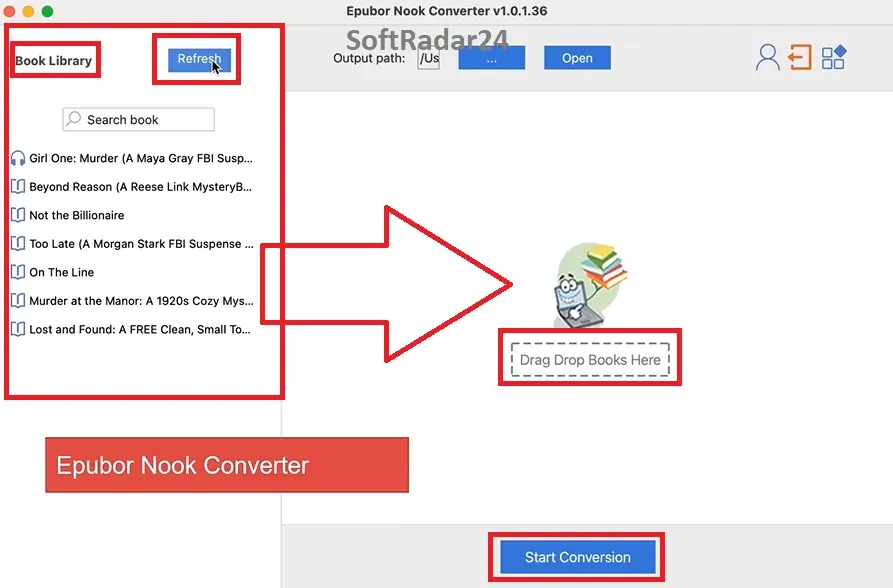
Open the software on your PC or Mac. You will see a clean, simple interface.
Look at the top left corner. You should see a button or tab that says “Android” or “Emulator”.
Because your Emulator is already running in the background, Epubor will magically detect it. It scans that complex path we mentioned earlier (`/data/data/…`) and lists all your downloaded books in the left column.
✨ Magic Moment: Notice the “Android” tab? The software automatically detected your Emulator library. Drag the books to the right to unlock them.
Step 2: Drag, Drop, and Decrypt
Select the books you want to rescue from the left side and simply drag them to the right side main window.
That’s it. As soon as you drop them, you will see a green checkmark ✔ Decrypted next to each book. The Digital Rights Management (DRM) lock has been broken.
Step 3: Choose Your Format (Kindle, PDF, or MP3)
Now that the books are unlocked, you can turn them into anything you want. At the bottom of the screen, you will see a big blue button: “Convert to…”
🎯 Which Format Should I Choose?
📖 For Kindle Users:
Choose azw3 or mobi. These are the native formats for Amazon Kindle. Once converted, simply connect your Kindle via USB and drag the file into the “documents” folder.
🖨️ For Printing & iPad:
Choose PDF. This is best for textbooks or if you want to physically print pages. For iPad (Apple Books), choose ePub.
🎧 For Audiobooks:
If you dragged an Audiobook, the software automatically detects it. Choose MP3 as the output. Now you can play your Nook audiobooks on any MP3 player, phone, or car stereo without the Nook app.
🎥
Watch: The Entire Process in 3 Minutes
Video Credit: Official Epubor Guide (Demonstrating the exact steps covered above)
🤫
INSIDER TIP: Don’t Pay Full Price!
The free trial allows you to test the process, but the full version unlocks unlimited conversions. Before you buy, we secured an Exclusive 20% Discount Code specifically for our readers.
Let’s be honest: In an ideal world, Barnes & Noble would simply give us a “Download” button for the books we paid for. But in 2026, that is not the reality. They have locked the doors, walled off the windows, and trapped our libraries inside a closed app.
The method we shared in this guide (Emulator + Epubor) might seem like a few extra steps compared to the “old days,” but it is currently the only reliable lifeline left.
🏆 Why We Recommend This Method:
It’s Permanent: Once decrypted, no one can take your books away from you.
It’s Universal: Works on Windows 10/11, macOS (Intel/M1/M2), and for both eBooks & Audiobooks.
It’s Freedom: You finally get to read on the device you choose (Kindle, Kobo, iPad), not the one they force on you.
If you value your digital library and want to ensure your books survive beyond the lifespan of a specific app or company, taking 15 minutes to set up this Emulator workflow is the best investment you can make today.
Disclaimer: This guide is for educational and personal backup purposes only. SoftRadar24 does not encourage piracy. We believe in the “Right to Repair” and the right to back up legally purchased content for interoperability (format shifting). Please support authors by purchasing your books legitimately.
🤔 Frequently Asked Questions (We Read Your Comments)
Based on hundreds of user comments from 2019 to 2026, we noticed that many Nook users are facing the exact same “Login Failed” or “Missing Files” errors. Here are the honest answers you won’t find on the official Barnes & Noble support page.
Q1: Why do I get a “Network Error” or “Login Failed” on Nook for PC?
The Short Answer: The software is dead. Stop trying to fix it.
The Detailed Truth: Barnes & Noble officially shut down the login servers for the old “Nook for PC” and “Nook Study” desktop apps back in 2019. It is not your internet connection, and your password is correct. The “door” you are knocking on has been bricked up by the company. The only way to log in on a computer now is via the Emulator method we described in this guide.
Q2: I downloaded books via the Windows Store App, but the folder is empty. Why?
Many users found the folder path C:\Users\...\LocalState, only to find it empty or full of useless pictures.
This is intentional. In recent updates (2024-2026), the Windows App (if it even works) hides the actual eBook files or encrypts them so heavily that they don’t look like files at all. Even if you find them, you cannot open them. This is why we switch to the Android Emulator—it creates a clean environment where we can actually “see” and grab the real book files using Root access.
Q3: I have a Mac and no Android device. Can I still save my books?
Yes, absolutely. You do NOT need a physical Android phone or tablet.
The “Emulator” we install in this guide (like LDPlayer or Nox) works perfectly on macOS (including M1/M2/M3 chips). It creates a “Virtual Android Tablet” inside your Mac. You simply download the Nook app inside that virtual window, and Epubor pulls the files from there. It solves the problem for users like Mark Hunt who don’t own mobile devices.
Q4: Once I download the files, can I send them to my Kindle?
Yes, but not directly. Nook books are in ePub format and locked with DRM.
The Workflow: Once Epubor Nook Converter decrypts them (Step 4 in our guide), you must choose “Convert to AZW3” or “Mobi”. These are the formats Kindle understands. After conversion, you can simply connect your Kindle via USB and drag the files over. For a deeper dive into this, check our dedicated guide: The Easiest Way to Convert Nook to Kindle.
Q5: Does this method work for Nook Audiobooks?
Yes. Most converters only handle eBooks, but the method in this guide handles Audiobooks too.
When you download an Audiobook in the Emulator, the Epubor tool detects the audio files and allows you to convert them to MP3. This means you can listen to your purchased books on any MP3 player, iPod, or car stereo without being forced to use the B&N app.
Q6: Is enabling “Root” on the Emulator safe? Will it hack my PC?
This is a very common fear, but let’s clear it up. You are NOT rooting your actual computer.
You are only flipping a switch inside the Virtual Emulator Software. Think of it like being the “Administrator” of a game you installed. It has zero effect on your Windows or Mac operating system. It simply allows the software to peek into the emulator’s folder to find the hidden book files.
Q7: Is it legal to remove DRM from books I purchased?
We believe in the principle: “If you bought it, you own it.”
While laws vary by country, making a personal backup of legally purchased content for “Format Shifting” (e.g., reading a Nook book on a Kindle) is widely considered “Fair Use” in many regions. This guide is intended for personal backup purposes only, not for sharing or piracy.
Q8: Can’t I just use Calibre to do this for free?
We love Calibre, but out of the box, Calibre cannot open Nook books because of the DRM lock. Calibre requires complex plugins and specific old keys to work.
The method we use (Epubor) is automated. It finds the key, unlocks the book, and prepares it. Once decrypted, you are free to import the clean file into Calibre for library management if you wish.
Q9: I have an old Nook Simple Touch. Can I transfer books from there?
Older Nook devices (Simple Touch, GlowLight) are becoming harder to support because B&N is updating their security certificates (TLS). Often, these devices can no longer connect to the store to download new books.
Instead of fighting with an old device, use the Emulator Method on PC to download your entire library. It is faster, safer, and guarantees you get the files regardless of your device’s age.
Q10: What if this method stops working in the future?
Technology changes fast (as seen with the Nook PC app). However, the Emulator method is robust because it mimics a physical Android device, which is B&N’s primary supported platform.
If anything changes, the Epubor team is famous for quick updates (as seen in their active support comments). Plus, they offer a free trial so you can verify it works for your specific books before spending a penny.
🤝 Affiliate Disclosure: Our Transparency Promise
Transparency is one of our core values at SoftRadar24. We believe in building a relationship of trust with our visitors. Before you explore our software deals and reviews, we want you to understand exactly how this website operates and how we are funded.
How We Are Funded
SoftRadar24 is a reader-supported independent publication. We are not owned by any software giant. To keep this website free for you—without cluttering it with annoying pop-up ads—we participate in various Affiliate Marketing Programs.
What Does This Mean for You?
When you click on a link (like “Buy Now”) and make a purchase, we may earn a referral commission.
✅ No Extra Cost: This commission comes at no extra cost to you. In fact, our direct partnerships often unlock exclusive coupons that make the product cheaper than the regular price.
The purchase process happens entirely on the official vendor’s secure website. We simply refer you to them; we do not process payments.
How to Download Nook Books to PC/Mac/Android in 2026 Guide