
Outdated, missing, or mismatched Windows drivers can cause problems with Wi-Fi connections, sound, graphics, and connected devices. Driver Easy Pro scans your PC to identify drivers that need attention and helps you download and install driver updates. It also provides driver backup, restore, and recovery tools, along with an offline driver scan option for computers without internet access. These features are useful when setting up Windows, replacing hardware, or resolving problems caused by driver changes.
Driver Easy Professional v7.2.3.6590 is available in one-year license code covering 1, 3, 5, 10, 30, 50, or 100 Windows computers. Below, you can compare seven license options with a 20% Driver Easy discount code, current prices, device limits, and included upgrade and support terms. The 1-PC and 3-PC licenses are both priced at $23.96, making the 3-PC option particularly useful for anyone managing multiple computers.
Driver Easy Professional for Home & Office
Update all the available drivers for your devices and boost PC performance fast and secure. A one-click driver solution. Purchase Driver Easy Pro, a PC driver updater, at a discounted price to update outdated drivers, fix driver-related issues, and help improve gaming performance and system stability.
Driver Easy Professional – 1 Year / 3 PCs License Coupon Code – 20% OFF
1-Year License / 3 PCs
- License coverage for 3 computers for 1 year.
- Software updates and version upgrades for 1 year.
- Free technical support.
- Detect missing, outdated, or mismatched drivers.
- Update drivers with one click.
- Run an offline scan and download the needed network driver on another PC.
- Restore a previously installed driver if an update causes problems.
- 30-day money-back guarantee, subject to the vendor’s refund policy.
Driver Easy Professional – 1 Year / 1 PC License Coupon Code – 20% OFF
1-Year License / 1 PC
- License coverage for 1 computer for 1 year.
- Software updates and version upgrades for 1 year.
- Free technical support.
- Detect missing, outdated, or mismatched drivers.
- Update drivers with one click.
- Run an offline scan and download the needed network driver on another PC.
- Restore a previously installed driver if an update causes problems.
- 30-day money-back guarantee, subject to the vendor’s refund policy.
Driver Easy Professional – 1 Year / 5 PCs License Coupon Code – 20% OFF
1-Year License / 5 PCs
- License coverage for 5 computers for 1 year.
- Software updates and version upgrades for 1 year.
- Free technical support.
- Detect missing, outdated, or mismatched drivers.
- Update drivers with one click.
- Run an offline scan and download the needed network driver on another PC.
- Restore a previously installed driver if an update causes problems.
- 30-day money-back guarantee, subject to the vendor’s refund policy.
Driver Easy Professional for Business
These one-year, higher-device-count offers cover 10, 30, 50, or 100 computers. Confirm the applicable commercial-use and activation terms before purchasing for an organization.
Driver Easy Professional – 1 Year / 10 Computers License Coupon Code – 20% OFF
1-Year License / 10 Computers
- License coverage for 10 computers for 1 year.
- Software updates and version upgrades for 1 year.
- Free technical support.
- Detect missing, outdated, or mismatched drivers.
- Update drivers with one click.
- Run an offline scan and download the needed network driver on another PC.
- Restore a previously installed driver if an update causes problems.
- 30-day money-back guarantee, subject to the vendor’s refund policy.
Driver Easy Professional – 1 Year / 30 Computers License Coupon Code – 20% OFF
1-Year License / 30 Computers
- License coverage for 30 computers for 1 year.
- Software updates and version upgrades for 1 year.
- Free technical support.
- Detect missing, outdated, or mismatched drivers.
- Update drivers with one click.
- Run an offline scan and download the needed network driver on another PC.
- Restore a previously installed driver if an update causes problems.
- 30-day money-back guarantee, subject to the vendor’s refund policy.
Driver Easy Professional – 1 Year / 50 Computers License Coupon Code – 20% OFF
1-Year License / 50 Computers
- License coverage for 50 computers for 1 year.
- Software updates and version upgrades for 1 year.
- Free technical support.
- Detect missing, outdated, or mismatched drivers.
- Update drivers with one click.
- Run an offline scan and download the needed network driver on another PC.
- Restore a previously installed driver if an update causes problems.
- 30-day money-back guarantee, subject to the vendor’s refund policy.
Driver Easy Professional – 1 Year / 100 Computers License Coupon Code – 20% OFF
1-Year License / 100 Computers
- License coverage for 100 computers for 1 year.
- Software updates and version upgrades for 1 year.
- Free technical support.
- Detect missing, outdated, or mismatched drivers.
- Update drivers with one click.
- Run an offline scan and download the needed network driver on another PC.
- Restore a previously installed driver if an update causes problems.
- 30-day money-back guarantee, subject to the vendor’s refund policy.
Prices are in USD. Each discount is calculated from the regular and sale prices shown. Check the final checkout total, subscription terms, and refund conditions before payment.
What Is Driver Easy Professional?
Driver Easy Professional is a Windows driver updater from Easeware Technology Limited. It scans installed hardware, checks for missing, outdated or mismatched drivers, and lets users install individual updates or queue several together. Supported device groups include graphics and audio hardware, network and Wi-Fi adapters, Bluetooth devices, chipsets, printers and USB controllers. Easeware states that its driver database contains more than 30 million entries; that figure describes the vendor’s catalogue, not the number of drivers needed by one PC.
Driver Easy Professional also includes tools for managing changes after installation: keeping driver backups, restoring a saved backup, rolling back a recent update and using Driver Recovery to reverse selected changes. Those functions are particularly relevant when a graphics update affects display output or a network driver change breaks connectivity. The goal is not to install every available update indiscriminately, but to identify the relevant device, check the proposed version and keep a way back if the installation causes trouble.
Driver Easy Professional Features and Practical Uses
Driver Easy Professional combines driver maintenance with a few related Windows utilities. Its most useful features fall into four groups: finding drivers, choosing updates, reversing changes and diagnosing hardware.
- Hardware driver scanning: flags missing, mismatched and older drivers alongside devices that are already current, so users can review the scan results before installing anything.
- Individual or batch driver updates: updates one device, a hand-picked group or all flagged devices; this is useful when only a Wi-Fi adapter or a graphics card needs attention.
- Driver details and version choice: exposes current and proposed version, provider and release date, plus hardware IDs and alternative versions available in the vendor’s database.
- Manual driver backups: preserves selected installed drivers as Driver Easy backup files for later restoration rather than relying solely on a fresh download.
- Driver Recovery: records compatible driver changes made with recent Driver Easy versions and lets users select earlier driver states to recover.
- Driver rollback: returns an individual driver to its previous version when that previous version is available.
- Offline network recovery: saves an offline scan result on a PC without Internet access, then uses another connected PC to obtain its missing Ethernet or Wi-Fi driver.
- Driver history: shows prior driver-update activity, with a Pro option to export the latest record as a text file.
- Update management: can hide unwanted updates, display older versions, inspect downloaded driver files or remove a driver that needs reinstalling.
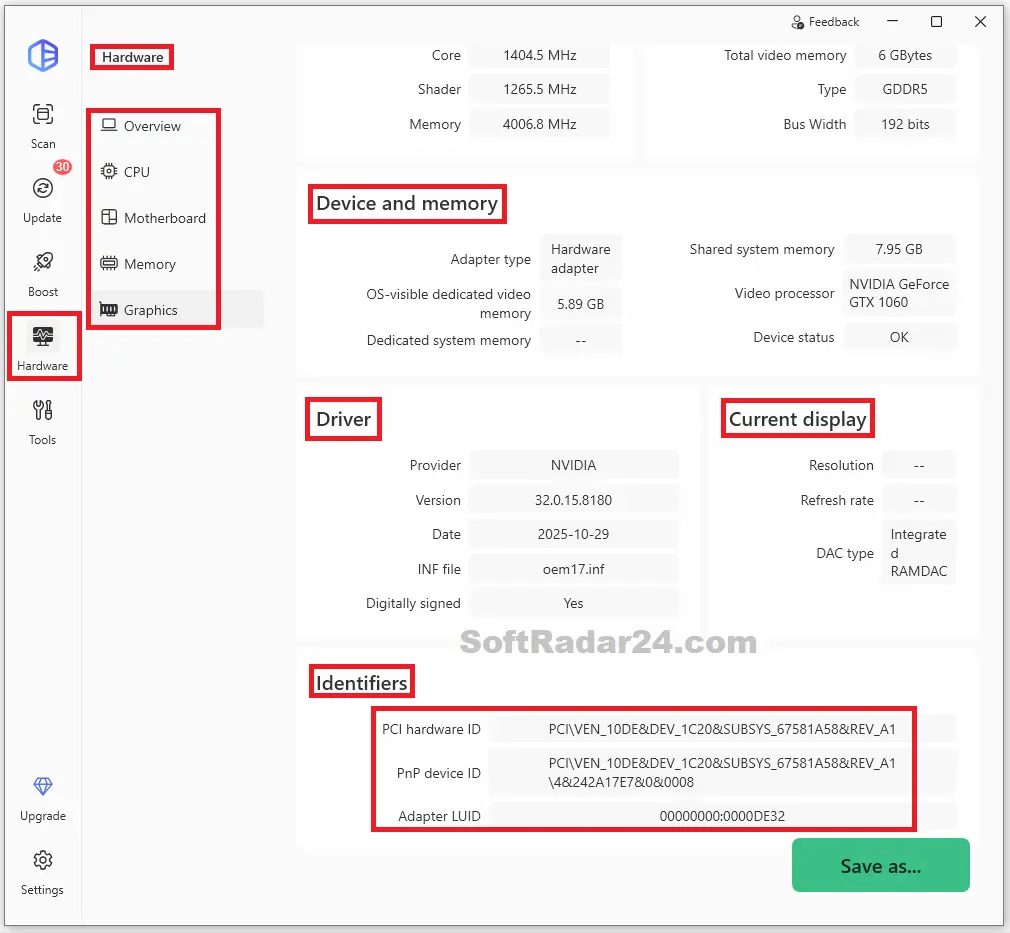
- Hardware information: shows component information for processors, motherboards, memory, display hardware and other detected components.
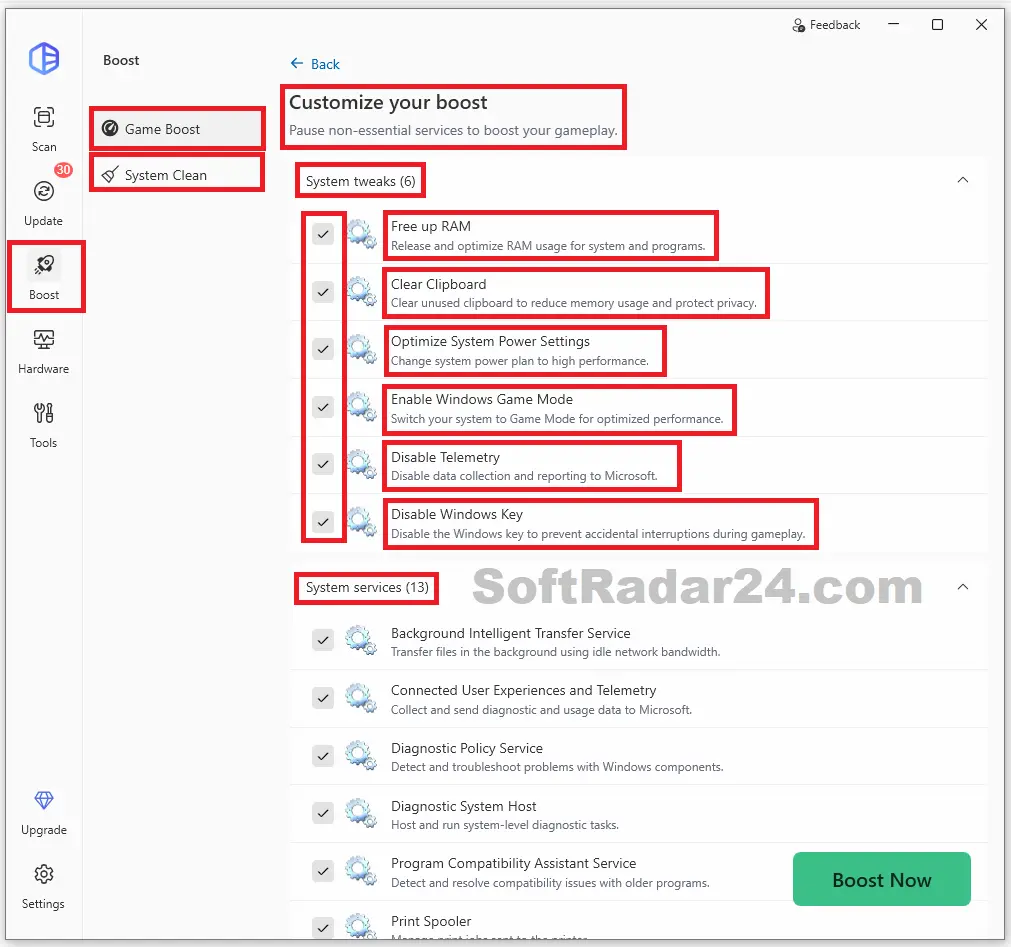
- Game Boost: allows selected background services and system adjustments to be suspended while Game Mode is enabled; settings remain user-selectable.
- System Clean: scans common temporary files and caches and allows the user to select what to remove, rather than deleting every reported file automatically.
How to Use Driver Easy Professional on Windows
These procedures follow the controls documented for current Driver Easy releases. A driver installation can affect sound, display, networking or startup behavior, so identify the device and save work before applying changes. Follow Windows administrator prompts only when the action is expected.
1. Scan Windows for Missing or Outdated Drivers
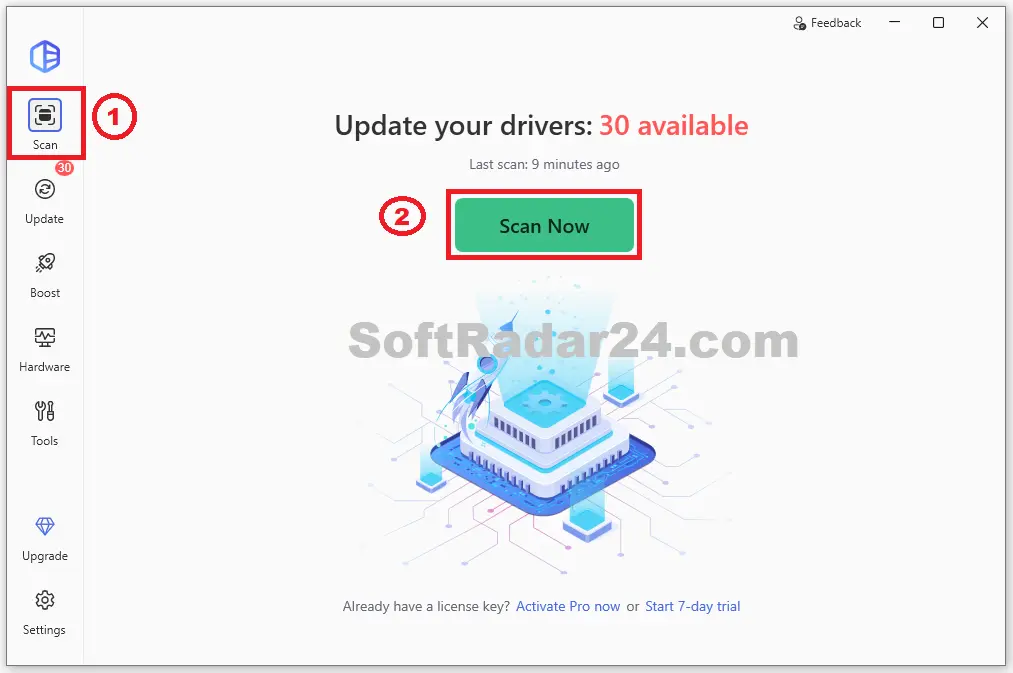
Driver Easy Professional begins with a hardware scan. This is the right first step when Windows Device Manager shows an unknown device or when a printer, graphics adapter or network interface may be using an outdated driver.
- Open Driver Easy Professional and select Scan Now on the main screen.
- Let the scan finish. If you need to interrupt it, use STOP; an interrupted scan does not provide the same complete list as a finished scan.
- Review the Update results for missing or older drivers, and distinguish them from the up-to-date devices.
- Before proceeding, identify the device you actually need to repair or update. An available version is not proof that it will resolve an unrelated Windows problem.
2. Update a Selected Driver or Several Windows Drivers
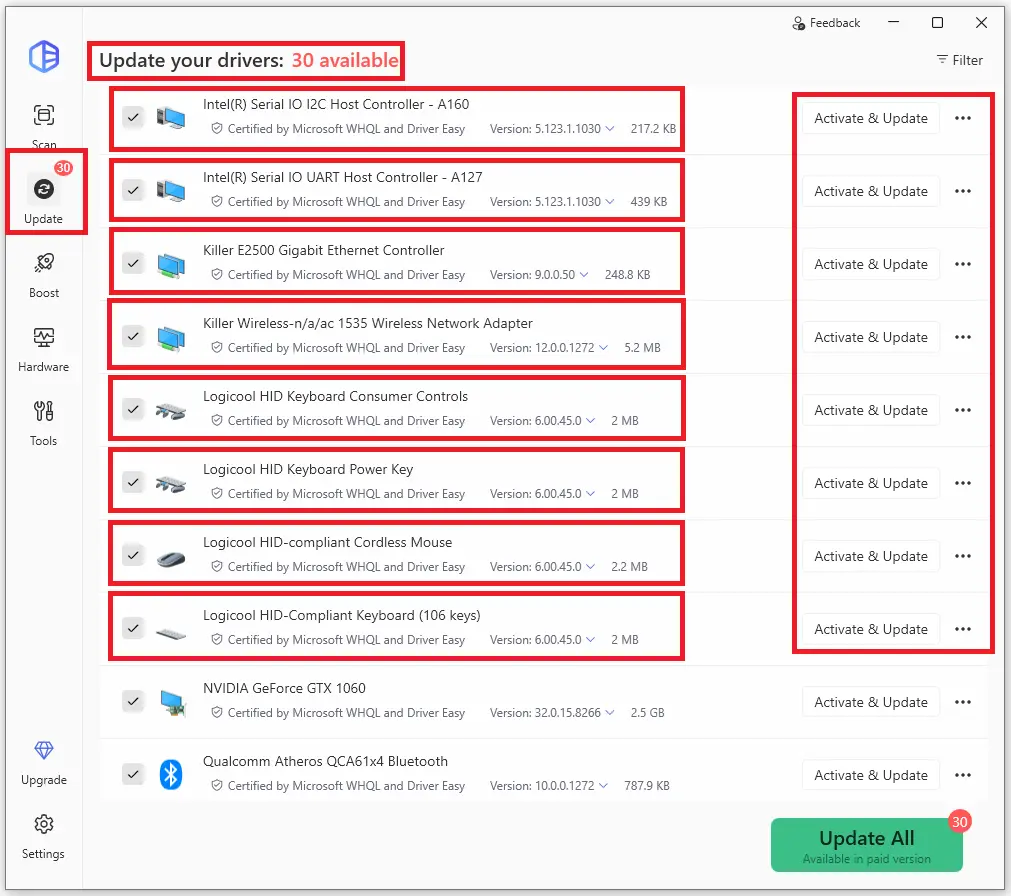
Driver Easy Professional allows different levels of control over installation. A single-device update is preferable when troubleshooting a known problem; a batch update suits users who have reviewed all the listed changes.
- After scanning in Driver Easy Professional, click the driver’s name or its three-dot menu > View driver details. Compare the current and offered driver provider, version and release date. Use Device Information if hardware IDs are needed for identification.
- For one device, choose Update next to its entry. To choose several, uncheck Device with outdated drivers, tick the entries you want and select Update Selected.
- Choose Update All only when you intend to install every selected update.
- Click Start driver updates to confirm. Grant administrator permission when Windows requests it and wait for the installations to finish.
- Restart Windows if requested. Check the device afterward rather than assuming that a completed installation solved the original symptom.
Before replacing a working driver: Driver Easy Professional also provides an All available versions option in the device’s three-dot menu. Older versions may help with a known compatibility problem, but their presence is not a recommendation to downgrade.
3. Back Up Installed Drivers and Restore a Saved Backup
A Driver Backup & Restore file is a manually created copy of selected drivers. It is different from Windows System Restore and is especially useful before changing drivers on a PC with uncommon or older hardware.
- In Driver Easy Professional, open Tools > Driver Backup & Restore and choose Back Up Drivers or Continue to Backup.
- Select the drivers you want to preserve and click Back up. The documented default destination is
C:\Users\[your username]\Documents\DriverEasy\MyDrivers. Click the path first if you want a different location. - Approve the required permission prompt and let Driver Easy Professional complete the backup. Its backup files use the
.debkextension; keep them in an accessible location. - To restore, return to Tools > Driver Backup & Restore and choose Restore From Backup or Continue to Restore.
- Select the saved backup, or click Browse… to locate one manually. Wait for it to load, select the required driver and click Restore.
- Check the affected device after restoring. A driver backup does not replace a separate backup of documents or the complete Windows installation.
4. Recover Drivers After a Problematic Update or Roll Back One Driver
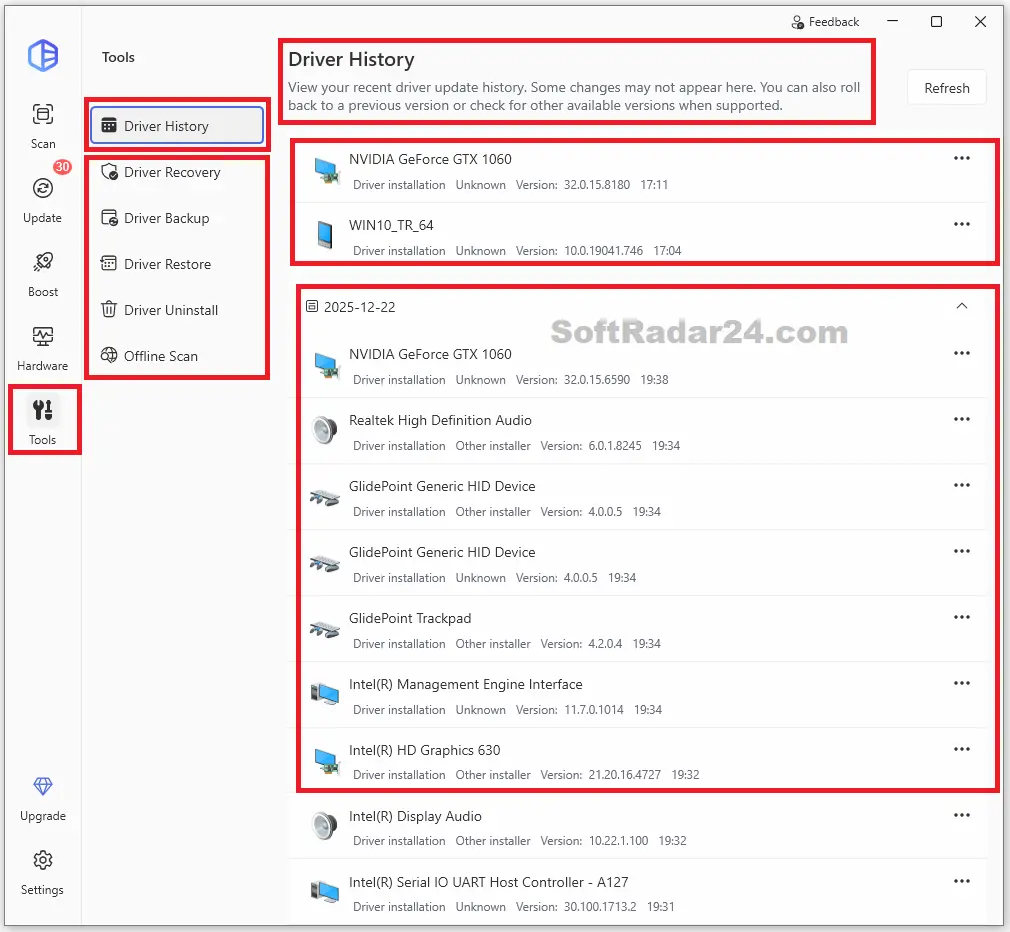
Driver Easy Professional has two routes for reversing driver changes. Roll back to previous driver targets an individual device; Driver Recovery reviews eligible Driver Easy update records and restores selected changes. Driver Recovery was introduced in version 7.2.0, so it does not contain older updates made before that feature existed.
- For an individual rollback: open Update, find the device in the Up-to-Date list and use its three-dot menu > Roll back to previous driver.
- Click Continue, approve administrator permission if asked, then select the applicable reason and confirm the rollback.
- For Driver Recovery: open Tools > Driver Recovery. Check that recovery was enabled under Settings > Scan & Update when the affected drivers were updated.
- Tick the relevant update records, select Review selected drivers, check the list and click Start recovery. Select Done after completion and restart Windows if necessary.
- If the same problem version reappears after a scan, use the update’s three-dot menu and Don’t show this update again rather than repeatedly installing it.
Recovery limitation: removing a Driver Recovery history entry does not itself undo or modify the driver installed in Windows. Recovery storage is managed separately under Settings > Scan & Update > View storage.
5. Recover a Missing Network Driver Without Internet Access
Driver Easy Professional’s Offline Scan is designed for a Windows PC that cannot connect to the Internet because its network driver is absent. It requires a second Windows computer with a working connection and a way to transfer the scan file and downloaded driver.
- On the disconnected PC, open Driver Easy Professional > Tools > Offline Scan > STEP 1. Save the offline scan result and copy that file to a USB drive or other removable storage.
- Move the scan file to the connected PC. Open Driver Easy there and choose Tools > Offline Scan > STEP 2.
- Browse to the transferred scan file, choose Open, then click Download or Download All. Select where to store the network-driver files.
- Copy the downloaded driver back to the disconnected PC. For an
.exeinstaller, run it and follow its instructions. - For a
.zipdriver package, extract it, open Device Manager withWin + Randdevmgmt.msc, find the network adapter (often under Other devices), then choose Update driver > Browse my computer for drivers and select the extracted folder. - Finish the installation and test Ethernet or Wi-Fi connectivity. The offline scan does not itself supply Internet access or install a missing driver until the downloaded files are transferred back.
6. Check PC Hardware Information Before Installing a Driver
Driver Easy Professional can identify a component when its retail name is unclear. This is particularly useful for graphics cards, motherboards, memory and network controllers with similar product names.
- Open Driver Easy Professional and click Hardware.
- Select Continue and approve the Yes administrator prompt if it appears.
- Inspect the CPU, motherboard, memory or graphics section relevant to your question. For a particular device’s driver, return to Update > View driver details > Device Information to inspect its hardware IDs and compatible IDs.
- Compare identifiers and driver providers before choosing an older version or installing a driver intended for a different hardware revision.
7. Configure Game Boost and Clean Temporary Windows Files
Driver Easy Professional includes two optional tools outside the driver-update workflow. They address background services and removable files, not driver compatibility. Use them only after reviewing their effects.
- Open Driver Easy Professional > Boost and select Continue if administrator permission is requested.
- For gaming, choose Customize before Boost Now. Review the listed system tweaks and services; uncheck any change that would interfere with a needed background service or shortcut.
- Click Boost Now to enter Game Mode. Use Details to inspect what was changed and Exit Game Mode when you finish.
- For cleanup instead, select Boost > System Clean, wait for the scan and expand categories before selecting files. Choose Clean Now only for items you want removed.
Practical limit: Game Boost does not guarantee higher frame rates, and System Clean is not a substitute for storage backups. Be especially careful when deleting logs or caches needed for troubleshooting.
8. Manage Driver History, Hidden Updates and Failed Installations
When a Windows driver update does not behave as expected, Driver Easy Professional provides several narrower controls instead of forcing an all-at-once reinstall.
- Check update history: go to Tools > Driver Update History and review the timeline. Pro users can use a record’s three-dot menu to Export last record as a text file; previous drivers may also have a Roll Back control.
- Hide an unsuitable update: go to Update, open its three-dot menu and select Don’t show this update again. To restore visibility later, use Settings > Hidden Devices > Show Hidden Devices.
- Try a different version: from Update, select three-dot menu > All available versions, choose the required version and confirm with Start driver updates. Make this choice only when you have a compatibility reason.
- Use forced installation carefully: if the normal process fails, select three-dot menu > Force install this driver…, then Force install and Continue after the download. Restart if required. If it fails again, send the error details through the program’s Feedback option rather than repeating the same failed installation.
- Inspect or remove download files: a downloaded driver entry offers Open file location and Delete downloaded driver through its three-dot menu. Deleting the downloaded package is not the same as uninstalling an installed Windows driver.
- Uninstall a problematic driver: use Tools > Driver Uninstall, choose the exact device and confirm, or use Update > three-dot menu > Uninstall driver for a supported entry. Confirm that you have a suitable replacement before removing critical network or display drivers.
If an Oops error mentions RestorePointer, the vendor documents a separate recovery route under Settings > Scan & Update > Create restore point. Do not treat every error as a driver mismatch: review the specific message before making further changes to Windows protection settings.
Driver Easy Professional System Requirements and Compatibility
Driver Easy Professional is built for Windows driver maintenance rather than macOS or Android. The current vendor FAQ specifically restricts support to x64-based PCs and excludes Windows on ARM and Windows in S mode; check your system architecture before choosing a license.
| Item | Driver Easy Professional detail |
|---|---|
| Publisher | Easeware Technology Limited |
| Software type | Windows driver scanning, updating, backup, restore and recovery utility |
| Platform | Windows on x64-based PCs; the vendor documents use with Windows 10 and Windows 11 |
| Not supported | Windows on ARM, Windows in S mode and Android; no macOS edition is offered in this license list |
| Vendor release checked | Version 7.2.3.6590, released October 27, 2026; check the installed version for newer releases |
| Driver catalogue | More than 30 million driver entries, as reported by Easeware |
| Common device types | Graphics, audio, Ethernet, Wi-Fi, Bluetooth, chipsets, printers and USB devices |
| Internet access | Normally needed to obtain driver updates; Offline Scan transfers a network-driver request using another connected PC |
| Backup output | Driver Easy .debk driver backup files, with a user-selectable folder |
| Administrator permission | May be requested for hardware inspection, driver installation, backup, recovery or removal |
| License duration | One year for the seven offers listed above; device allowance depends on the selected offer |
| Free trial | Seven-day trial of Pro features; the older permanent Free edition was discontinued in May 2024 |
The vendor’s current documentation does not provide a single consistent minimum CPU, RAM and free-storage specification for every supported Windows release, so those values are intentionally not guessed here.
What to Check Before Buying Driver Easy Professional
All seven offers at the top of this page are one-year licenses. The important differences are the number of covered computers and the amount charged, not separate driver databases or feature editions.
- 1 PC versus 3 PCs: the two checkout offers shown here both cost $23.96 at the recorded promotional price. If the same final price remains available, a 3-PC license gives a higher device allowance; do not assume that activating a 1-PC key automatically changes it to a 3-PC key.
- 5 to 100 computers: choose the number of PCs you actually intend to maintain during the subscription period. The Home/Business licence is designed for both personal and organizational use, but it is not the discontinued Computer Repair Shop plan for repairing arbitrary customer PCs.
- Renewal: eligible Home/Business subscriptions can have automatic renewal enabled by default. Review the checkout setting and the later subscription-management controls if you do not want a recurring charge. Canceling automatic renewal does not convert the license into lifetime access.
- Trial versus paid license: Driver Easy no longer maintains the old permanent Free edition. Its separate seven-day Pro trial is a way to check the program before choosing an annual license; review the trial’s own payment and cancellation terms.
- Refund and support: Easeware publishes a 30-day money-back guarantee and a technical support channel. Keep the order confirmation and review the seller’s applicable refund conditions before payment.
- Final checkout amount: the discounts above are based on the supplied regular and promotional prices. Verify the actual currency, coupon application, taxes and renewal conditions on the payment page before submitting the order.
For the vendor’s current product and purchase information, see the official Driver Easy Professional website and license information. For a broader product overview, read our Driver Easy Pro review; if you are comparing driver updaters, see Driver Easy Pro vs DriverMax Pro.
Driver Easy Professional FAQs
Is Driver Easy Professional free to use indefinitely?
No. Easeware replaced its permanent Free edition in May 2024 with a seven-day Pro trial. Continued use of paid Pro features after the trial requires an active subscription.
Should I buy the 1-PC or 3-PC Driver Easy Professional license?
With the offers currently listed on this page, both cost $23.96 for one year. The 3-PC offer covers more computers at that price. Confirm the allowance and final payment total in its dedicated checkout before purchasing.
Does Driver Easy Professional work on Windows ARM laptops?
No. The vendor says Driver Easy is for x64-based devices and does not support Windows on ARM or Windows in S mode. Check Settings > System > About > System type in Windows if you are unsure which platform you own.
What happens to Driver Easy Professional when automatic renewal is turned off?
Disabling automatic renewal stops the automatic renewal charge; it does not make a yearly key permanent. When the paid term ends, a valid renewal is required to continue using the licensed Pro features.
Can Driver Easy Professional reverse a driver update that caused problems?
It provides rollback, saved-backup restoration and Driver Recovery, but availability depends on the previous driver, a saved backup or an eligible recovery record. Driver Recovery only records supported updates made with Driver Easy 7.2.0 or later and cannot reconstruct a backup that was never saved.
Can a Driver Easy Professional Home/Business key be used as a computer-repair-shop license?
Do not assume so. The Home/Business plan covers its specified number of computers for individual or organizational use. Easeware ended sales of its separate Computer Repair Shop subscription on January 1, 2026; check with the vendor before buying for customer-device repair work.


