

WinX MediaTrans License Deals and Discount Codes
WinX MediaTrans is a Windows iPhone and iPad manager for transferring photos, videos, music, eBooks, and other supported files between iOS devices and a PC. It helps users save selected media before replacing a phone, organize music libraries, and manage files without relying on iTunes for these transfers. Available license deals include a one-year plan for three PCs, lifetime licenses for individual or family use, and a package with three software gifts. Additional WinX DVD and video bundles are listed separately with their included products and discounted prices.
WinX MediaTrans | 1 Year/3 PCs License Discount Code – 60% OFF
1-Year License / 3 PCs
- Install WinX MediaTrans on 3 PCs for family use.
- Free software upgrades during the 1-year license period.
- Two-way synchronization of iPhone and PC media without erasing existing data.
- Photo, video, music and other supported file backup, transfer and management.
- Priority technical support for registered customers.
- Annual subscription renews automatically unless cancelled; Digiarty provides advance notice.
- 30-day money-back guarantee under the vendor’s refund conditions.
WinX MediaTrans (Lifetime License for 1 PC) Coupon Code – 60% OFF
Lifetime License / 1 PC
- Install WinX MediaTrans on 1 Windows PC for personal use.
- Lifetime use with free future version upgrades.
- Updates to maintain compatibility with newly released iOS versions.
- Priority technical support for registered customers.
- 30-day money-back guarantee under the vendor’s refund conditions.
WinX MediaTrans (Family License / 3 PCs) Coupon Code – 67% OFF
Family Lifetime License / 3 PCs
- Install WinX MediaTrans on 3 PCs for personal or family use.
- Lifetime use with free future version upgrades.
- Updates to maintain compatibility with newly released iOS versions.
- Priority technical support for registered customers.
- 30-day money-back guarantee under the vendor’s refund conditions.
WinX MediaTrans (Buy 1 Get 3 Free) Lifetime License Discount Code – 83% OFF
Lifetime MediaTrans License / 1 PC + 3 Software Gifts
- WinX MediaTrans — Lifetime License / 1 PC.
- Gift: Video Watermark Remover — Full License.
- Gift: Ashampoo WinOptimizer 27 — Full License.
- Gift: AnyViewer Solo — 6-Month License.
- Free lifetime upgrades for the purchased WinX MediaTrans license.
- Updates to maintain compatibility with newly released iOS versions.
- Priority technical support for registered WinX MediaTrans users.
- 30-day money-back guarantee under the vendor’s refund conditions.
Other WinX DVD and Video Bundle Discount Codes
The Family Video Pack includes WinX MediaTrans alongside DVD and video tools. The two Holiday Video Packs contain DVD and video programs only; neither includes WinX MediaTrans.
WinX Family Video Pack (for 6 PCs) Lifetime License Coupon Code – 74% OFF
Family Video Bundle / Advertised 6-PC License
- WinX MediaTrans — iPhone and iPad media transfer and management.
- WinX DVD Ripper Platinum — DVD conversion and backup.
- WinX HD Video Converter Deluxe — video conversion and editing.
- Free gift: 5KPlayer.
- Advertised as a lifetime family package for 6 PCs; confirm activation allowances for each included product at checkout.
WinX Holiday Video Pack (4-In-One) 1 PC Lifetime License Coupon Code – 81% OFF
Holiday Video Bundle / Lifetime / 1 PC — No MediaTrans
- WinX DVD Ripper Platinum — DVD ripping and conversion.
- WinX DVD Copy Pro — disc and DVD backup copying.
- WinX HD Video Converter Deluxe — video conversion and editing.
- Gift: DVD HD Video Player Software.
- Lifetime 1-PC bundle; WinX MediaTrans is not included.
WinX Holiday Video Pack for 3 PCs Lifetime License Coupon Code – 75% OFF
Holiday Video Bundle / Lifetime / 3 PCs — No MediaTrans
- WinX DVD Ripper Platinum — DVD ripping and conversion.
- WinX DVD Copy Pro — disc and DVD backup copying.
- WinX HD Video Converter Deluxe — video conversion and editing.
- Gift: DVD HD Video Player Software.
- Lifetime 3-PC bundle; WinX MediaTrans is not included.
Savings are calculated from the listed regular and sale prices and rounded to the nearest whole percentage. Confirm the final price, included gifts, per-product PC limits, subscription renewal and refund conditions on the checkout page.
What Is WinX MediaTrans and What Can It Do?
WinX MediaTrans is a Windows tool for transferring and organizing supported files on an iPhone, iPad, or iPod touch. It lets you copy selected photos, videos, music, books, and voice memos to a PC, or move compatible media from the computer back to the device. Instead of replacing an entire device backup, it works with individual libraries and albums, so you can choose what to keep and where to save it.
That distinction matters when your iPhone is running short of storage or you are preparing to replace it. A folder of original photos on your PC is useful for keeping personal media, while a full iPhone backup serves a different purpose: restoring device settings, supported app data, and other information. WinX MediaTrans is intended for media management, not as a replacement for a complete iPhone restore.
WinX MediaTrans Features and Practical Uses
Beyond copying files, WinX MediaTrans includes several controls for preparing media before it reaches your iPhone and keeping local copies organized.
- Selective photo exports: Choose individual pictures, an album, or a larger set rather than saving every image on the device.
- HEIC preview and JPG export: View supported iPhone photos and create JPG copies for Windows tools that cannot open HEIC files.
- Live Photo handling: Export a Live Photo as a still JPG alongside its MOV video component, according to the vendor’s guide.
- Photo albums: Create a new album and add photos from Windows without overwriting an unrelated library.
- Two-way music transfer: Export supported songs to a PC or import music to an iPhone, with playlist and track-information controls.
- Audio format conversion: Prepare formats such as FLAC, OGG, WAV, and WMA as MP3 or AAC when the destination device needs a compatible file.
- Video transfer and conversion: Copy recorded videos to a computer and convert unsupported incoming video formats to MP4 when needed.
- Local file encryption: Password-protect selected photos or videos saved on the PC, including supported encrypted exports.
- Books and voice memos: Export supported ebooks and recordings independently of the photo and video libraries.
- Ringtone creation: Select an audio segment, set its beginning and end, then sync the resulting ringtone to the device.
- Flash Drive area: Store and retrieve ordinary documents and other files separately from the iPhone’s photo and music libraries.
WinX MediaTrans Interface and Photo Transfer Screenshots
The two screens below show the overall workspace and the photo-specific controls used when moving pictures to a Windows computer.
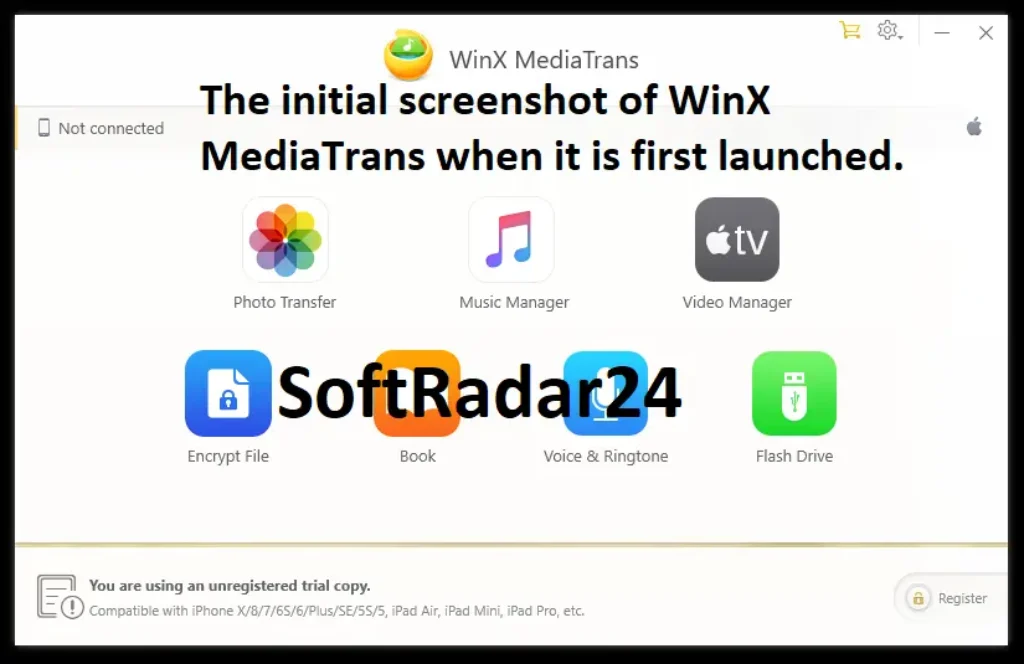
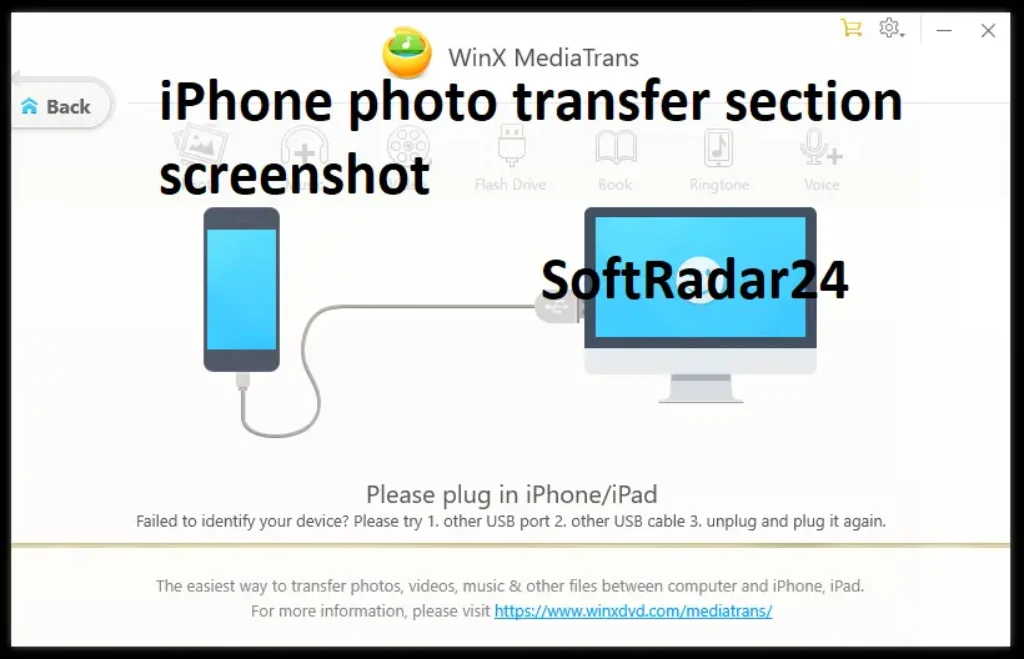
How to Use WinX MediaTrans on Windows
The following procedures follow the controls described in Digiarty’s user guide. Start with a connected, unlocked device and make sure the Windows computer has enough free space for any files you plan to export.
1. Connect an iPhone and check the available libraries
Open WinX MediaTrans on the Windows PC, connect the iPhone with a working USB cable, and unlock the phone. If the iPhone asks whether to trust this computer, approve the connection. The main window should then make the available media sections accessible. Start with Photo Transfer or another media section rather than deleting or changing files before confirming that the phone is recognized.
If the program cannot detect the iPhone, check the cable and USB port first, reconnect the unlocked device, and inspect the Apple device driver in Windows Device Manager if necessary. An unrecognized USB device is a connection problem, not evidence that the photos themselves are missing.
2. Export iPhone photos and choose HEIC or JPG files
- Open WinX MediaTrans and select Photo Transfer. Choose the album or pictures you need; use the date grouping to narrow down a large photo library.
- Use Refresh if the panel does not show recently added photos. Pictures marked with an iCloud icon must be downloaded to the iPhone first.
- Click Export to copy selected pictures to Windows. For HEIC pictures that must open in older Windows photo tools, use the Export HEIC to JPG option from the Export menu.
- Open the resulting Windows folder and check a sample of the transferred files before removing anything from the iPhone. A Live Photo may produce both a JPG image and a MOV clip.
Choose original HEIC files when retaining the source format is important; use JPG output when sharing with software that does not support HEIC. Converting to JPG does not preserve every format-specific property of the original.
3. Add photos from Windows without replacing existing albums
- Open WinX MediaTrans, select Photo Transfer, and click + to create a new photo album.
- Choose Add Photo or Add Folder to select pictures stored on the PC.
- Review the selected files and click Sync to transfer them to the new album on the iPhone or iPad.
The vendor’s guide states that protected built-in albums such as Camera Roll and Screenshot cannot be written to through this add-photo workflow. Use a new album instead. Also distinguish importing photos from deleting them: a Delete Photo action followed by Sync changes the device library.
4. Transfer music, edit track details, and build playlists
- Open WinX MediaTrans and go to Music Manager. Select songs and click Export to copy supported device music to the Windows PC.
- To add music from Windows, choose Add Music, select the files, and click Sync. The program can prepare unsupported audio formats as MP3 or AAC when necessary.
- For a title, artist, album, or year correction, select a song, choose Edit, make the change, click OK, and then Sync.
- To create a playlist, click +, add the required tracks, and click Sync.
Keep the original PC audio files if you are preparing a large music collection. Format conversion is useful for compatibility, but an MP3 or AAC copy should not be treated as an unchanged archival master.
5. Export recorded videos or import an unsupported video format
- Open WinX MediaTrans and select Video. Choose one or more videos, then click Export to save them to Windows.
- To move a PC video onto an iPhone, choose Add Video, browse to the file, and select Sync.
- If the selected format is not suitable for playback on the device, use the available Convert control to create a compatible MP4 file.
Copy first and check playback on the destination device before deleting the source. The user guide also identifies locked video categories that cannot be deleted through the desktop interface; these must be managed on the iPhone itself.
6. Encrypt exported photos and videos on the PC
- Open WinX MediaTrans and go to Encrypt File. Choose Add files or Add folder to select local photos or videos.
- Click Encrypt Now, set a password when prompted, and complete the protection process.
- To recover access, select the protected files, choose Decrypt Now, and enter the password.
The program can also offer Export with Encryption for supported photo and video exports. Keep the password somewhere secure: Digiarty warns that it cannot recover a forgotten encryption password. This function protects selected local files; it is not an encrypted backup of the entire iPhone.
7. Save voice memos and ebooks separately
Open WinX MediaTrans and select Voice & Ringtone to choose a voice memo, then click Export to store the recording on Windows. For supported ebooks, open Book, select the titles, and click Export. When adding books from the PC, use Add Book and then Sync. The vendor also documents exporting EPUB content in PDF, TXT, or HTML form where the conversion option is available.
These sections are useful when you need a particular recording or document rather than another photo archive. Check the exported file itself before removing its device copy.
8. Use the Flash Drive area for ordinary files
Open WinX MediaTrans and choose Flash Drive. Select Add File to place files in that area, or click New Folder to organize them. To retrieve a stored item, select it and click Export. This provides file storage independent of the usual photo and music sections, but it should not be confused with direct access to protected iOS system folders.
WinX MediaTrans Technical Specifications and Compatibility
Digiarty publishes Windows and iPhone compatibility information across its product pages and user guide. The current English sources do not provide one complete, up-to-date CPU, RAM, and installation-size table, so no minimum processor or memory figures are assumed here.
| Specification | Documented support or requirement |
|---|---|
| Desktop platform | Windows desktop software; Digiarty also offers a separately named Mac product. |
| Windows compatibility | Windows 7 or later according to Digiarty’s current download guidance, including Windows 10/11. |
| Mobile devices | Supported iPhone, iPad and iPod touch models; confirm the device’s iOS version against the current vendor release. |
| Device connection | USB connection documented in the step-by-step guide; device must be unlocked and trusted by the PC. |
| Windows device recognition | A functioning Apple mobile-device USB driver may be needed if Windows does not recognize the iPhone. |
| Photo handling | Selective photo exports, HEIC viewing and JPG export; Live Photos may export as JPG plus MOV. |
| Music compatibility | Transfer of supported music files; incompatible FLAC, OGG, WMA or WAV can be converted to MP3/AAC for iOS use. |
| Video handling | Import/export of supported video files; conversion to MP4 (H.264) when required for iOS playback. |
| Optional acceleration | Intel Quick Sync and NVIDIA encoding are described for supported video conversion tasks; availability depends on hardware and drivers. |
| Internet access | Required for license activation and periodic verification; local media transfers do not need a continuous internet connection. |
| Available storage | Allow sufficient free space on the destination drive for exported photos, videos, and any converted files. |
Which iPhone Data Can WinX MediaTrans Actually Back Up?
The word backup covers several different tasks. WinX MediaTrans is suited to selected media and file copies; it does not perform every step of a full device migration.
| Your goal | What to expect |
|---|---|
| Keep original photos and videos on a PC | Use Photo Transfer or Video to select files and export them; verify the copies afterward. |
| Move supported media to another iPhone | Copy supported media to Windows, connect the other device, and import it to the relevant section. This does not recreate the old phone’s full setup. |
| Keep voice recordings, ebooks, or music | Use the matching media section and check format or access restrictions on each file. |
| Restore apps, settings, messages, or WhatsApp conversations | Do not rely on a MediaTrans export as a complete restore source. Use the appropriate full-device or service-specific backup and restore process. |
| Free storage on the iPhone | Export first, open the saved copies on Windows, and only then decide what can safely be removed from the device. |
What to Check Before Buying a WinX MediaTrans License
A paid license makes sense when you regularly transfer larger collections or need the full media-management features. Digiarty provides a trial version, but its guide lists restrictions rather than promising unrestricted transfers. Check the trial with the actual iPhone, USB connection and type of files you expect to manage before choosing a paid plan.
For the yearly license, confirm the next renewal price and cancellation terms; Digiarty describes automatic annual renewal with advance notice. For a lifetime license, confirm the number of Windows PCs covered by the exact offer. Multi-product bundles may have different licenses for their included software, and short-term gifts should not be mistaken for permanent access.
To review the developer’s product information and current availability, visit the official WinX MediaTrans product page. Purchase prices and license choices are listed in the offer boxes above.
If you also need DVD backup, video conversion, or other Digiarty tools, explore our WinXDVD coupon codes and software bundle deals to compare multi-product packages and their license options.
WinX MediaTrans FAQs
Why does WinX MediaTrans show that my iPhone is not connected?
Check that the phone is unlocked, connected with a working USB cable, and has accepted the computer’s trust request. A different USB port or cable can rule out a physical connection fault. If Windows still does not recognize the device, inspect the Apple Mobile Device USB Driver in Device Manager and repair or reinstall the relevant driver if it is missing or disabled. Resolve recognition first; changing a license plan will not fix an unavailable USB connection.
Can WinX MediaTrans save iPhone HEIC pictures as JPG?
Yes. In Photo Transfer, select the pictures and use the export option for HEIC-to-JPG conversion. This can help when older Windows software does not display HEIC photos. If the source includes Live Photos, the vendor describes a JPG still image together with a MOV video component. Keep the original files when their format and metadata matter, because a converted JPG is a separate copy.
Why are some iCloud Photos unavailable for export?
An iCloud icon can mean that the photo’s full file is not stored locally on the iPhone. Digiarty’s guide says to download that picture to the device first and then repeat the MediaTrans export. Check that the image is fully available on the phone, especially if the device uses optimized photo storage. A computer-to-phone connection alone cannot export a source file that is still only in the cloud.
Can WinX MediaTrans make a complete iPhone backup for a replacement phone?
It can save supported photos, videos, music, books and other accessible files to Windows, which is useful before changing phones. But this is not the same as capturing the entire iPhone for restoration. It should not be assumed to preserve WhatsApp chat databases, app sign-ins, device settings, or every item needed to restore a new iPhone. Keep a separate full-device backup or the relevant service’s own backup for that purpose.
Does syncing with WinX MediaTrans erase my existing photos or music?
The product offers selective transfers and is intended to avoid replacing unrelated media when adding files. That does not make every action reversible: choosing Delete Photo or Delete Video and then confirming Sync can remove selected items. Import photos to a new album when appropriate, review the pending selection, and verify exported files on the PC before deliberately deleting anything from the iPhone.
Does WinX MediaTrans require iTunes or a constant internet connection?
Its media-management screens are designed to work without using the iTunes interface. Windows must still recognize the attached iPhone, so the Apple mobile-device driver matters when there is a connection problem. Ordinary local file transfers do not require a continuous internet connection, but Digiarty states that paid software needs internet access for initial activation and periodic license verification. Keep the computer able to reconnect when the license must be checked.


