Google Drive provides a generous 15GB of free storage for its users. However, this space fills up incredibly fast. Daily backups, shared workspace folders, and synced smartphone photos easily consume your quota. Before you realize it, you hit that annoying storage limit warning. A massive part of this digital clutter usually comes from hidden, repeated files scattered across your account. Learning how to find and delete duplicate files in Google Drive is the fastest way to reclaim your space without paying for expensive storage upgrades.
Unfortunately, organizing a messy cloud account manually is a frustrating experience. The platform does not offer a built-in feature to instantly remove duplicates from Google Drive. Searching through hundreds of nested directories one by one wastes hours of your valuable time. To clear your account safely and efficiently, you need a smart and automated approach. In this comprehensive guide, we will show you exactly how to use a dedicated Google Drive duplicate finder to permanently clean up your storage in just a few simple steps.
Can Google Drive Find Duplicates Automatically?
The short answer is no. Google Drive does not have a built-in duplicate finder or a magic button to automatically clean up identical files. When you upload a file with the exact same name, the platform simply creates a new version or adds a number like “(1)” to the filename.
The system assumes you might need both copies for backup or version control purposes.
How to Remove Duplicates from Google Drive (Automated Method)
Attempting to download gigabytes of data to your local hard drive just to sort through folders manually is outdated and inefficient. The modern approach is a direct cloud-to-cloud cleanup. Using an authorized web application like Cloud Duplicate Finder allows you to process everything online.
Here is how to seamlessly organize your digital workspace:
Step 1 – Register and Link Your Google Drive: First, head over to the Cloud Duplicate Finder website and register for a complimentary account. Once inside your dashboard, click on the Google Drive icon to initiate the integration. The platform will automatically route you to Google’s official authentication screen. Because it relies on secure OAuth protocols, you log in directly through Google—ensuring your personal passwords remain completely invisible and are never recorded by the application.
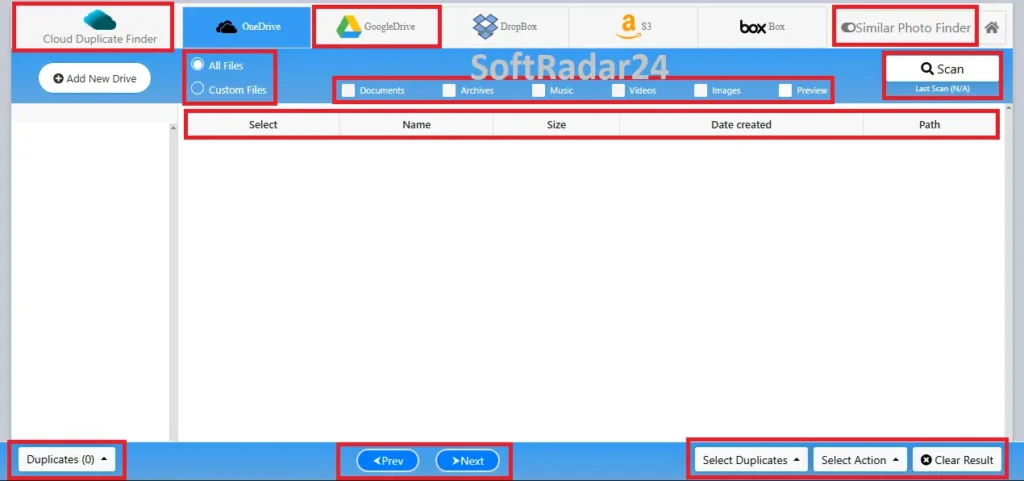
Step 2 – Set Custom Scan Filters: Once your directories load on the screen, select the specific folders you want to inspect. You can execute a comprehensive “All Files Scan” or apply custom filters to target only heavy data, such as duplicate videos, compressed archives, or audio tracks.
Step 3 – Automate the Selection and Delete: When the scanning algorithm completes its job, identical items are neatly grouped together in a list. Instead of clicking files one by one, apply automated rules such as “Keep Newest” or “Keep Oldest” to instantly mark redundant data. With a final click, all selected items are securely moved to your standard Google Drive Trash, instantly reclaiming your storage quota.
Key Benefits of an Over-the-Cloud Scanner
Using a specialized tool over manual sorting provides several significant advantages for Google Drive users:
- No Local Downloads: The entire deduplication process happens cloud-to-cloud. You never have to download gigabytes of heavy files to your personal computer just to compare them.
- Military-Grade Security: Reputable services utilize 256-bit AES encryption. Combined with official API access, your data and privacy remain strictly protected during the scanning phase.
- Preserves Folder Structure: When duplicates are removed, your original file organization remains perfectly intact. The system only targets the redundant copies, leaving your master folders untouched.
Conclusion: Reclaim Your Free 15GB Today
Running out of Google Drive space does not mean you have to immediately purchase a premium Google One subscription. By taking a few minutes to connect a secure cloud scanning tool, you can easily find and delete duplicate files in Google Drive, reclaiming gigabytes of wasted storage effortlessly.
Are you ready to automate your cloud cleanup and permanently organize your digital life?
👉 Read our comprehensive Sorcim Cloud Duplicate Finder Review to learn more and grab an exclusive 50% OFF discount coupon!
Frequently Asked Questions (FAQ)
Can Google Drive automatically detect and delete duplicate files?
Google Drive lacks a native feature to automatically scan for or remove identical files. When users upload files with identical names, the platform retains both copies by simply appending a number, such as “(1)”, to the newer file’s name. Account holders must either manually search through their folders or utilize authorized third-party web services to automate the cleanup process.
Is it possible to find duplicate files in Google Drive using a mobile device?
Managing cloud storage directly from a smartphone is fully supported through web-based deduplication services. Since the entire scanning process operates cloud-to-cloud via official APIs, iPhone and Android users can access the scanner dashboard directly through their mobile web browsers without needing to install dedicated desktop software.
How secure are third-party duplicate finder applications for Google Drive accounts?
Reputable deduplication platforms connect to storage accounts exclusively through the official Google OAuth authorization protocol. This industry-standard method ensures that the scanning application only receives permission to analyze file metadata. The system never collects, views, or stores the user’s personal login passwords or private file contents.
Do cloud deduplication tools identify visually similar photos alongside exact file matches?
Advanced cloud scanning algorithms distinguish between byte-to-byte exact data matches and visually similar images. Users can configure the software to target identical digital copies or utilize a specific photo mode to find compressed WhatsApp forwards, resized images, and burst-mode camera shots that look identical but have completely different file sizes.
Are deleted duplicate files permanently removed from Google Drive storage immediately?
The automated deduplication process typically moves the selected redundant files directly into the standard Google Drive Trash folder rather than executing an irreversible deletion. Account owners retain a standard 30-day window to review their discarded items and restore any accidental deletions before Google automatically empties the bin permanently.