Replacing an aging hard drive with a high-speed NVMe SSD, or upgrading to an entirely new Windows 11 PC, drastically improves performance. However, reinstalling the operating system from scratch means losing hours to downloading drivers, recovering passwords, transferring personal files, and reactivating software licenses.
The industry-standard solution to this problem is OS migration (disk cloning). Rather than starting over, you create a 1:1 sector-by-sector replica of your existing Windows environment and move it to the new hardware. Everything—from your desktop wallpaper to your hidden system registries—transfers perfectly.
This comprehensive AOMEI technical guide explains the exact requirements, the difference between free and professional methods, and the step-by-step process to securely migrate Windows 11 or Windows 10 to a new SSD or a completely new computer.
Before diving into the technical migration steps, don’t risk your data with free, limited tools. We have secured a verified, massive 75% discount on the AOMEI Backupper Professional Lifetime License. Pay once, safely clone your OS, and protect your PC forever. Skip the unreliable coupon sites—this maximum discount is automatically applied at the official checkout via our secure link.
💬 Microsoft Tech Community Insights: Moving an operating system between drives frequently triggers boot errors if the hidden EFI partitions are mishandled. For real-world troubleshooting and peer advice directly from Windows Insiders, review the active forum discussions detailing how to transfer or migrate Windows to a new SSD.
Prerequisites for Migrating Windows to a New Drive or PC
Before initiating any cloning process, your hardware and digital environment must meet specific criteria to ensure the newly cloned drive boots correctly. Attempting to clone without verifying these steps usually results in a “Blue Screen of Death” (BSOD) or a “No Bootable Device Found” error.
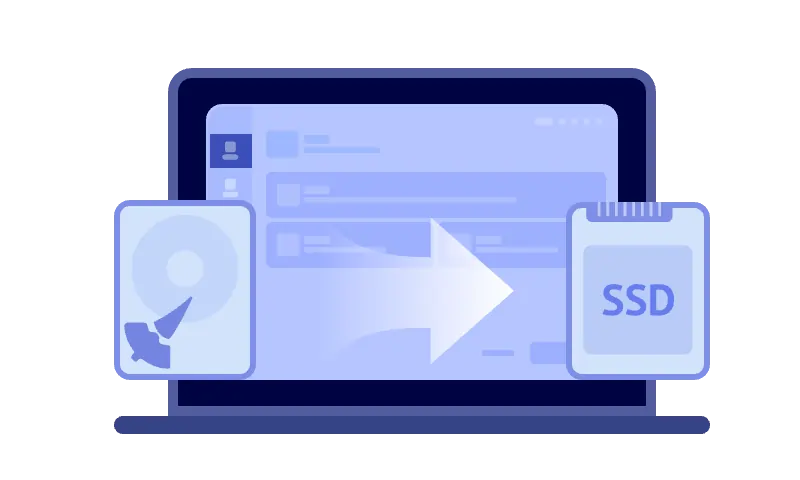
- Physical Connection: If you are moving to a new SSD on the same laptop, you need a SATA-to-USB adapter or an NVMe enclosure to connect the new drive externally during the cloning process. Desktop users can plug the new SSD directly into the motherboard.
- Storage Capacity: The target SSD does not need to be exactly the same size as the old drive, but its total capacity must be larger than the used space on the source drive.
- Hardware Compatibility (New PC Migration): If you are migrating your OS to a completely different motherboard and CPU, standard cloning will fail due to driver conflicts. You must use a “Universal Restore” tool designed for dissimilar hardware.
- Windows 11 License Types: Retail and digital licenses tied to your Microsoft account will transfer to a new PC automatically. However, OEM licenses (pre-installed by Dell, HP, Lenovo) are tied to the original motherboard and may require reactivation.
⚠️ Important Technical Distinction: A standard file copy (drag-and-drop) will never make a drive bootable. Windows contains hidden EFI system partitions, recovery partitions, and locked registry files that can only be moved using dedicated block-level cloning software.
Method 1: The Free Way (Backup and Restore)
It is possible to move Windows to a new hard drive without purchasing premium software, but the process is highly manual, error-prone, and requires a third storage device (like an external USB flash drive).
Using the free version of standard backup utilities, you must first compress your entire C: drive into a system image file and save it to a separate USB drive. Next, you must create a “Bootable WinPE USB Maker.” You then shut down the computer, replace the physical hard drive, boot the PC from the USB stick into a recovery environment, and manually unpack the system image onto the blank new SSD.
This method takes hours, requires advanced BIOS knowledge to change boot orders, and offers no automatic partition resizing. If the target SSD is smaller than the original HDD, the restoration will fail completely.
Method 2: The Direct Clone Way (AOMEI Backupper Professional)
IT professionals and system builders bypass the manual backup method by using direct “Disk Clone” or “System Clone” software. The globally recognized standard for this process is AOMEI Backupper Pro.
Instead of relying on middle-man USB drives, AOMEI copies the OS directly from the old drive to the new drive in real-time. It uses an Intelligent Sector algorithm, meaning it only copies the sectors containing data. This allows you to effortlessly clone a massive 1TB HDD onto a smaller, faster 500GB SSD without errors, automatically resizing the partitions in the background.
How to Migrate OS to a New SSD in 5 Steps (AOMEI)
To safely clone your system and guarantee a successful boot on the new drive, follow this exact workflow using the professional cloning tool:
- Connect the Target Drive: Attach your new blank SSD to the computer via a USB enclosure or internal SATA/M.2 port. Ensure Windows recognizes the drive in Disk Management.
- Launch the Cloning Tool: Open AOMEI Backupper Professional. On the left sidebar, click the “Clone” tab, then select “System Clone” (to move just the OS) or “Disk Clone” (to move the OS plus all other data partitions).
- Select Destinations: The software automatically highlights your current Windows partitions (C: drive, EFI, and Recovery). You simply need to click on your newly connected SSD to mark it as the destination path.
- Optimize for SSDs: Before proceeding, check the box labeled “SSD Alignment” at the bottom of the screen. This crucial step aligns the disk sectors to maximize reading/writing speeds and extend the lifespan of the NAND flash memory on the new drive.
- Execute and Swap: Click “Start Clone”. AOMEI utilizes “Hot Clone” technology, meaning you can continue watching videos or browsing the web while the system duplicates itself in the background. Once completed, shut down the PC, physically swap the old drive for the new one, and turn the power back on. The computer will boot instantly into your familiar Windows environment, operating significantly faster.
🖥️ Migrating to a Completely New PC? If you are moving your cloned drive to a totally different computer with a new motherboard, use AOMEI’s “Universal Restore” feature. It automatically strips away the old hardware drivers and injects the new motherboard drivers during the cloning process, preventing boot crashes.
Unlock the Professional Cloning Tool (2026 Deal)
While the standard free version of AOMEI allows for basic file backups, the critical System Clone, Disk Clone, and Universal Restore functions are strictly locked behind the Professional license. If you attempt to clone a drive with the free version, the software will only provide a visual demonstration without actually transferring the data.
Stop wasting hours configuring bootable USBs or fighting with Windows installation media. You can secure a lifetime license of the software and permanently solve your disk migration needs.
Ready to Clone Your Windows PC?
Read our comprehensive AOMEI Backupper Pro technical review to see the interface in action, verify compatibility, and claim an exclusive, officially verified 20% discount code for 2026.