
Hard Disk Sentinel is a Windows HDD and SSD health monitoring tool that checks drive health, temperature, S.M.A.R.T. data, and warning signs such as bad sectors and read errors. It helps users understand the condition of internal and external drives, track changes over time, and run supported disk tests when storage problems appear. Both Hard Disk Sentinel Standard and Professional include health monitoring, alerts, and basic disk diagnostics.
Looking for a Hard Disk Sentinel discount code? Compare the Hard Disk Sentinel Standard, Professional, and Professional Family lifetime license offers below. Standard covers everyday HDD and SSD monitoring, while Professional adds advanced surface tests, disk repair options, scheduled backups, and NAS monitoring. The Family license provides Professional features for up to five computers.
Hard Disk Sentinel Standard and Pro Discount Codes
Choose from three lifetime license options, including Standard for one PC, Professional for one PC, and Professional Family for up to five PCs. Compare the discounted prices and included features to find the right license for your computers.
Hard Disk Sentinel Standard Lifetime / 1 PC License Coupon Code – 40% OFF
Lifetime License for 1 PC
- Lifetime license for 1 Windows PC.
- HDD and SSD health, temperature, and S.M.A.R.T. monitoring.
- Disk health alerts and status reports.
- Short and extended disk self-tests.
- Basic disk surface checks.
- Free updates to future Standard versions.
- Free life-of-product technical support.
- 15-digit registration code delivered after purchase.
Hard Disk Sentinel Professional Lifetime / 1 PC License Coupon Code – 40% OFF
Lifetime License for 1 PC
- Lifetime license for 1 Windows PC.
- All Standard monitoring and diagnostic features.
- Advanced surface tests, disk repair, and Quick Fix.
- Scheduled file backups and Panic Backup.
- NAS monitoring on supported configurations.
- Professional Portable edition access.
- Free updates to future Professional versions.
- Free life-of-product technical support.
- 15-digit registration code delivered after purchase.
Hard Disk Sentinel Pro Family Lifetime / 5 PCs License Coupon Code – 40% OFF
Lifetime Professional Family License for up to 5 PCs
- Lifetime Professional license for up to 5 Windows PCs.
- All Professional monitoring and diagnostic features.
- Advanced surface tests, disk repair, and Quick Fix.
- Scheduled file backups and Panic Backup.
- NAS monitoring on supported configurations.
- Professional Portable edition access, subject to license limits.
- Free updates to future Professional versions.
- Free life-of-product technical support.
- 15-digit registration code delivered after purchase.
Prices are in USD. Discounts are calculated from the regular and promotional prices shown. Confirm the final checkout total and license terms before payment.
Hard Disk Sentinel Standard vs Professional: Which Should You Buy?
Hard Disk Sentinel Standard already provides HDD and SSD health monitoring, S.M.A.R.T. analysis, temperature alerts, reports, supported hardware self-tests and basic surface checks. Professional includes these tools and adds advanced surface testing, targeted disk repair, automated file backups, NAS monitoring and a Portable edition. The difference is what you need to do after identifying a problem, not whether you can monitor a drive in the first place.
| Feature | Standard | Professional |
|---|---|---|
| HDD/SSD health, temperature and S.M.A.R.T. | Included | Included |
| Health alerts and disk reports | Included | Included |
| Short and extended hardware self-tests | Included | Included |
| Basic disk surface check | Included | Included |
| Advanced surface tests and disk repair | Not included | Included |
| Scheduled and Panic Backup projects | Not included | Included |
| NAS monitoring and custom alert conditions | Not included | Included |
| Portable edition | Not included | Included |
Edition features follow the manufacturer’s comparison. Individual tests and drive readings depend on the connected hardware.
Choose Standard for ongoing disk health checks and supported diagnostics on one Windows PC. Choose Professional if you need advanced surface tests, file backup projects or monitoring of supported NAS drives. Choose Professional Family to use the same Professional features on up to five PCs; Family changes the license coverage, not the feature set.
How to Check HDD and SSD Health with Hard Disk Sentinel
The main window separates physical disks from Windows drive letters. Select a disk from the left panel before interpreting its health, examining S.M.A.R.T. data or changing an alert setting.
How to Check Disk Health, Performance and Temperature
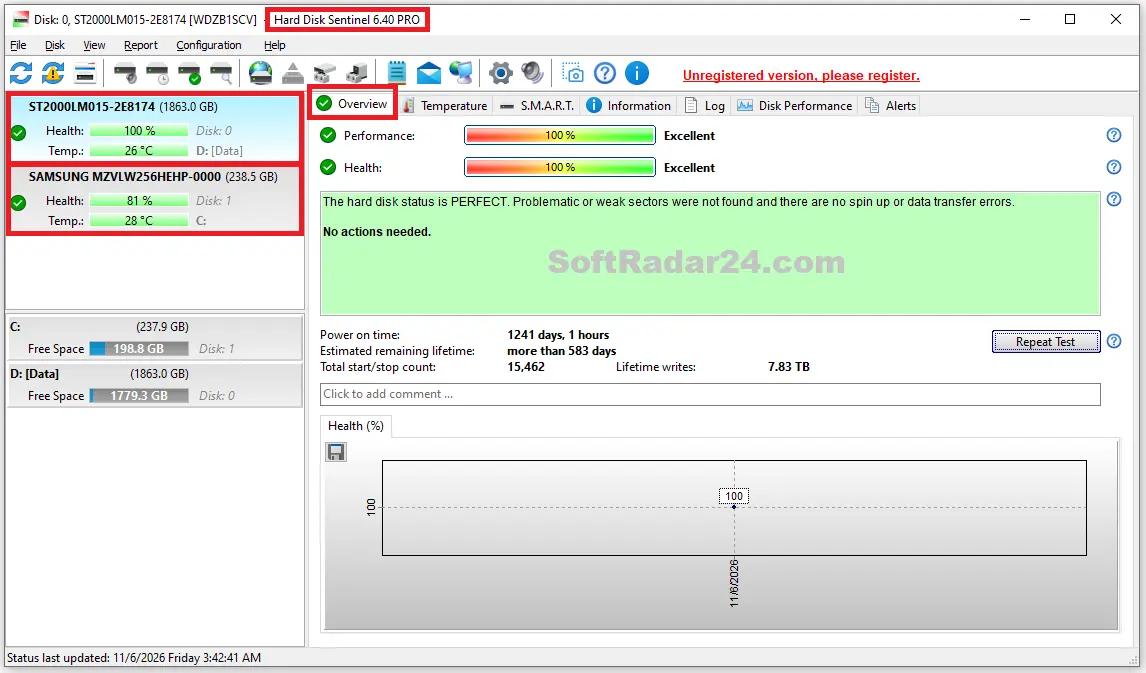
In Hard Disk Sentinel, select the HDD or SSD on the left and open Overview. Read the Health percentage together with the status description below it: the text identifies reported issues such as weak sectors, spin-up trouble or transfer errors. Performance is a separate condition rating; 100% does not mean the disk has achieved a measured maximum read/write speed. The page can also show power-on time, estimated remaining lifetime and a health-history chart.
Open Temperature to review current and recorded readings. A lower SSD health percentage can reflect normal write wear rather than newly developed bad sectors. Likewise, an estimated remaining lifetime is not a guaranteed replacement date; changes in the status explanation and recorded history matter more than a single number.
How to Read S.M.A.R.T. Data and Identify Disk Problems
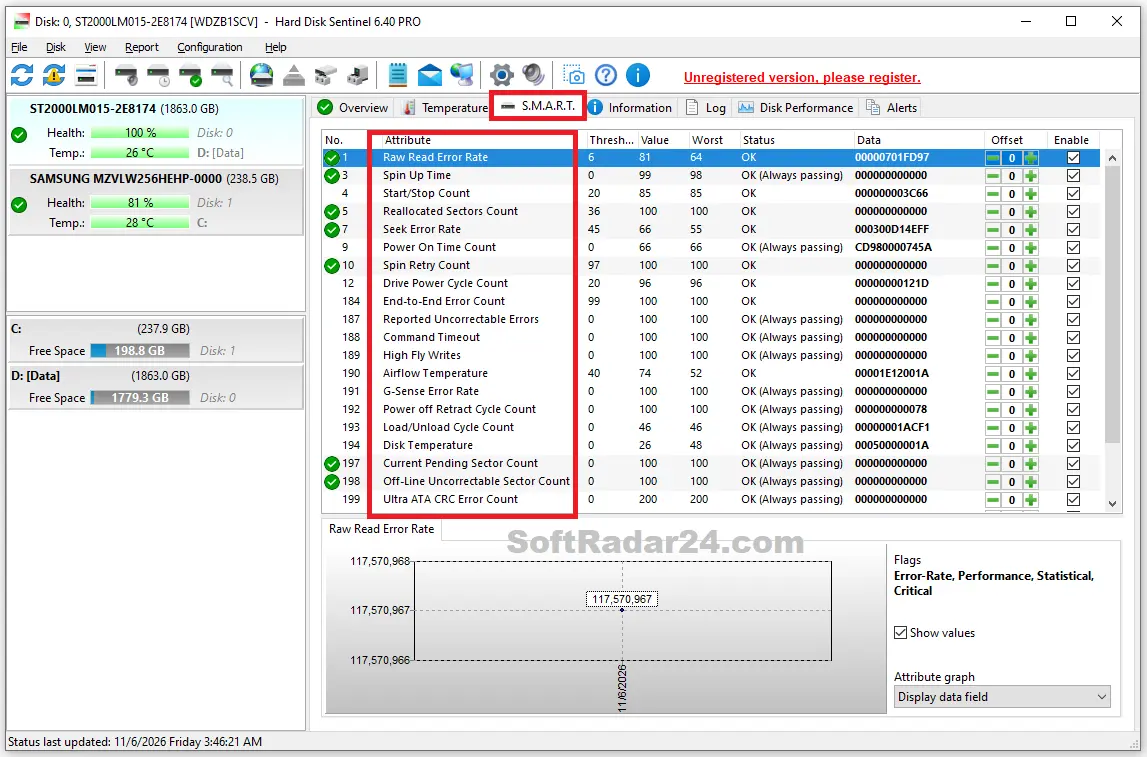
Open S.M.A.R.T. for the selected drive. The list includes attributes, normalized Value and Worst figures, manufacturer Threshold values and the Data field. These fields are not interchangeable: raw data may use a drive-specific format, and the same attribute can be interpreted differently across manufacturers.
On supported HDDs, Reallocated Sectors Count can show sectors already replaced by spare areas, while Current Pending Sector Count identifies sectors awaiting resolution. Off-line Uncorrectable Sector Count reports errors the disk could not correct. Watch for newly reported faults or rising counts, and open Log to check when changes occurred. An SSD’s wear indicator must be assessed separately from sector errors. Do not change Offset or disable attributes just to make the health rating look better: that does not repair the disk.
How to Configure Disk Health and Temperature Alerts
Open Configuration > Thresholds / Tray icon to review the health and temperature levels that control the tray indicators. Then use Configuration > Alerts to choose which events should produce a warning, such as falling health, excessive temperature or a new error-log entry. Notification methods depend on the alert and message settings you have configured.
Standard supports disk alerts; Professional adds more detailed custom conditions and per-drive controls. Use thresholds suitable for the drive rather than treating one temperature limit as correct for every model. A disk that currently reports 100% health can still fail unexpectedly, so alerts complement backups rather than replace them.
Hard Disk Sentinel Disk Tests: Which Tests Are Safe?
Disk tests differ in what they check and what they do to stored files. If a drive is already making unusual noises, disconnecting or reporting serious errors, copy important data to a different working drive before putting it under additional test load.
| Test | What it checks or changes | Effect on stored data |
|---|---|---|
| Short / Extended Self-Test | Drive-controlled hardware diagnostics | No intentional overwrite; adds drive load |
| Surface READ Test | Reads sectors and maps slow or unreadable areas | Does not overwrite files |
| Refresh Data Area | Reads, rewrites and checks existing data | Data loss possible if a problem occurs |
| WRITE / WRITE + READ | Overwrites sectors and, where selected, verifies them | Erases existing data |
| Reinitialize Disk Surface | Overwrites and checks the disk surface | Erases existing data |
| Disk Repair | Targets weak or problematic sectors | Aims to preserve files; damaged data may remain corrupted |
Professional provides the advanced refresh, reinitialization and repair options. Even non-destructive tests can stress a failing drive; no test guarantees recovery of damaged files.
How to Run a Short, Extended or Surface READ Test
Select the physical disk first. For a supported hardware diagnostic, open the Disk menu and choose Short Self-test or Extended Self-test. The short test checks major drive components; the extended test examines more of the drive and takes longer. Available tests depend on the device, and the Information tab identifies the hardware tests it supports.
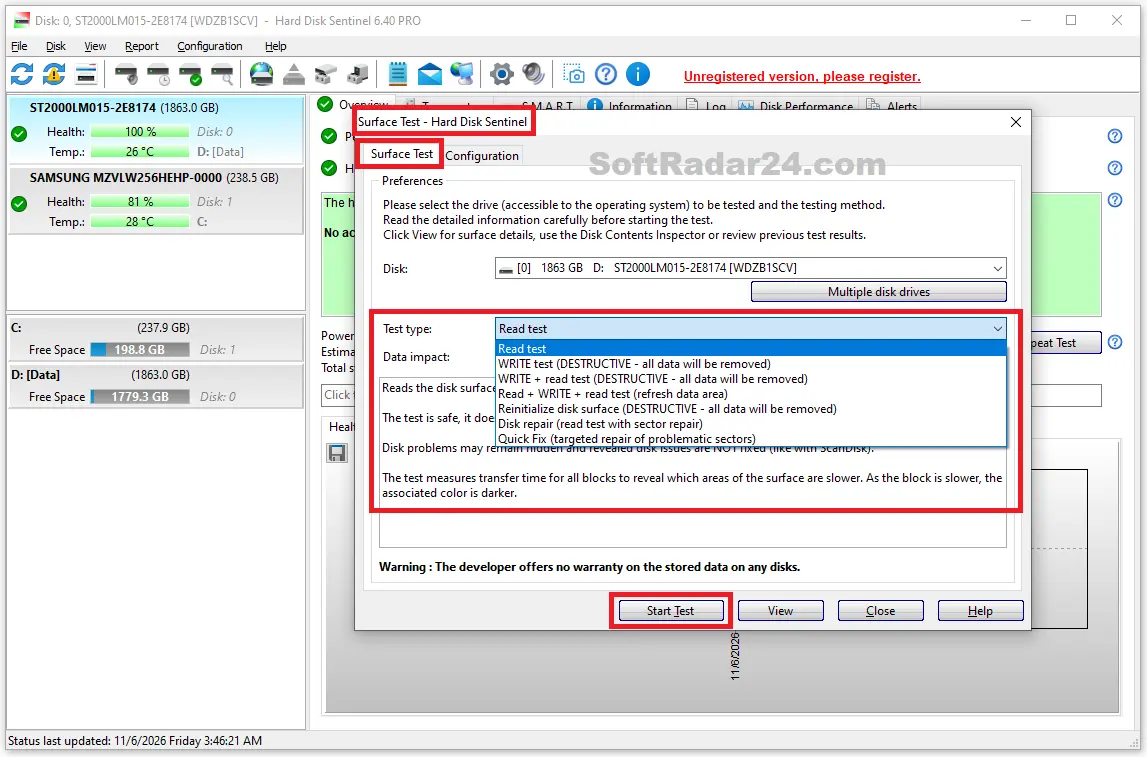
For a software surface scan, choose Disk > Surface Test, confirm the correct disk in the Disk selector and choose Read test under Test type. Read the Data impact explanation before selecting Start Test. The resulting block map distinguishes readable areas from slow or unreadable blocks. A READ test detects access problems but does not fix them; large or persistent slow regions deserve further investigation, not an assumption that all files are safe.
When to Use Professional Disk Repair and Advanced Surface Tests
Hard Disk Sentinel Professional includes Disk Repair and Quick Fix for certain weak or problematic sectors. Quick Fix concentrates on reported problem areas rather than scanning every sector. These tools cannot reconstruct information already corrupted on a damaged sector, and a repaired or reallocated sector does not erase the drive’s history of faults.
Refresh Data Area rewrites existing contents and can lose data if power, memory or disk stability fails. WRITE, WRITE + READ and Reinitialize Disk Surface overwrite stored information and are unsuitable for a drive holding files you still need. Reinitialization is not a routine way to improve an SSD’s health percentage. Make a verified backup before considering write-based tests, and do not run destructive tests on an active Windows system disk.
How Hard Disk Sentinel Professional Backup Works
Professional can copy selected files and folders according to a schedule or a disk warning. It uses named backup projects, not a complete Windows disk image or a guaranteed deleted-file recovery process.
How to Schedule Automatic File Backups
Open Configuration > Operations > Projects and select New to create a project. Choose Transfer files and folders as the Project type, then use Configure to specify the source folders and a destination on another drive or accessible network location. Save the project before opening Schedule to assign its run days and times. The Start Now control can run a properly configured project manually.
Professional can copy only new or changed files and verify copied data using CRC checks. Check that the destination has adequate free space and examine the results of an initial backup before relying on the schedule. Avoid the optional source-file deletion setting when your intention is to keep an independent copy.
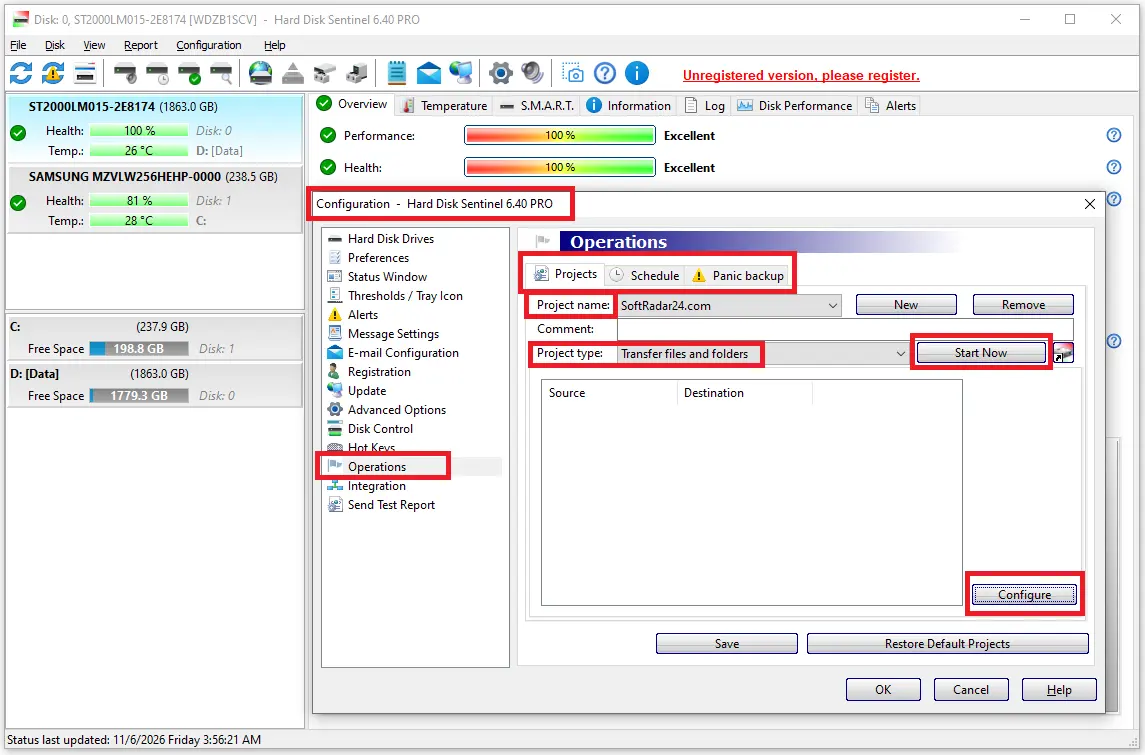
How Panic Backup Responds to Disk Problems
After creating a working backup project, open Operations > Panic backup to associate it with a disk or a general problem condition. Enable the relevant trigger in Configuration > Alerts, such as low health or excessive temperature. When the event is detected, Professional can start the assigned project without waiting for the next scheduled run.
Panic Backup depends on the source files remaining readable and the destination being available. It cannot guarantee that a failing disk will stay connected long enough to finish copying. Keep regular backups running before any warning appears; the event-triggered project is an additional precaution.
Hard Disk Sentinel Compatibility: Windows, SSD, USB and NAS
Hard Disk Sentinel Standard and Professional support Windows 11 and Windows 10, along with several earlier Windows and Windows Server releases. The software works with many SATA, NVMe, SAS, USB and other HDD/SSD connections, but the available readings depend on the drive and its controller. A disk appearing in Windows does not automatically mean its health, temperature and every S.M.A.R.T. attribute can be read.
Some USB enclosures block drive-health commands; hardware RAID controllers may hide individual disks; and certain SSDs do not supply temperature data. Professional’s NAS monitoring also requires a supported status source and configuration on the NAS side. Check your enclosure or controller compatibility if these readings matter to your purchase. The separate Linux and DOS tools are not Windows Standard/Professional installations.
Hard Disk Sentinel Lifetime License and Activation
Standard and Professional are lifetime licenses, not annual subscriptions. Each one-PC license covers one computer at a time; Professional Family extends the Professional license to five PCs. Future updates are included within the purchased edition, so a Standard license does not automatically become a Professional license. The manufacturer also provides free technical support for the product’s lifetime.
After purchase, enter the supplied 15-digit registration code under Configuration > Registration in the matching edition. Online activation is the normal method; an e-mail/keyfile method is documented for computers that cannot activate online. Professional Portable can be used without installation, but a single Professional license does not authorize simultaneous installed and Portable use as two separate copies. Choose the Family license or appropriate additional licenses if you need several concurrent installations.
Hard Disk Sentinel Standard and Professional FAQs
Can I try Hard Disk Sentinel before buying a license? Yes. The unregistered trial can show disk status and help you check whether your drives and controllers are detected. Some registered features and settings are restricted, so the trial is not the same as a fully licensed Standard or Professional edition.
Can Hard Disk Sentinel recover deleted files? No. Disk health analysis and sector repair are not substitutes for deleted-file recovery. If a file has been erased or its original sectors have become unreadable, a surface test cannot promise to restore its contents.
Why does my SSD show no temperature or health information? The SSD may not expose the required sensor or S.M.A.R.T. values, or a USB adapter or RAID controller may prevent those values from reaching Windows. Check the connection type and supported hardware first; changing the displayed health calculation does not restore missing sensor data.
Can I transfer my Hard Disk Sentinel license to a new PC? Yes, provided you stop using the old installation and stay within the licensed number of computers. You can install the matching edition on the replacement PC and activate it with your code. To preserve historical readings and settings, use Configuration > Update > Backup configuration before moving, then restore that backup on the new installation.
Does Hard Disk Sentinel work on Linux? The vendor offers a separate Linux edition for command-line disk information and reporting. It is not the Windows Standard or Professional interface, and a Windows lifetime license should not be treated as a license for an identical Linux desktop version.


