

Driver Genius 26 is a Windows PC driver updater that helps users find outdated drivers, review available updates, and manage drivers for graphics cards, audio devices, network adapters, and other hardware. Apart from the driver update feature, it provides tools to back up installed drivers before reinstalling Windows, restore saved drivers, roll back problematic updates, and recover missing network drivers when a PC has no internet connection.
Looking for a Driver Genius Pro & Platinum Edition coupon code or discount code? Compare the Pro and Platinum license deals below to choose the right edition for your Windows PCs. Pro covers driver updates, backup, and recovery, while Platinum adds SSD Speeder, System Booster, and System Cleanup. Both editions offer license options for three PCs, with discounted prices available through the purchase links without entering a separate coupon code.
Driver Genius Pro Coupon Codes
Driver Genius Pro Edition v26.0 — 2 Years / 3 PCs License Coupon Code – 66% OFF
2-Year License for 3 PCs
- Latest valid Driver Genius version 26.0.0.165.
- Driver updates for Windows 11, 10, 8.1, 8, 7, and Vista.
- Automatic driver scanning, downloading, updating, and installation.
- Faster driver download speeds.
- Back up drivers to ZIP or self-extracting archives.
- Create an EXE auto-installer for backed-up drivers.
- Restore backed-up drivers with one click.
- Offline driver updating.
- Clean up outdated drivers.
- 60-day money-back guarantee.
Driver Genius Pro Edition v26.0 — 1 Year / 3 PCs License Coupon Code – 50% OFF
1-Year License for 3 PCs
- Latest valid Driver Genius version 26.0.0.165.
- Driver updates for Windows 11, 10, 8.1, 8, 7, and Vista.
- Automatic driver scanning, downloading, updating, and installation.
- Faster driver download speeds.
- Back up drivers to ZIP or self-extracting archives.
- Create an EXE auto-installer for backed-up drivers.
- Restore backed-up drivers with one click.
- Offline driver updating.
- Clean up outdated drivers.
- 60-day money-back guarantee.
Driver Genius Platinum Discount Codes
Driver Genius Platinum includes the Pro driver-management tools plus SSD Speeder, System Booster and System Cleanup. These two three-PC plans also include an additional 60 days of license access.
Driver Genius Platinum Edition v26.0 — 2 Years + 60 Days / 3 PCs License Coupon Code – 63% OFF
2 Years + 60 Days / 3 PCs
- Latest valid Driver Genius version 26.0.0.165.
- Driver updates for Windows 11, 10, 8.1, 8, 7, and Vista.
- Automatic driver scanning, downloading, updating, and installation.
- Faster driver download speeds.
- Back up drivers to ZIP or self-extracting archives.
- Create an EXE auto-installer for backed-up drivers.
- Restore backed-up drivers with one click.
- Offline driver updating.
- Clean up outdated drivers.
- SSD Speeder: Improve SSD performance and help extend SSD life.
- System Booster: Optimize system settings to help Windows run faster and more smoothly.
- System Cleanup: Remove junk files and unused built-in Windows apps to free disk space.
- 60-day money-back guarantee.
Driver Genius Platinum Edition v26.0 — 1 Year + 60 Days / 3 PCs License Coupon Code – 48% OFF
1 Year + 60 Days / 3 PCs
- Latest valid Driver Genius version 26.0.0.165.
- Driver updates for Windows 11, 10, 8.1, 8, 7, and Vista.
- Automatic driver scanning, downloading, updating, and installation.
- Faster driver download speeds.
- Back up drivers to ZIP or self-extracting archives.
- Create an EXE auto-installer for backed-up drivers.
- Restore backed-up drivers with one click.
- Offline driver updating.
- Clean up outdated drivers.
- SSD Speeder: Improve SSD performance and help extend SSD life.
- System Booster: Optimize system settings to help Windows run faster and more smoothly.
- System Cleanup: Remove junk files and unused built-in Windows apps to free disk space.
- 60-day money-back guarantee.
Prices are in USD. Savings percentages are calculated from the regular and promotional prices shown and rounded to the nearest whole number. The additional 60 days on Platinum offers extend license access; the separate 60-day money-back guarantee concerns refunds. Review the final checkout total and license terms before payment.
Driver Genius Alternatives: Driver Easy PRO & DriverMax PRO
Need a license for several PCs, or prefer a shorter subscription or lifetime purchase? These two alternatives offer different ways to manage driver updates and choose the coverage that suits your computers.
Driver Easy PRO Coupon Codes & License Deals
Managing more than one PC? Choose from annual licenses covering 1 to 100 computers, with one-click driver updates, recovery tools, and offline scanning for missing network drivers.
20% Discount Code

DriverMax PRO Discount Codes & Lifetime Deals
Prefer flexible licensing? DriverMax PRO removes the free version’s driver installation limits. Compare 30-day, 90-day, annual, two-year, and lifetime offers with no daily install cap.
Up to 85% OFF
Driver Genius Pro vs Platinum: Which Should You Buy?
Driver Genius Pro and Platinum use the same driver update, backup, restore and offline driver tools. The reason to choose Platinum is not a different driver scanner: it adds SSD Speeder, System Booster and System Cleanup. If you only want to manage Windows drivers, Pro covers the main tasks. Platinum makes more sense if you also intend to use its disk and Windows maintenance tools.
| Feature | Pro | Platinum |
|---|---|---|
| Scan, download and update drivers | Included | Included |
| Driver backup, restore and rollback | Included | Included |
| Offline driver update | Included | Included |
| Driver cleanup and hardware information | Included | Included |
| SSD Speeder | Not included | Included |
| System Booster | Not included | Included |
| System Cleanup | Not included | Included |
What do Driver Genius Platinum’s extra tools do? SSD Speeder provides SSD and NVMe-related settings, including a native NVMe driver option added in Driver Genius 26. System Booster adjusts Windows settings and can import or export its configuration. System Cleanup targets temporary files, caches and unused Windows components; version 26 adds Intel driver cache cleanup. These tools require care when changing system settings or deleting files, and they do not guarantee a particular speed increase.
When choosing between the licenses above, consider duration separately from edition. A longer Driver Genius Pro plan gives you the driver-management features for a longer term; a shorter Platinum plan adds maintenance features but does not extend the Pro plan’s duration.
How to Use Driver Genius 26 on Windows
The screenshots in this guide show the Driver Genius Free Edition 26.0.0.165 interface. They confirm the location of the menus and visible controls; some operations, including Update All and creation of an EXE Auto-Installer, require a paid license.
How to Scan for Outdated Drivers and Install Updates
Driver Genius 26 starts a driver check from Home > Start Scan. Open Driver Update after the scan to review the available updates. The list shows each device name, driver date, version, an Update button and Release Notes where available. Read these details before replacing a working graphics, audio, storage or network driver.
- Open Driver Genius 26, select Home and click Start Scan.
- In Driver Update, review the listed devices and use Release Notes to check what an update addresses.
- Click Update beside a specific driver, or use the paid Update All control to process the listed updates together. Restart Windows if prompted.
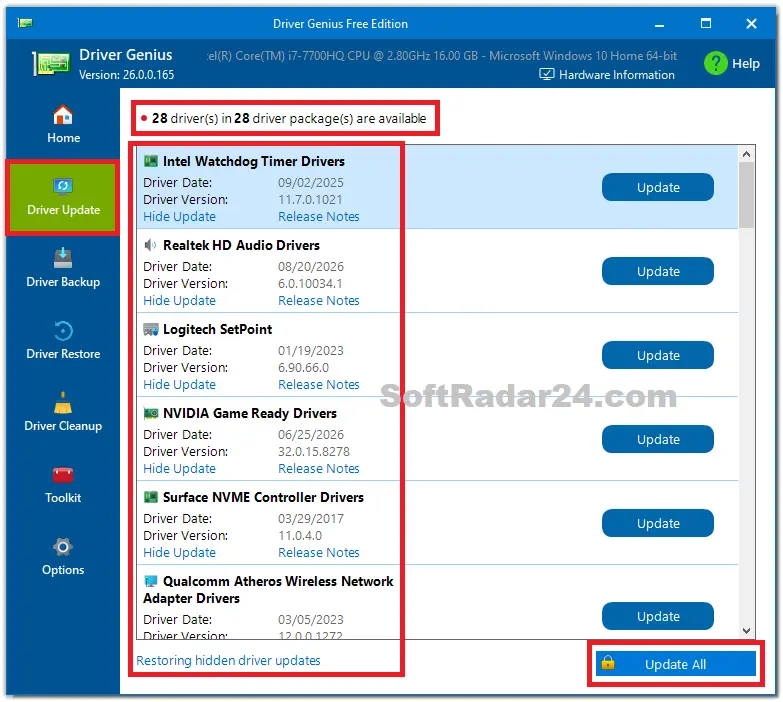
If a device is already working correctly, an available update is not automatically a reason to replace its driver. The list also offers Hide Update for an update you do not want to install and a way to restore hidden updates later.
How to Back Up Drivers Before Reinstalling Windows
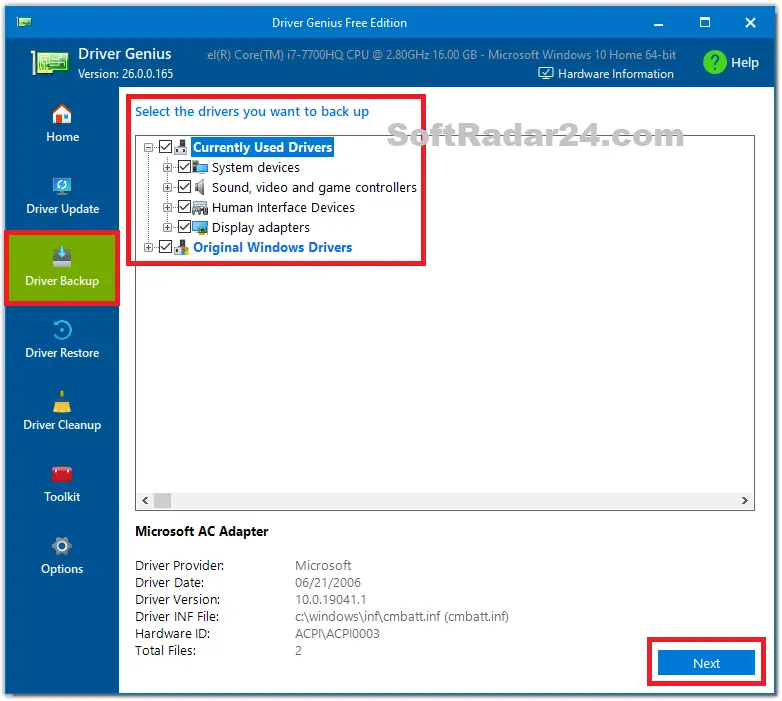
Driver Genius 26 separates Currently Used Drivers from Original Windows Drivers on the Driver Backup screen. Backing up the drivers currently in use is especially useful before reinstalling Windows, when a network, audio or display driver may be harder to find afterward.
- Open Driver Backup, expand the device categories and select the drivers you want to keep. Windows-supplied drivers may already be available after reinstalling the operating system.
- Click Next and choose where the backup will be stored. Do not save the only copy on the Windows partition you plan to erase.
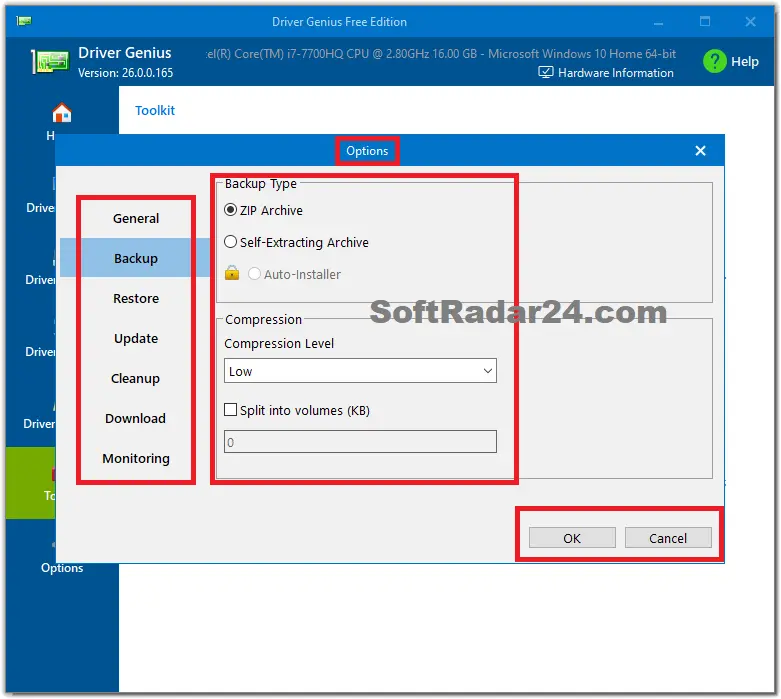
- Under Options > Backup, choose ZIP Archive for a compressed backup or Self-Extracting Archive for a self-extracting file. Paid editions also provide an Auto-Installer option for restoring drivers without manually installing each package.
How to Restore Drivers From a Backup
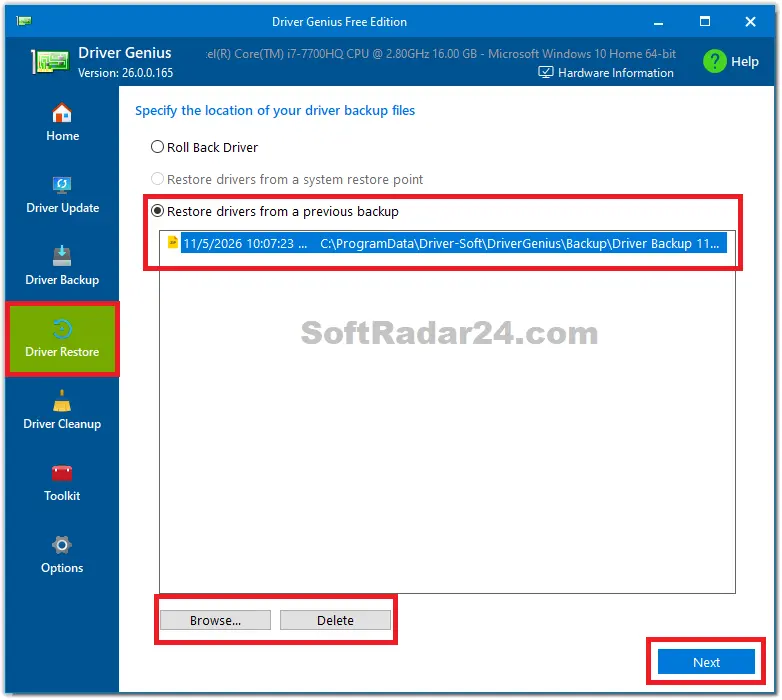
Driver Genius 26 restores previously saved driver packages from Driver Restore. Choose Restore drivers from a previous backup, not Roll Back Driver, when you are recovering drivers you saved before a Windows reinstall.
- Open Driver Restore and select Restore drivers from a previous backup.
- Choose a backup from the displayed list, or click Browse if the files are on another drive. Confirm that the backup belongs to the hardware and Windows installation you are restoring.
- Click Next, follow the driver selection and restoration prompts, and restart Windows if requested.
How to Roll Back a Driver After an Update
Driver Genius 26 also places Roll Back Driver on the Driver Restore screen shown above. Use it when a recently installed driver causes a new problem, such as missing sound, display errors or a network adapter that stops working. Select Roll Back Driver, click Next and follow the available recovery choices for the affected device.
Rollback aims to return a driver to an earlier installed version. It is not the same as restoring a ZIP backup created before reinstalling Windows, nor is it the same as restoring the whole system from a Windows restore point. If an earlier driver version is unavailable, use the relevant saved driver backup or other supported Windows recovery options instead.
How to Update Drivers Offline Without an Internet Connection
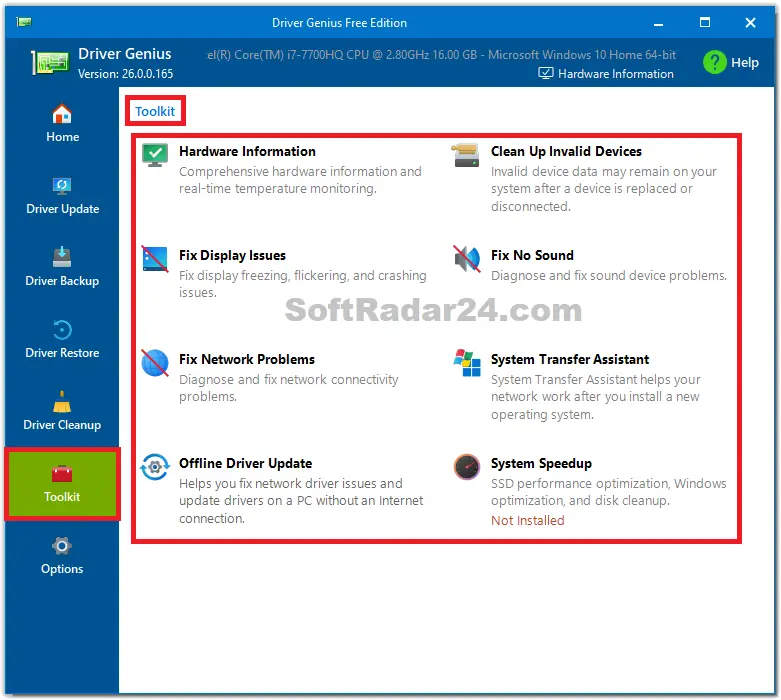
Driver Genius 26 includes Toolkit > Offline Driver Update for situations such as reinstalling Windows and discovering that the PC has no working Wi-Fi or Ethernet driver. Open the tool and follow the recovery choices it presents for the missing network driver. The screenshot confirms where to launch it, but does not show the later steps, so the exact package-selection controls are not described here.
Driver Genius 26 System Requirements and License Terms
Driver Genius 26 supports older Windows releases as well as Windows 11. Check the Windows version and device architecture before purchasing, particularly on a computer being rebuilt or upgraded.
| Requirement or term | Driver Genius 26 |
|---|---|
| Supported Windows versions | Windows 11, 10, 8.1, 8, 7 and Vista |
| System architecture | 32-bit and 64-bit Windows, where the listed Windows release supports that architecture |
| Windows 11 26H2 | Support is listed in the Driver Genius 26 release notes |
| Internet connection | Required for normal online driver searches and downloads; Offline Driver Update is provided for recovery when the affected PC cannot connect |
| Pro and Platinum licenses | Each of the offers listed above covers 3 PCs; the selected plan determines the license term |
Driver Genius Activation and renewals: Driver Genius supplies a license code after purchase. Registration instructions identify Help > Enter Code as an activation route, although the exact on-screen entry point may differ by edition. Driver database and content update rights depend on the purchased license term; renewing may be necessary after it ends. Do not confuse a license extension with the separate 60-day money-back guarantee, which is subject to the seller’s refund conditions.
For the manufacturer’s current purchase options and license details, visit the Driver Genius purchase page. Confirm the final checkout price and plan duration before payment.
Driver Genius Pro and Platinum FAQs
Do I need to enter a Driver Genius coupon code?
No manual code entry is needed for the offers displayed on this page. The discounted price is provided through the associated purchase link. Check the total shown at checkout before paying.
How do I activate Driver Genius Pro or Platinum?
Enter the Driver Genius license code supplied with your purchase. The manufacturer’s registration instructions use Help > Enter Code; the button or menu may look different in another edition. Keep the order email for future activation questions.
Why is my Driver Genius license code not working?
First, copy and paste the code to avoid typing errors. The manufacturer distinguishes codes beginning with PV and KX, which belong to different software distributions. Using the wrong installer can prevent registration. If the code still fails, contact the seller or Driver Genius support with your order details.
Does Driver Genius 26 support Windows 11 26H2?
Yes. The Driver Genius 26 release notes list Windows 11 26H2 support. A supported Windows version does not mean every optional driver update is appropriate for every device, so review the individual update information first.
What happens when my Driver Genius license expires?
The purchased term determines how long the licensed update services are included. Continued access to new driver database updates may require renewal. Check your specific license agreement rather than assuming that all paid updates remain available indefinitely.


